Export
Rillsoft Project passes project data on to other systems or formats. The export functions are available through File > Export, View Format > Data > Excel, and (with Integration Server) Add-ons > iCalendar.
Supported Formats
Format |
Use |
|---|---|
MS Project XML |
Data exchange with Microsoft Project or systems that read the MS Project XML format. |
XML |
Rillsoft’s own XML format for web publication or archiving (→ import with XML for web). |
MS Excel |
Tabular evaluations, further processing, and reports. Works for activity, resource, and capacity views. |
iCalendar |
Calendar subscription through Rillsoft Integration Server. Supplies MS Outlook, Apple Calendar, and similar clients with project tasks. |
Print output as PDF through File > Print (→ Print And Output). |
Export MS Project XML
Goal: the Rillsoft project is available as an XML file that MS Project can open.
In Rillsoft Project:
Click File > Export > MS Project XML.
Enter a file name.
Click Save.
In MS Project (open file):
Click File > Open.
In the file dialog, select the file type XML format (*.xml).
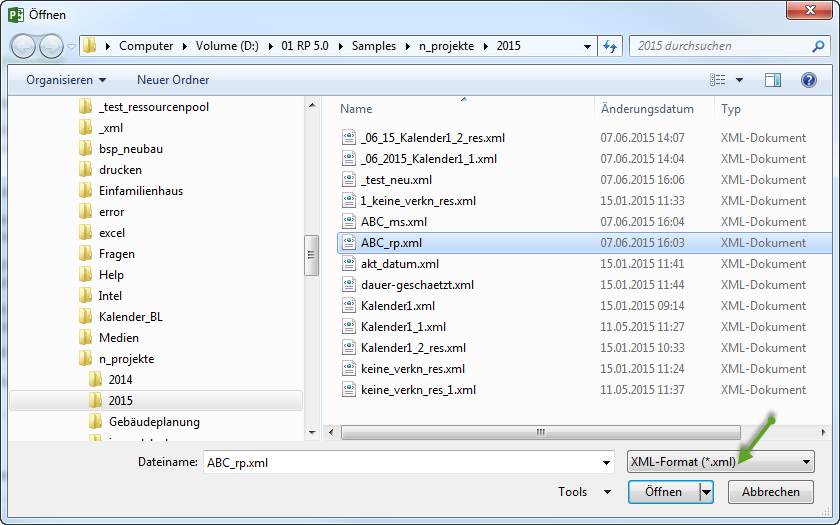
Select the exported XML file and click Open.
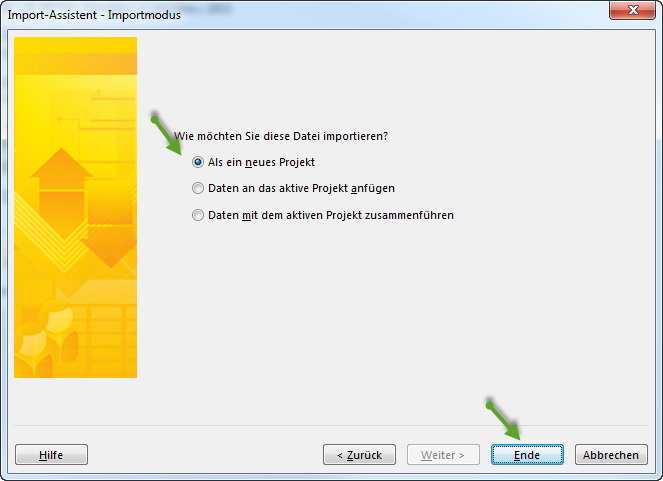
In the Import wizard, select As a new project and click Finish.
Export To Excel
Which views can be exported to Excel:
View type |
Exportable views |
|---|---|
Activity views |
Bar chart (Gantt) |
Resource views |
Employee, role, team, machine type, machinery, material demand |
Capacity views |
Capacity balancing employees, capacity balancing machines |
Tip: by enabling a filter before the export, the exported data can be restricted in time and by resource.
Steps:
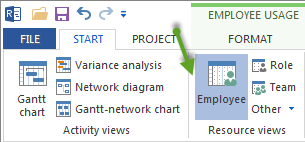
Click the desired view, for example Start > Resource views > Employee.
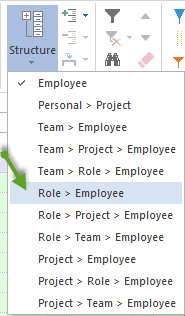
Structure the view via Start > Outline > Grouping, for example by Project > Role > Employee.
Set the timescale, for example Week 1:2 for weeks with factor 2.

Show further detail with + if needed.
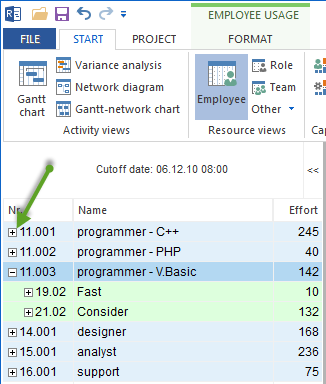
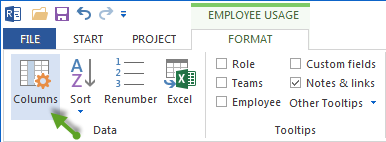
Check the columns via View Format > Data > Columns and switch off columns that are not needed.
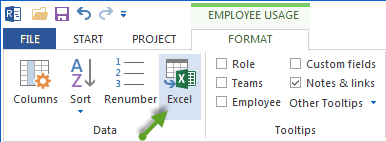
Click View Format > Data > Excel and assign a file name.
Alternative path: File > Export > MS Excel exports the last active view without further configuration.
Export iCalendar
Prerequisites:
The Rillsoft Integration Server is set up and reachable.
The user has the necessary access rights in the Integration Server.
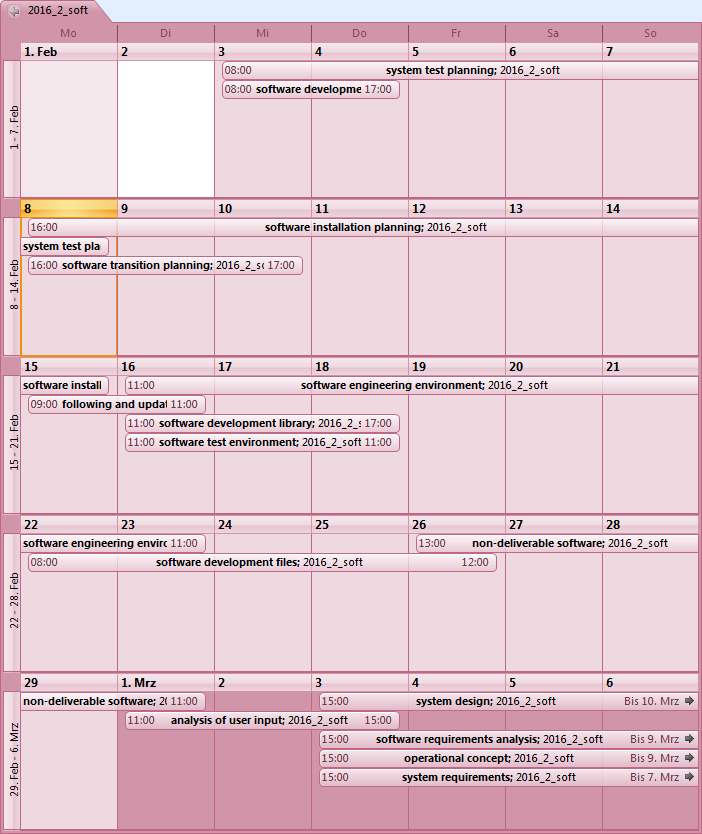
Available calendar types:
Calendar type |
Content |
|---|---|
User tasks |
Activities assigned personally to the logged-in user. |
Portfolio tasks |
Activities from all projects of a portfolio. |
Project tasks |
Activities of a single project. |
Steps:
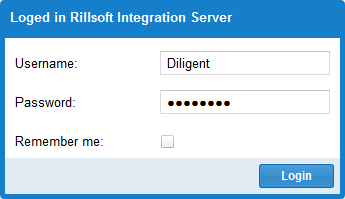
Log in to the Rillsoft Integration Server through the web interface.
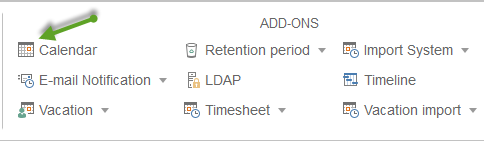
Click Add-ons > iCalendar.
Select the calendar type, for example Project calendar.

Select the project in the list and click the calendar button in the Action column.
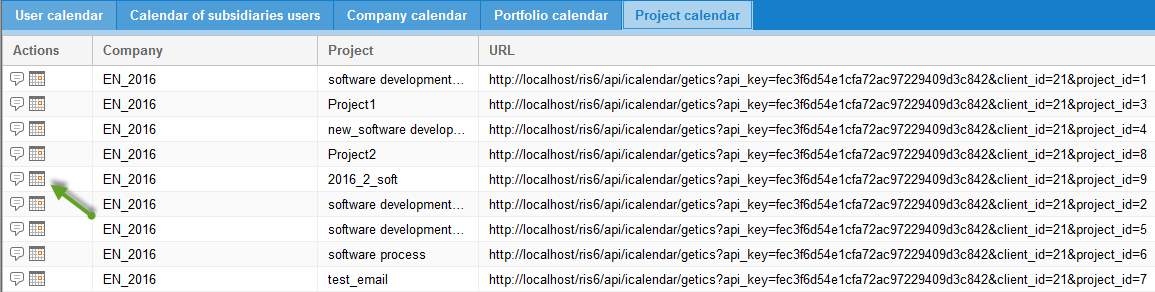
Result: the browser opens an iCalendar link that you can add as a subscription in MS Outlook, Apple Calendar, or another iCal-capable client.
Export XML
File > Export > XML creates Rillsoft’s own XML format. This file can be read back in via File > Import > XML for web. The format is suitable for archiving and transfer between Rillsoft Project installations.
Click File > Export > XML.
Enter a file name.
Click Save.
Check Before Export
recipient and required format
visible confidential data
current plan versus baseline comparison
filters, columns, and time range
opening the export in the target system