Program Settings (File > Settings)
The program settings control the behaviour, the display, and the interface connection of Rillsoft Project. Open the dialog through File > Settings.
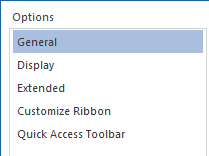
The dialog contains six tabs:
General — default parameters, storage locations, display, advanced options, and project versions
Display — colours, sizes, and fonts for diagrams and tables
Views and properties — visibility of tabs in views and property windows
MCP server — local MCP access for external tools and assistants
Customize ribbon — user-defined tabs and groups in the ribbon
Add quick access — quick access toolbar and keyboard shortcuts
General Tab
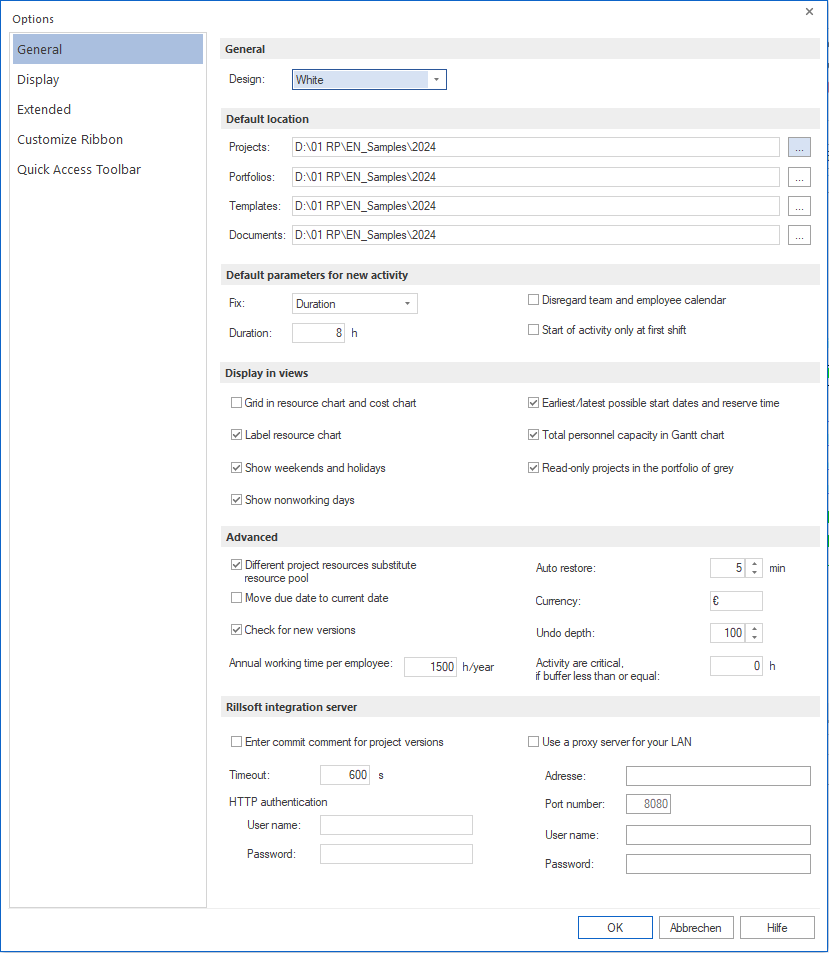
Rillsoft theme
Select the colour scheme for the program interface.
Default storage location
Defines default directories for file storage:
Field |
Meaning |
|---|---|
Projects |
Default directory for project files |
Portfolios |
Default directory for portfolio files |
Templates |
Default directory for project templates |
Documents |
Default directory for reports and output documents |
Note: With database-based work using Rillsoft Integration Server (RIS), projects are stored in virtual directories in the database. The virtual directory structure is defined in the RIS web interface.
Default parameters for a new activity
Defines how new activities are calculated by default:
Option |
Behaviour |
|---|---|
Fixed duration |
The activity duration stays constant. Effort and resource utilisation are calculated. Recommended when the activity duration is known. |
Fixed effort |
The effort stays constant. Utilisation and activity duration are calculated. Recommended for qualification-based planning with known effort. |
Duration |
Default value for the duration of new activities. |
Ignore team and employee calendars |
Team and employee calendars are ignored for new activities. |
Start activity only at the start shift |
New activities may only start at the start shift. |
Display in views
Controls which elements are visible in Gantt, resource, and cost diagrams:
Option |
Effect |
|---|---|
Show grid in resource diagram and cost diagram |
Shows grid lines in resource and cost diagrams. |
Label resource diagram |
Labels resource bars with the current utilisation value. |
Show weekends and holidays |
Highlights weekends and holidays in diagrams. |
Show non-working days |
Shows employee sickness and vacation in diagrams. |
Calculation of free float |
Enables automatic calculation of earliest possible start, latest possible finish, and free float on project changes. When disabled, earliest and latest possible start and finish dates are not available in the table. |
Total work capacity in the Gantt chart |
Displays the total work capacity of all professional qualifications as a line in the resource diagram. |
Grey out read-only projects in the portfolio |
Shows read-only projects in the portfolio in grey. |
Advanced options
Option |
Description |
|---|---|
Automatically replace deviating project resources from the resource pool |
Projects with deviating resources are automatically switched to the resource pool if the deviation only concerns new non-working days or cost changes. For deep resource differences, a manual switch is required. |
Move cutoff date to current date |
Automatically sets the cutoff date to the current date when a project is opened. |
Auto recovery |
Time interval for automatic project backup in minutes. |
Check for new version |
Checks at program start whether a newer version is available. |
Annual working time per employee |
Annual working time in hours for calculating the full-time equivalent (FTE) and resource capacity. |
Currency |
Currency code for cost calculation (for example EUR, USD). |
Undo depth |
Maximum number of steps that can be undone. |
Activities are critical if buffer is less than or equal to |
Threshold for classifying activities as critical. An activity is considered critical if its buffer does not exceed this value. |
Project Versions
Field |
Meaning |
|---|---|
Record commit comment for project versions |
Enables adding comments to each saved project version. |
Note: There is no separate “Integration Server” settings page with RIS credentials and proxy server fields anymore. The connection to the Rillsoft Integration Server is not maintained through the program settings, but through the login dialog when opening a project or portfolio from the RIS (server address, user name, and password).
Display Tab
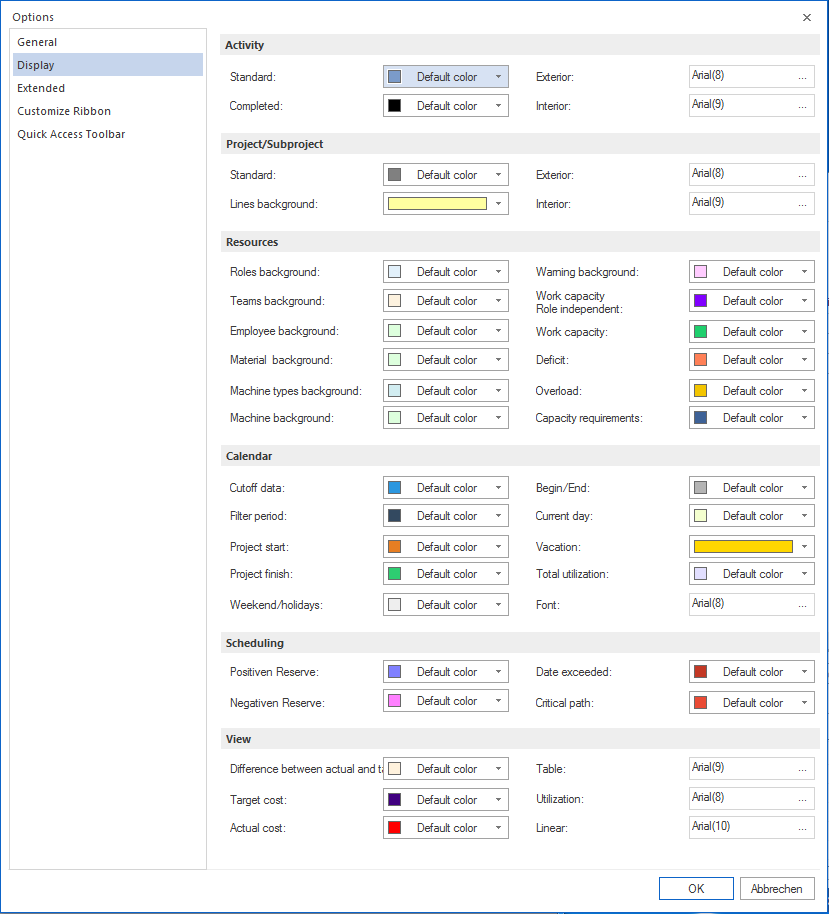
Controls colours and sizes for various display objects in the interface.
View
Ruler — font size for the ruler in resource and bar diagrams on the left.
Change font and font size
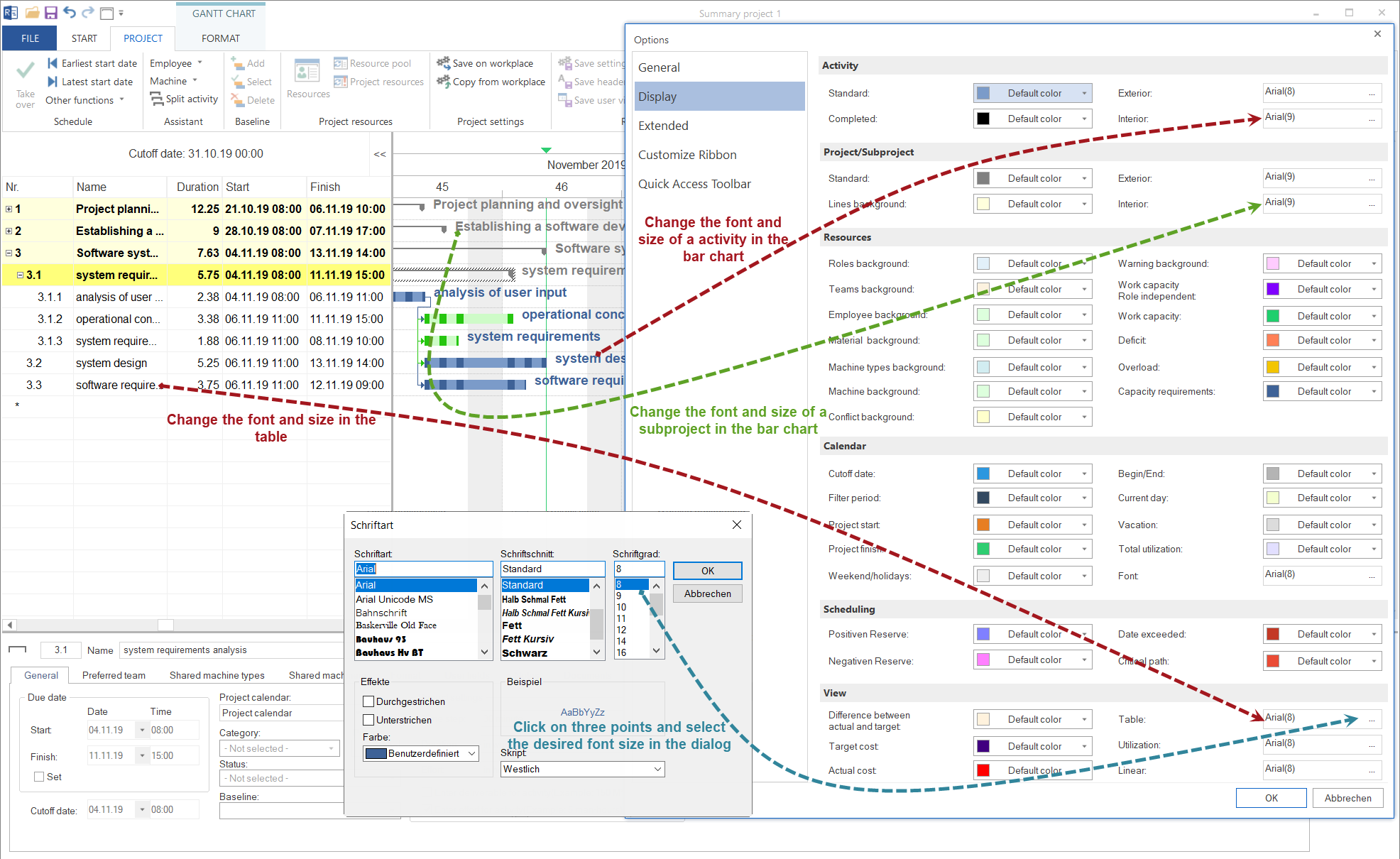
You can adjust the font and font size separately for diagram areas and table areas. Click File > Settings > Display and select the desired options for font and font size.
Views And Properties Tab
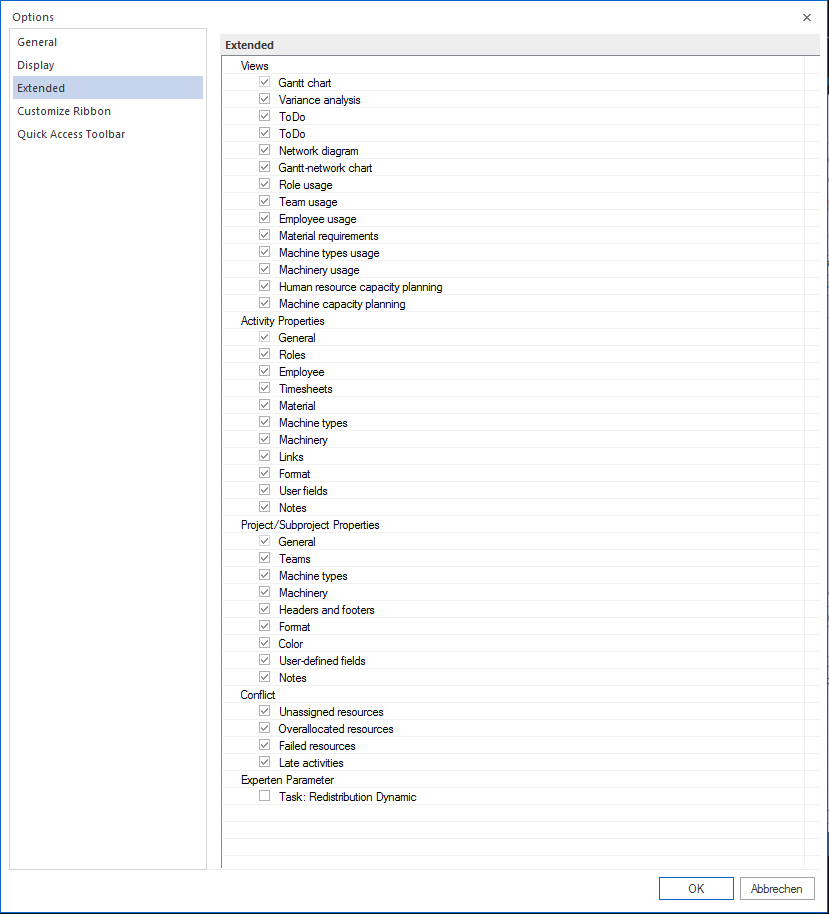
Controls which tabs are shown in views and property windows:
Area |
Meaning |
|---|---|
Views |
Selection of the views available in the view selection. |
Activity properties |
Tabs shown in the upper area of the activity properties window. |
Project/subproject properties |
Tabs shown in the upper area of the project properties window. |
Conflict |
Tabs shown in the upper area of the information window (info panel). |
Tabs that are not needed can be hidden to reduce the interface to the essentials.
MCP Server Tab
Controls the local MCP server of Rillsoft Project. External tools and assistants can use this server to access Rillsoft Project functions when access is enabled in the program settings.
Server
Option |
Meaning |
|---|---|
Enable MCP server |
Turns the local MCP server on or off. |
Port |
Defines the local port. Port 3928 is used by default. |
Server address |
The server can only be reached on this computer (127.0.0.1). The local address is shown in the dialog, for example http://127.0.0.1:3928/mcp. |
Access
Option |
Meaning |
|---|---|
Read-only access |
Restricts MCP access to read operations. |
API key |
Optional access key for multi-user or terminal server environments. If the field is left empty, no key is used. |
Generate new |
Creates a new API key. |
Note
The MCP server is intended for local access and runs on the port specified in the settings.
Customize Ribbon Tab
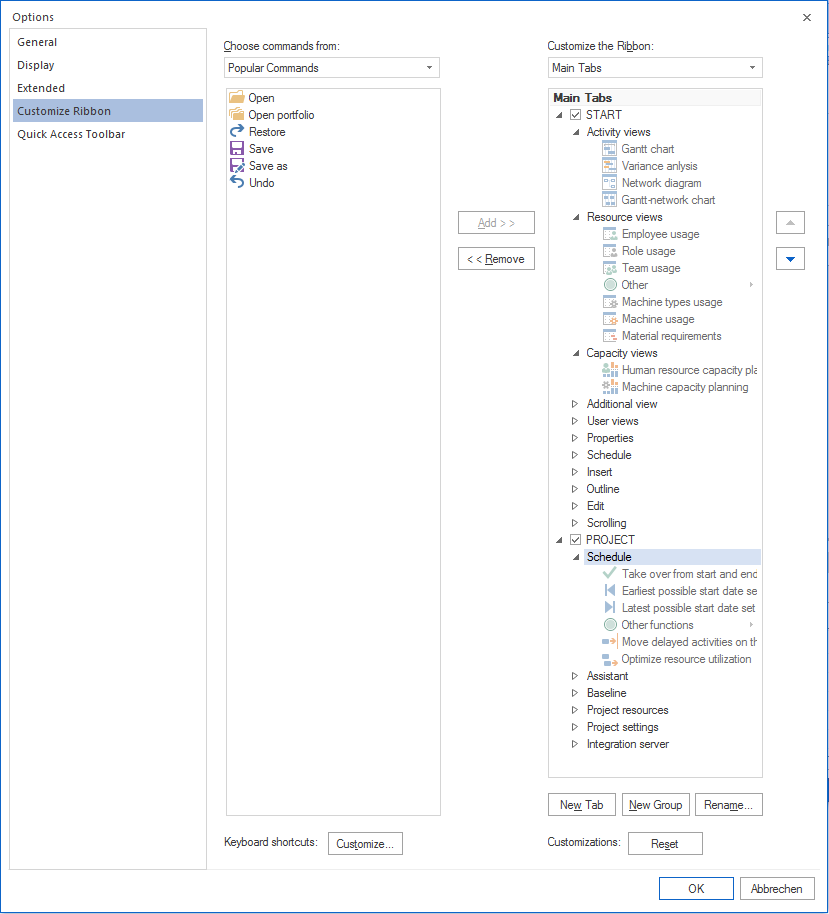
Allows the individual design of the ribbon:
create user-defined tabs
create user-defined groups within tabs
combine frequently used commands in your own groups
Predefined tabs and groups are retained. User-defined elements are added in addition.
Add Quick Access Tab
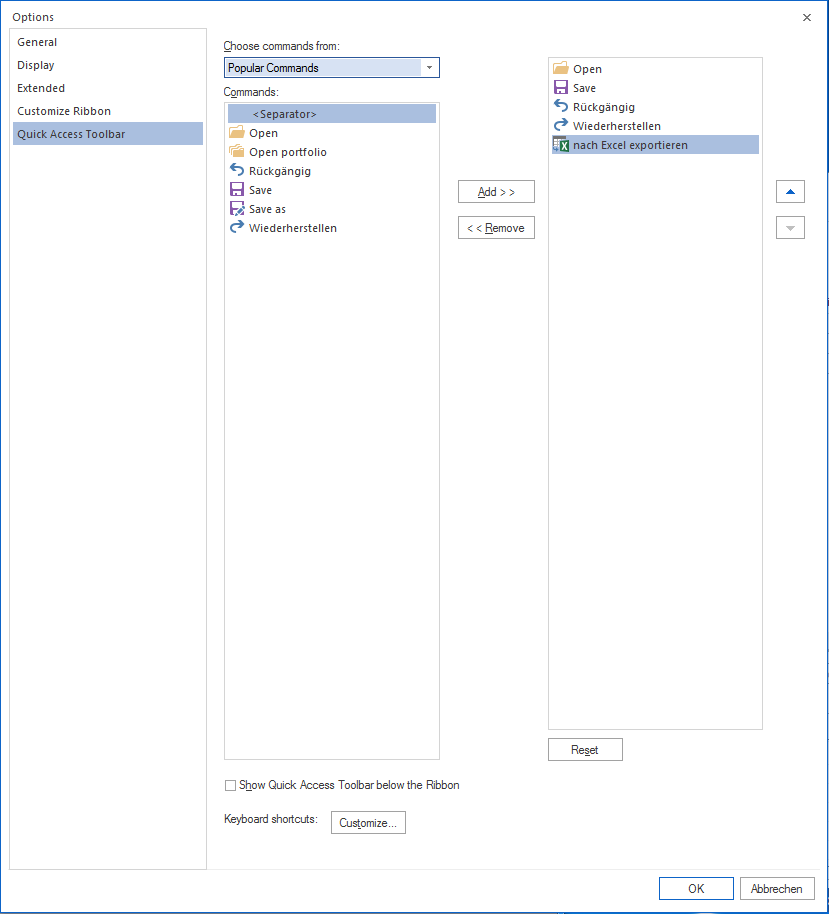
Customises the quick access toolbar:
add buttons for frequently used commands
choose the position of the toolbar: above or below the ribbon
Note
Only commands can be added to the quick access toolbar. Other elements (galleries, input fields) are not available.
Customize keyboard shortcuts
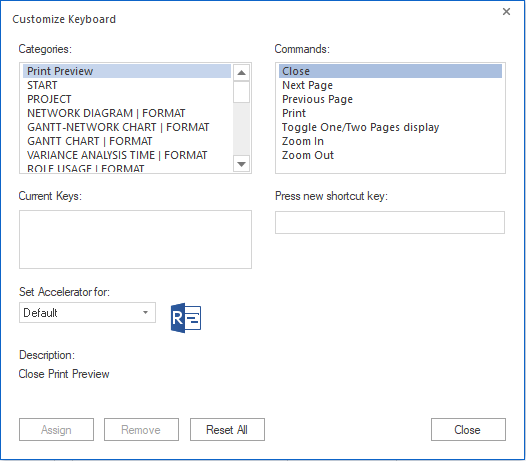
Custom keyboard shortcuts can be defined for frequently used commands.
Copy Settings From The Workplace
Independently of the program settings under File > Settings, you can save project-related default settings on the workplace and transfer them to other projects.
The following settings can be saved on the workplace and used as defaults for other projects:
project properties, for example time units for duration and effort
column layout in tables
timescale display
Project properties are defined in the object properties window.
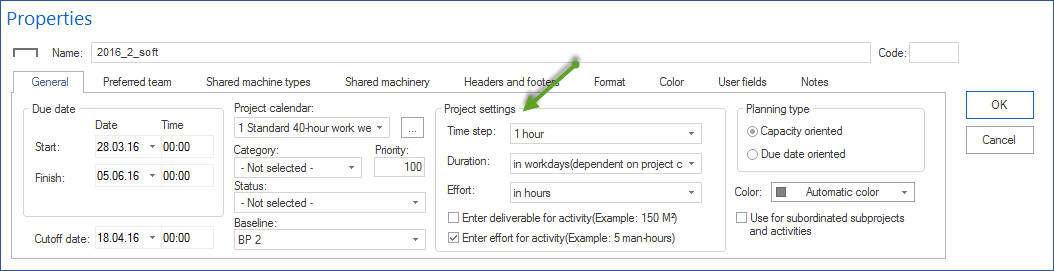
If the settings were saved on the workplace before, apply them to an open project with Project > Project settings > Copy from workplace.
