Why Does My Project Date Shift?
Rillsoft Project calculates dates automatically from tasks, dependencies, and resources. The project finish date therefore shifts when a task on the critical path becomes longer, when non-working days of an assigned employee extend a capacity-oriented task, when a fixed subproject limits the schedule frame, or when dependencies are missing or incorrect. The fastest entry point is Start > Properties > Info > Late activities.
Symptom
The project finish date moves later although no tasks were moved manually. Or one task is moved and the entire project finish date changes.
Why This Happens
Rillsoft Project calculates the schedule based on tasks, dependencies, resources, and scheduling rules. When a task is moved forward, successor planning is recalculated automatically as far as tasks are not fixed. This is intended behavior: the plan remains logically consistent.
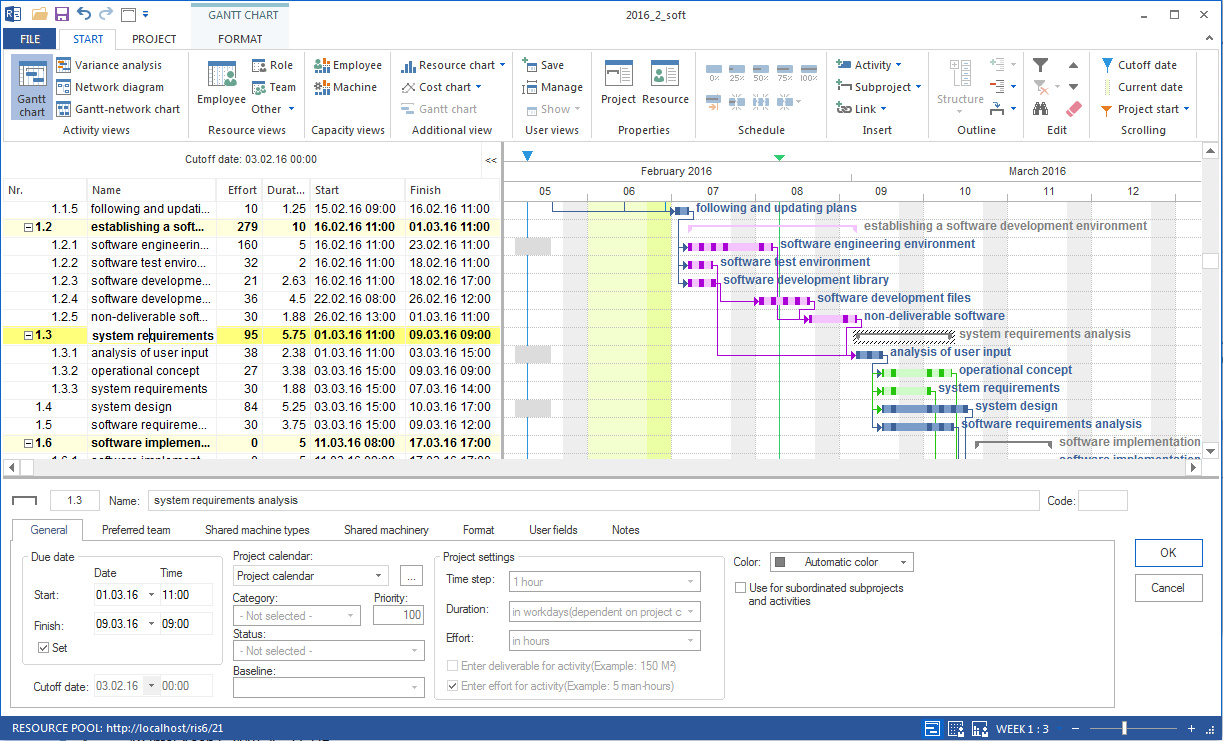
When the finish date shifts, the cause lies in the plan itself. Common causes are the critical path, resource availability, fixed subprojects, or missing dependencies.
Cause 1: Task on the Critical Path
Tasks on the critical path have no float. Every extension or shift of such a task directly shifts the project finish date.
Check:
Switch to the Gantt view.
Check the red tasks on the critical path.
Find the task whose duration, start, or finish changed.
Solution:
check and correct the duration of the causing task
split the task into meaningful work packages
assign additional suitable resources
accelerate predecessors if this is technically possible
Cause 2: Non-Working Days of the Assigned Employee
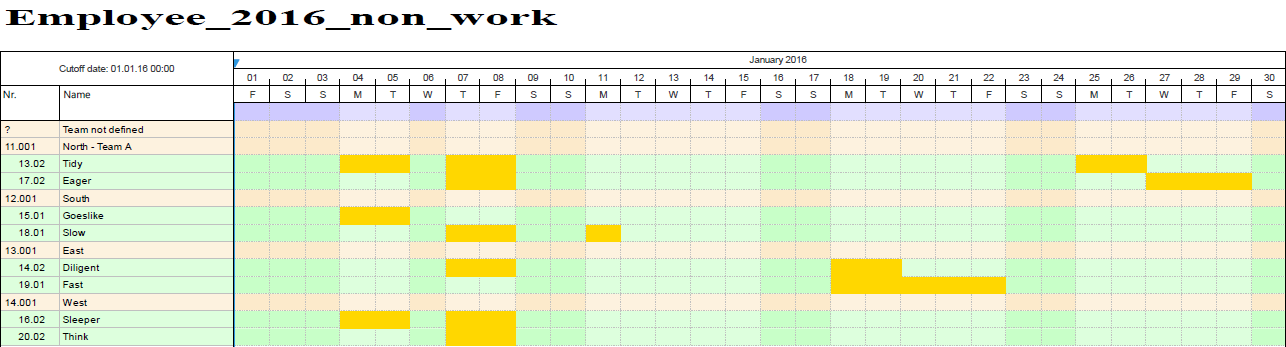
If capacity-oriented planning is used and a named employee is assigned to a task, Rillsoft Project considers that employee’s working time. If non-working days, vacation, illness, or other absences fall within the task period, the task is extended by these non-working days. If non-working days lie directly at the planned start, the task may start later.
This is not a general overload reaction. It is the result of an employee assignment combined with capacity-oriented planning: the task can only be worked on days when the assigned employee is available.
Check:
Check whether capacity-oriented planning is used for the project or task.
Open the affected task and check the employee assignment.
Open the resource pool and check the assigned employee’s calendar, working time, and non-working days.
Check whether non-working days lie within the task period or directly at the planned start.
Check in the Gantt chart whether the task is extended or starts later because of this.
Solution:
correct non-working days if they were maintained incorrectly
assign another available employee with a suitable professional qualification
intentionally move the task to a period with sufficient availability
distribute the effort across several available employees if needed
check whether capacity-oriented planning is intended for this case
Cause 3: Fixed Date in a Subproject
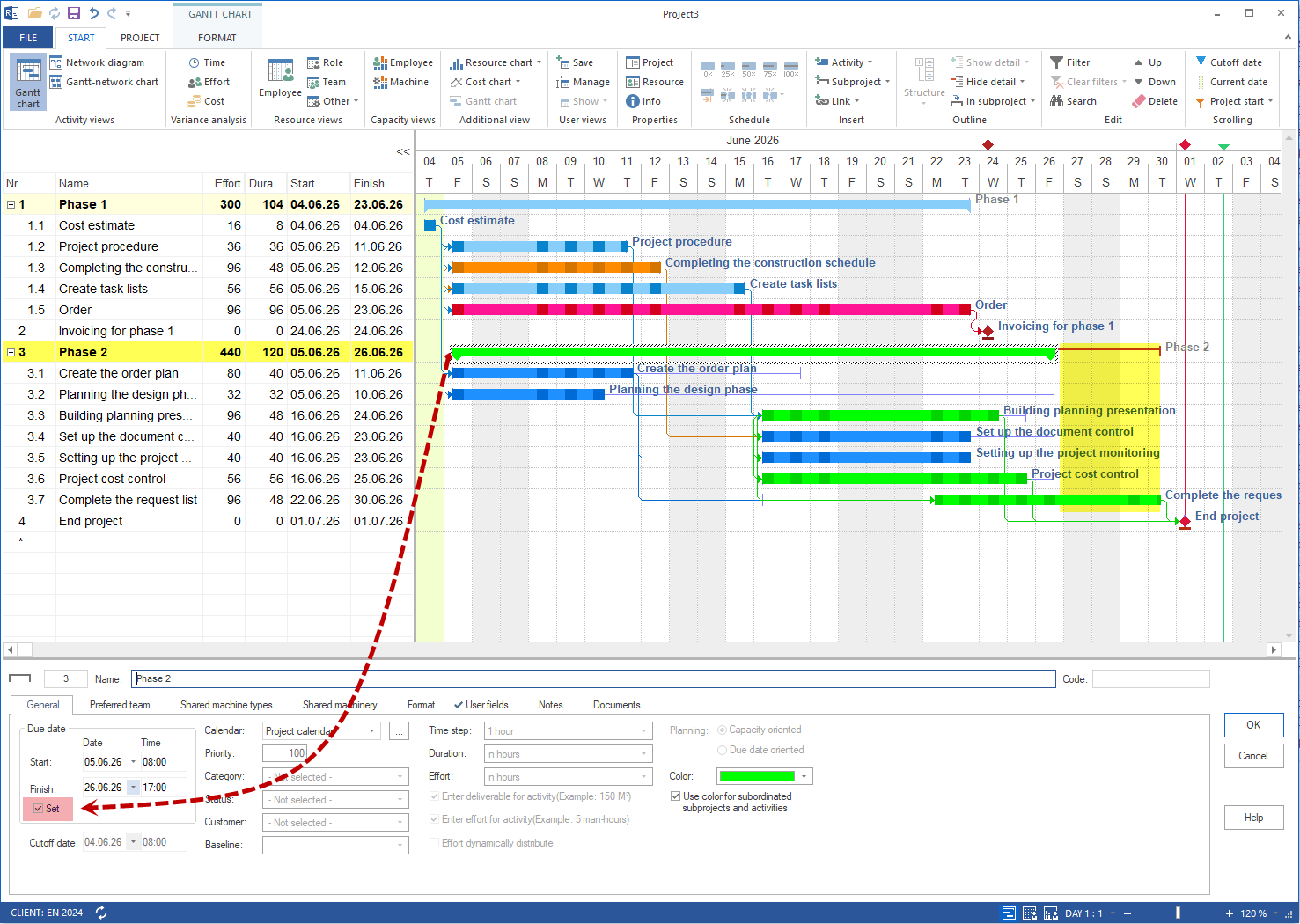
If a subproject has fixed start or finish dates, tasks inside that frame can create red date overruns. The project finish date shifts especially when the subproject lies on the critical path.
Check:
Open the subproject properties.
Check fixed start and finish dates.
Check whether tasks inside the subproject take longer than planned.
Solution:
adjust the fixed date if the planning situation requires it
shorten or replan tasks inside the subproject
check resource demand and capacity
Cause 4: Missing or Incorrect Dependencies
If tasks are not linked correctly, Rillsoft Project may calculate sequences that do not match the real process. If a missing dependency is added later, the finish date can immediately jump back.
Check:
Switch to the network diagram view.
Check whether the tasks are logically connected.
Check dependency type and lag.
Solution:
add missing dependencies
correct wrong dependency types
remove unnecessary dependencies
Quick Check
Open Start > Properties > Info > Late activities. This view shows affected tasks compactly and is a fast starting point for root-cause analysis.
