Assign Additional Resources
Besides employees and roles, Rillsoft Project can assign teams, material, machine types, and machinery to tasks. This article describes those resource types and explains the relevant fields in their properties.
Assign Teams
Teams are predefined groups of employees with shared capacity. Assigning a team to a task means that the team as a whole is planned for that task.
Note
Direct team assignment in Rillsoft Project is available only in the Standard edition. In the Light, Professional, and Enterprise editions, tasks receive their team assignment indirectly through assigned employees and their team membership.
Assign teams when:
a group of employees works together on a task and individual assignment is not required
team capacity is used as the planning unit
team staffing and team availability are controlled from the resource pool
Workflow:
Select the task in the Gantt chart or task list.
Open task properties by double-clicking the task or using Start > Properties.
Open the Employees tab.
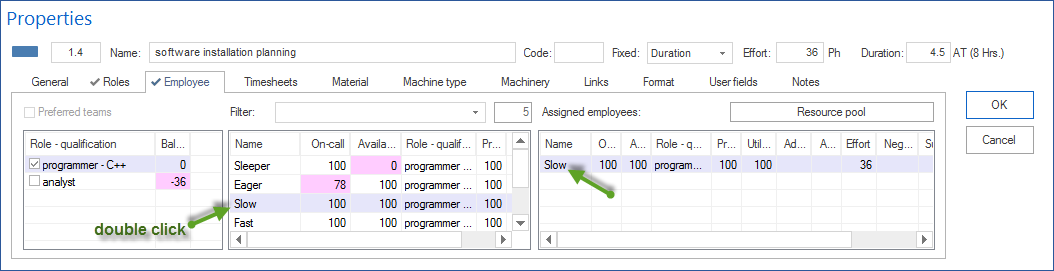
Double-click a team in the left table to assign it to the task.
Define capacity, workload, and effort.
Confirm with OK.
Fields in team assignment properties:
Field |
Meaning |
|---|---|
Team |
Name of the assigned team from the resource pool. |
Capacity |
Team capacity for this task. |
Workload (%) |
Share of team capacity planned for this task. |
Effort |
Planned total team effort for this task in hours or days. |
Notes |
Optional notes about the team in the task context. |
Role Assignment Properties
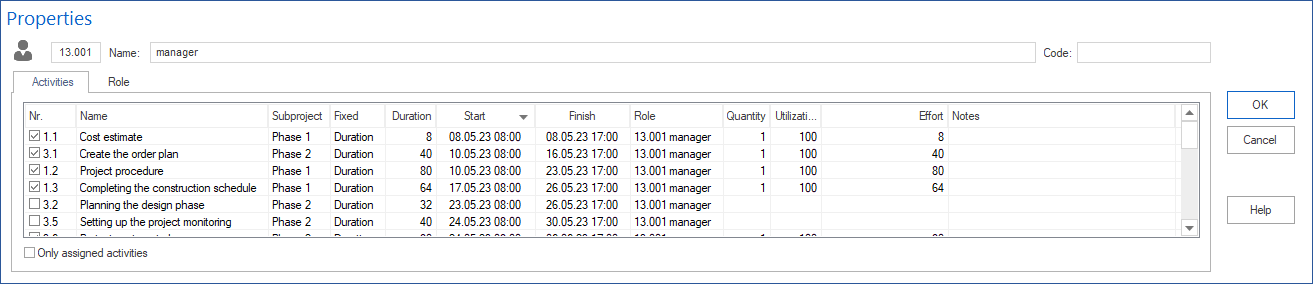
When a professional qualification (role) is assigned to a task, the properties window contains the following fields.
Field |
Meaning |
|---|---|
Role |
Professional qualification from the resource pool. |
Number |
Number of people with this qualification required for the task. |
Workload (%) |
Work share per person as a percentage of normal working time. |
Effort |
Total role effort for the task. |
Notes |
Optional notes about the role in the task context. |
More about qualification-based planning: Plan Resource Demand by Qualifications.
Employee Assignment Properties
When a concrete employee is assigned to a task, the properties window contains the following fields.
Field |
Meaning |
|---|---|
Employee |
Name of the assigned employee from the resource pool. |
On-call |
Percentage of possible working capacity within the task period, adjusted for non-working days such as vacation or illness. |
Availability |
Percentage of possible working capacity within the task period, adjusted for participation in other tasks. |
Productivity |
Percentage value with which the employee works on the task; suggested from the resource pool. |
Workload (%) |
Work share as a percentage of normal working time. |
Additional utilization |
Shows whether workload may be higher on other days because of non-working days. Visible only with due-date-oriented planning. |
Absence |
Opens the absence window. Defines days when the employee does not participate in the task. |
Effort |
Planned effort of the employee for this task. |
Negative effort |
Difference between role effort and employee-covered effort. Visible only with due-date-oriented planning. |
Substitution for |
Shows whether the resource is planned as a substitute and for whom. |
Responsible |
Checkbox for entering the employee as responsible for the task. |
Notes |
Optional notes about the employee in the task context. |
More about employee assignment: Assign Employees Directly.
Assign Material
Material is assigned to tasks when consumable material or a quantity-planned resource is required.
Typical material:
construction material such as concrete, steel, or wood
consumables such as paint, cables, or seals
flat costs such as license fees or travel costs
Workflow:
Select the task and open its properties.
Open the Material tab.
Use Filter to search by material group, material type, or code. Enter two dots
..to show material already used in the project.Double-click an entry in the left table to assign it to the task.
Select the calculation method in Calculation and enter the quantity if required.
Confirm with OK.
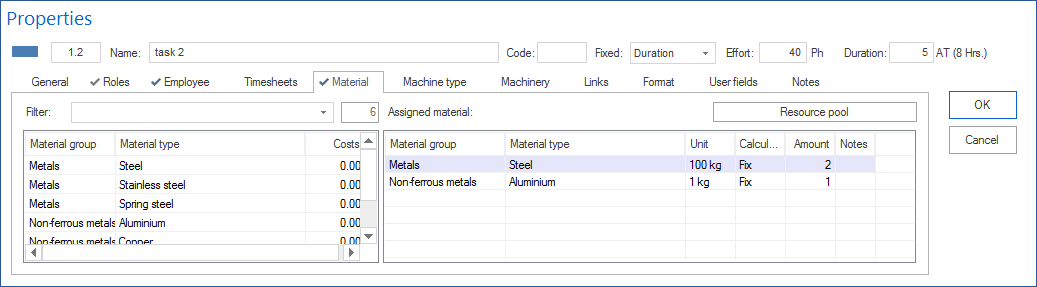
Fields in material assignment properties:
Field |
Meaning |
|---|---|
Material |
Name of the material from the resource pool. |
Calculation |
Material demand calculation: Fixed, per hour, per man-hour, or per quantity. |
Quantity |
Planned material quantity for the task. |
Notes |
Optional notes about the material in the task context. |
Assign Machine Types
Machine types are technical resources assigned as a type to a task.
Workflow:
Select the task and open its properties.
Open the Machine types tab.
Use Filter to search by machine group, machine type, or code. Enter two dots
..to show machine types already used in the project.Double-click an entry in the left table to assign this machine type.
Enter number and workload if required.
Confirm with OK.
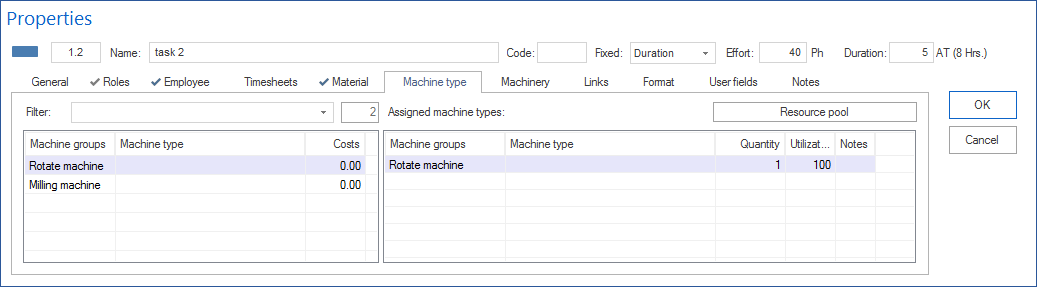
Fields:
Field |
Meaning |
|---|---|
Machine type |
Machine type from the resource pool. |
Number |
Required number of machines of this type. |
Workload (%) |
Workload of the machine type for this task. |
Notes |
Optional notes about the machine type in the task context. |
Assign Machinery
Concrete machines from the machinery pool are assigned when specific machines should be planned.
Workflow:
Select the task and open its properties.
Open the Machinery tab.
Select a machine group or machine type in the assigned machine groups table to filter the machinery list.
Select Preferred and assigned teams if only machines from assigned teams should be shown.
Use Filter to search by machine group, machine type, or code. Enter two dots
..to show machines already used in the project.Check Availability in the middle table.
Double-click an entry to assign the machine.
Enter workload and notes if required.
Confirm with OK.
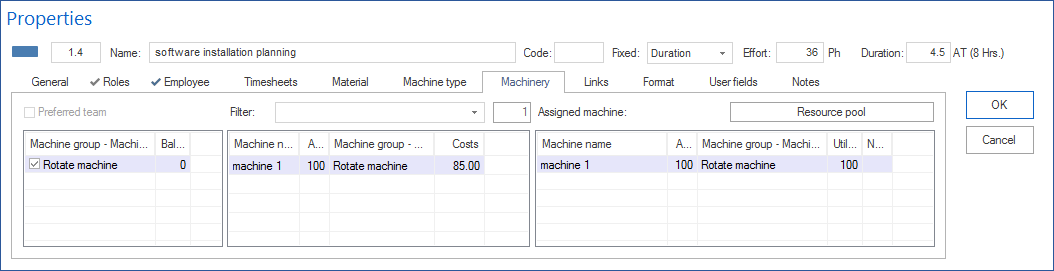
Fields and displays for machinery:
Field / display |
Meaning |
|---|---|
Machine |
Concrete machine from the machinery pool. |
Workload (%) |
Workload of the machine for this task. |
Availability |
Percentage of possible machine capacity within the task period, adjusted for participation in other tasks. |
Balance |
Dynamic difference between requested number for the machine type and the summed number of assigned machines of the same type. |
Number-workload |
Required number of machines and workload for the machine type. Disabled by default. |
Notes |
Optional notes about the machine in the task context. |
General Notes
Maintain the resource pool first: All assignable resources must exist in the resource pool before they can be assigned to a task.
Resource utilization views: Resource utilization views exist for roles, teams, employees, machine types, machinery, and material. They show bottlenecks before assignments become binding.
Time entry: Completed working hours are shown on the Timesheet tab of task or employee properties after they have been entered in Rillsoft Integration Server. See Employee Time Entry.