Reload a Project
When several people work with the same project data at the same time, the currently open project state can become outdated. Changes made by other project managers or editors become visible only after reloading.
This is especially important when:
other project managers or editors have saved changes
a subproject was edited and saved separately
you want to check current project data in a portfolio or summary project
you want to make sure you see the current state before checking the schedule
Reload From the File Menu
To reload the current project:
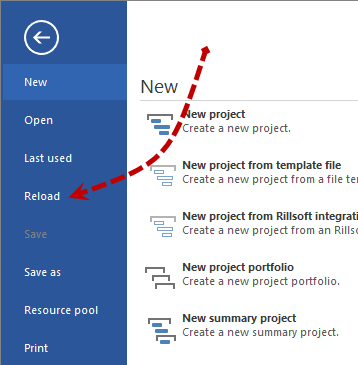
Choose File > Reload Project.
Then check whether dates, dependencies, subprojects, or resource information have changed.
Repeat the schedule check if the project state has changed.
Reload From the Quick Access Toolbar
Alternatively, use the Quick Access Toolbar:
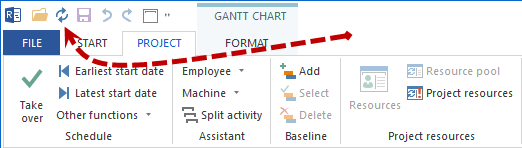
Click Reload in the Quick Access Toolbar.
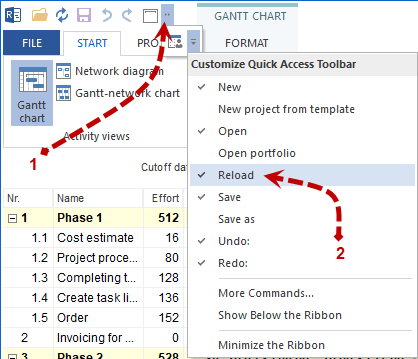
If the icon is not visible, open Customize Quick Access Toolbar.
Add the Reload command.
Check After Reloading
Reloading does not replace a professional check. It only makes sure that you work with the current saved project state.
Afterwards, still check:
dependencies
durations
subproject boundaries
free float
resource demand and capacities