Assign Employees After Capacity Balancing
Goal
Assign employees only after Rillsoft Project has compared resource demand with resource supply. This variant is the recommended path for qualification-based planning.
When This Variant Is Useful
Use this variant when:
tasks were first planned by professional qualifications
several employees are suitable for the same qualification
working times and non-working days must be considered
bottlenecks should be detected before assignment
several projects or subprojects compete for the same employees
Prerequisites
Before assignment, these items should be complete:
Employees exist in the resource pool and are described with roles.
The corresponding roles have been assigned to tasks.
Working times, calendars, and non-working days have been checked.
Use the Capacity View
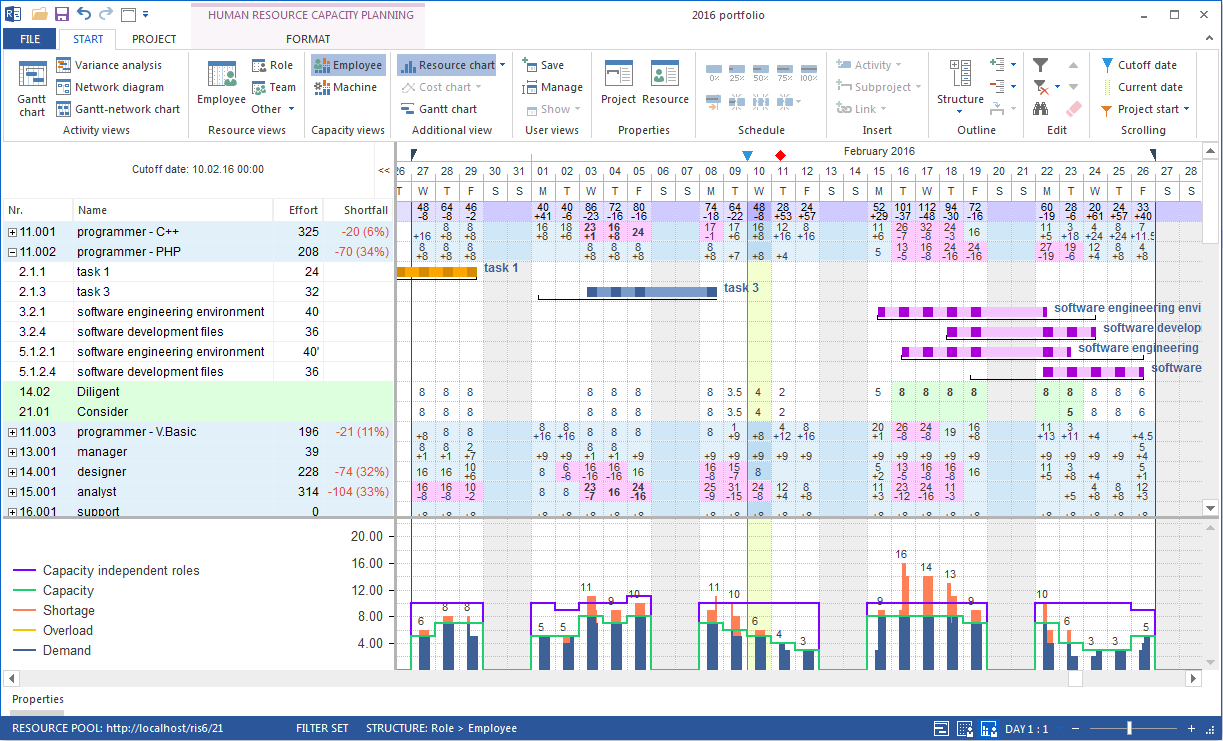
For assignment after capacity balancing, use the employee capacity view.
Typical workflow:
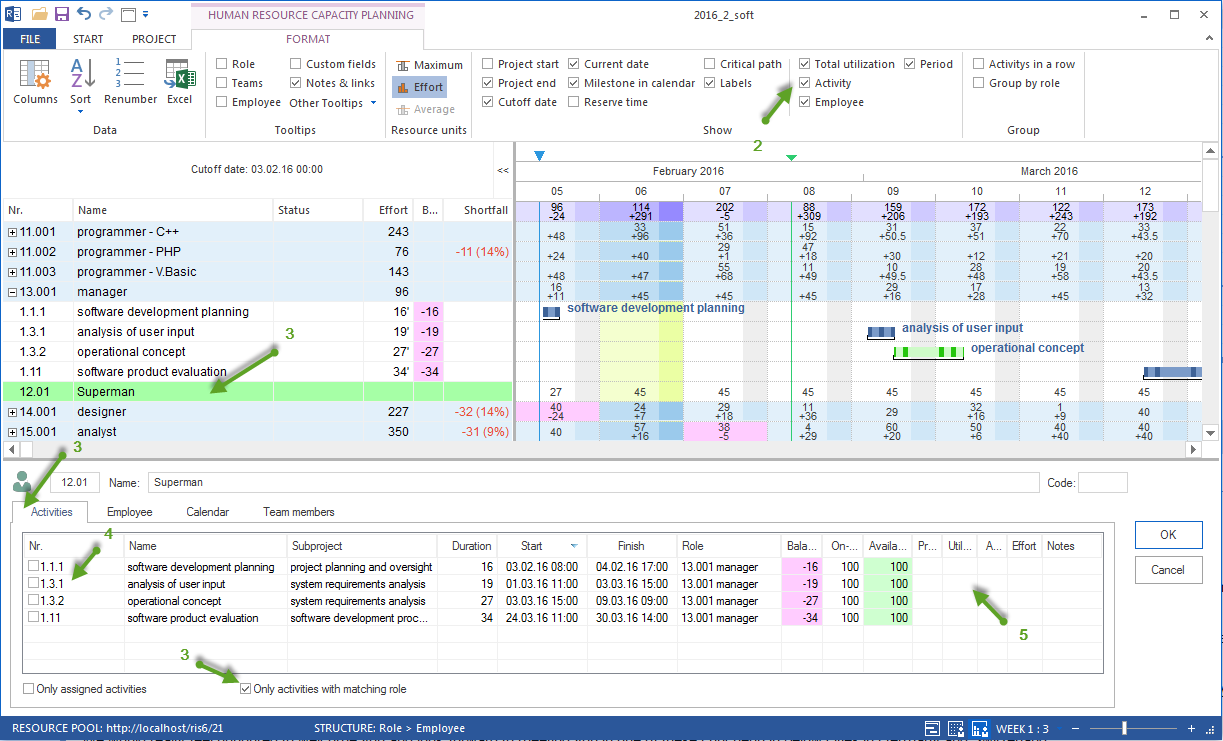
Open Start > Capacity views > Employee.
In Human Resource Capacity Balancing Format, select Show > Employee so employees are displayed.
Select an employee.
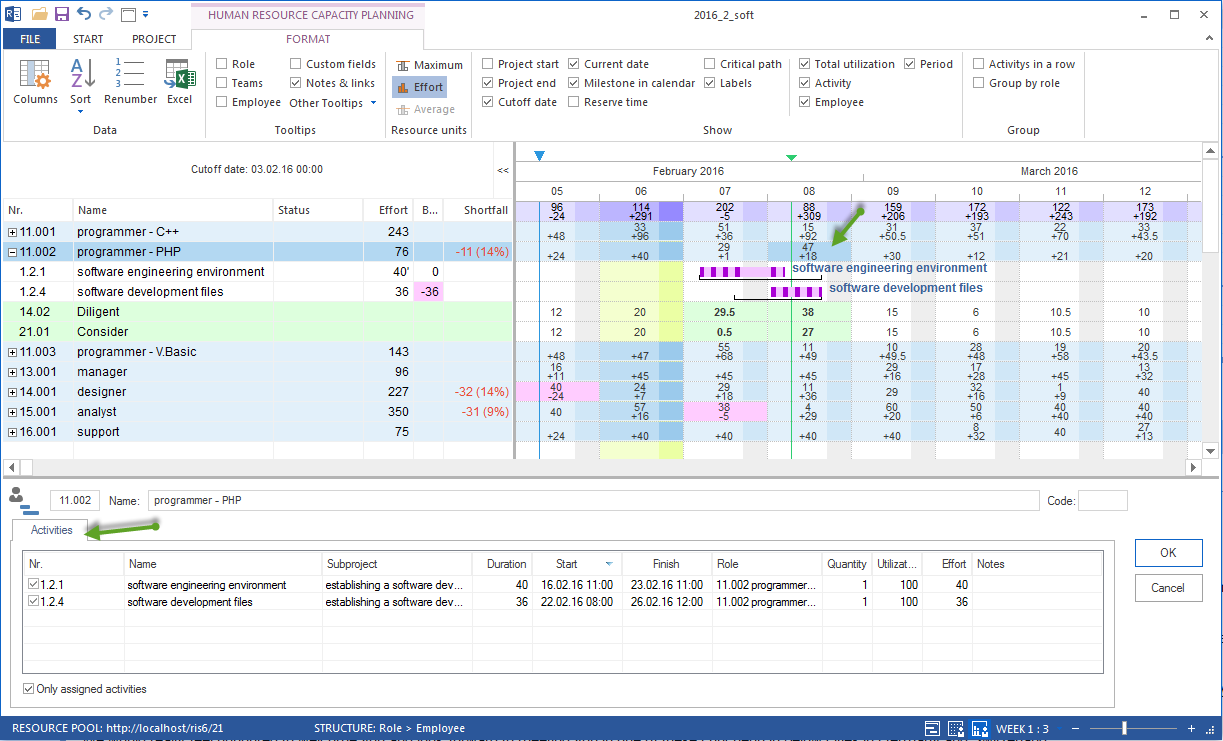
Open the Activities tab in the resource properties window.
Use Activities with matching role only if required.
Select the tasks to assign to the employee.
Define the employee workload for a task where required.
Click OK.
Show Matching Tasks
Activities with matching role only is especially important for this variant.
It ensures that the employee is offered only tasks with a professional qualification the employee can perform.
This reduces wrong assignments and supports the logic:
The task requires a professional qualification.
The employee has that professional qualification.
Capacity balancing shows availability.
The employee is assigned appropriately.
Tasks can also be filtered by date. Left-click a cell at the intersection of a resource row and date column to show only tasks relevant for the selected period.
Group the View and Use Context Commands
Use Start > Outline > Grouping to group Human Resource Capacity Balancing by project, role, or employee. This helps evaluate overloads and capacity by project, role, or employee.
The context menu in Human Resource Capacity Balancing offers these display options:
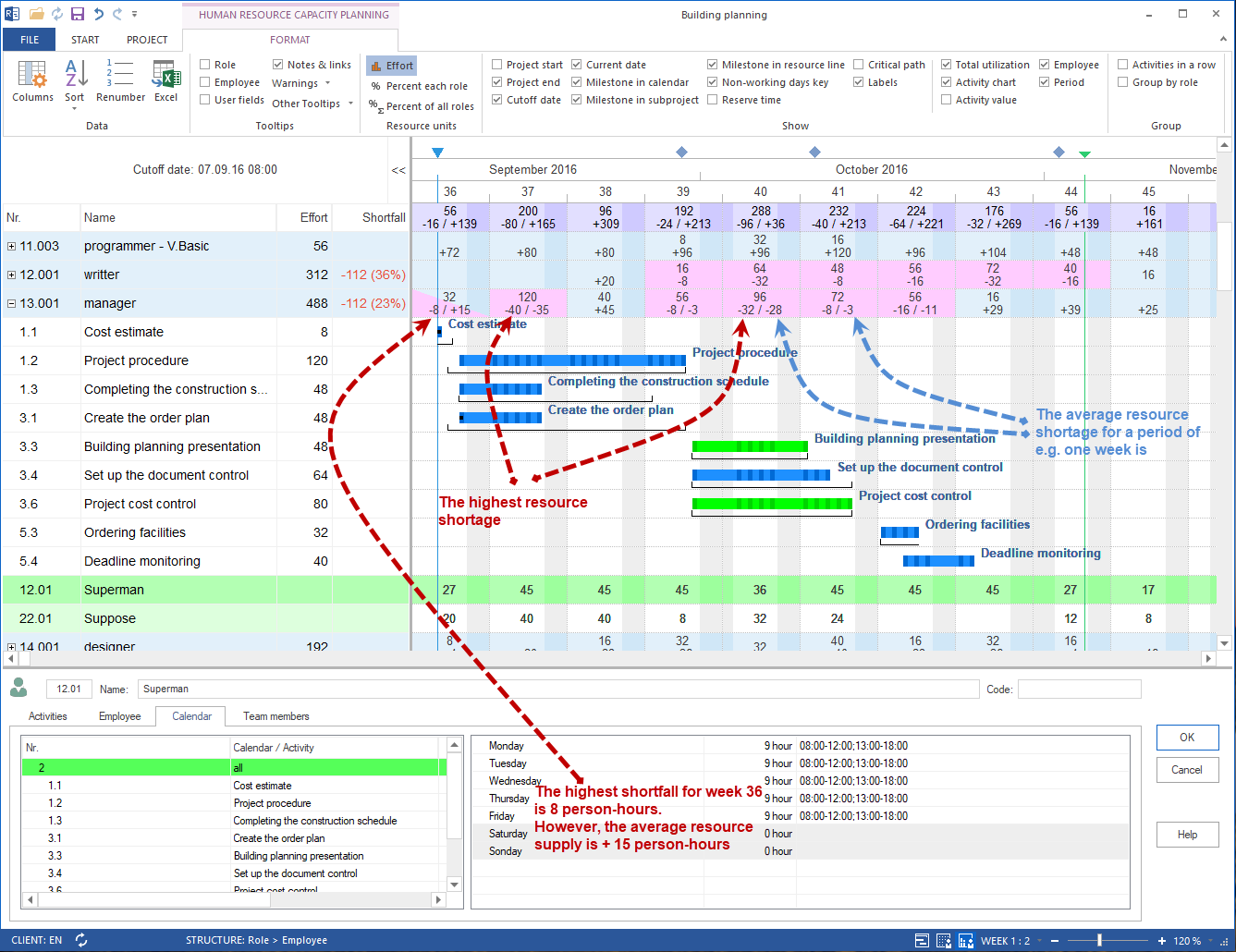
Show maximum per time unit: maximum required number of personnel resources per day, week, and so on
Show average per time unit: average required number of personnel resources per day, week, and so on
Show effort per time unit: planned effort in person-hours or person-days per day, week, and so on
Additional Views
Human Resource Capacity Balancing can show additional diagrams.
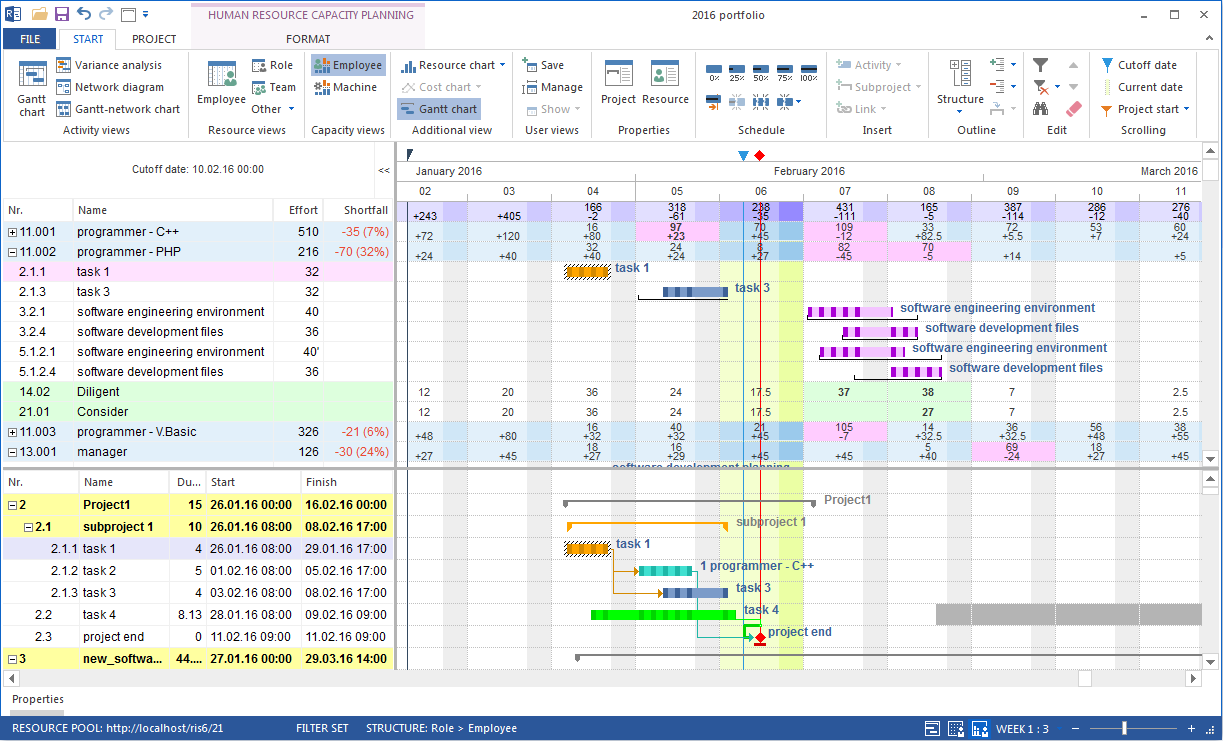
Additional Gantt chart
Click Start > Additional view > Gantt chart to show the Gantt chart above Human Resource Capacity Balancing. This keeps the project timeline visible while you assign employees.
Additional resource diagram
Click Start > Additional view > Resource diagram. It compares the demand for a role with available capacity:
Blue bars: capacity demand per time unit while demand does not exceed supply.
Green line: available number of employees per time unit.
Red bars: shortfall where demand exceeds supply.
Percentage per role and percentage of all roles
Human Resource Capacity Balancing can show percentage evaluations of role utilization:
Percentage per role: percentage to which demand for a professional role can be covered by qualified employees.
Percentage of all roles: percentage share of one professional role in the combined demand across all roles.
Define Workload and Effort
During assignment, define or check workload and effort.
Check:
Should the employee cover the full effort?
Should the task be split across several employees?
Is workload realistic in the planned period?
Does the assignment cause multiple booking?
Does the schedule remain stable?
Absences and Substitution
If employees are partly absent in the period, check:
non-working days
vacation
illness
training or further education
substitution for another employee
negative effort if corrections are required
The assignment should fit both the professional qualification and the real available working time.
Consider Portfolio Context
Resource utilization views can show tasks from the open project and from the assigned portfolio. This makes overloads visible that do not come only from the current project.
To consider employee utilization in other projects of a portfolio, use Start > Properties > Info, open the portfolio from the lower part of the properties window, and select the Portfolio dashboard tab.
Check:
Are there parallel tasks in other projects?
Is the employee already planned in a portfolio project?
Does cross-project overload arise?
Does project priority need to be clarified?
Typical Mistakes
Capacity balancing is ignored and employees are still assigned directly.
Activities with matching role only is not used.
The employee does not have the role or has only a different qualification level.
Non-working days are overlooked.
Workload and effort are not checked.
Portfolio overloads are not considered.
Check the Result
Assignment after capacity balancing is reliable when:
the professional qualification matches
the employee is available in the period
no unresolved overload arises
effort and workload are plausible
non-working days were considered
portfolio conflicts were checked