Improve the Project Display
To make a project plan easier to read, you can adjust the display deliberately. This article describes how to control detail level, numbering, order, timescale, and zoom. Filters and user-defined views are described in the function reference (Customize Views).
To improve readability, you can:
show or hide detail
renumber tasks and subprojects
change the order in the Gantt chart
adjust the timescale and calendar pane
scale the display up or down
Show or Hide Detail
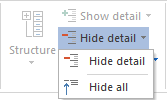
You can show and hide all project levels. Choose Start > Outline > Show/Hide detail.
Renumber Tasks and Subprojects
Each task automatically receives a number when it is created. After linking or correcting the plan, the numbering may no longer match the time sequence.
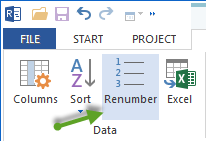
To rearrange the numbers, choose Gantt chart Format > Data > Renumber. The tasks are then renumbered automatically without gaps.
Change the Order in the Gantt Chart
Sort automatically
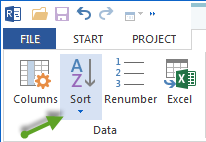
To sort all tasks and subprojects automatically, choose Gantt chart Format > Data > Sort and then one of the menu items:
by links
by start time
by code
by name
Note: The available menu items can differ between views.
Reorder manually
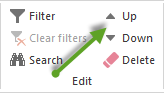
To change the position of a single selected task or subproject manually, choose Start > Edit and then:
up
down
Adjust the Timescale and Calendar Pane
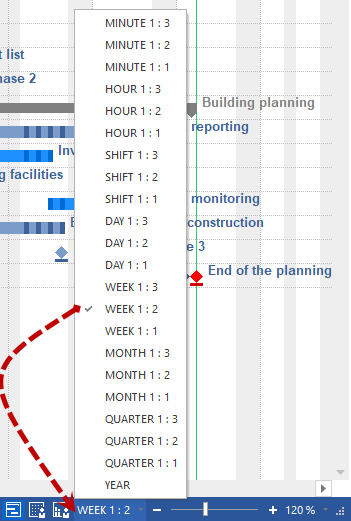
For the time display of the project, you can choose between minutes and quarters. There are two ways:
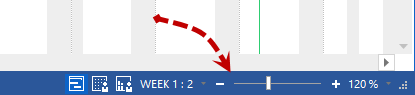
Click the slider in the right part of the status bar and move it to the required time-zoom setting.
Click the current time display in the right part of the status bar, for example Day 1:1, and select another display from the list.
Scale the Display Up or Down
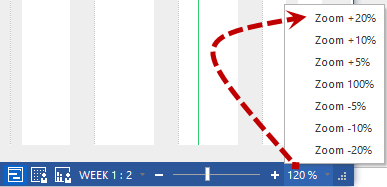
You can enlarge or reduce the project view. Click the current scale display in the right part of the status bar, for example 120 %, and select another value from the list.