Perform Target/Actual Comparison
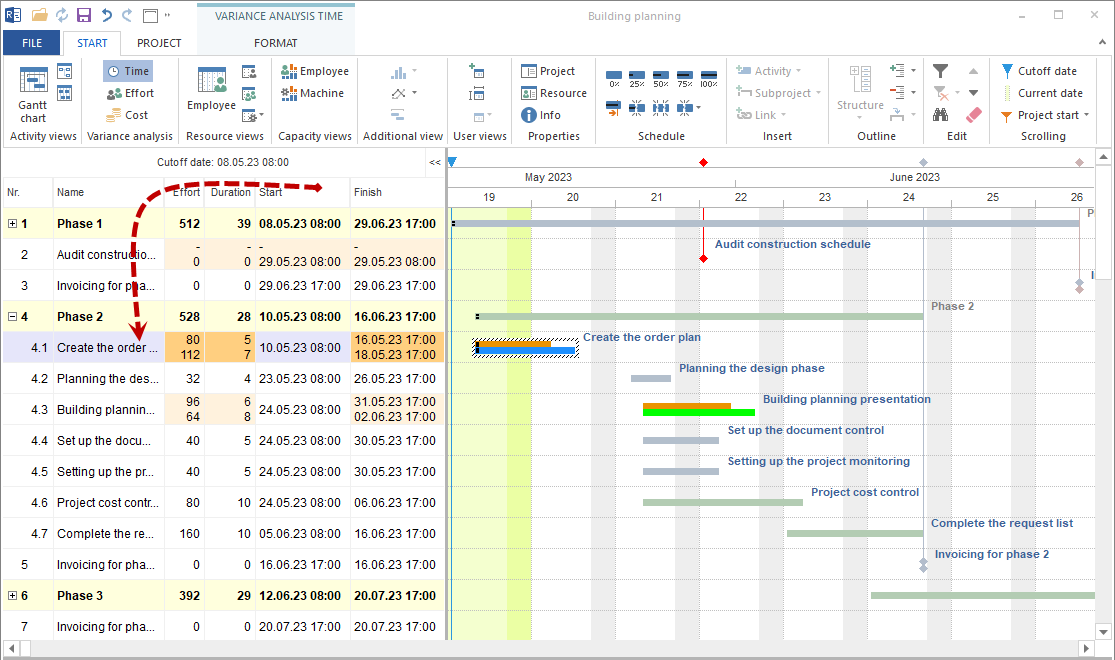
Target/actual comparison shows how strongly the current project state deviates from the selected baseline. It is the central evaluation for project controlling in Rillsoft Project.
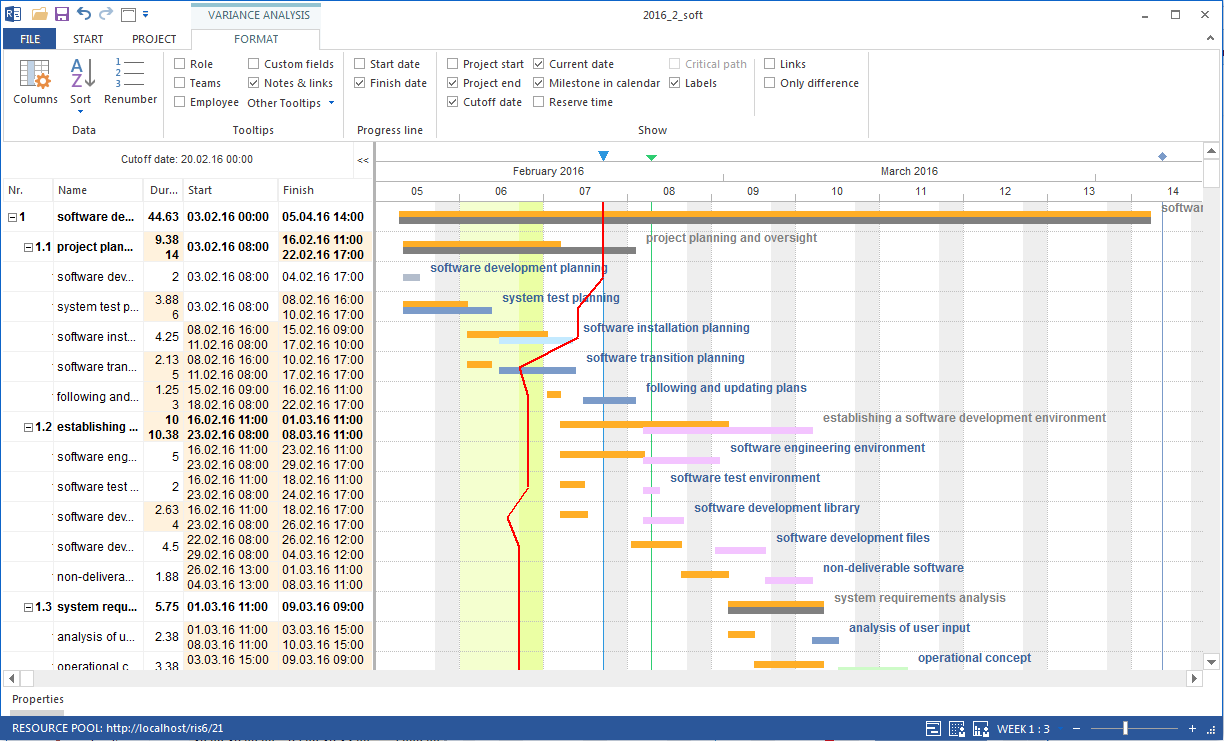
Rillsoft Project can show deviations graphically and in tables. This helps you see not only that a project deviates from the plan, but also which tasks, resources, or cost items are affected.
Prerequisites
Before starting target/actual comparison, check:
A baseline is saved.
The correct baseline is selected.
Progress, actual effort, or time entries are maintained.
The cutoff date is set.
Resource and cost data is current enough for evaluation.
Use Variance Analysis
Variance analysis is the entry point for evaluation. It shows deviations between the current state and the baseline for:
dates
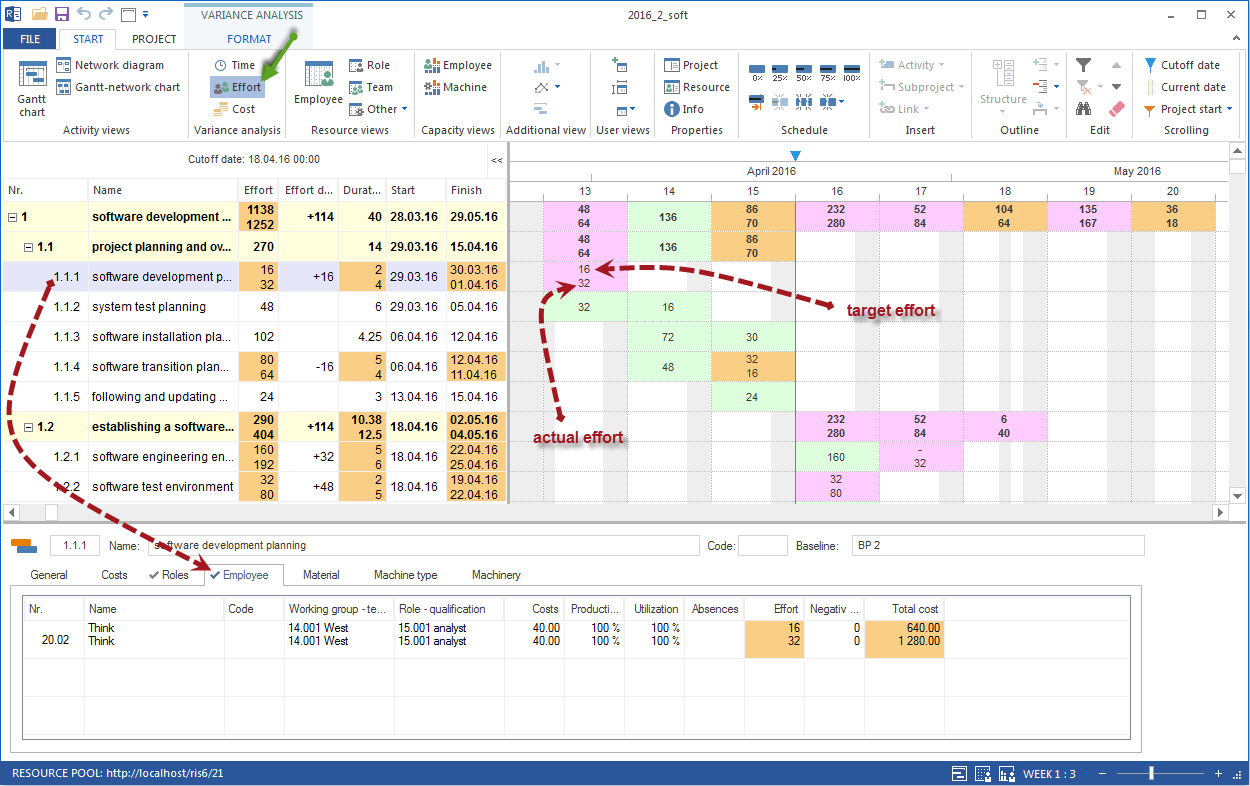
effort
costs
Changed values are highlighted in table and diagram. The table places planned state next to current state so you can see whether a problem comes from a date shift, increased effort, or changed costs.
Check Schedule Deviations
Goal: Detect whether tasks, subprojects, or milestones deviate from the planned period.
Use the time deviation view when:
a task starts or finishes later than planned
the project finish date is endangered
a critical task deviates from the baseline
you need to see whether a delay affects successor tasks
Check especially:
task start and finish
critical path
dependencies to successors
free float
cutoff date and progress line
Check Effort Deviations
Goal: Detect whether actual or expected effort deviates from the baseline.
Use the effort deviation view when:
tasks need more work than planned
actual effort from time entries is available
remaining effort no longer matches remaining schedule
resource bottlenecks arise from higher effort
An effort deviation is especially critical when it also affects the schedule or resource utilization.
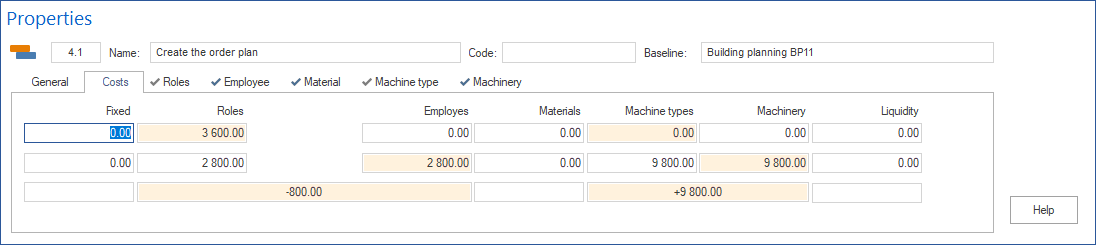
Check Cost Deviations
Goal: Detect whether resource costs or total costs deviate from the planned state.
Use the cost deviation view when:
employee, machine, or material costs are higher than planned
increased effort causes additional costs
project budget or financing must be checked
commercial project owners need deviation analysis
Check Tasks and Subprojects in Detail
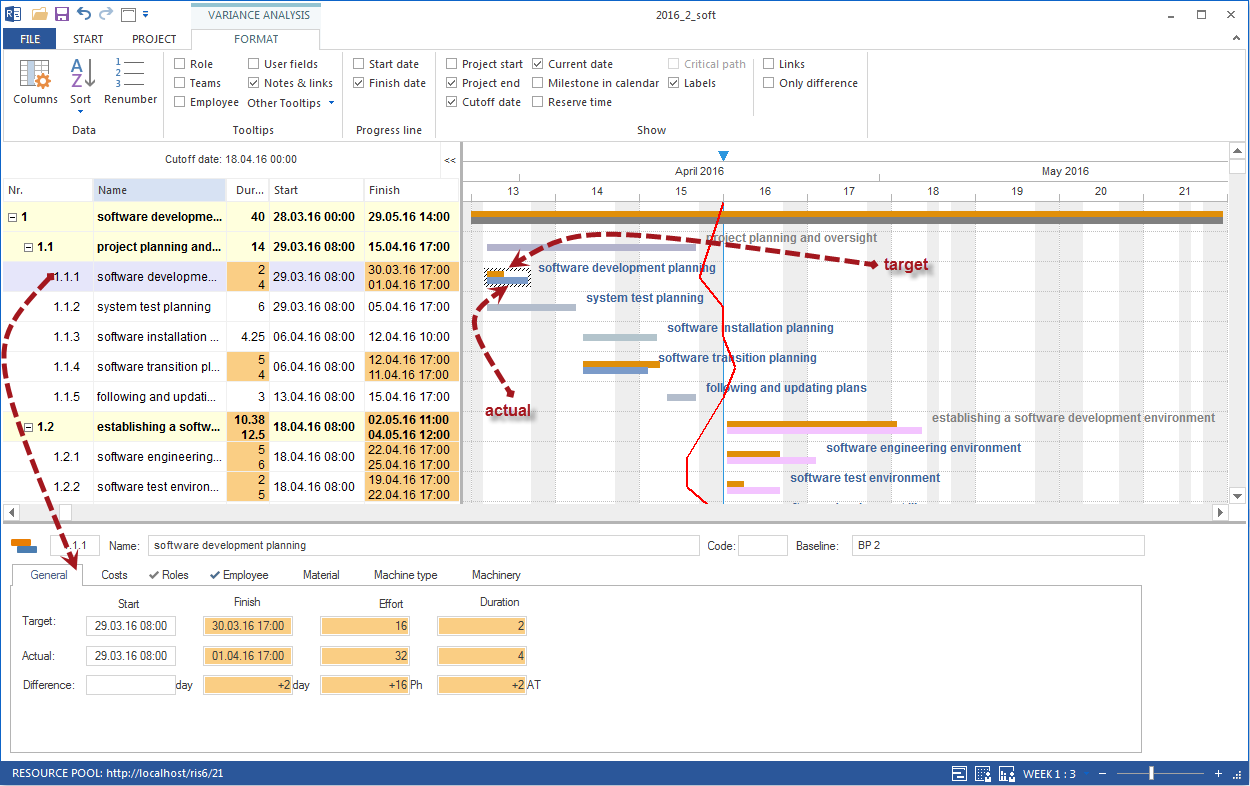
If a row in target/actual comparison is conspicuous, open the properties of the task or subproject. There you can check deviations in detail on the tabs.
For tasks, these tabs are especially relevant:
General for start, finish, duration, and effort
Costs for resource costs
Roles for planned and current role demand
Employees for planned and current employee assignment
Material, Machine types, and Machinery for non-human resources
For subprojects, also check shared machine types and shared machinery when they are relevant to planning.
Check the Result
After target/actual comparison, you should know for each major deviation:
What deviates?
Since when is the deviation visible?
Does it affect dates, effort, costs, or resources?
Is a single task affected or a whole project area?
Does it create risk for finish date, budget, or capacity?
Related Topics
target actual comparison, variance analysis, only difference, progress line, actual effort, baseline comparison, baseline, progress, reporting date, deviation, project manager, pmo