Create and Select a Resource Pool with Rillsoft Integration Server
When working with Rillsoft Integration Server or Rillsoft Cloud, the resource pool is not stored in a local *.xml file but in the server database. Each client has exactly one resource pool there. To create a new resource pool, you therefore create a new client; afterwards you select this client in Rillsoft Project as the resource pool source.
Create a New Resource Pool (Create a Client)
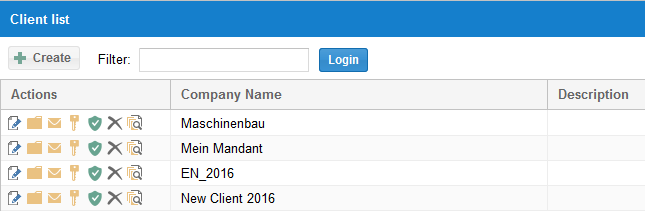
In the web interface of Rillsoft Integration Server, open Administration > Clients and click New client.
On the Main tab, enter the name of the client and confirm with Submit.
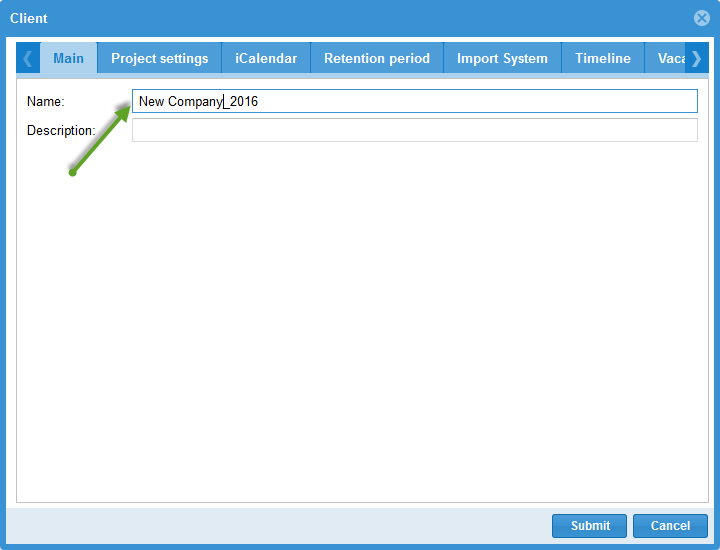
Rillsoft Integration Server automatically creates an empty resource pool for the new client.
Note
To work with the new client, users need client access as well as matching user roles and directory roles. See Setting Up and Operating Integration Server.
Select the Resource Pool in Rillsoft Project
Close all open projects.
Click File > Resource pool > Rillsoft Integration Server > Select.
In the RIS Client dialog, select the desired client and confirm with OK.
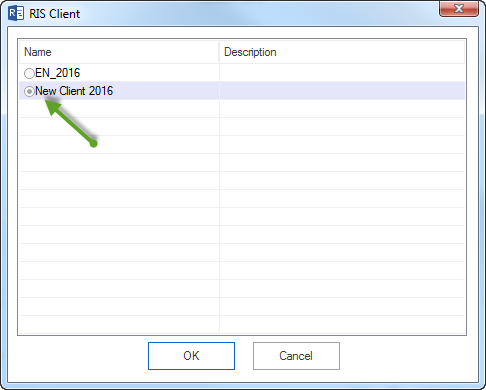
From now on, Rillsoft Project uses the resource pool of this client for planning.
Note
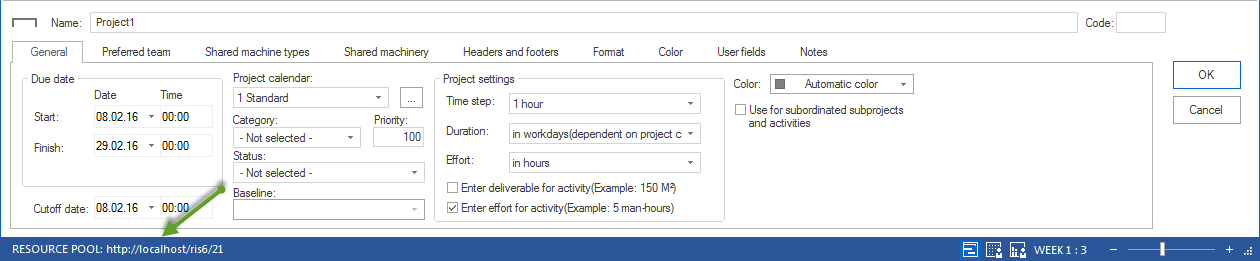
The source of the current resource pool is shown in the left corner of the status bar. A project should be open.
Import a Resource Pool File into Integration Server
If your resource pool has so far been maintained as a *.xml file, you can import it into Rillsoft Integration Server.
First create a client (see above) and select it.
Click File > Resource pool > Rillsoft Integration Server > Import.
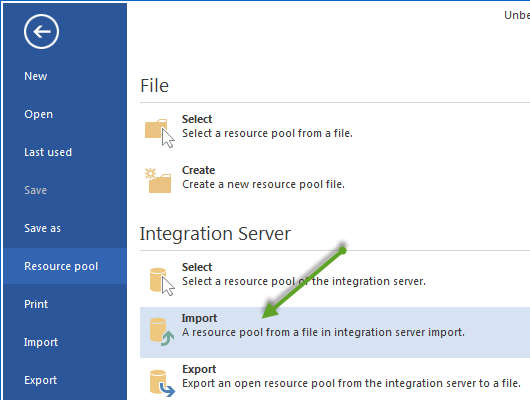
In the dialog, select the desired resource pool file (
*.xml).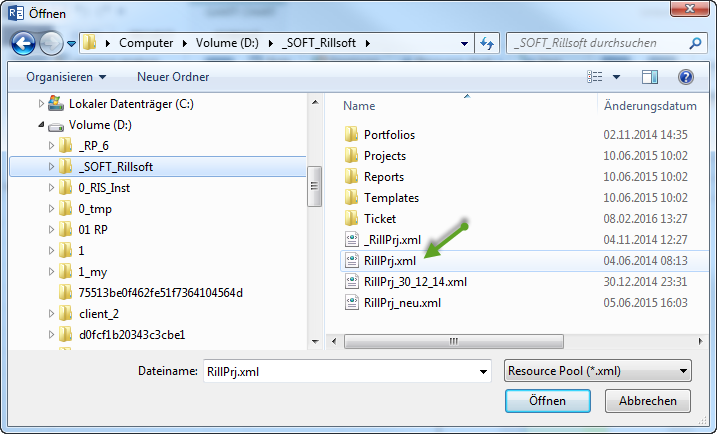
Click Open.
Note
With File > Resource pool > Rillsoft Integration Server > Export you can, conversely, export the open resource pool from Integration Server to a *.xml file.
Alternative: Resource Pool as a File
Without Rillsoft Integration Server, the resource pool is kept as a *.xml file. Create a new resource pool file with File > Resource pool > File > Create, or select an existing one with File > Resource pool > File > Select — see First Steps with Rillsoft Project and, for shared use on a network drive, Working in Networks.
Related Topics
create new resource pool, select resource pool, resource pool integration server, select client, create client, import resource pool, export resource pool, standalone, integration server, ris, cloud, multi-user, time entry, vacation planning, it and administration, resource manager