Work on Projects Simultaneously
When working with Rillsoft Integration Server or Rillsoft Cloud, all projects are stored centrally. Several project managers work at the same time: each on their own project and all with the same resource pool. This page describes what you need to consider.
Note
Multi-user work requires Rillsoft Project with Rillsoft Integration Server or Rillsoft Cloud. It is not available in standalone operation with local project files.
Open a Project From Central Storage
Choose File > Open > Rillsoft Integration Server > Project.
Select the folder on the left. You see only the folders for which you have access rights.
Select the project on the right.
Click OK.
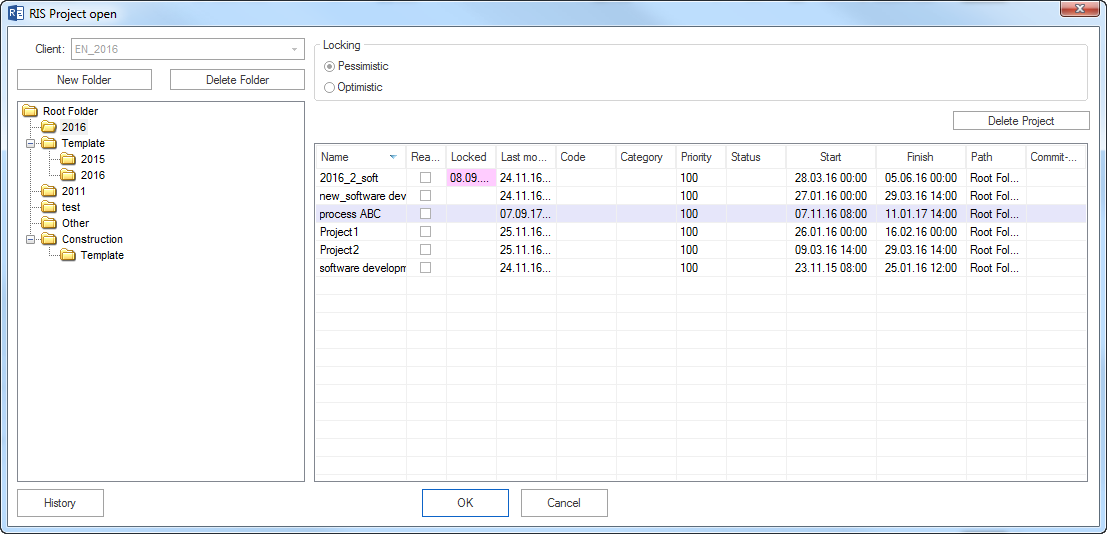
The Locked column shows whether, and since when, another user has been editing the project. In the Read only column, you can specify that you open the project for reading only.
A new project is saved with File > Save as > Rillsoft Integration Server > Project.
Locks: Who May Change a Project Right Now?
To prevent changes made by several users from overwriting each other, Rillsoft Project works with locks. When opening a project, you choose the locking mode:
Locking mode |
Behavior |
|---|---|
Pessimistic |
As soon as one user changes the project, all other users can open the project only as a read-only copy. |
Optimistic |
Every user can edit the project at any time. |
The locking mode can be selected only by users with the corresponding access rights.
Recommendation: Use the pessimistic locking mode in a team when several people work on the same projects. This way, it is always clear who is currently changing a project.
If a project remains locked although nobody is working on it anymore, for example after a lost connection, the administration can release the lock in Rillsoft Integration Server. See Lock in the Rillsoft Integration Server help.
Open Read-Only
Open a project read-only if you only want to view or evaluate it. The project then remains available to the responsible project manager.
Typical cases:
You check the state of a neighbouring project without changing it.
As overall project management or PMO, you evaluate several projects.
The project is already locked by another user.
In a summary project, you can specify for each included project individually whether it is opened read-only. See Plan Related Projects of Several Project Managers Together.
Make Changes by Others Visible
You see changes made by other users only after you reload the data.
What has changed? |
How to reload |
|---|---|
Project, portfolio, or summary project |
File > Reload Project or the Reload icon in the Quick Access Toolbar. See Reload a Project. |
Resource pool (employees, roles, calendars) |
Update resource pool icon in the left corner of the status bar. See Update the Resource Pool. |
Reload especially before capacity balancing and before status meetings. Otherwise, you evaluate utilization based on an outdated state.
View an Earlier Project Version
Rillsoft Integration Server stores the versions of a project. In the dialog for opening a project from Rillsoft Integration Server, the History button opens a list of versions with date, user, and comment. If required, you can restore an earlier version.
This lets the team trace who changed a project and when.
Typical Mistakes
A project is opened read-only and edited anyway. Before making larger changes, check whether you opened the project for editing.
A project remains open and locked for a long time. Other project managers cannot maintain their dependencies.
Utilization is evaluated without reloading the project and the resource pool first.
Projects are saved locally as files instead of in central storage. They are then missing from the summary project and the portfolio.
Related Topics
lock, locked, locking mode, pessimistic, optimistic, read only, reload, project version, history, standalone, integration server, ris, cloud, multi-user, time entry, vacation planning