Control Multiproject Planning
Multiproject planning becomes important when several projects share the same resources, dates, or professional dependencies. Rillsoft Project supports this with the summary project, cross-project dependencies, and shared resource planning.
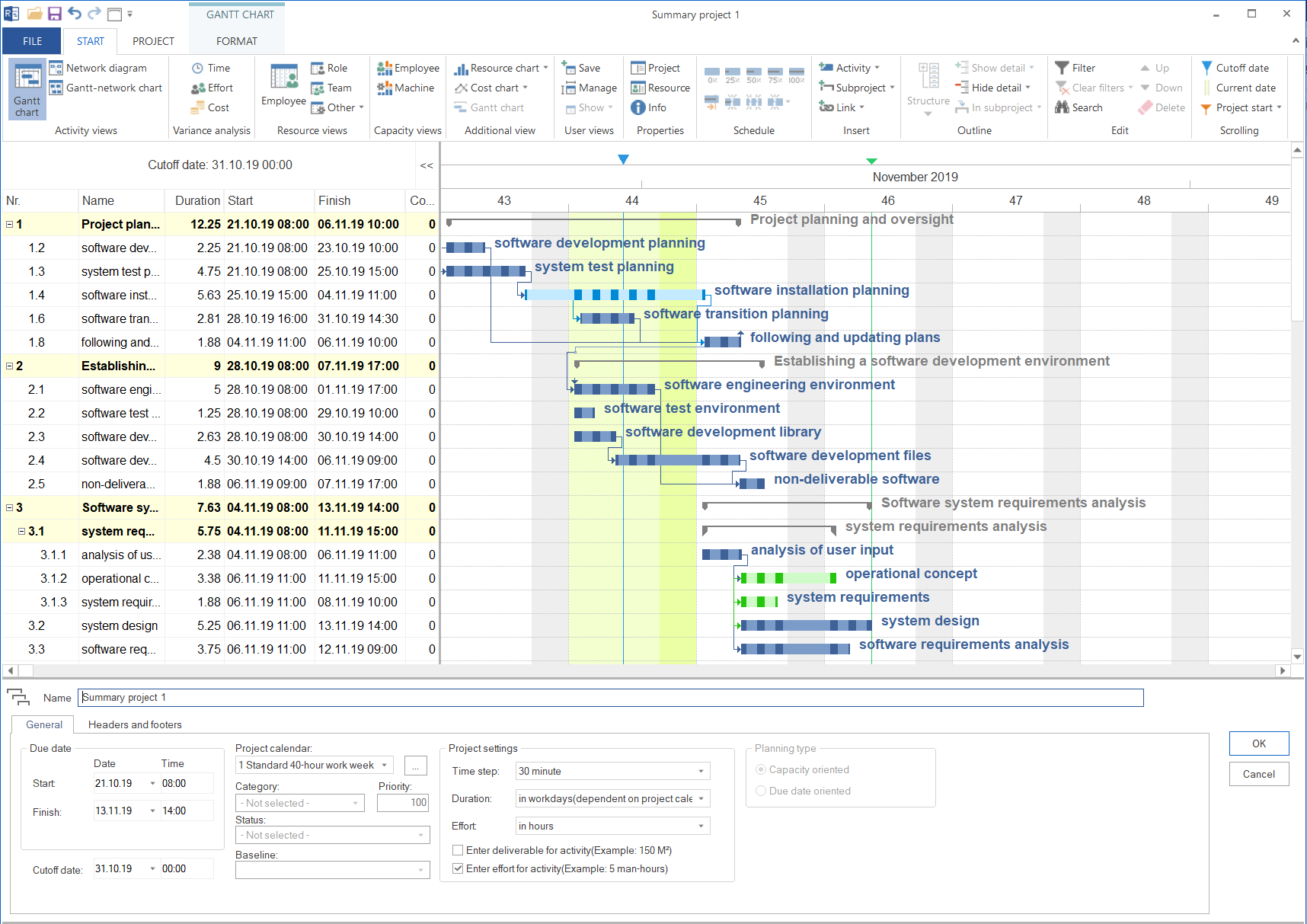
Use a Summary Project
The summary project is the operational tool for multiproject planning. It lets you edit several projects together in one view and can show cross-project links between tasks from different projects.
Typical use cases:
Several subprojects or lots of a large project are maintained separately and planned together.
Tasks in different projects have direct dependencies.
One project manager is responsible for several projects that use the same resources.
Project managers or PMO need an operational overall view of several schedules.
Create a New Summary Project
Goal: Several projects are edited in one shared planning view.
Note
The summary project requires Rillsoft Project with Rillsoft Integration Server or Rillsoft Cloud. In standalone operation, this function is not available.
Workflow:
Click File > Open new summary project.
In the Rillsoft Integration Server summary project property dialog, enter a name in Name.
Use Filter to limit the project list if required, and select the folder with the required projects.
Select the projects to include.
Click OK.
Result: The summary project opens with the selected projects in a combined view.
Detailed description including splitting a project, opening, and merging: Manage a Summary Project. An end-to-end example with several project managers: Plan Related Projects of Several Project Managers Together.
Keep the Summary Project Current
Individual projects can still be edited by their project managers. Reload the summary project regularly.
Click the Reload icon in the Quick Access Toolbar to load the current versions of all included projects. If the icon is not visible, add it with Customize Quick Access Toolbar.
More notes on locks and simultaneous work: Work on Projects Simultaneously.
Maintain Cross-Project Dependencies
Cross-project dependencies describe dependencies between tasks from different projects. Example: A task in project B can start only after a task in project A has finished.
Note
Cross-project dependencies are available only with Rillsoft Integration Server. In pure standalone work with local files, cross-project dependencies cannot be created.
Create a cross-project dependency:
Open the portfolio or summary project that contains both projects.
Choose the suitable dependency type with Start > Insert > Link.
Drag from the predecessor task in the source project to the successor task in the target project.
Enter a delay if required.
Confirm the dependency.
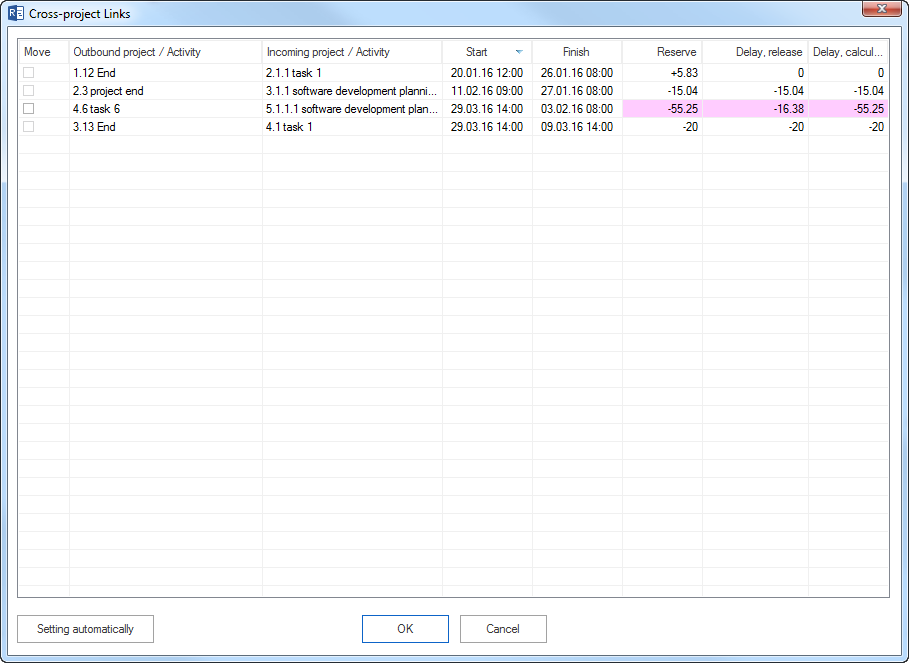
If no delay is entered, Rillsoft Project calculates the delay from the current positions of the linked tasks.
Check and Clean Up Dependencies
Cross-project dependencies can change when dates shift in one of the involved projects. Check them regularly.
Workflow:
Open Project > Rillsoft Integration Server > Cross-project links.
Check the dependency overview.
Compare the released delay, the calculated delay, and the reserve.
Watch for red-marked deviations.
Select Move if required.
Use Setting automatically to resolve several deviations.
Warning
A cross-project dependency does not always move the successor automatically. If a successor is already planned before the predecessor finishes, a negative interval can arise. Check those cases deliberately.
Make Cross-Project Dependencies Visible
For status reports and coordination between project managers, an overview of all dependencies is important.
Workflow:
Click Start > Properties > Info.
Open Cross-project links.
Check the list of links between tasks from different projects.
This overview shows which projects depend on each other and which delays result from those dependencies.
Plan Resources Across Several Projects
Cross-project resource planning is the central value of portfolio and summary project work. It shows whether the same employees are planned in several projects at the same time.
Workflow:
Open the portfolio or summary project.
Switch to Human Resource Capacity Balancing.
Check total utilization per employee across all projects.
Identify red-marked periods.
Open the related tasks and projects that contribute to overload.
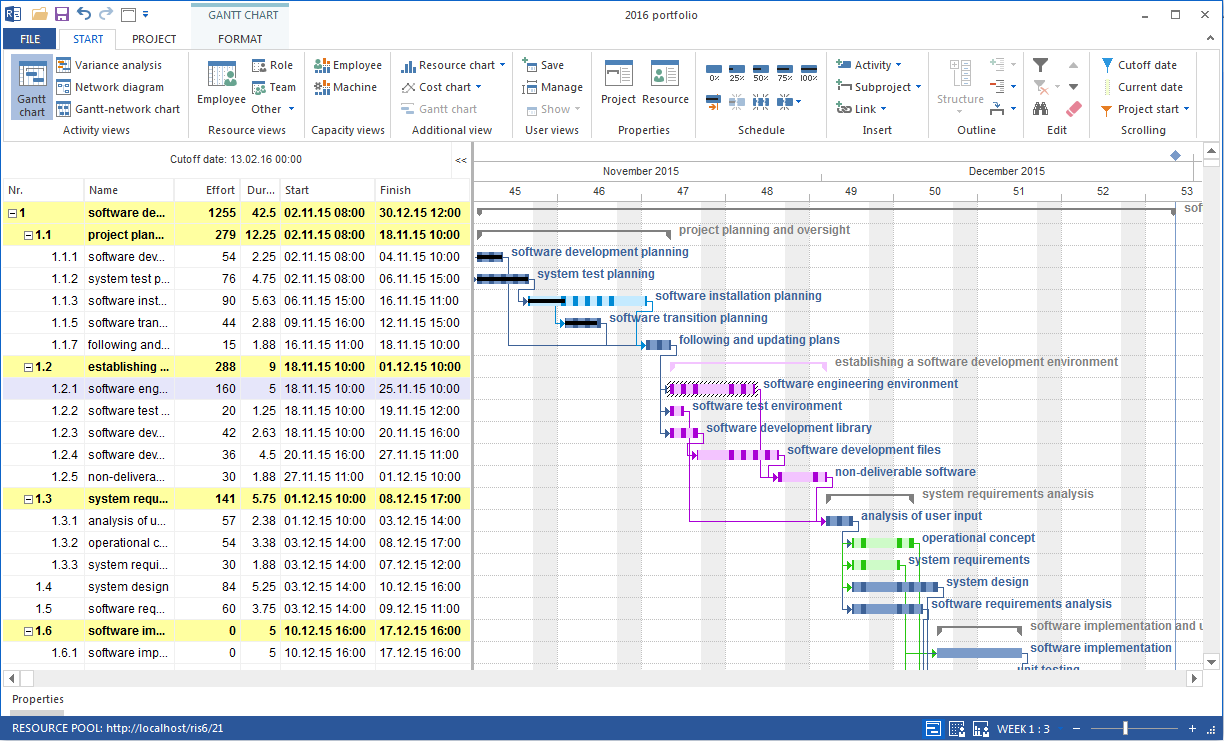
Possible actions for cross-project overload:
move tasks in time
distribute effort across several employees with the same professional qualification
assign another suitable employee from the resource pool
evaluate projects by priority
move or pause lower-priority projects
Use Project Priority for Resource Decisions
When several projects compete for the same resources, project priority helps with the decision.
Workflow:
Open project properties with Start > Properties > Project > General.
Enter a numeric value in Priority.
Use lower values for higher priority.
Save the project.
In the portfolio, the project list can be sorted by priority. Use this order as a decision basis when bottlenecks cannot be fully resolved.
Typical Mistakes
Projects in the portfolio use different resource pools.
Priorities are outdated or not maintained consistently.
Cross-project dependencies are created but not checked regularly.
Resource bottlenecks are evaluated in an individual project although other projects use the same employees.
Summary project and portfolio are confused professionally.