Synchronize Resources
When the resource pool changes after a project has already been created, the resources stored in the project can differ from the current resource pool. Rillsoft Project detects these differences and provides a synchronization dialog where you decide how to resolve them.
When Synchronization Is Needed
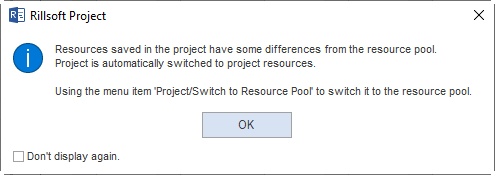
Project resources are saved together with the project. When you open a project and the resource pool has changed in the meantime, one of the following may have happened:
An employee has received new professional qualifications.
A calendar was adjusted.
A role was renamed or changed.
New employees were created in the resource pool.
An employee was removed from the resource pool.
In this case, Rillsoft Project shows a message and opens the synchronization dialog automatically.
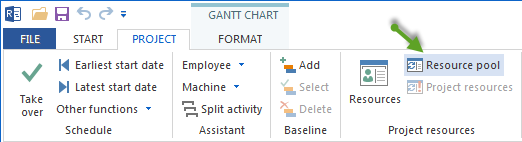
You can also start synchronization manually:
Project > Project resources > To resource pool
Basic Synchronization Options
When differences are detected, the dialog Selection between project resources and resource pool appears. The first table row shows the entry from the resource pool, and the second row shows the entry from the project.
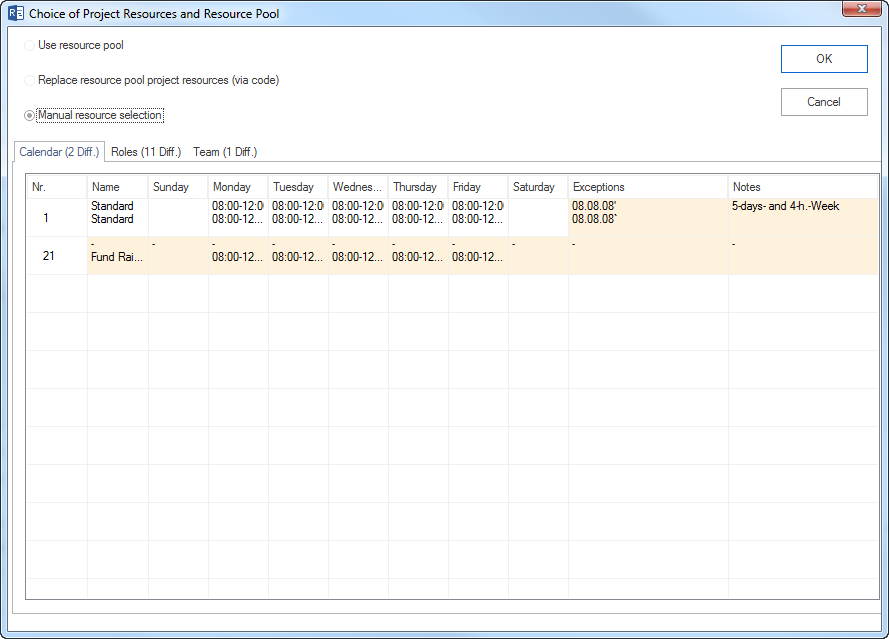
You have three basic options:
Option |
Meaning |
|---|---|
Use resource pool |
Resource pool data completely overwrites project resources. |
Replace project resources with resource pool by code |
Different project resources are automatically replaced with resource pool entries by internal code. |
Manual resource selection |
You decide manually for each individual difference which variant should be used. |
Click OK to apply the selected option.
Manual Synchronization by Resource Type
With Manual resource selection, a dialog opens with several tabs, one for each resource type. Switch between the tabs to resolve all differences.
The buttons apply to the entry selected in the project resources table.
Calendars
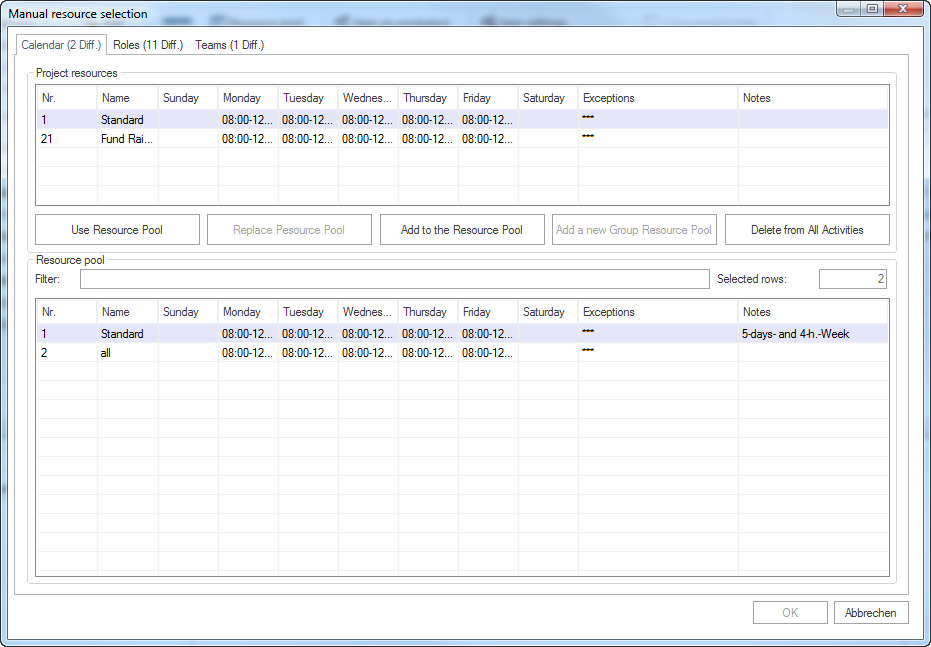
Available actions:
Use resource pool: use the resource pool calendar; active only when an entry in the resource pool is selected.
Add to resource pool: add the project calendar to the resource pool.
Delete from all project tasks: remove the project calendar from the project.
Roles and Professional Qualifications
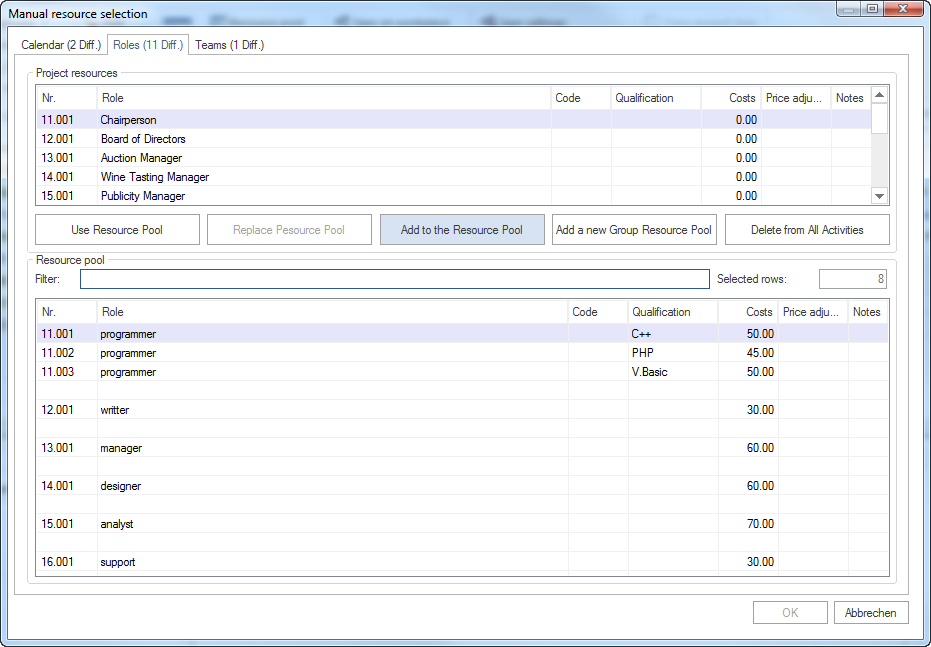
Available actions:
Use resource pool: use the resource pool role; active only when a resource pool entry is selected.
Replace resource pool: replace the resource pool role with the project resource; active only when code matching was successful.
Add to resource pool: add the project resource to an existing resource pool group.
Add to resource pool in a new group: create a new group in the resource pool.
Delete from all project tasks: remove the project resource from the project.
Employees
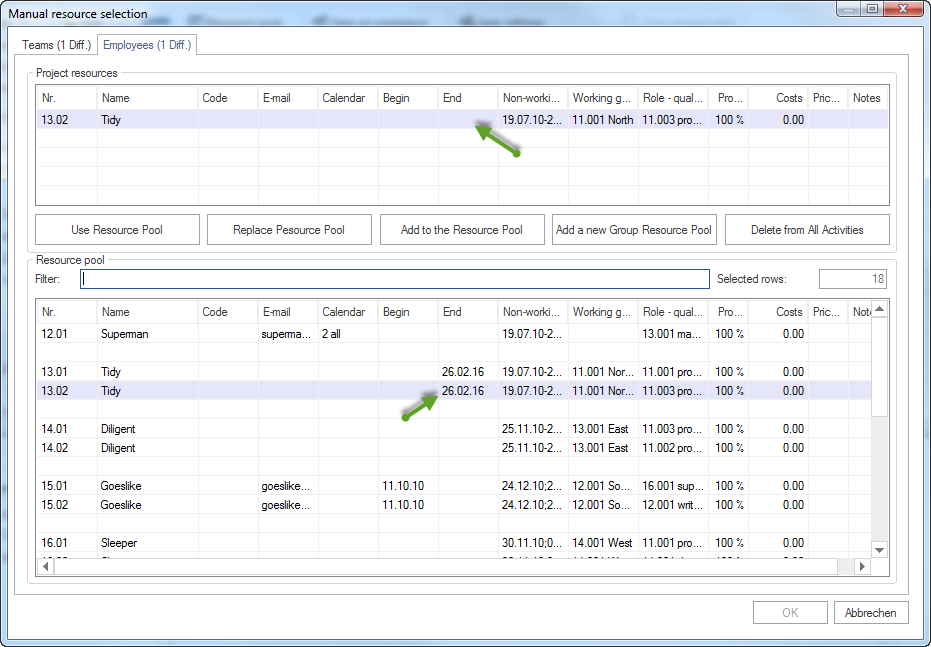
The program automatically filters matching entries between project resources and resource pool in the Filter field.
Available actions:
Use resource pool: use the resource pool employee.
Replace resource pool: replace the resource pool employee with the project resource; active only with successful code matching.
Add to resource pool: add the project resource to an existing group; the group name is not adopted.
Add to resource pool in a new group: create the project resource and group name in the resource pool.
Delete from all project tasks: remove the employee from the project.
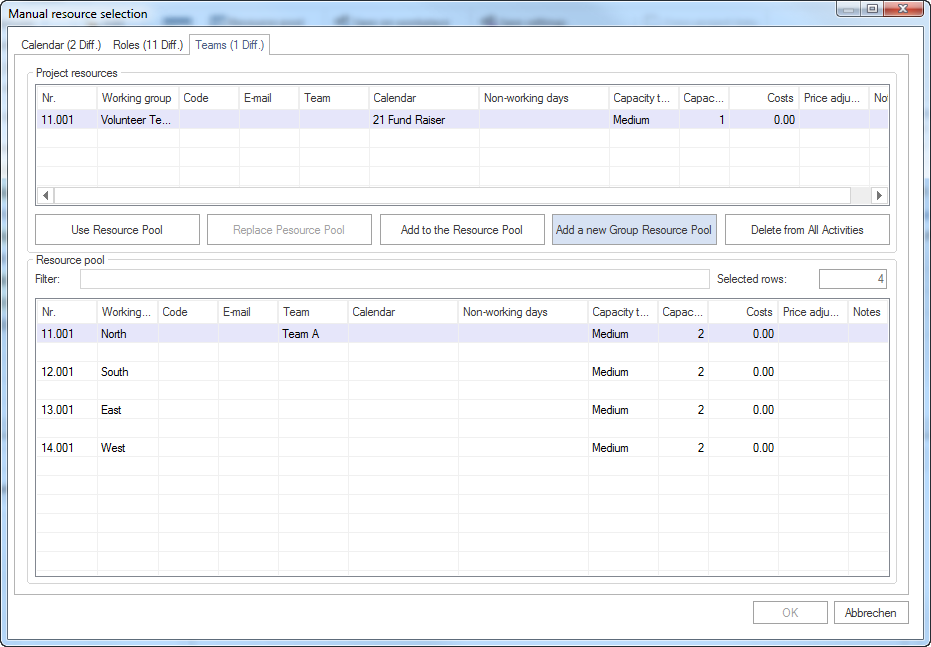
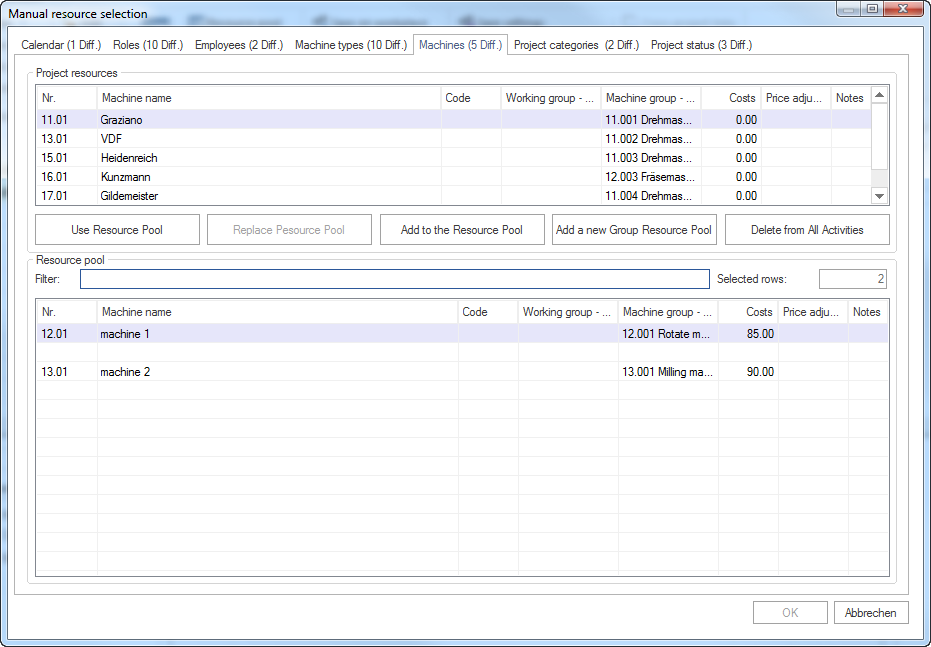
Teams, Material, Machine Types, Machinery, Categories, Status, Customers
The same button logic applies to all other resource types. Switch to the corresponding tab in the dialog and resolve the differences in the same way.
Note
Direct team assignment to tasks is available only in the Standard edition of Rillsoft Project. In the Light, Professional, and Enterprise editions, tasks receive their team assignment indirectly through assigned employees and their team membership. The Teams tab in the synchronization dialog is therefore mainly relevant for projects from the Standard edition.
Tips for Synchronization
Before synchronizing, clarify which data source is authoritative: the resource pool or the project.
Use replacement by code only when codes are maintained reliably. If codes are wrong or missing, automatic matching can fail.
A summary project cannot be synchronized directly. Projects with resource differences must first be opened and synchronized individually before they are included in a summary project.