Why Do Target and Actual Values Not Match?
Target/actual comparison is meaningful only when a suitable baseline is saved as the reference and actual data is maintained. Unexpected or missing deviations occur when no baseline exists, the wrong baseline is active, or progress, actual start, and actual effort are missing. Check the active baseline via Project > Baseline > Select and check actual data on the General tab of the tasks.
Symptom
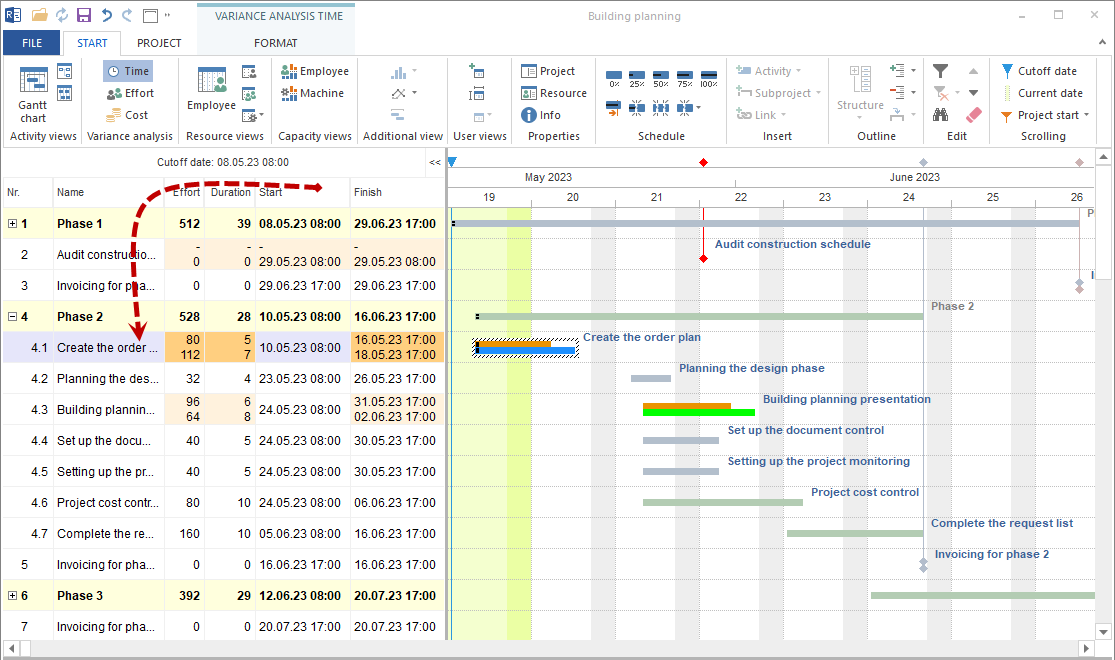
Target/actual comparison shows unexpected deviations. Or it shows no deviations although delays are known.
Basic Principle
Rillsoft Project compares the current planning status with a saved baseline. Without a suitable baseline, there is no meaningful target value.
Cause 1: No Baseline Was Saved
If no baseline exists, the reference status is missing.
Check:
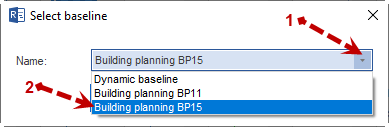
Open Project > Baseline > Select and check whether a baseline exists.
Solution:
Save a baseline with Project > Baseline > Add. Note: this baseline captures the current status. For later comparisons, the baseline must be saved before execution starts.
Cause 2: Wrong Baseline
If several baselines exist, the wrong reference status may be selected.
Check:
Open Project > Baseline > Select and check the active baseline.
Solution:
Select the baseline that matches the desired reference status.
Cause 3: Actual Data Is Missing
Deviations appear only when actual data is maintained, for example progress, actual start, or actual effort.
Check:
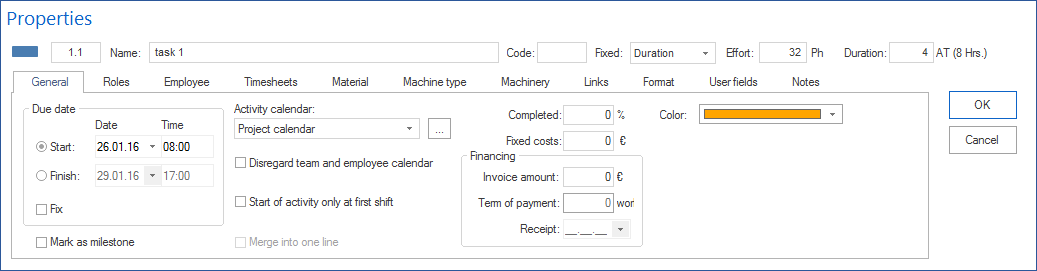
Open affected tasks and check on General whether progress and actual data are entered.
Solution:
Enter progress for started or completed tasks. Completed tasks receive 100 percent progress.
Cause 4: Cutoff Date Is Missing or Incorrect
The cutoff date defines the point in time at which the project status is evaluated.
Check:
Open Start > Properties > Project and check the Cutoff date field on the General tab. Alternatively, check the cutoff date marker directly (the small triangle in the upper part of the timescale).
Solution:
Set the cutoff date to the required evaluation date.
Color Logic
Background color |
Meaning |
|---|---|
Green |
No difference from the baseline. |
Light yellow |
Actual effort or actual costs are lower than planned. |
Intense pink |
Actual effort or actual costs exceed the plan. |
Yellow in the time comparison |
Schedule deviation from the baseline. |
Related Topics
target actual mismatch, baseline mismatch, actual effort, variance, target actual comparison, baseline, progress, reporting date, deviation, project manager, pmo