Assign Employees Directly
Goal
Assign a concrete employee directly to a task. This variant is suitable for small, manageable projects or deliberately fixed responsibilities.
When This Variant Is Useful
Direct employee assignment is useful when:
only a few employees are involved
availability is known
no complex capacity check is required
the task should deliberately be performed by a specific person
the assignment should be quick and pragmatic
Prerequisites
The project plan contains tasks.
The required employee exists in the resource pool.
Roles are assigned to employees.
Important: Check whether you are working with a general resource pool. If the status bar shows Project resources, switch to the resource pool.
Assign Directly at the Task
You can assign employees directly from the task view.
Typical workflow:
Open the Gantt chart.
Select the task in the table or in the Gantt chart.
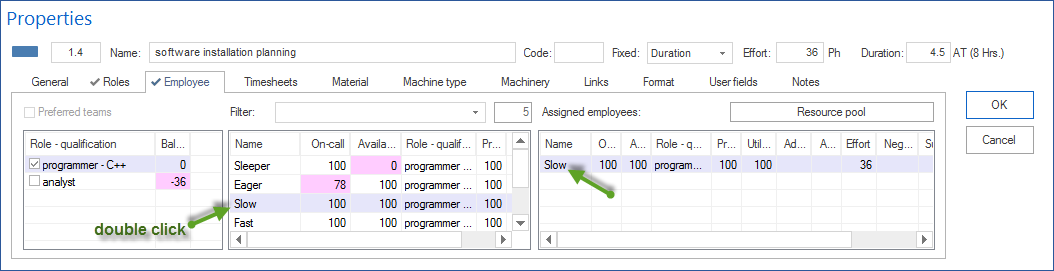
Open the Employees tab in the task properties window.
Double-click an entry in the middle table to assign that employee to the task.
Define workload, effort, or other assignment values if required.
Click OK.
Options and Fields on the Employees Tab
The upper table lists the roles assigned to the task. Select a role checkbox to use it as an additional filter for the employee list. The Number-workload-effort column is disabled by default. Balance dynamically shows the difference between requested role effort and the summed effort of already assigned employees.
Select Preferred teams to show only employees from preferred teams.
Use Filter to search for specific employees. Enter two dots .. to show
only employees already used in the project.
The middle table lists available employees. These values are especially important:
On-call: percentage of possible working capacity within the task period, adjusted for non-working days. A red background indicates non-working days in the tooltip.
Availability: percentage of possible working capacity, adjusted for participation in other tasks. The tooltip shows tasks already assigned.
To consider employee utilization in other projects of a portfolio, use Start > Properties > Info, open the portfolio from the lower part of the properties window, and select the Portfolio dashboard tab.
In the right table with assigned employees, check or define:
Additional utilization: shows whether workload may be higher on other days because of non-working days; visible only with due-date-oriented planning.
Absence: opens the absence window; the task period is highlighted and days can be defined when the employee does not participate.
Negative effort: difference between role effort and effort covered by employees; visible only with due-date-oriented planning.
Substitution for: shows whether the resource is planned as a substitute and for which employee.
Responsible: select when the employee should be entered as responsible for the task.
Dynamic effort distribution: Select Distribute effort dynamically if you want the shortest possible task duration. This function is active only with capacity-oriented planning and when at least two people with the same professional qualification are assigned to the task. With due-date-oriented planning, the option is grayed out.
The Resource pool and Project resources buttons provide quick access to all resources of the general resource pool or the project-specific resource pool.
Assign Tasks to One Employee
Alternatively, work from the employee view.
Typical workflow:
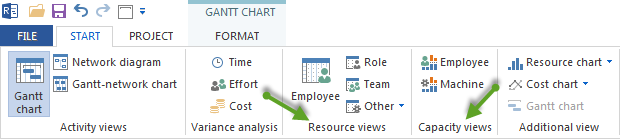
Open Start > Resource views > Employee.
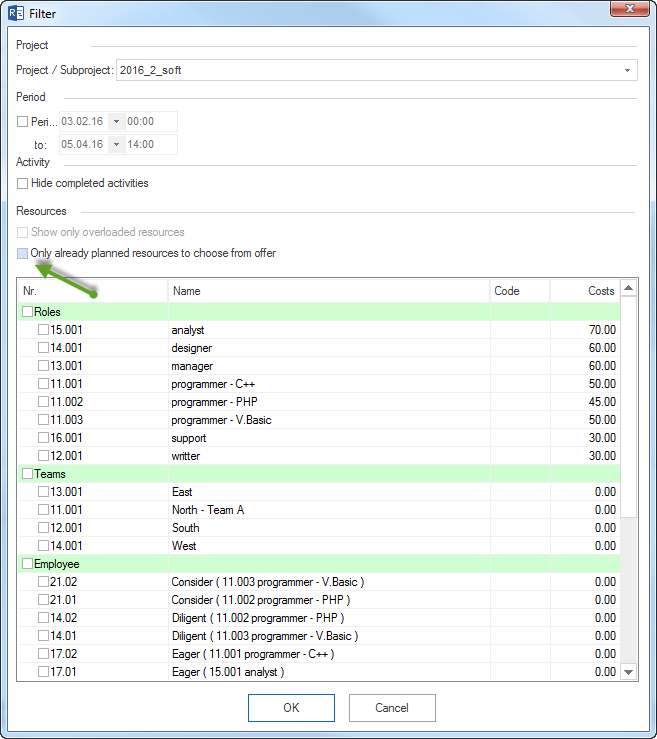
Choose Start > Edit > Filter. The Filter dialog opens.
Clear Offer only used resources for selection so all employees from the resource pool can be shown.
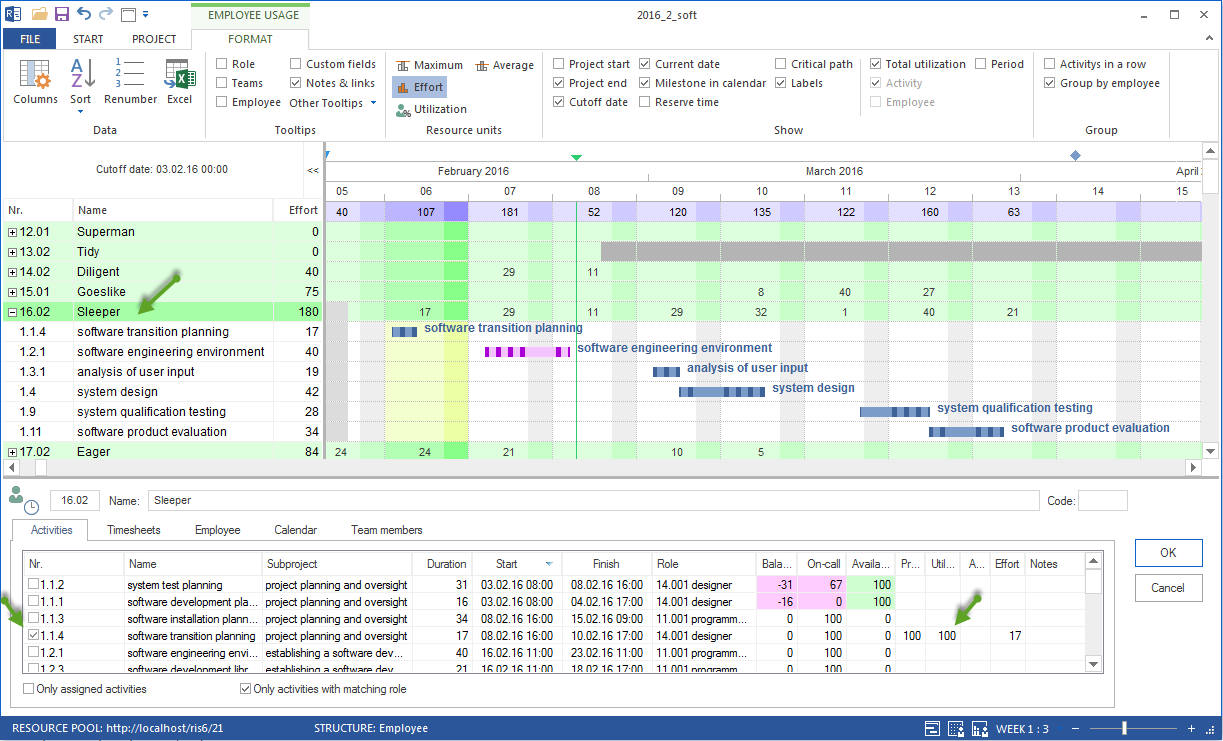
Select the employee.
Open the Activities tab in the resource properties window.
Select the tasks to assign to the employee.
Define workload or effort if required.
Click OK.
Important Options
In the employee view, these options are especially important:
Assigned activities only: reduces the list to tasks already assigned to the employee.
Activities with matching role only: shows only tasks that have a role the employee can perform.
Date-related filtering: left-click a cell at the intersection of an employee row and date column to show tasks relevant for the selected period.
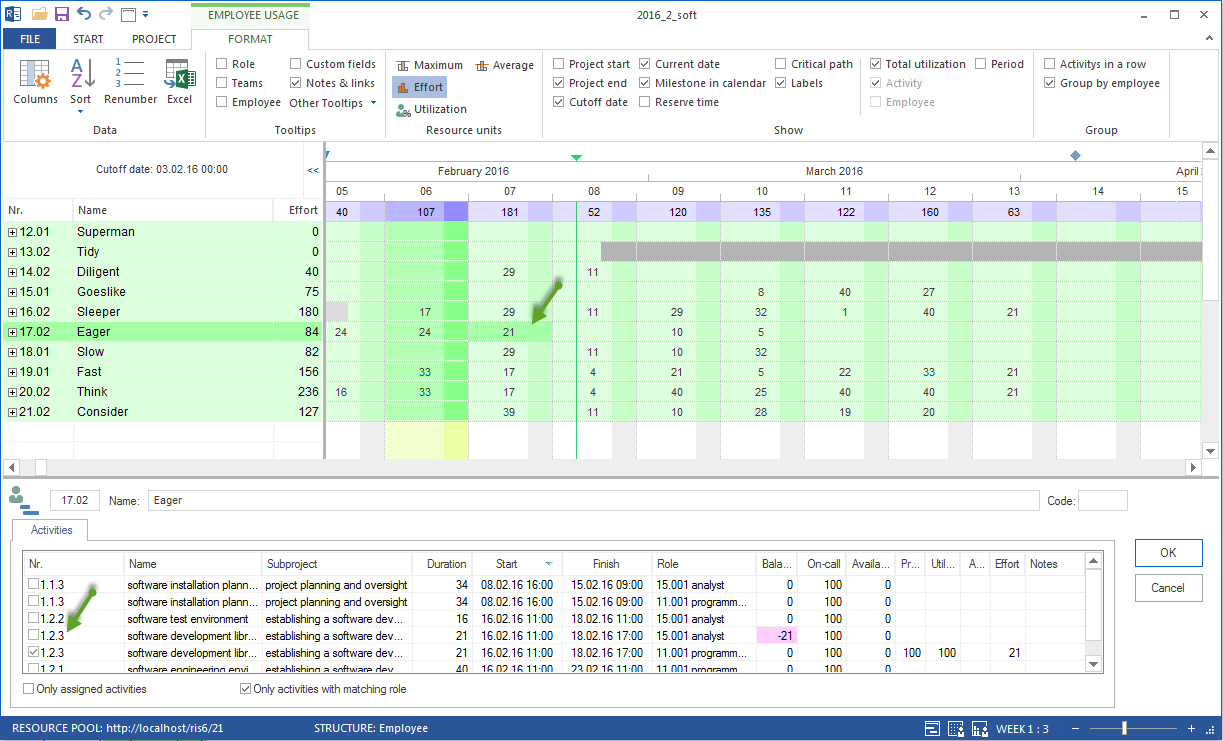
Activities with matching role only is especially helpful when direct assignment is combined with existing qualification-based planning.
Several Roles per Employee
An employee can have several professional qualifications. In this case, a task can appear several times in the selection so the employee can be booked under different roles.
Check:
under which professional qualification the employee is assigned
whether the assignment matches planned resource demand
whether costs or productivity differ by role
What to Check During Assignment
Depending on the task, these values may be relevant:
on-call
availability
productivity
workload
multiple booking
absence
effort
negative effort
substitution
notes
Check the Result
After direct assignment, check:
Is the correct employee assigned?
Does the assignment match the required professional qualification?
Does overload arise?
Are effort and workload correct?
Are calendars and non-working days considered?
Limits of Direct Assignment
Direct assignment can reveal too late that an employee is unavailable in the period or that several projects need the same person.
Switch to capacity balancing when:
overloads occur
several employees could perform the work
working times and non-working days are decisive
several projects are planned at the same time