Use Task and Subproject Tables
Task and subproject tables show the most important parameters of the project plan. You can adapt content, column order, and width to your way of working.
Adjust the Table Content
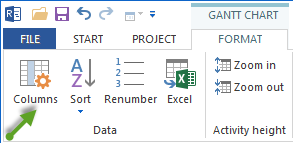
Open Format > Columns in a view.
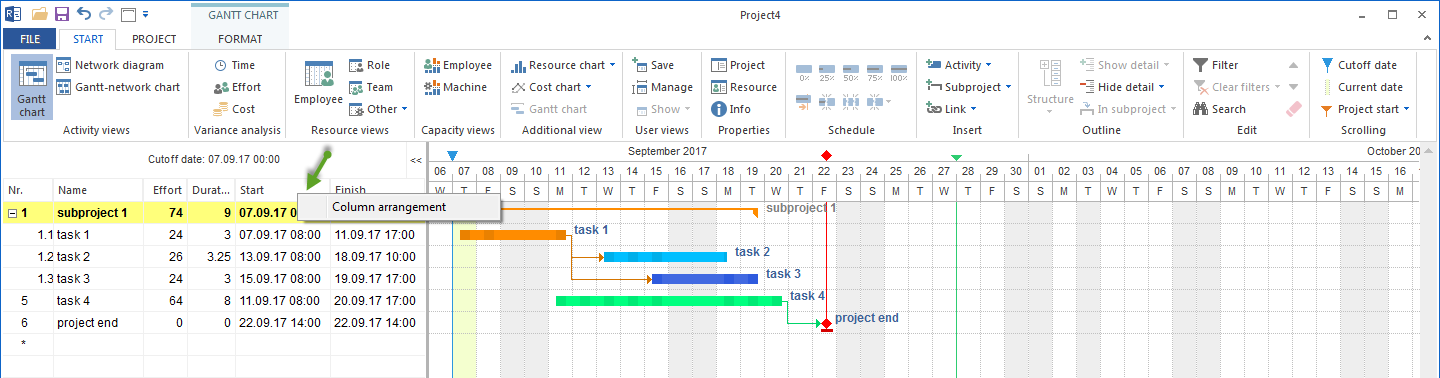
Alternatively, right-click the column header area and choose Properties from the context menu.
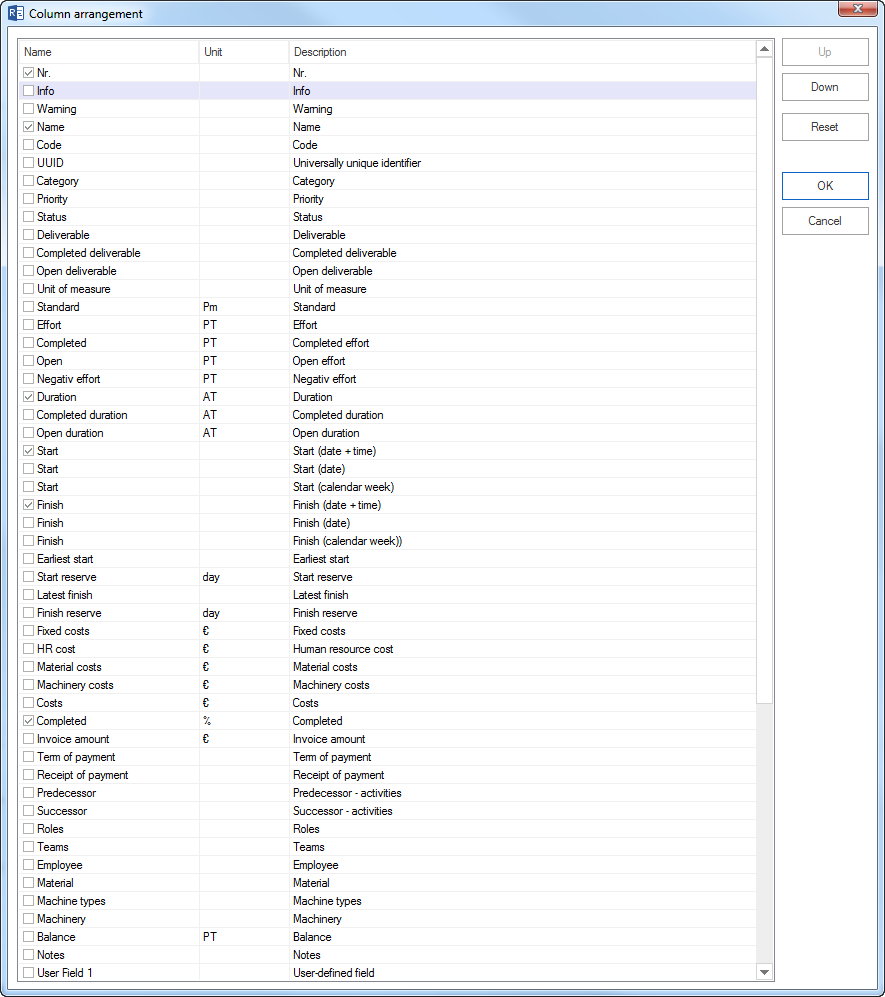
In the dialog, define which columns are shown. This includes user-defined fields.
Change the column order if required.
Adjust the Table Width
Drag a column border to change its width.
Temporarily expand or collapse the table when you need more room for the chart or for table data.
Navigate in Tables
Use Arrow up and Arrow down to move between task and subproject rows.
Use Tab to jump to the next column.
Use Shift+Tab to jump to the previous column.
Units of Measure
Duration and effort units are defined in the project settings, for example hours, working days, or working weeks. Check the setting under Project properties > General > Project settings before entering larger table values.
Important Table Fields
Field group |
Typical fields |
|---|---|
Structure |
No., Name, Code, Category, Status, Priority |
Dates |
Duration, Start, Finish, earliest start, latest finish, start reserve, finish reserve |
Effort and progress |
Effort, completed, open, negative effort, deliverable, unit of measure, norm |
Costs |
Fixed costs, salary, material costs, machine costs, costs |
Dependencies |
Predecessor, successor |
Resources |
Roles, teams, employees, material, machine types, machinery |
Balance |
Employee balance, machine balance |
Additional information |
Info, warning, notes, external links, user-defined fields (1 - 20) |