Resource View Variants
Rillsoft Project provides several resource views. Each view focuses on a specific resource type or analysis perspective. This article describes the variants and explains when each view is useful.
Resource views complement capacity balancing views: capacity balancing compares demand with supply; resource views show actual utilization and distribution of already assigned or planned resources.
Role Utilization
Role utilization views show how strongly professional qualifications are used over the project period. They refer to all projects that use the same resource pool.
Role utilization
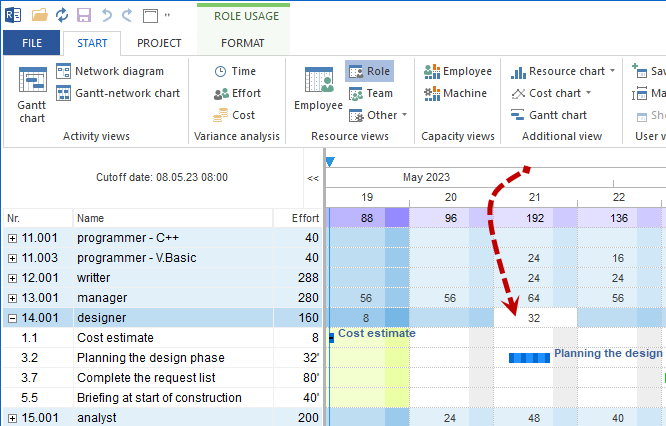
The standard view shows utilization per professional qualification as a time series. You can immediately see which roles are heavily used, fully utilized, or underutilized.
Open: Start > Resource views > Roles
Especially useful when:
you need to identify which qualifications are permanently heavily used or fully utilized
bottlenecks across several projects should be detected
the resource pool should be checked for completeness
Role utilization, effort
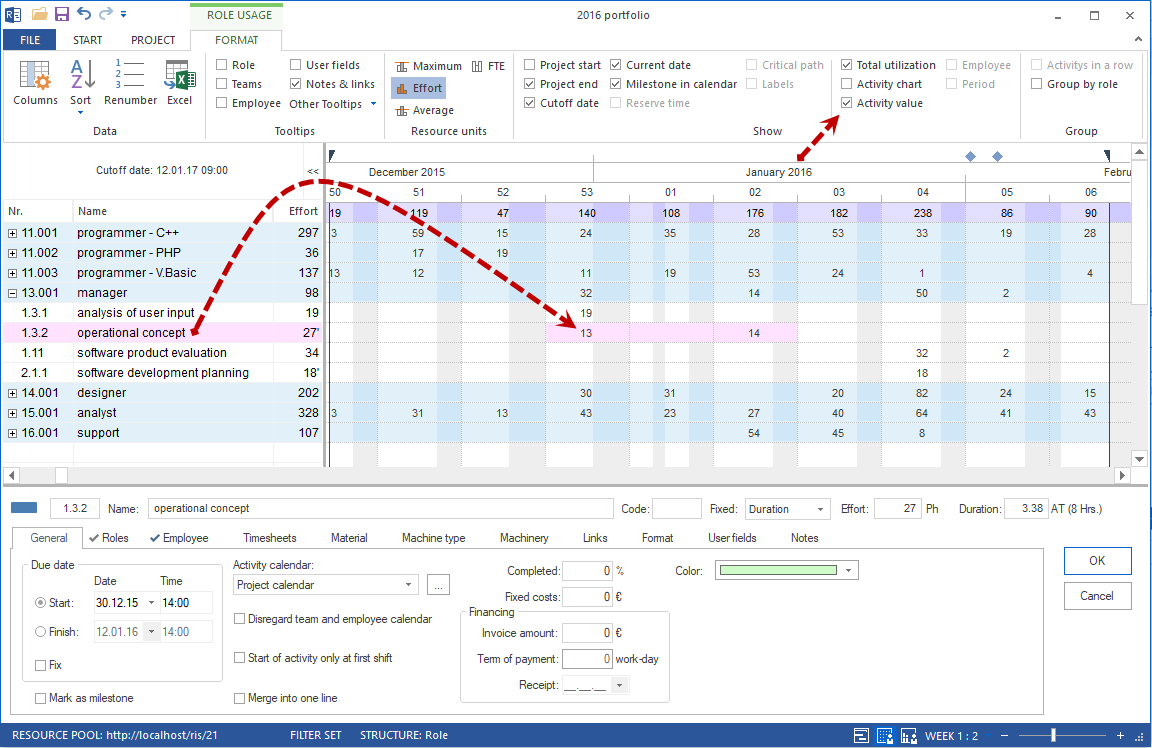
Shows utilization per professional qualification in person-hours or person-days. Use this variant when the amount of planned work must be evaluated in absolute terms.
Open: Role utilization Format > Resource units > Effort in the role utilization view.
Especially useful when:
resource effort must be quantified for reporting or budgeting
qualification bottlenecks should be expressed in hours
additional effort caused by extra projects must be calculated
Role utilization, FTE
Shows utilization as full-time equivalents (FTE). Instead of hours, you see how many full-time positions a qualification binds or requires over the project period.
Open: Role utilization Format > Resource units > FTE in the role utilization view.

Especially useful when:
staffing plans or personnel decisions are prepared
you need to communicate to management how many full-time positions a project or portfolio binds
capacity must be presented in an organizationally understandable unit
Role utilization by project
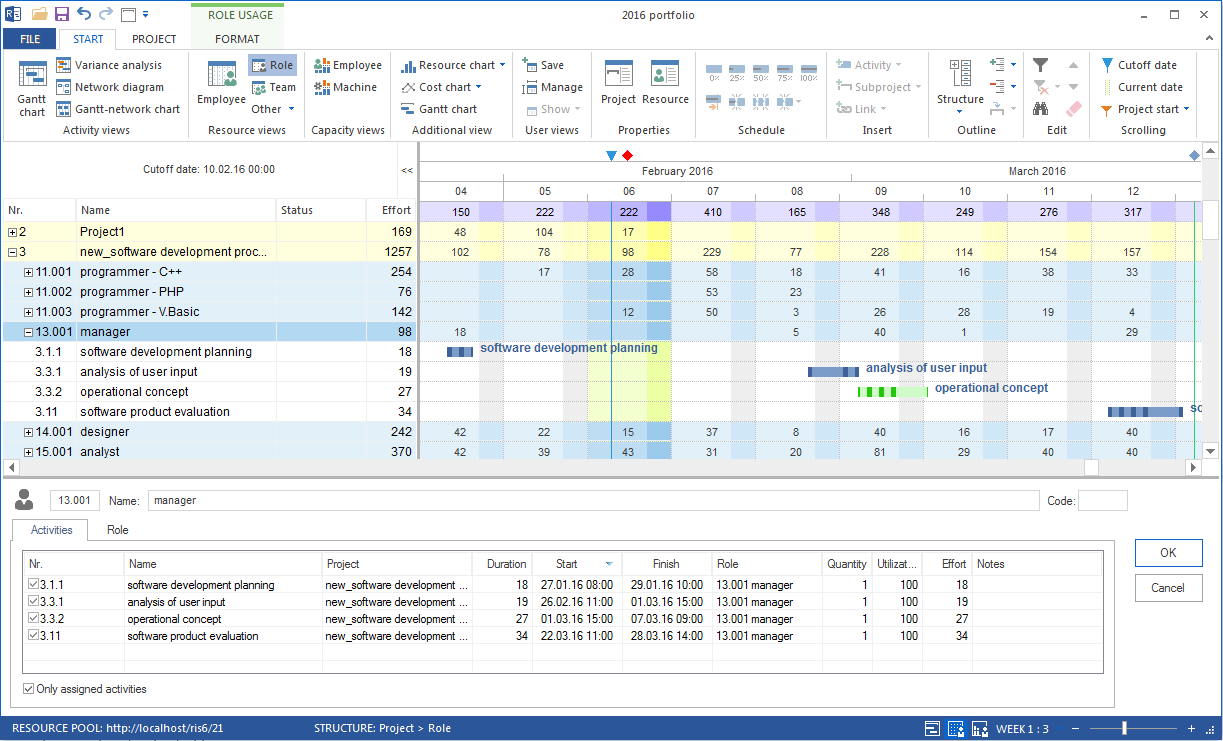
Shows role utilization broken down by projects. You can see which project uses which qualifications and to what extent.
Open: Start > Resource views > Roles, then Start > Outline > Grouping > Project > Role.
Especially useful when:
several projects compete for the same professional qualifications
project-related resource decisions must be justified
resource bottlenecks must be assigned to a specific project
Team Utilization
Team utilization views show team workload over the project period.
Note
Direct team assignment to tasks is available only in the Standard edition of Rillsoft Project. In the Light, Professional, and Enterprise editions, tasks receive their team assignment indirectly through assigned employees and their team membership.
Team utilization
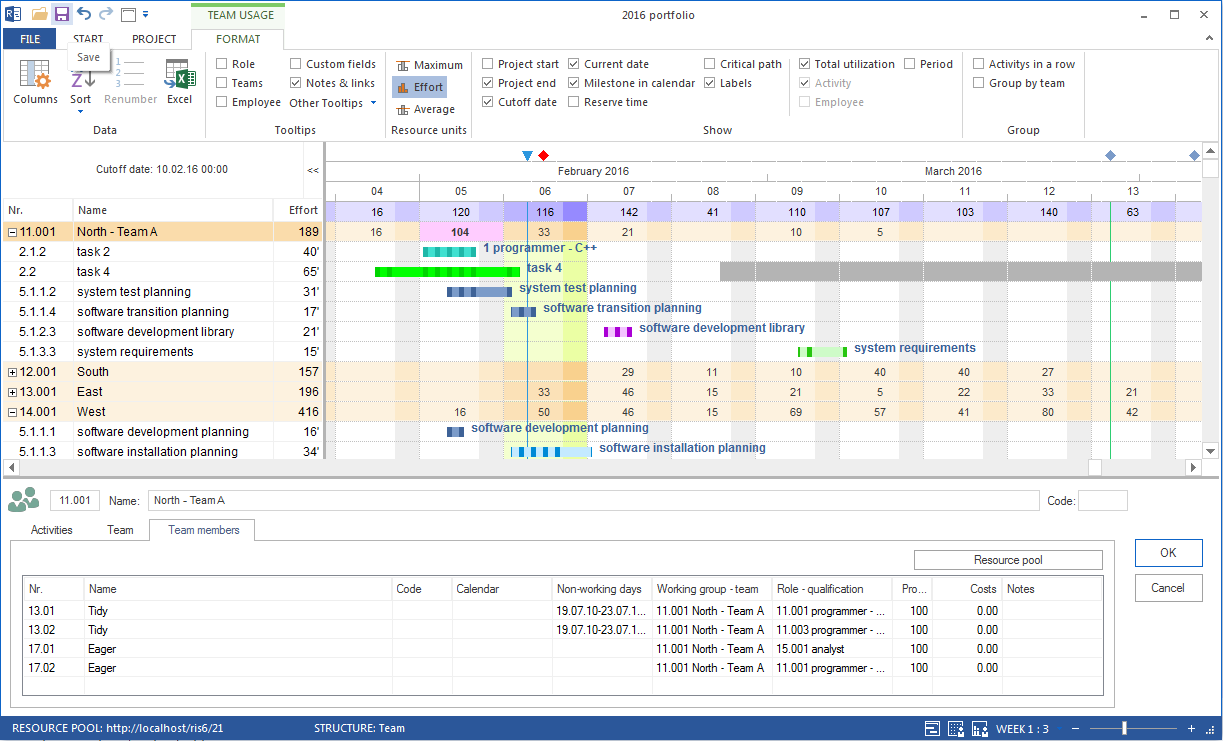
Shows utilization per team as a time series. Overloaded teams are immediately visible.
Open: Start > Resource views > Team
Especially useful when:
total workload of a team should be evaluated
teams are the planning unit instead of individual employees
team leads need an overview of their capacity
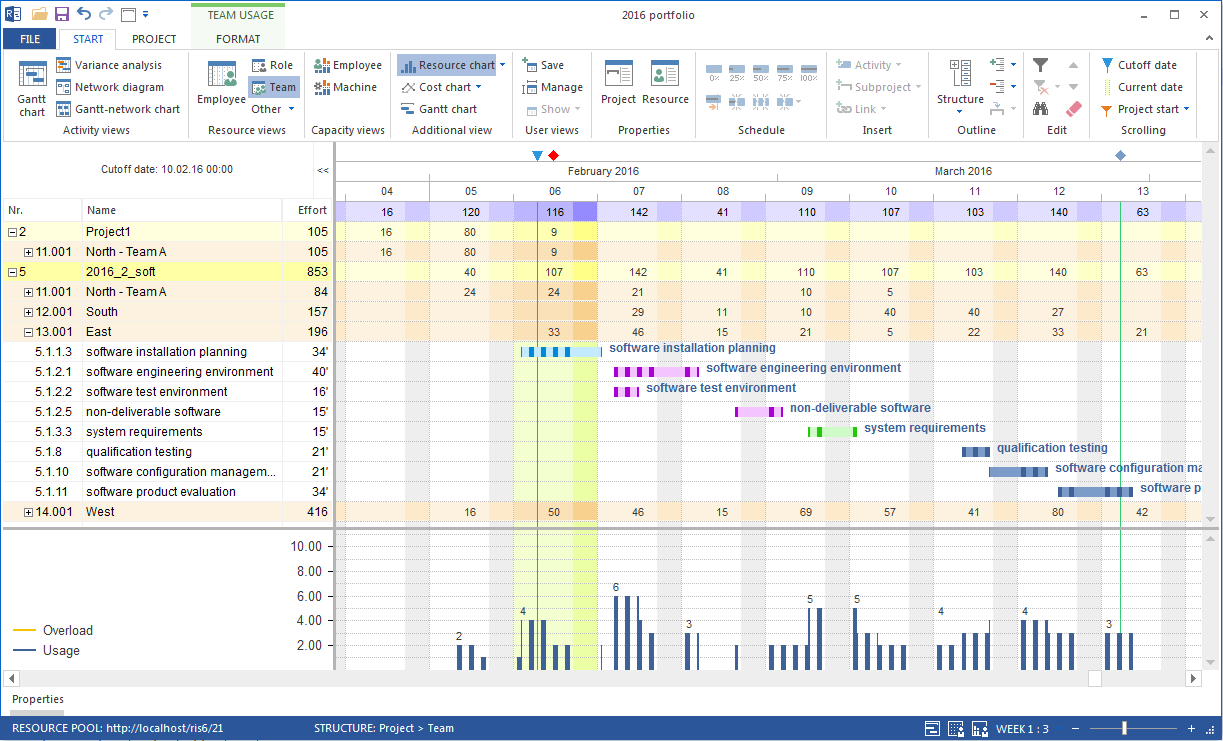
Teams by project
Shows team utilization broken down by project. For each project, you can see which teams are involved and how heavily they are used.
Open: Start > Resource views > Team, then Start > Outline > Grouping > Project > Team.
Especially useful when:
several projects are planned with the same teams
team owners need to see project usage of their employees
portfolio conflicts should be analyzed at team level
Employee Utilization
Employee utilization views show workload for individual employees.
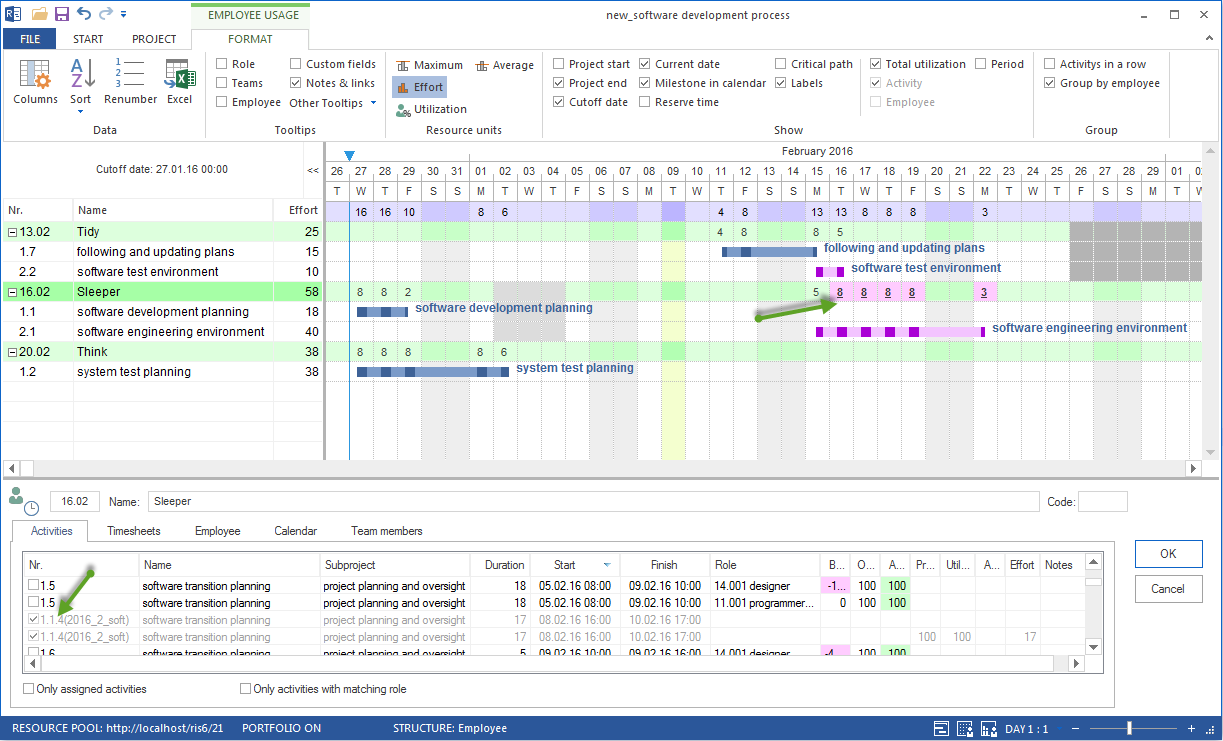
Employee view
Shows all employees with their current utilization as a time series. Employees who are overloaded or double-booked become visible immediately.
Open: Start > Resource views > Employee
Especially useful when:
individual employees should be checked for over- or underload
utilization distribution within a group or department should be evaluated
free capacity is needed for a new assignment
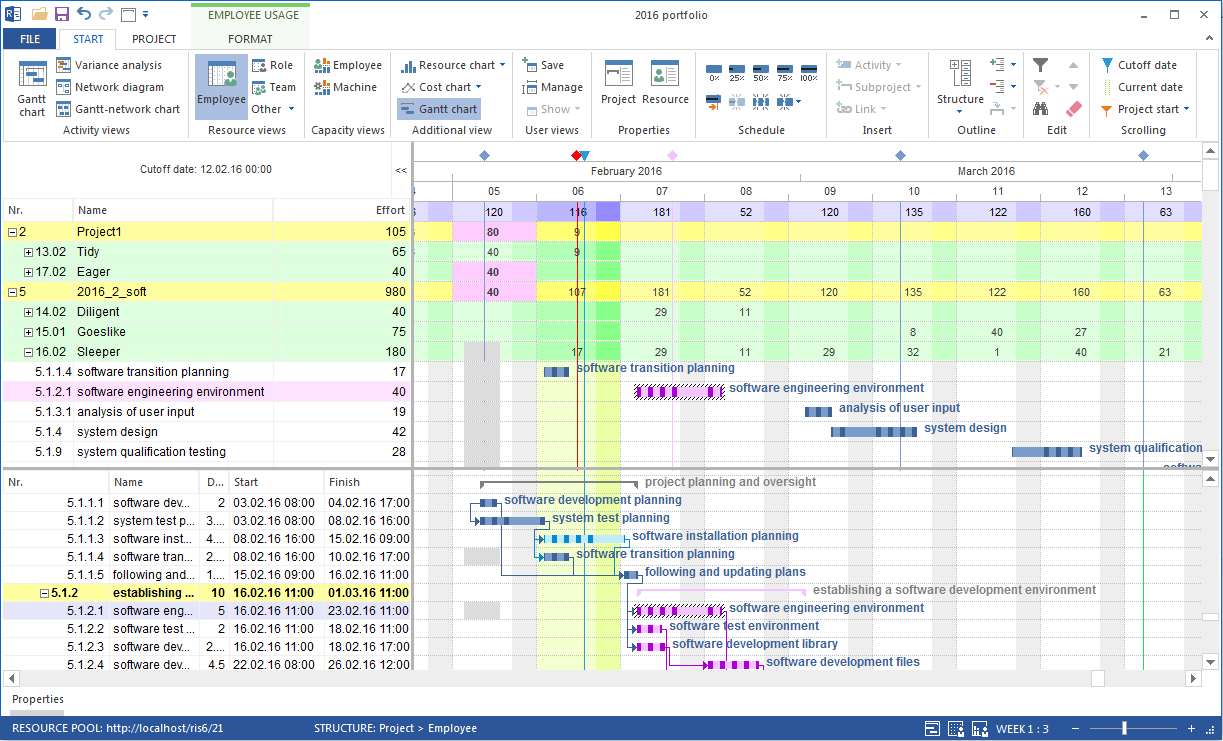
Employee Gantt
Combines the employee list with a Gantt chart. Assigned tasks are shown over time for each employee.
Open: Start > Resource views > Employee, then Start > Additional view > Gantt chart.
Especially useful when:
the timing of employee assignments must be traced
overlaps for individual employees must be found
project manager and resource manager check availability together
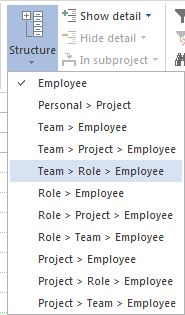
Employees by project
Shows employee utilization broken down by project. For each employee, you can see in which project and to what extent the employee is planned.
Open: Start > Resource views > Employee, then Start > Outline > Grouping > Project > Role > Employee.
Especially useful when:
employees work in several projects at the same time
double assignment or multiple bookings must be detected
individual employees should be relieved and work redistributed
Material, Machine Type, and Machinery Views
These views show utilization of technical resources. They are especially relevant in industries with high material or machine use, such as construction, production, and manufacturing.
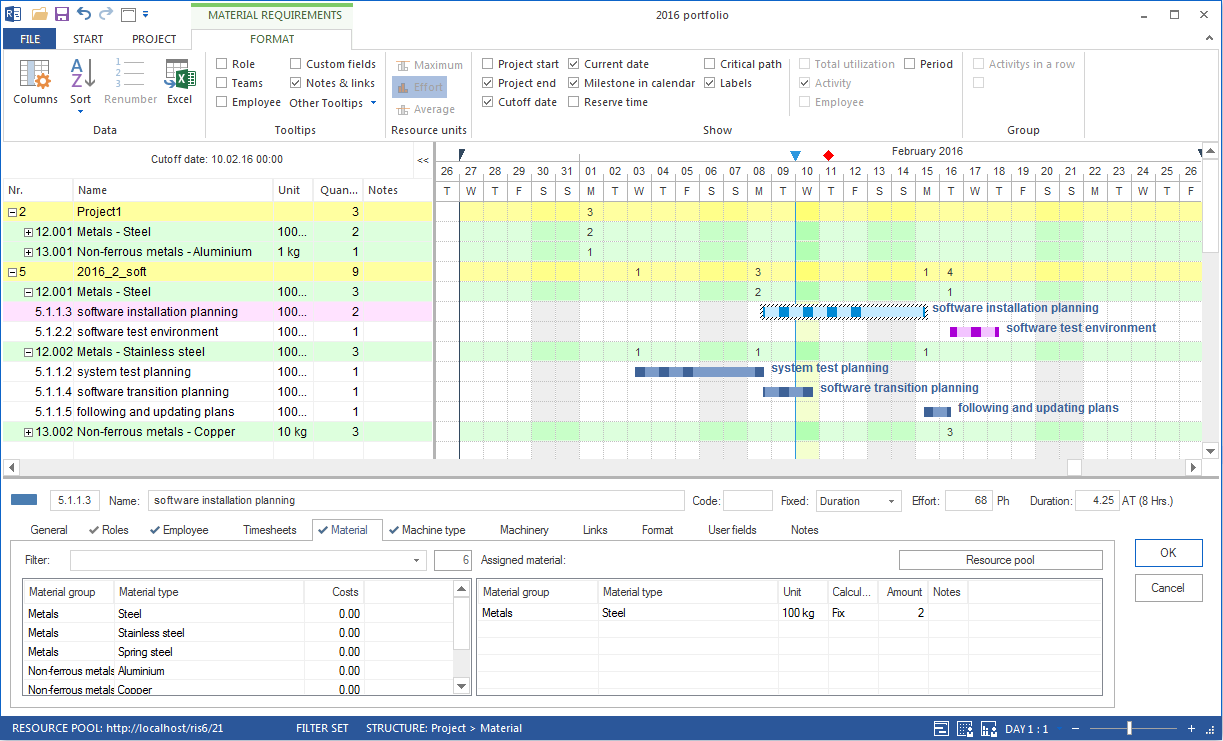
Material view
Shows material utilization as a time series.
Open: Start > Resource views > Other > Material
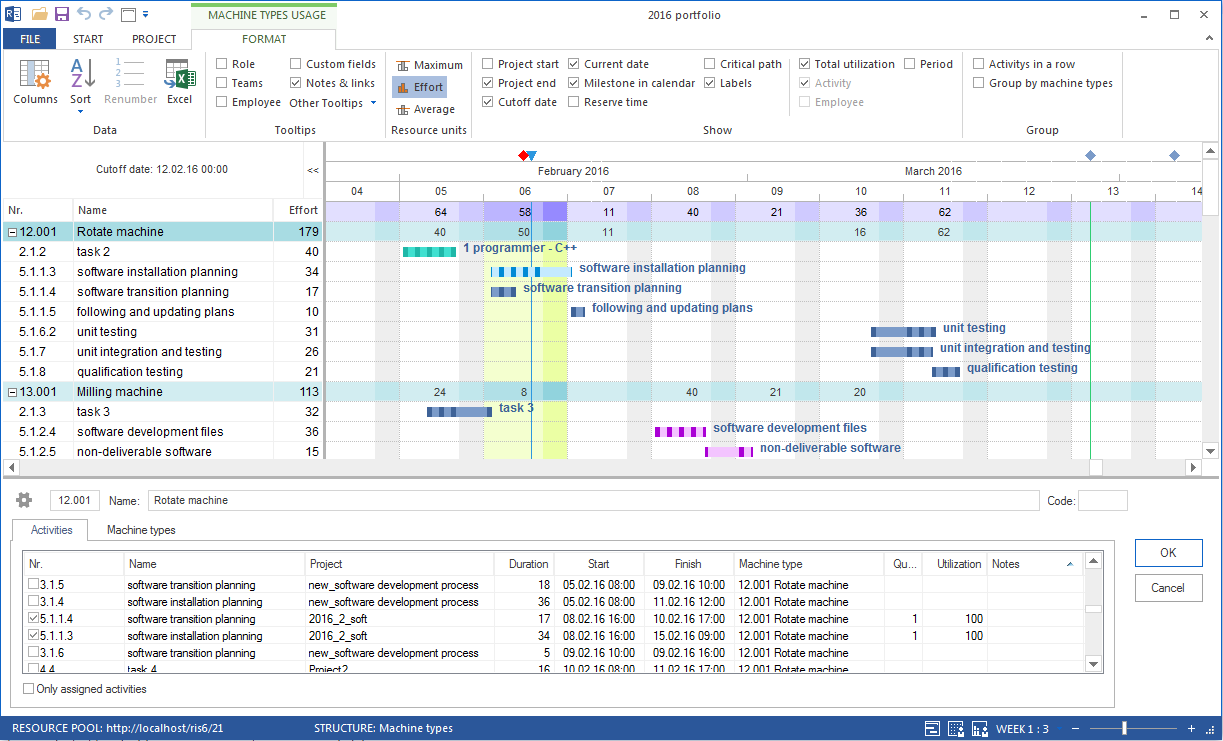
Machine type view
Shows utilization of machine types.
Open: Start > Resource views > Other > Machine types
Machinery view
Shows utilization of the machinery pool, meaning specific machines. Machinery includes stationary or heavy technical resources such as cranes, processing machines, or plants.
Open: Start > Resource views > Other > Machinery
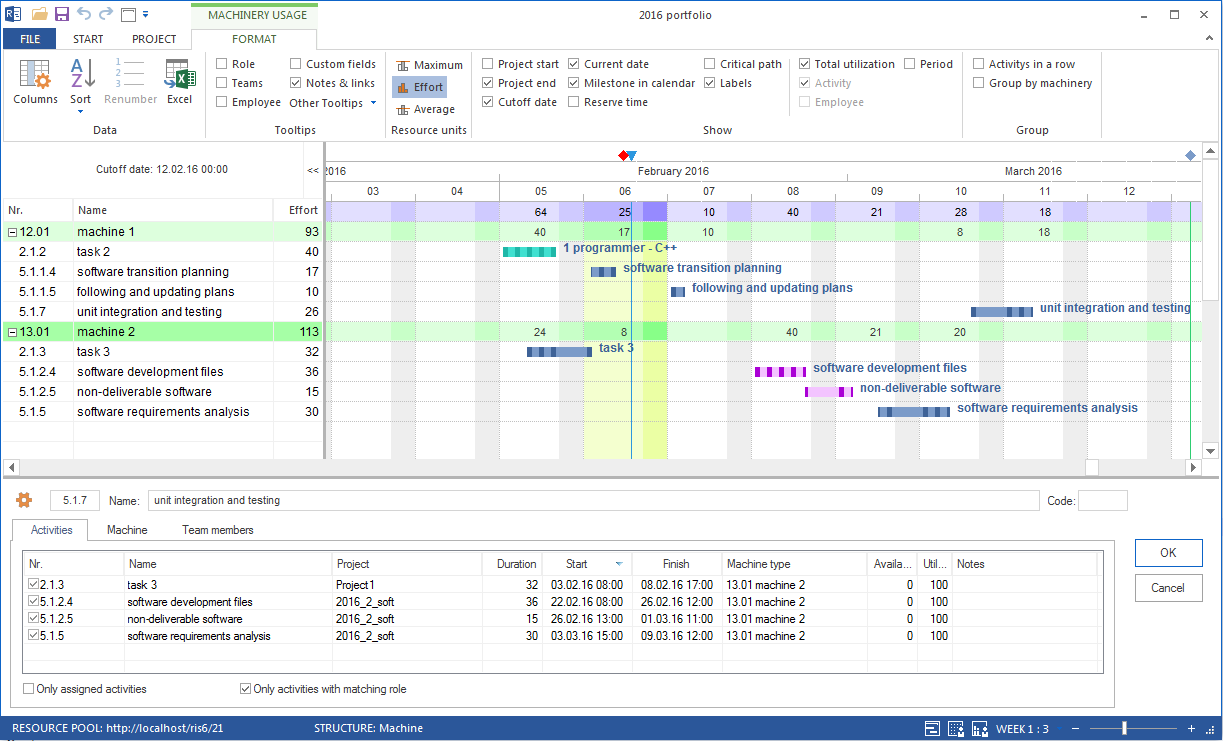
All three views follow the same structure as the employee utilization view: a resource list on the left and a time series of utilization on the right.
Especially useful when:
technical resources are planned in several projects at the same time
bottlenecks for machines or devices should be detected early
investment or rental decisions should be prepared from utilization data
Decision Guide: Which View Should You Choose?
Situation |
Recommended view |
|---|---|
Detect bottlenecks in professional qualifications |
Role utilization |
Quantify qualification bottlenecks in hours |
Role utilization, effort |
Show staffing needs for management |
Role utilization, FTE |
Which project uses a role most strongly? |
Role utilization by project |
Check overall team utilization |
Team utilization |
Break down team workload by project |
Teams by project |
Check employees for over- or underload |
Employee view |
Trace assignment timing |
Employee Gantt |
Review employees in several projects |
Employees by project |
Check machine demand and availability |
Machinery view |
Detect machine type conflicts between projects |
Machine type view |
Group Resource Views
All resource views can be grouped by several characteristics, for example by employee, project, role, or team. Grouped views help you not only detect bottlenecks but also classify them professionally.
Open: Start > Outline > Grouping in the relevant view.
More: Group Resource Views