Perform Capacity Balancing in 10 Minutes
Goal: You check whether planned resource demand is covered by available employees with matching roles, identify shortages, and prepare employee assignment.
Prerequisites: A project with tasks is open. Roles are assigned to tasks. The resource pool contains employees with matching roles and working time data.
Step 1: Open Demand and Supply
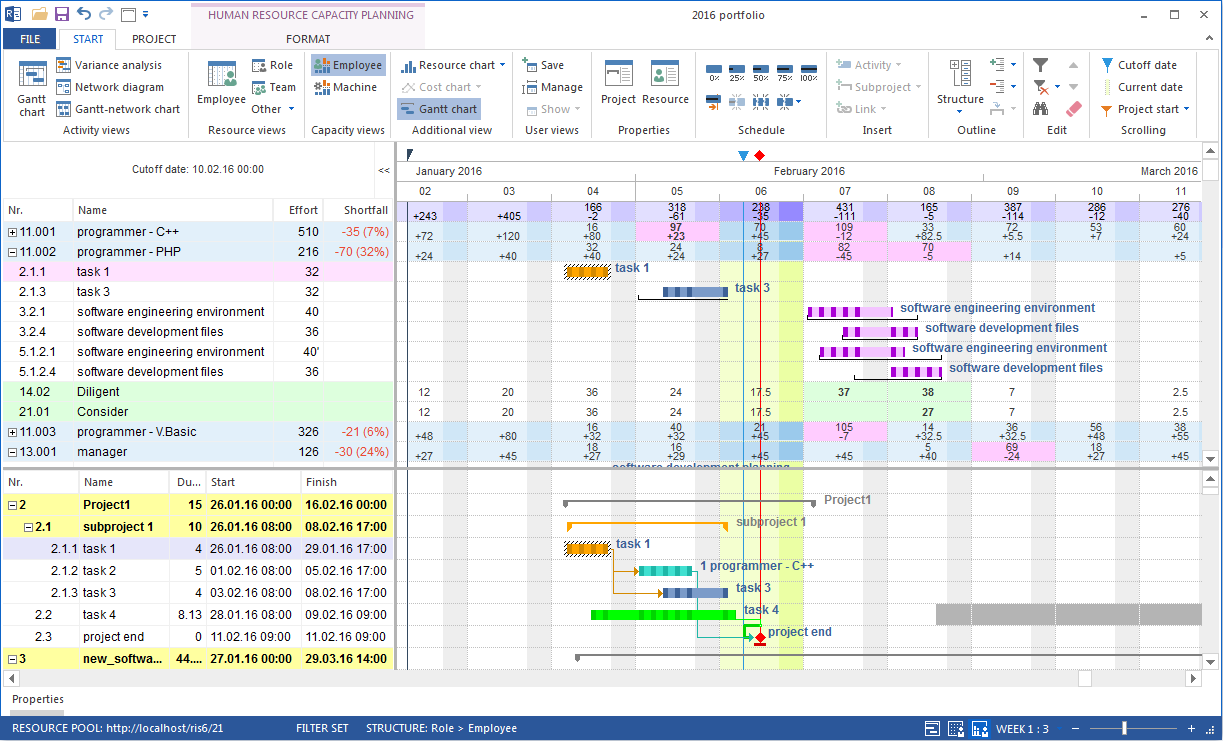
Select Start > Capacity views > Employee.
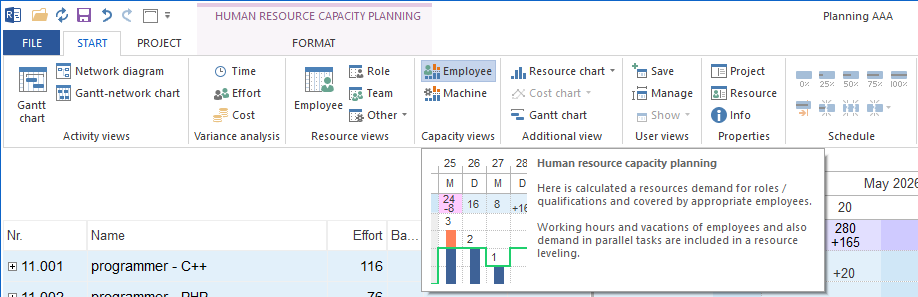
Check whether the required roles or employees appear in the table.
If no roles or employees are shown, first check resource demand and the resource pool.
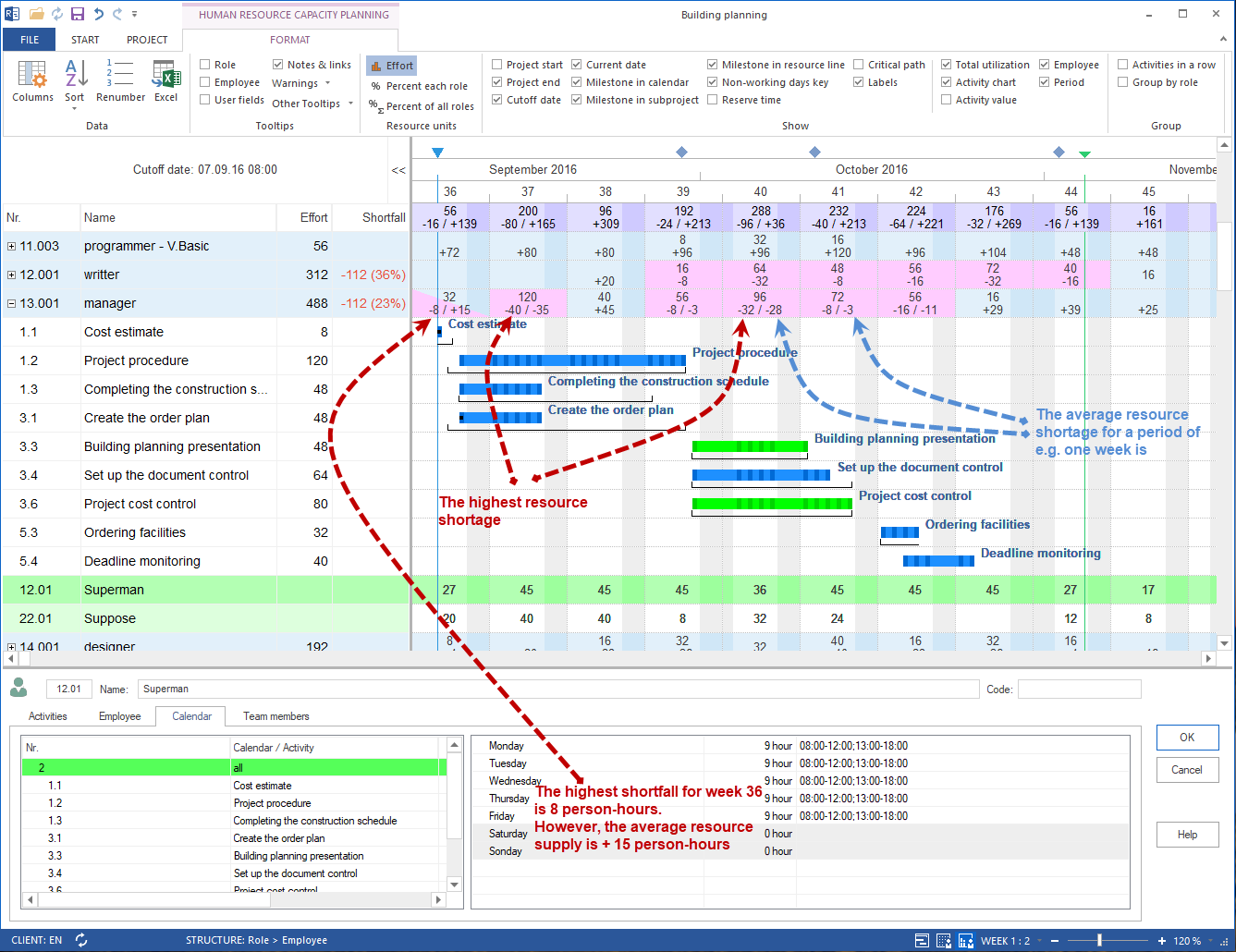
Red values or red cells indicate uncovered demand. Green or grey areas indicate available capacity or no shortage.
Step 2: Identify Shortage and Cause
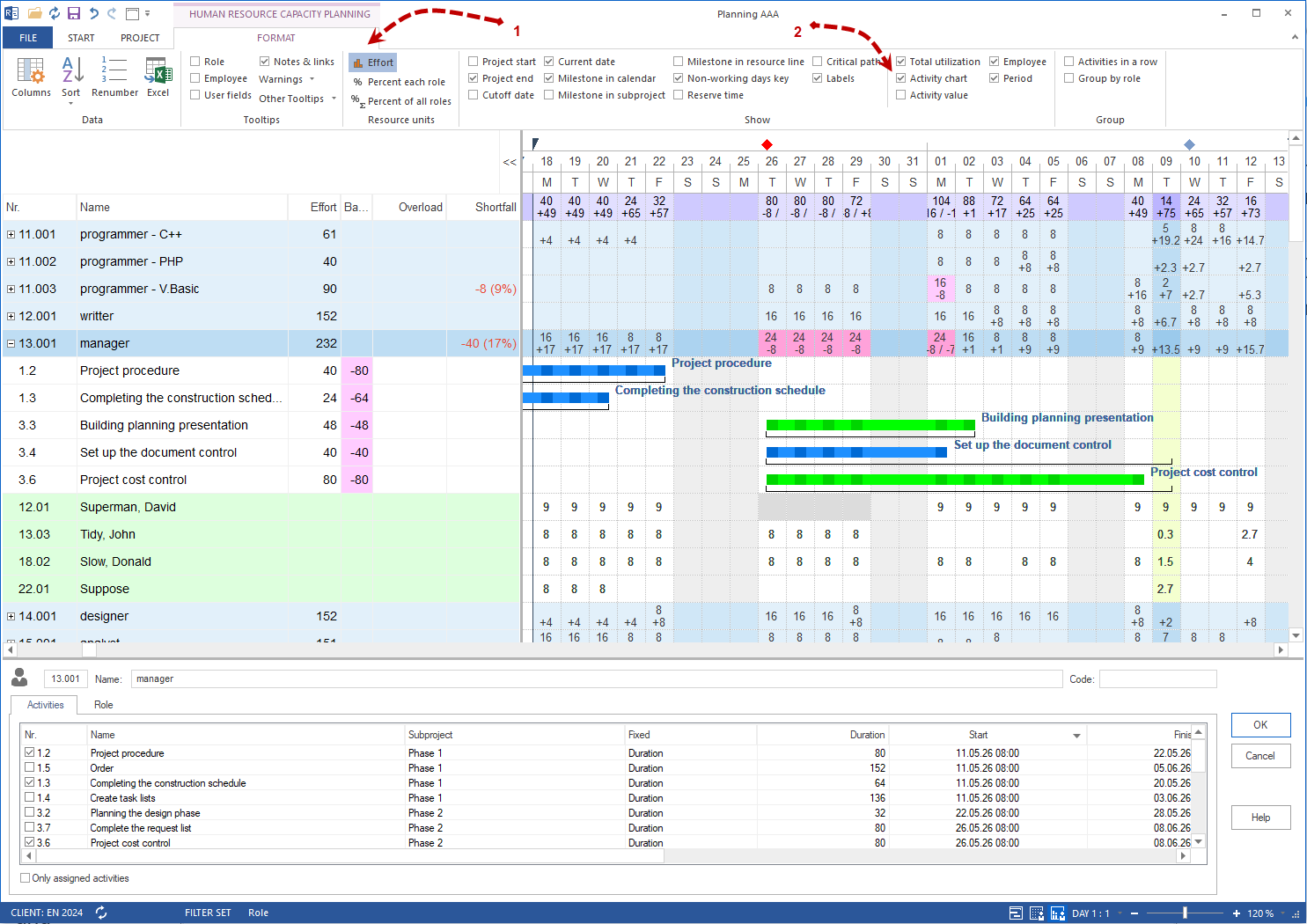
Look for red or conspicuous values in role or employee rows.
Check the affected time period.
Show details to identify the tasks causing the demand.
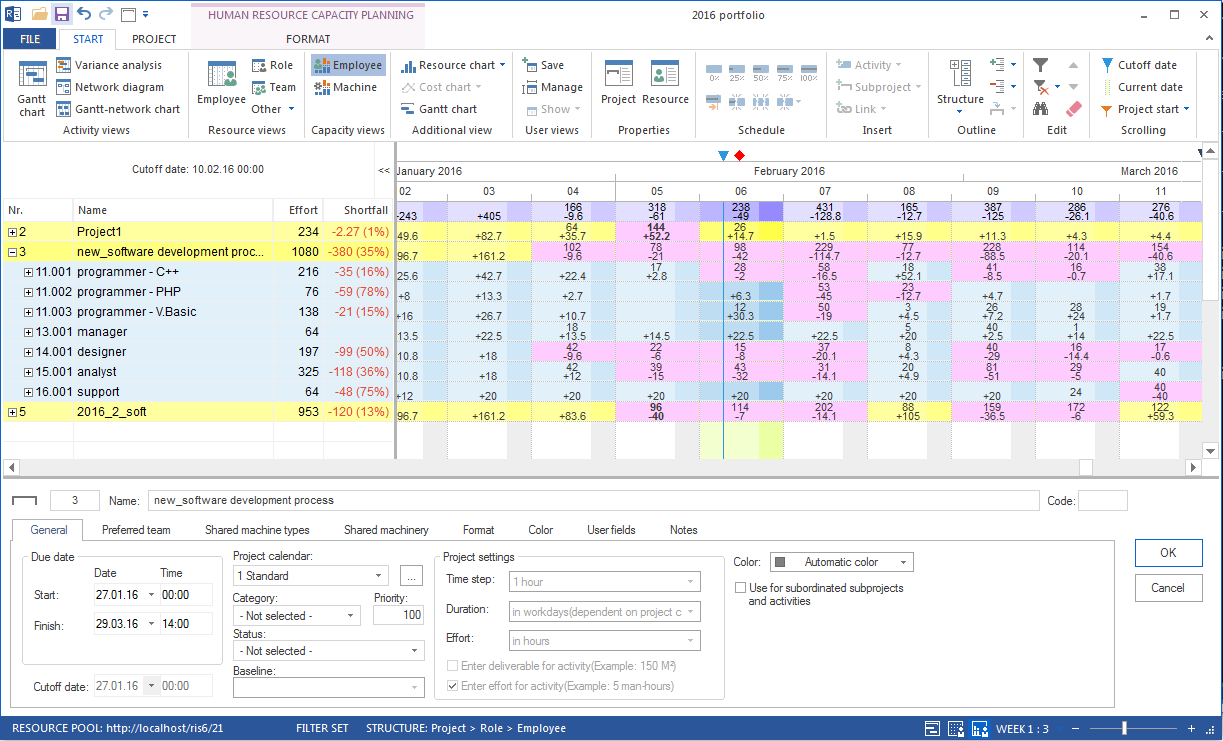
If several projects or subprojects are involved, use the project-related grouping.
Ask:
Is the shortage permanent or limited to a peak period?
Which tasks cause the demand?
Is the required role available in the resource pool?
Are working time, vacation, or other non-working days the cause?
Can a task be moved without affecting the critical path?
If you want to view both the shortfall and the schedule at the same time, use the additional view with the Gantt chart.
Step 3: Assign Employees after Capacity Balancing
When capacity and period fit, assign named employees.
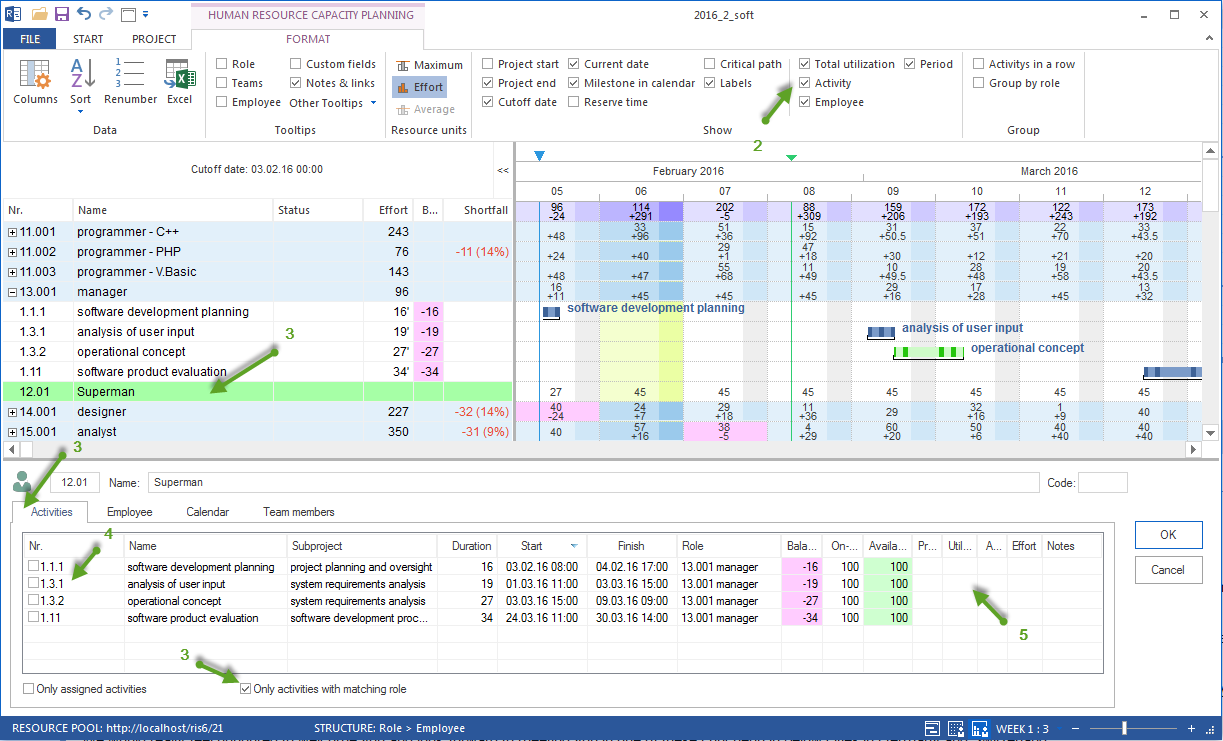
Select the suitable employee in the capacity view.
Check the related tasks in the lower area.
Limit the display to the matching role if needed.
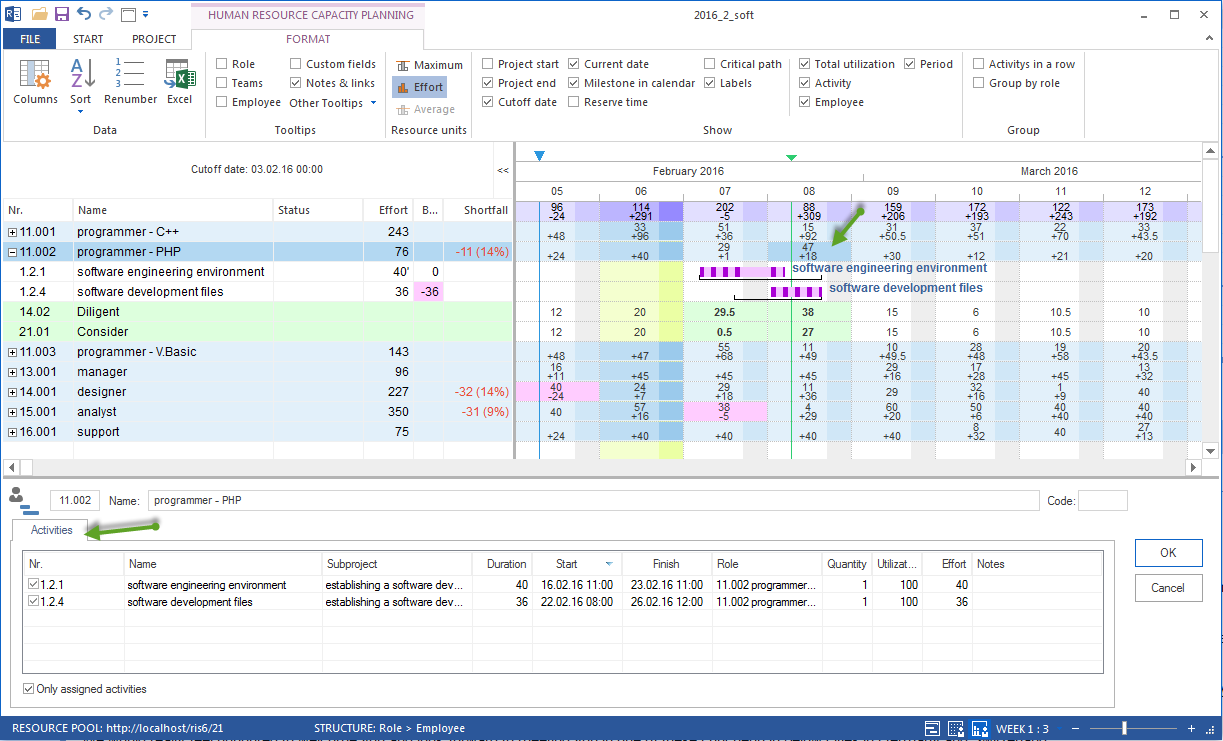
Assign the employee to the task and check effort and utilization.
For partial availability, check date and utilization carefully.
Step 4: Evaluate the Result
Refresh the capacity view.
Check whether the shortage disappeared or became smaller.
Check whether the finish date or critical path changed.
If bottlenecks remain, choose the next action.
Situation |
Action |
|---|---|
Capacity is sufficient |
Assign employees and check utilization. |
Capacity is sufficient, but not in the required period |
Move tasks, clarify priorities, or check working time. |
Role is missing |
Check resource pool, role demand, or external capacity. |
Peak demand causes shortage |
Distribute work or review schedule logic. |
Automatic optimization should help |
Use Project > Schedule > Other functions > Optimize resource utilization and manually check the result. |
Result
You compared demand and supply, classified bottlenecks, and assigned employees after the capacity check.
Related Topics
capacity balancing, demand and supply, resource shortage, bottleneck, assign employees after capacity check, capacity planning, utilization, overload, resource manager, project manager