Portfolio View
The portfolio view combines several projects in one common working environment. It supports cross-project scheduling, capacity planning, and resource optimisation.
“Portfolio Project Selection” Dialog
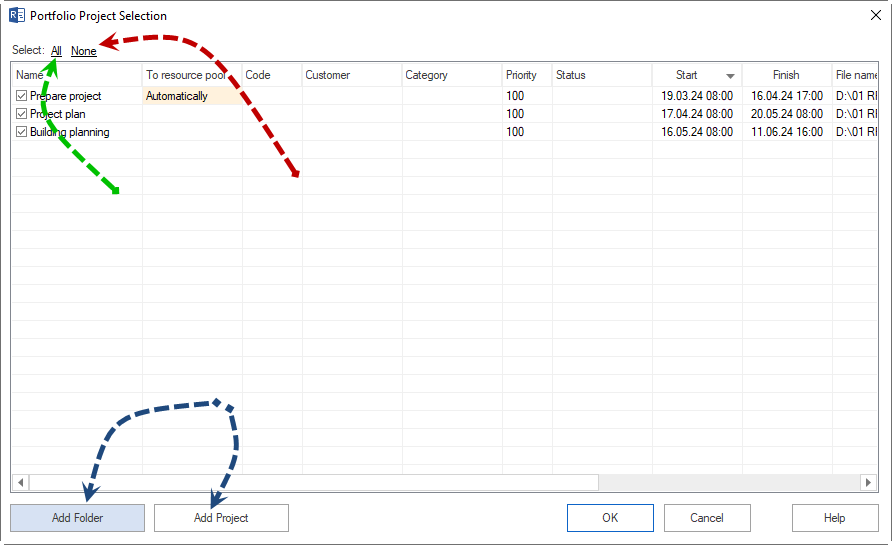
The dialog appears when creating (File > New project portfolio) and when opening (File > Open > Project portfolio) a portfolio.
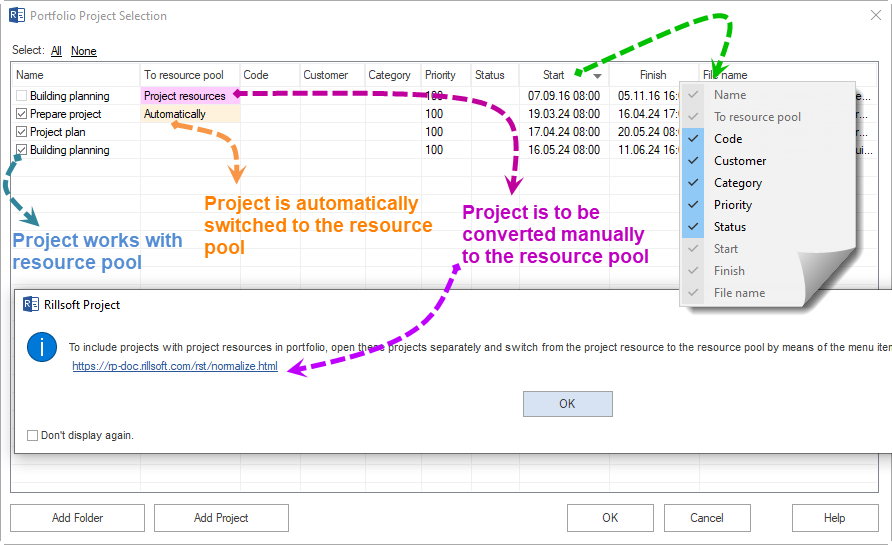
Prerequisite: only projects with a common resource pool can be included in a portfolio.
Columns in the dialog
Column |
Meaning |
|---|---|
Project name |
Name of the project in the list. |
To resource pool |
Shows whether the project is compatible with the common resource pool. Colour coding: no background = compatible, yellow = minor deviation (for example new non-working days), red = significant deviation. |
Code |
Project abbreviation or internal project code. |
Customers |
Customer name assigned to the project. |
Category |
Project category (for example internal, external, investment). |
Priority |
Priority level of the project for portfolio planning. |
Status |
Project status (for example planned, active, completed). |
Project start |
Planned start date of the project. |
Project finish |
Planned finish date of the project. |
File name |
File name of the project file. |
The order of the projects in the dialog is adopted as the display order in the portfolio. Click a column header to sort the list by that criterion.
Resource pool status (“To resource pool” column)
Background colour |
Meaning |
|---|---|
no background |
The project is fully compatible with the resource pool. |
yellow |
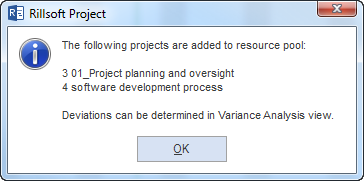
Minor deviation, for example new non-working days or cost changes. The project is automatically switched to the resource pool when opened (mode: automatic). 
|
red |
Significant resource deviation. The project must first be opened separately and adjusted manually via Project > Project resources > To resource pool before it can be included in the portfolio. 
|
Buttons in the dialog
Button / link |
Function |
|---|---|
Add Folder |
Searches a directory for project files and adds all found projects to the selection list. |
Add Project |
Adds a single project file to the selection list. |
All (link) |
Marks all compatible projects from the list for the portfolio. |
None (link) |
Removes all markings; no project is included in the portfolio. |
Select all projects (button) |
Corresponds to the All link — all compatible projects are selected. |
Remove all projects (button) |
Corresponds to the None link — all projects are deselected. |
Available Views In The Portfolio
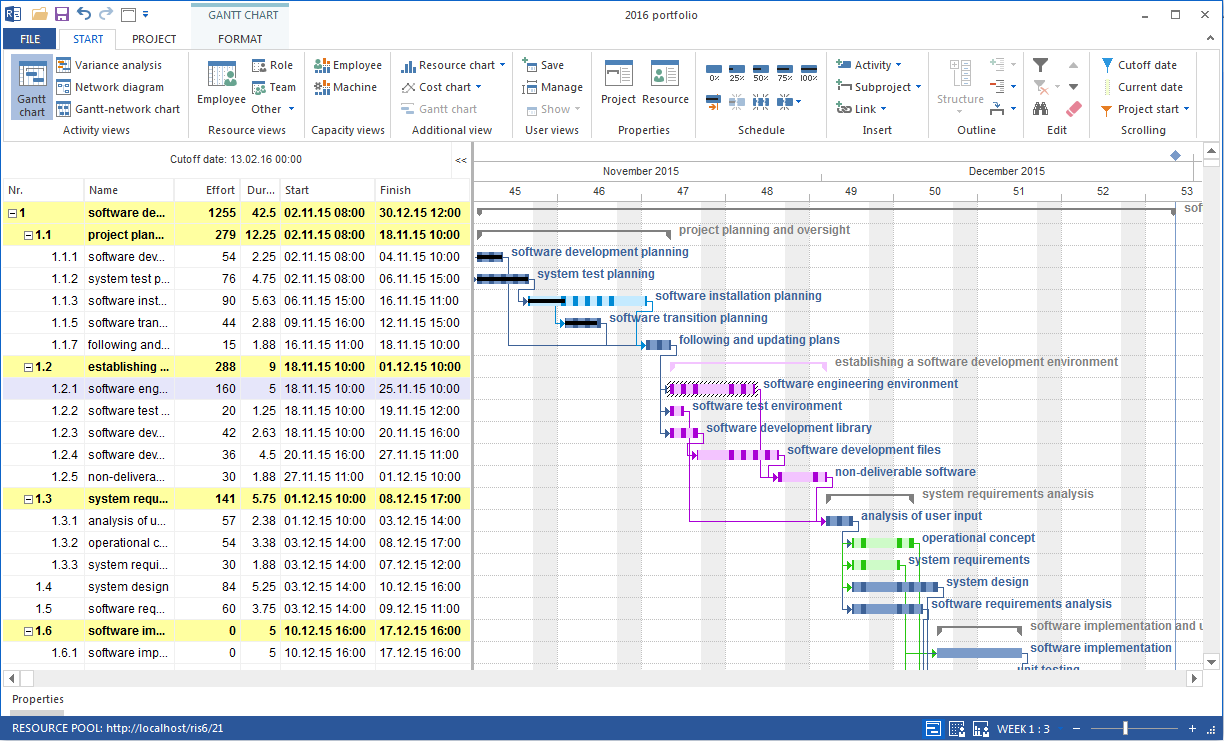
In the portfolio the same views as in a single project are available. In addition, the portfolio dashboard is available.
View |
Use in the portfolio |
|---|---|
Gantt chart |
Shows all activities of all portfolio projects on a common time axis. |
Capacity balancing employees |
Displays role demand and available capacity across all portfolio projects. |
Capacity balancing machines |
Like capacity balancing employees, for machine types and machinery. |
Role utilisation |
Shows role utilisation across projects, also filterable per project. |
Employee utilisation |
Shows the utilisation of individual employees across all portfolio projects. |
Target/actual comparison |
Compares baseline and current plan for all portfolio projects. |
Portfolio dashboard |
Compact view of all portfolio projects with key figures (see below). |
Note: new projects cannot be created in the portfolio. New projects must be created separately and then added to the portfolio.
Portfolio Dashboard
The portfolio dashboard is a tab in the project information dialog.
Open: Start > Properties > Info, Portfolio dashboard tab.
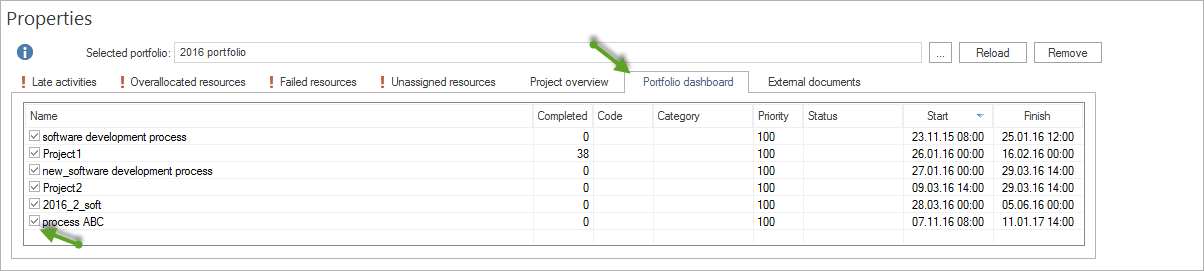
The portfolio dashboard shows all projects of the open portfolio with the following information:
Column |
Content |
|---|---|
Project name |
Name of the project in the portfolio. |
Category |
Project category. |
Status |
Current project status. |
Priority |
Priority of the project. |
Customer |
Customer name assigned to the project. |
Start |
Planned start date. |
Finish |
Planned finish date. |
Activated (checkbox) |
Controls whether the project is included in the capacity calculation. Deactivated projects still appear in the portfolio but are not considered for resource availability. |
Selected portfolio: the Selected portfolio field switches between several open portfolios in the dialog.
Simulation: showing and hiding projects via the checkbox is suitable for capacity simulations. Example: temporarily deactivate a project and check the resource situation without it.
Open A Portfolio Through Rillsoft Integration Server
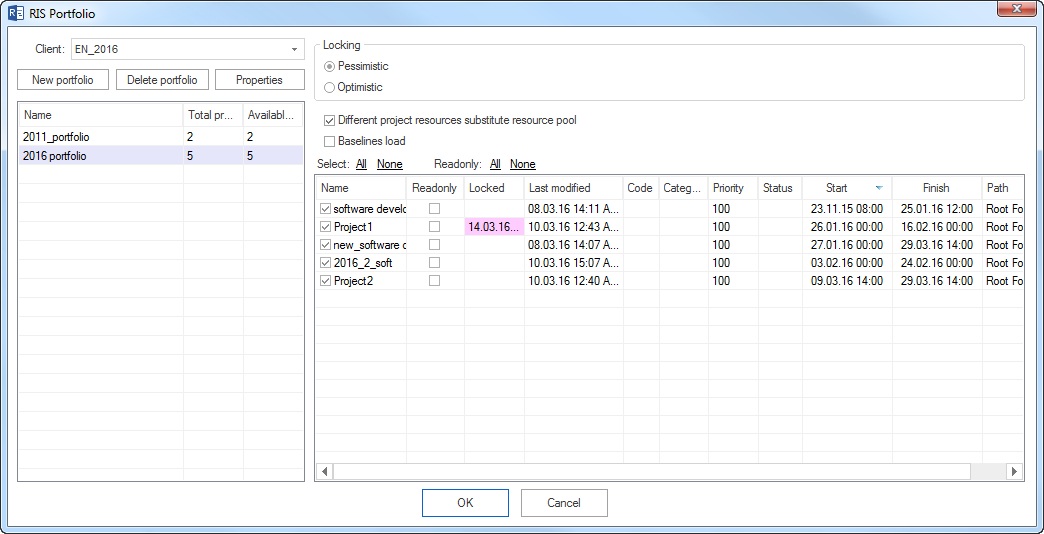
When the Rillsoft Integration Server is set up, a portfolio can be opened directly from the server:
Click File > Open > Project portfolio from Integration Server.
Log in to the Rillsoft Integration Server.
Select the portfolio from the list.
Click OK.
In network operation, portfolios can be opened read-only when another user is already editing the portfolio.