Open a Project Portfolio in 10 Minutes
Goal: Several projects are opened together in a portfolio view. You get an overview of all projects and their resource utilization.
What is a project portfolio? A project portfolio combines several projects that use the same resource pool. It supports cross-project resource planning and capacity analysis.
Prerequisites: At least two saved project files are available and use the same resource pool.
Step 1: Create a New Project Portfolio
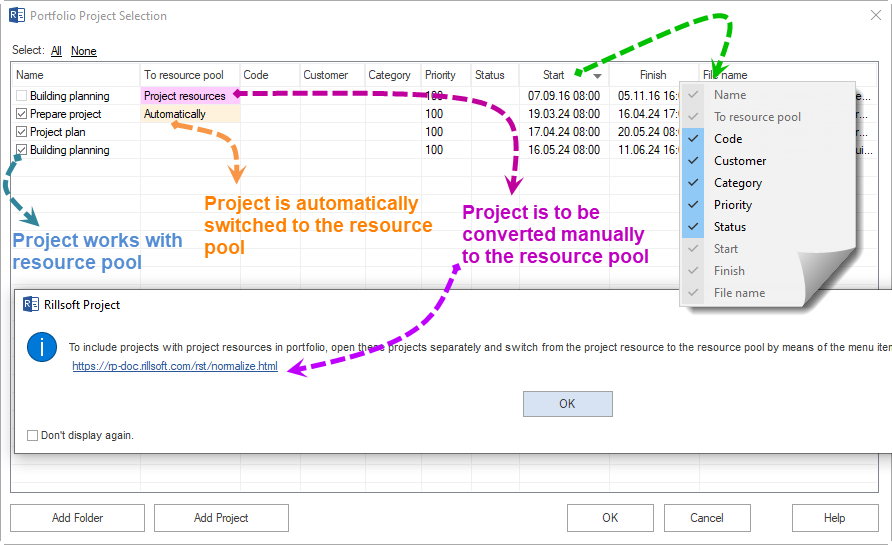
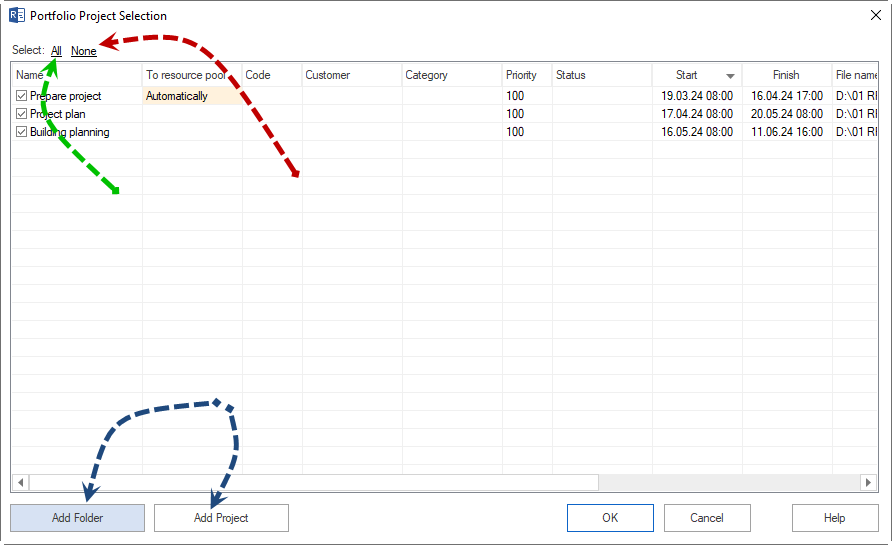
Select File > Open new project portfolio. The Portfolio Project selection dialog appears.
Click Add Folder.
Select the folder containing your project files and click OK.
Select the projects that should be included in the portfolio.
Note
Only projects that share a common resource pool can be analyzed together in a portfolio. Projects with different resource pools are marked in the selection dialog.
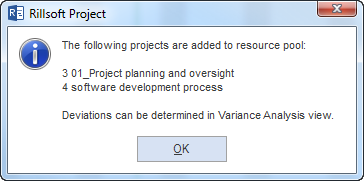
Click OK.
Step 2: Use Portfolio Views
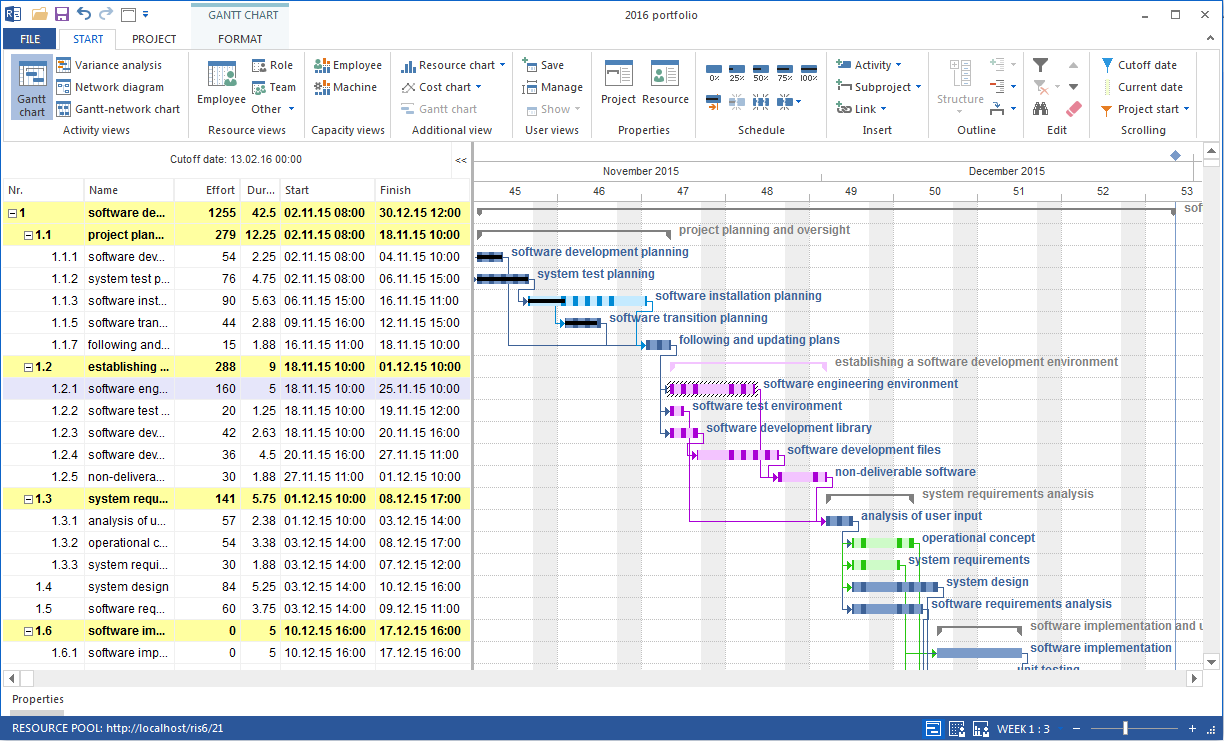
In an open portfolio, many views are available in the same way as in an individual project.
Use the Gantt chart to see tasks from all included projects on the time axis.
Use Capacity balancing employees to check employee utilization across projects.
Use the Roles view to evaluate qualification-based demand across projects.
Step 3: Save the Portfolio
Select File > Save.
Choose a location and file name for the portfolio file.
Click Save.
The portfolio is saved as its own file and can be reopened later.
Result
The projects are combined in one portfolio. You can see cross-project resource utilization and identify bottlenecks before they become critical.
Related Topics
project portfolio, open portfolio, portfolio project selection, add folder, common resource pool, multiproject planning, multiple projects, portfolio, master project, pmo, project manager, executive management