Optimization
Optimisation helps to balance dates and resources better under defined target conditions.
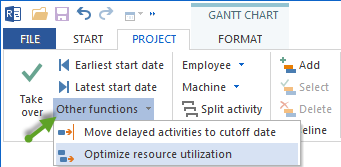
Typical Goals
reach the project finish date
smooth resource utilisation
reduce overload
position activities more favourably within a subproject
make sensible use of available buffers
Prerequisites
Optimisation is only useful when the basic plan is reliable:
activities are formulated correctly
links are correct
resource demand is plausible
calendars and non-working days are maintained
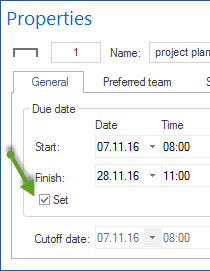
fixed activities are set deliberately
Limits
Optimisation does not replace a business decision. It cannot automatically make a poor plan correct. After every optimisation, check the schedule logic, resource effect, and critical path.
Optimisation — Step By Step
Make sure the schedule is technically checked and stable (links, durations, resource demand).
If required, set a target finish date in the project properties and fix activities whose dates must remain unchanged (activity properties, General tab, Schedule area, Fix option).
Click Project > Schedule > Other functions > Optimize resource utilization.
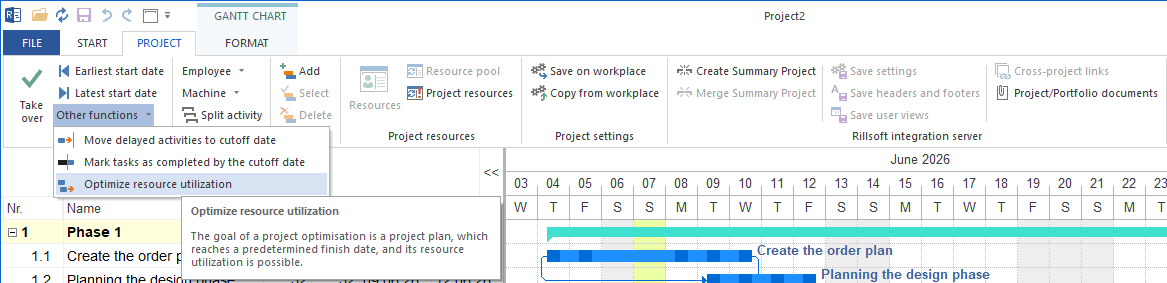
Rillsoft Project calculates the optimised plan and shows the result in the Gantt chart.
Check the result. If it does not fit, undo the optimisation with Undo (Ctrl + Z) and adjust dates, fixations, or priorities.
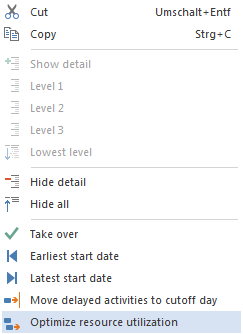
Optimise individual subprojects via the Optimize resource utilization command in the context menu of the subproject.
Influencing Factors Of The Optimisation
The optimisation evaluates the following settings from the project and activity properties:
Influencing factor |
Meaning |
|---|---|
Target finish date |
Finish date set in the project properties that the optimisation aims for. Activities are arranged as early or as late as possible. |
Even resource utilisation |
Activities are moved within their buffer to reduce utilisation peaks. |
Overloads |
Activities are moved to resolve resource overloads — even if the finish date becomes later as a result. |
Individual subproject |
The Optimize resource utilization command in the context menu of a subproject optimises only that subproject; the rest of the plan remains unchanged. |
Fix |
Activities with the Fix option enabled (activity properties, General tab, Schedule area) are not moved. |
Priority |
Projects or activities with a higher priority are treated preferentially in conflicts. |
Note: when optimising personnel resources, the hierarchy employee → team → role applies: if employees are assigned, the contained teams or roles are ignored during optimisation.
Check Result
After the optimisation, always check:
Did the critical path change?
Did fixed activities remain in their position?
Are new resource overloads created in other areas?
Is the finish date realistic?
Are all business dependencies still valid?
If the result is not acceptable: Ctrl + Z returns the plan to the state before the optimisation.
Show Free Float
Free float gives an overview of the earliest possible start and the latest possible finish of the activities and subprojects in the Gantt chart. The calculation runs against the next fixed frame in the schedule and no earlier than the cutoff date; on subproject rows, the line shows the envelope of the contained activities, not a buffer of its own. This helps to assess the available planning flexibility before an optimisation or plan change.
To activate the free float display:
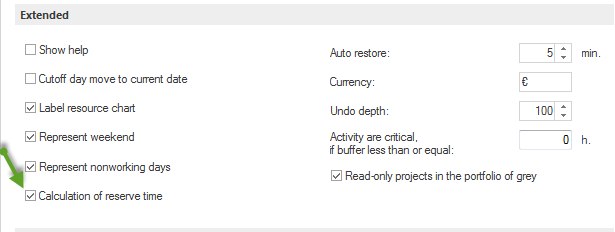
Select the Calculation of free float check box under File > Settings > General > Extended.
Confirm with OK.
Select Gantt chart Format > Show > Free float.

Note
When Calculation of free float is disabled, the earliest and latest possible start and finish dates are not available in the activity table. See also Customize Views: Filters, Format, Custom Views.