Manage Tasks
This article describes maintenance operations on tasks in the project plan: deleting and splitting. Cutoff date and baseline belong to project control and are described there.
Delete a Task
Delete a task only when it is professionally no longer needed. If a task should only be moved, renamed, or corrected, edit it instead.
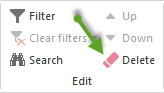
Delete from the ribbon:
Click the task you want to delete.
Choose Start > Edit > Delete.
Confirm the prompt.
Alternative in the chart:
You can delete a task quickly by holding the right mouse button on a free area in the chart and striking through the task.

What happens when deleting:
Dependencies to this task are deleted as well.
Successors without another predecessor become free-standing tasks. Check the dependency structure afterwards.
Assigned resources are removed from this task but not deleted from the resource pool.
Deleting can only be undone as long as the change has not been saved permanently.
Note for summary projects and subprojects: When you delete a summary project or a subproject, the contained tasks are deleted as well. Make sure those tasks are really no longer needed.
Split a Task
Splitting divides a task by professional or time criteria. This is useful when work packages must be planned separately, when completed parts should be separated, or when Rillsoft Project should resolve an overload caused by multiple concurrent assignments.
Open the split functions:
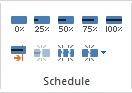
Select the task.
Open Start > Schedule.
Choose the suitable split function.
Alternative from the context menu:
Right-click the task in the chart area. Choose Split in the context menu and then the required function.
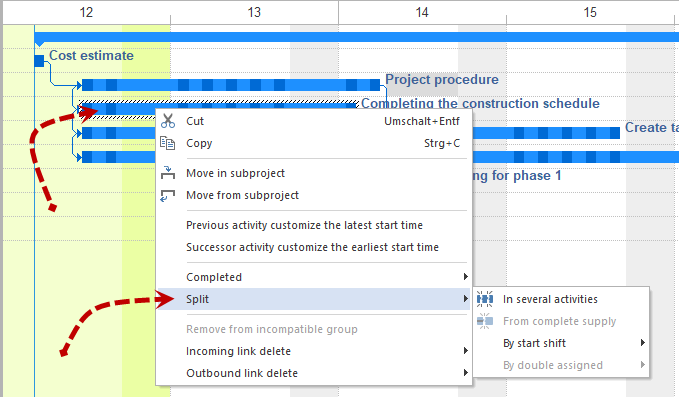
Available split functions:
Into several tasks — splits a task by percentage, deliverable, effort, duration, or costs.
From the completed part — separates the already completed part; the first part is set to 100% complete.
At the start shift — splits the task at a selectable shift start.
On multiple assignment — splits a task when several tasks run at the same time and occupy the same resource more than once.
Split Into Several Tasks
Choose Split > Into several tasks.
Define the task parameter in Split by.
Enter the split values. Several values are separated by spaces.
Enable Create finish-start links between tasks if required.
Enable Show in one row if the split tasks should be shown in one shared row.
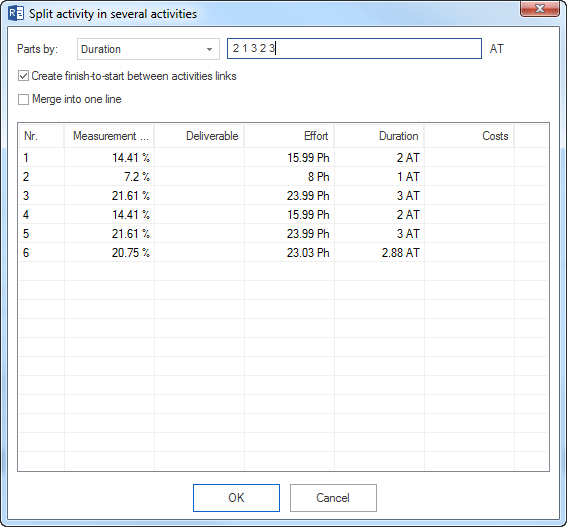

You can split by these parameters:
percentage
deliverable
effort
duration
costs
If you create finish-start links, the new tasks remain logically connected in sequence. Without those links, you must check the successor structure yourself.
Split From the Completed Part
This function is active when a task is partially complete. Rillsoft Project separates the completed part from the open part:
The first part is set to 100% complete.
The second part remains open.
The split date is suggested by Rillsoft Project based on progress.
Use this function when an already started task continues professionally, but the completed part should be visible separately for evaluation or control.
Split at the Start Shift
In shift-based planning, you can split a task at the start of a shift. Rillsoft Project offers possible dates that mark the start of the next shifts.
This function helps when work should not continue within a running shift, or when the open part must be placed cleanly on a later shift.
Split on Multiple Assignment
This function is active when two or more tasks run at the same time and the same resource is assigned to several of them. Rillsoft Project offers possible dates to avoid the simultaneous multiple assignment.
Use this function when a resource bottleneck should not be solved by additional employees, machines, or date moves, but by splitting a task in time.
Split Tasks by Locations or Rooms
With the assistant, you can split tasks by locations or rooms. The locations or rooms are then shown as subprojects.
Choose Project > Assistant > Split tasks by locations/rooms.
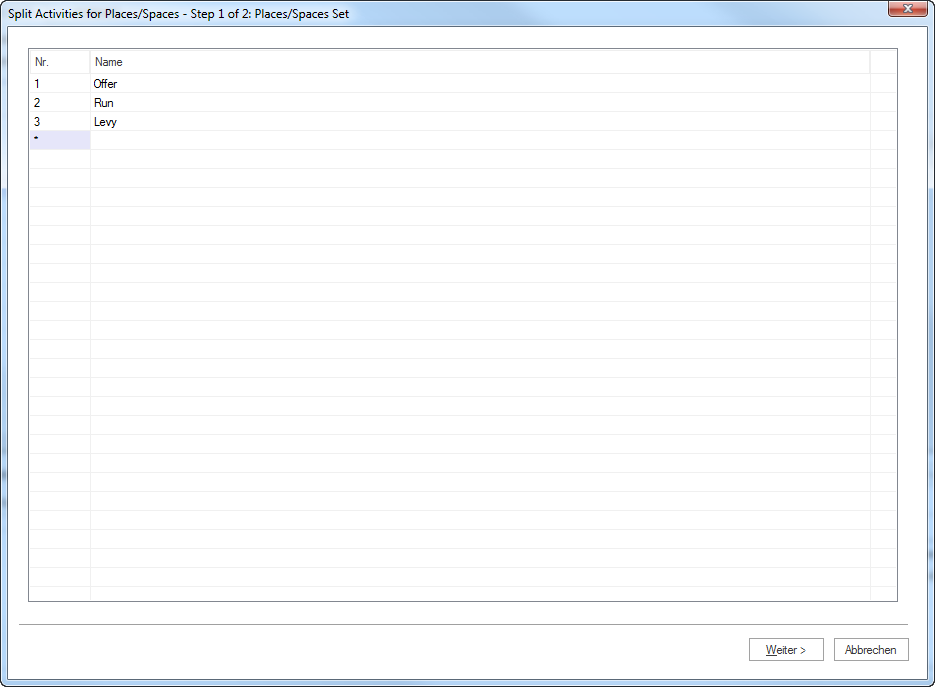
Enter the locations or rooms that should later be shown as subprojects.
Choose the task parameter in the Split by list.
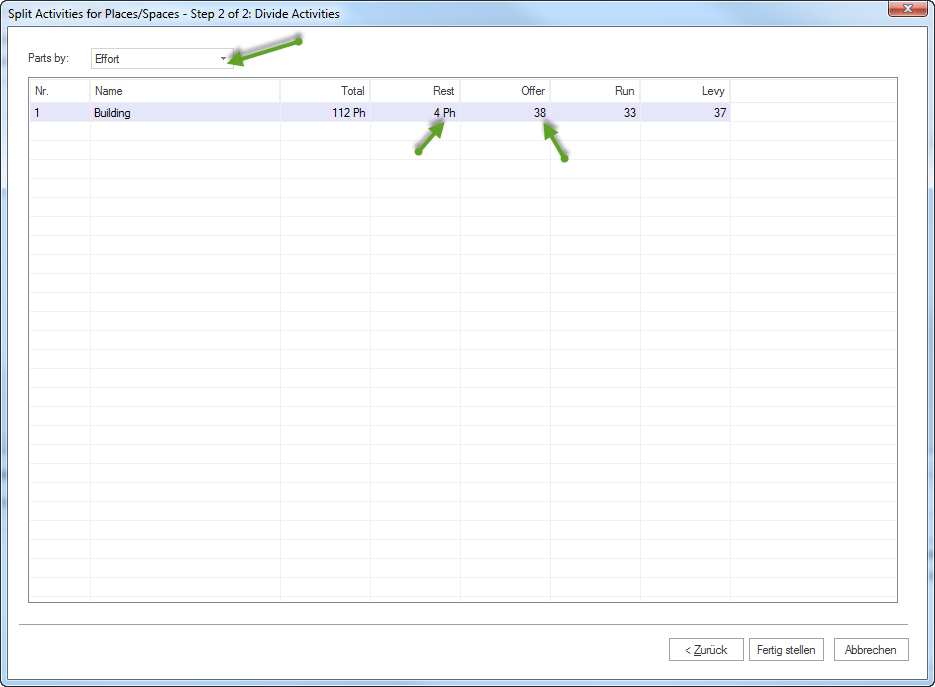
You can choose between these parameters:
percentage
deliverable
effort
duration
costs
The following task list shows all tasks whose distribution to the locations or rooms can be entered.
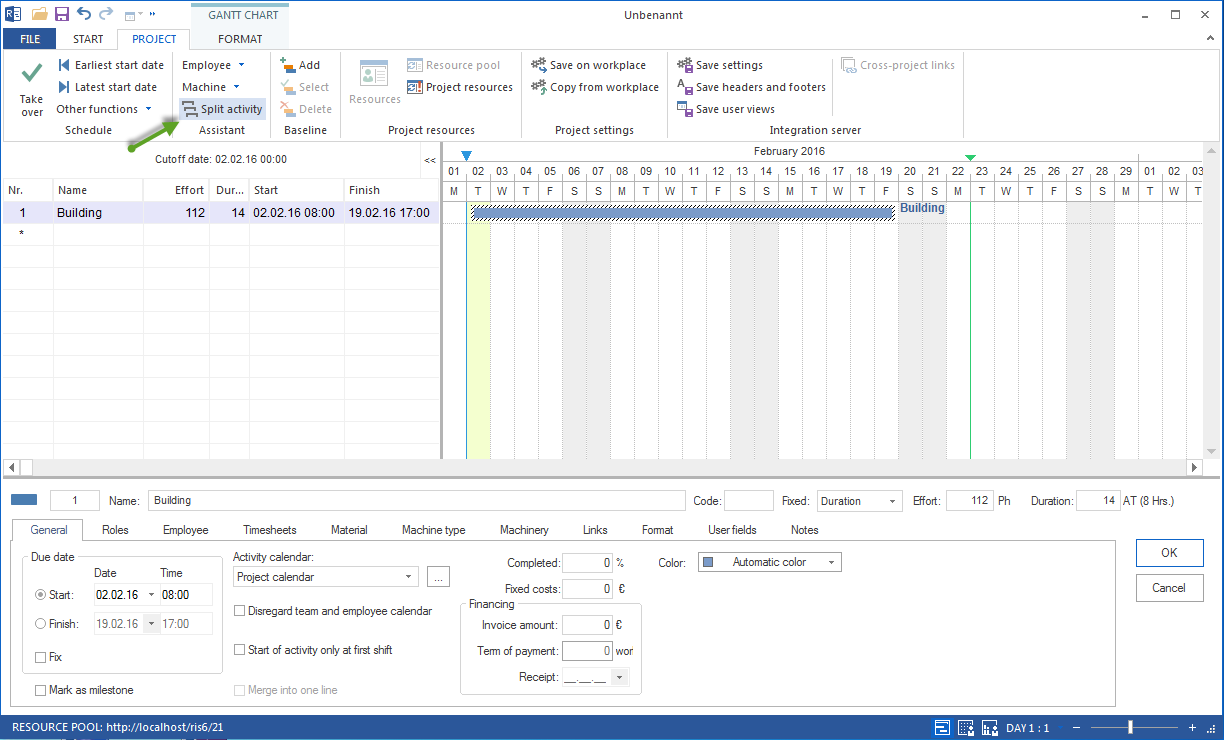
Display before splitting:
Display after splitting: