Why Does a Resource Show Overload?
A resource shows overload when its planned utilization exceeds its available working capacity in a time period. Common causes are parallel tasks assigned to the same employee, an incorrect calendar or working time, too high a workload percentage, or multiple projects using the same employee. First check Start > Properties > Info > Overallocated resources and the employee view. Red values in capacity balancing usually indicate a shortage by qualification instead.
Symptom
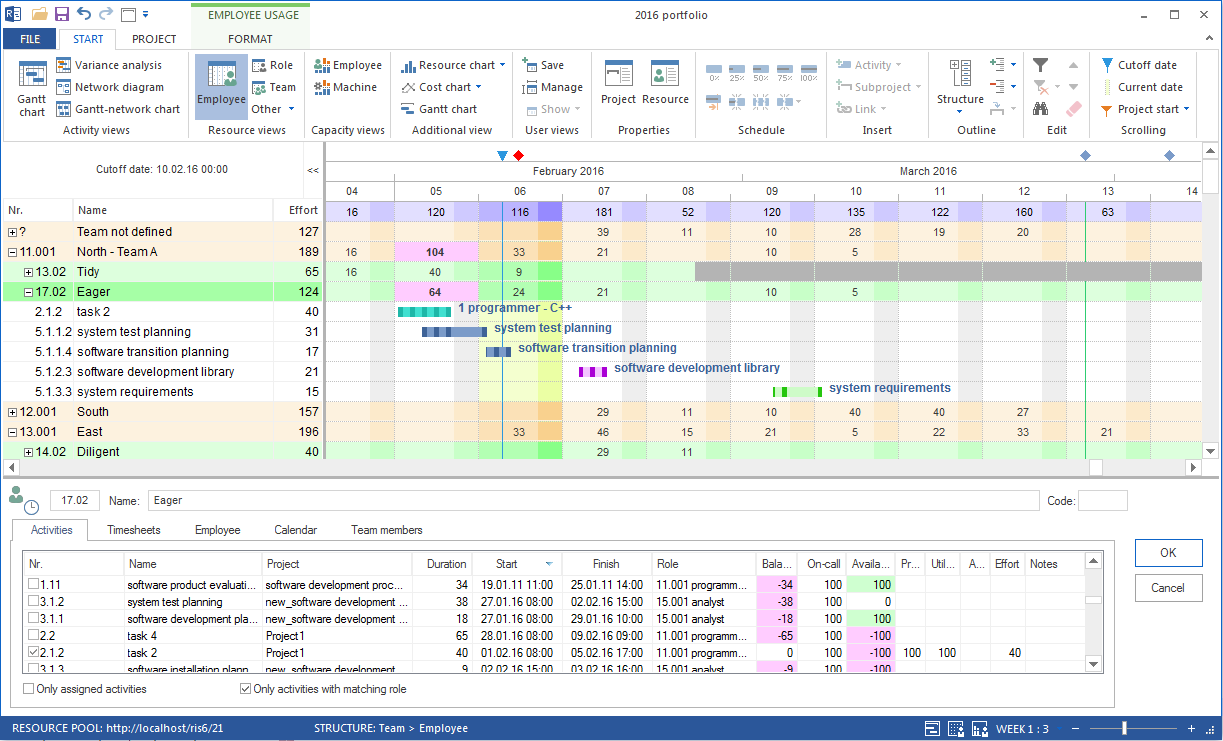
Red periods appear in the employee view. Under Start > Properties > Info > Overallocated resources, an employee is listed as overloaded. If red qualification rows appear in capacity balancing, also check whether role demand is not covered.
What Overload Means
The planned utilization of an employee exceeds the available working capacity in a specific period. Causes can be parallel tasks, too little working time, absences, or a high workload percentage.
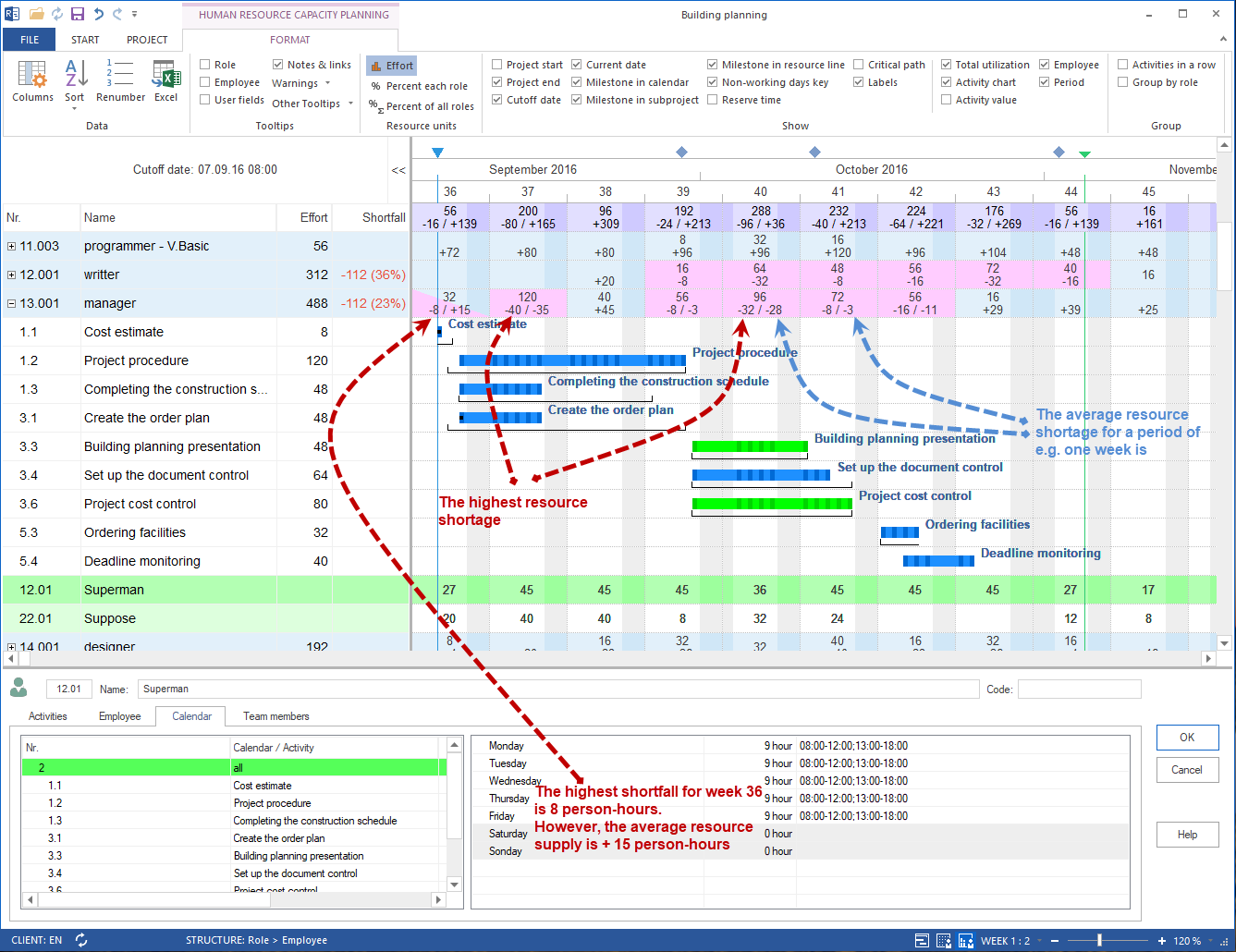
Capacity balancing uses a different perspective: it compares demand and supply by role or professional qualification. Red values there normally indicate a shortage.
Cause 1: Parallel Tasks
Several tasks run at the same time and use the same employee. The total assignment exceeds available capacity.
Check:
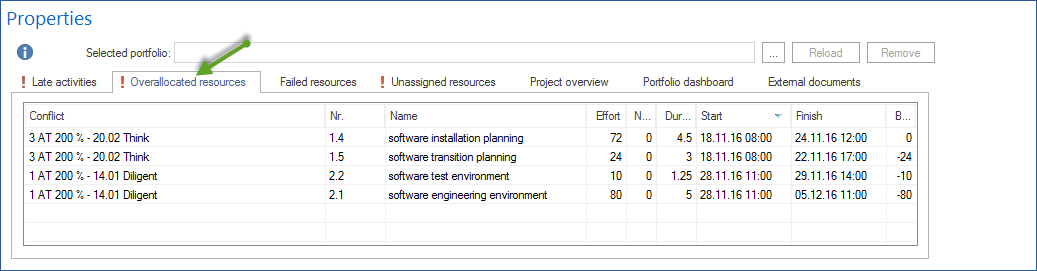
Open Overallocated resources.
Check conflict, effort, negative effort, and employee balance.
If needed, switch to the Employee view or the Employee tab in the task properties.
Solution:
move one task
assign another employee with a suitable professional qualification
distribute the effort across several employees
Cause 2: Calendar or Working Time Is Incorrect
Incorrect calendars, part-time models, or non-working days can create real or apparent overloads.
Check:
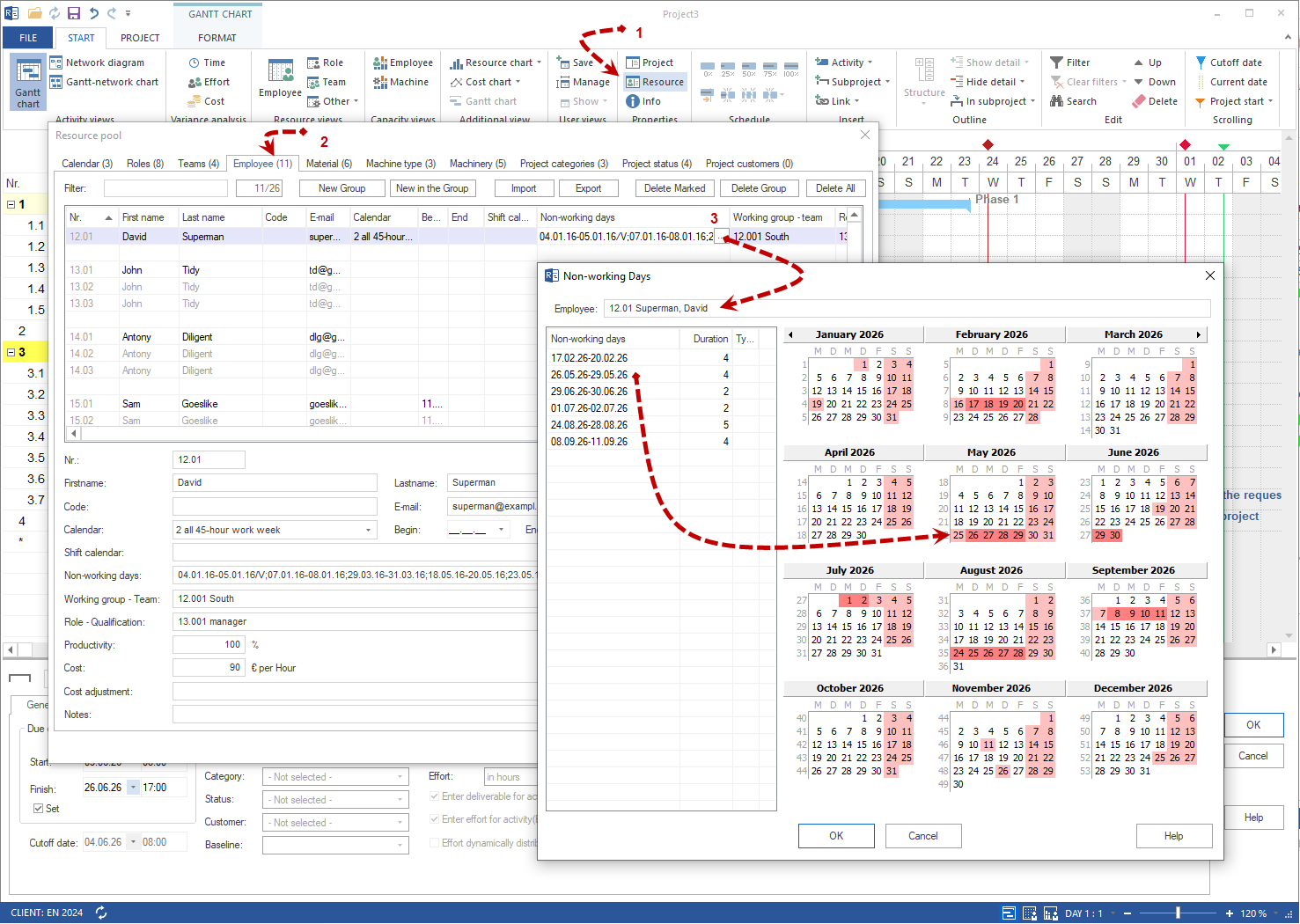
Open the resource pool.
Check the employee record under Employee.
Check calendar, working-time model, and non-working days.
Solution:
Correct calendars and non-working days. Vacation and illness belong to the individual resource, not globally to the project calendar.
Cause 3: Workload Percentage Is Too High
If an employee is assigned to several tasks with a high workload percentage, overload can occur quickly.
Check:
Open the affected tasks and check the workload percentage on the Employee tab.
Solution:
Reduce the workload percentage, move tasks, or distribute work to additional employees.
Cause 4: Several Projects Use the Same Resource
This overload may not be visible in an individual project. It appears only in the portfolio or summary project.
Check:
Open the portfolio or summary project.
Switch to the employee view or a grouped resource view.
If needed, group the view by Employee > Project.
Solution:
Clarify project priorities and move lower-priority tasks or projects.
Related Topics
overload, overallocated resource, capacity conflict, utilization, capacity planning, capacity balancing, bottleneck, resource manager, project manager