Project Information and Status Panel
The project information panel summarizes project status in a compact overview. It shows which tasks are late, which employees are overloaded or failed, and whether the project is connected with other projects in the portfolio.
The panel does not replace target/actual comparison. It is a quick diagnostic tool: it immediately shows whether there are problems and in which area.
Open: Start > Properties > Info


Overview: Panel Categories
The project information panel is divided into several categories. Each category can be expanded and shows related entries.
Category |
Content |
|---|---|
General |
Project name, status, project manager, start, finish, progress, and basic project indicators. |
Portfolio |
Parent portfolio, project evaluation, portfolio status. |
Late activities |
Tasks whose calculated finish date is after the planned finish date. |
Overallocated resources |
Employees with overload. For roles or qualifications, capacity balancing is relevant for shortfall. |
Failed resources |
Resources that are not or only partly available in the project period. |
External links |
References to external systems or URLs linked with this project. |
External documents |
Documents from DMS or external file systems assigned to the project. |
General
General shows the most important project data at a glance.
Typical fields:
project name and project code
project status, for example planned, active, completed
project manager
planned start and planned finish
current calculation state and finish date
total progress in percent
project buffer (gap between planned finish and the latest calculated activity finish, in days)
These fields come from project properties and are updated automatically. To edit them, open Start > Properties > Project.
Portfolio
If the project belongs to a portfolio, Portfolio shows:
name of the parent portfolio
portfolio evaluation of the project
project status from portfolio perspective
further cross-project indicators maintained in the portfolio
This is especially useful when:
a portfolio contains several projects and a project manager wants to classify the project’s portfolio contribution
PMO or management check project status in portfolio context
Without portfolio membership, this category remains empty.
Late Activities
Late activities lists all tasks whose calculated finish date is later than the planned or stored finish date.
Typical entries:
task name
planned date according to baseline
calculated current finish date
deviation in days
Use this list to:
quickly identify tasks that endanger the project finish date
set priorities for control
connect the list with target/actual comparison

More: Perform Target/Actual Comparison
Overallocated Resources
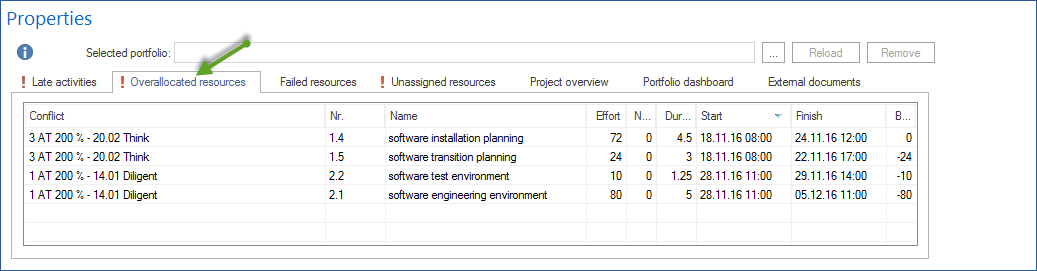
Overallocated resources shows employees with overload. If roles or qualifications are affected, check capacity balancing for shortfall.
Typical entries:
resource name, employee or role
period of overload or shortfall
extent of overload or shortfall
Use these entries as a starting point:
Open the employee utilization view or capacity balancing to analyze the cause.
Check whether employee overload or role shortfall comes from one task or several projects.
Decide whether a date move, resource change, or reassignment is required.
More: Perform Capacity Balancing
Failed Resources
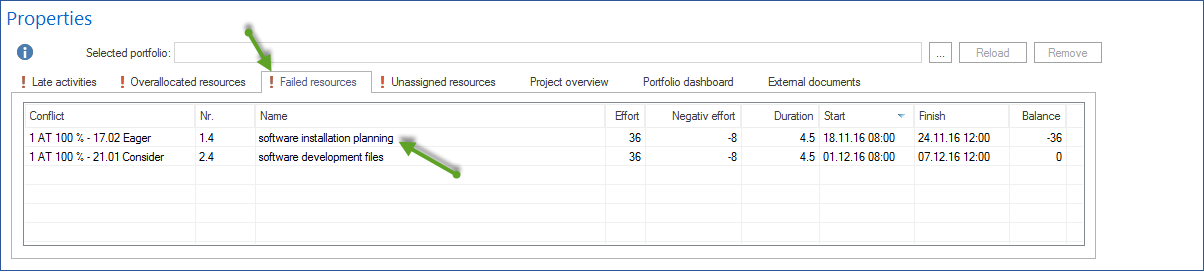
Failed resources shows resources that are unavailable or only partly available in the project period.
Typical causes:
illness or unplanned absence
resignation or leaving date
calendar change, such as new non-working days or changed working time
removal of a resource from the resource pool
The panel shows whether a resource planned in the project period is no longer available for assignment. This helps detect early which assignments must be checked or replaced.
Possible actions:
replace failed employees (Check Employee Assignments)
perform capacity balancing again (Perform Capacity Balancing)
adjust dates if no replacement is available
External Links
External links lists URLs or external system references assigned to the project.
Typical use:
links to tickets in a project management system
references to contract documents in an external system
URLs to reports, dashboards, or approval pages
Links can be maintained in project properties on Notes & Links.
External Documents
External documents shows documents assigned to the project through DMS or as direct file references.
Typical documents:
contracts and offers
plans, drawings, and specifications
meeting minutes
status reports
Documents can be linked in project properties on Documents/DMS. The panel category is for display only; open project properties to change documents.