Plan Tasks
Tasks are the schedulable work units in the project. They contain duration, dates, effort, dependencies, and resource demand. This article describes how tasks are created, named, changed, and filled with content. Some dialogs may still use Activity labels; this help uses task for the planning object.
Create a Task
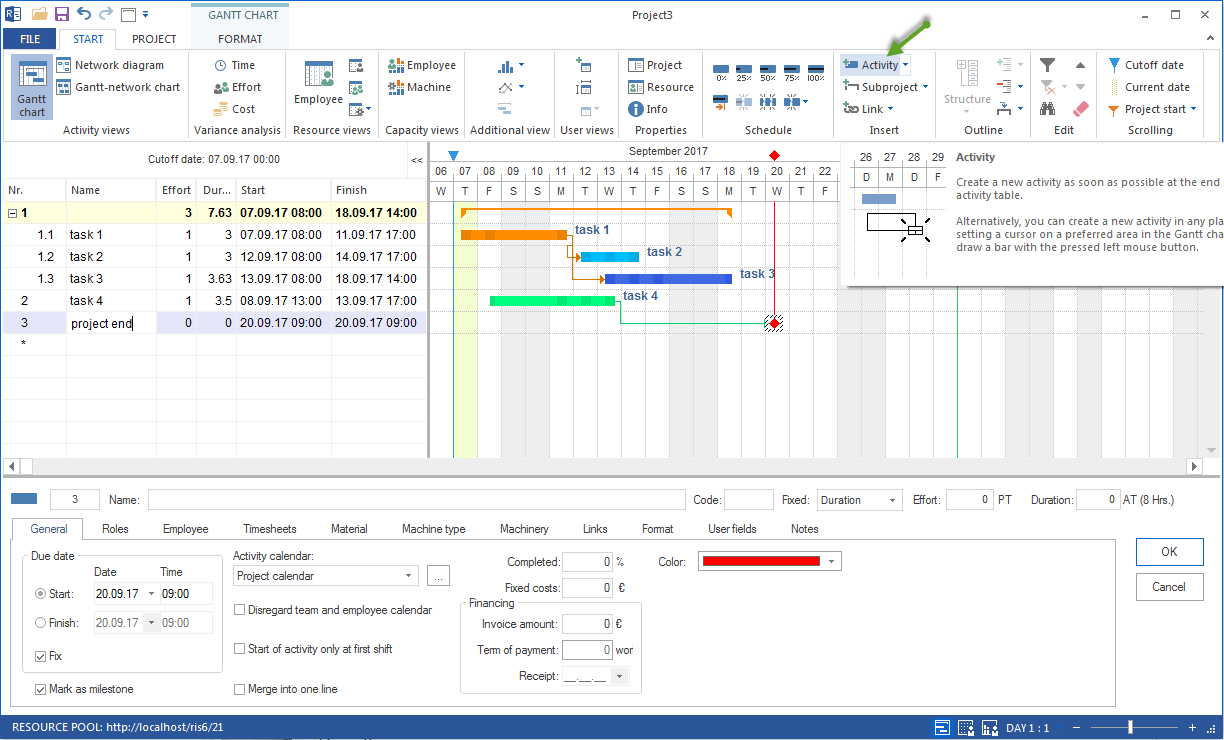
Rillsoft Project offers three ways to create a task:
From the ribbon:
Click the required position in the task list.
Choose Start > Activity.
Enter the name.
By drawing in the Gantt chart:
Hold the left mouse button in the chart area.
Drag a bar over the required period.
Release the mouse button. The task is created with start and finish from the drawn period.
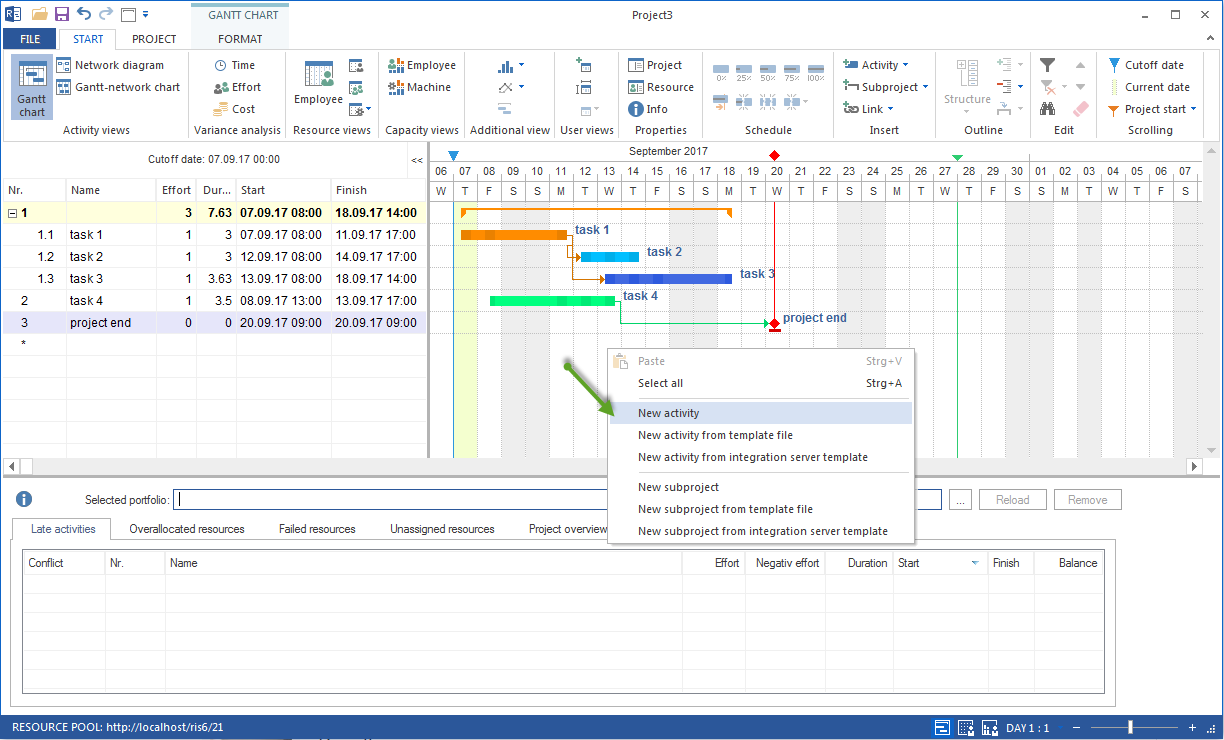
From the context menu:
Right-click in the task list or the Gantt chart.
Choose New activity.
Milestones are created the same way: Start > Milestone or by clicking a date column without dragging.
Define Task Properties
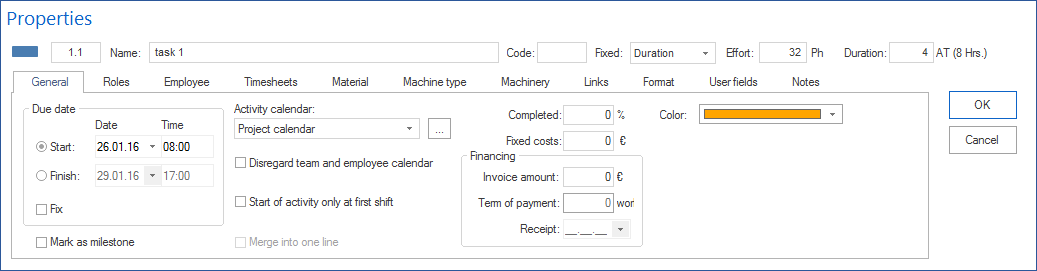
After creating a task, open its properties by double-clicking the task or with Start > Properties.
General tab — the most important planning fields:
Field |
Meaning |
|---|---|
Name |
Clear, result-oriented task name. |
Duration |
Planned duration in working days, hours, or weeks. |
Start / Finish |
Calculated or manually set dates. |
Effort |
Planned work in person-hours or person-days. |
Completed (%) |
Progress for target/actual comparison. |
Fix |
When enabled, this task is not moved by optimization runs. |
Priority |
Controls the order for automatic resource assignment. |
Notes |
Free-text field for professional explanations. |
Durations and dates:
Rillsoft Project can calculate durations and dates in different ways:
Set the duration — dates are calculated.
Set start and finish — the duration is calculated.
Set only the start — the finish results from duration and dependencies.
Avoid unnecessarily many manually set dates. Every fixed date reduces planning flexibility and makes the plan less responsive to changes.

Change a Task
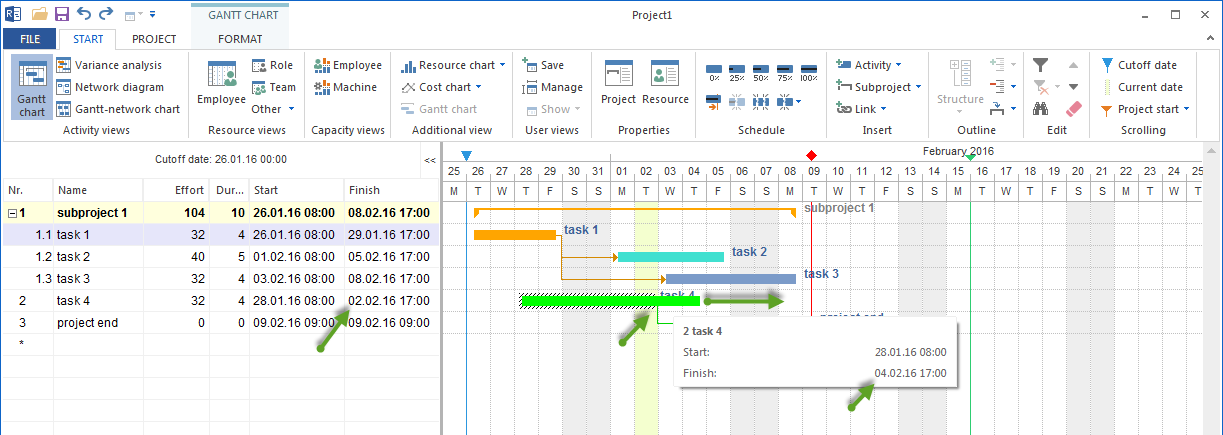
You can change task parameters in several ways. Choose the way depending on whether you edit individual table values, several detail fields, or the time bar.
In the properties window:
Click the task in the chart or table.
Open the properties window, for example by double-clicking or with Start > Properties.
Open the required tab.
Make the changes and confirm with OK.
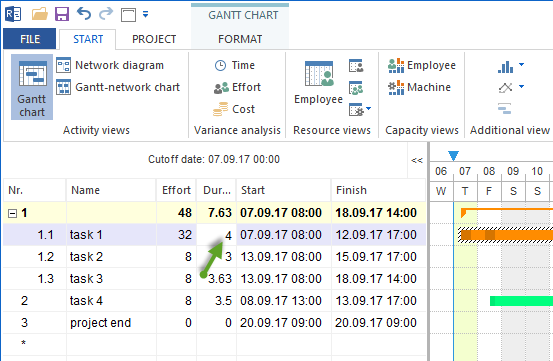
In the task table:
Many important task parameters can be edited directly in the Gantt table. This is the fastest way for names, duration, dates, effort, progress, and visible column values.
In the chart area:
With the mouse, you can move a task in time or change its duration in the chart. Afterwards, check dependencies, resource demand, and the effect on successors.
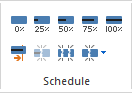
Schedule commands:
In Start > Schedule, you can quickly enter a completion percentage or split a task by suitable criteria.
Name Tasks Well
The task name determines whether the plan is readable for everyone involved.
Good names describe a completed result or state:
Design approved
Foundation poured and cured
Acceptance performed
Test report submitted
Poor names describe an activity without a recognizable end:
Work on design
Concrete
Tests
Meeting
Practical rule: If a task can end with “done”, for example “Design approved”, it is named well.
Effort Types and Effort Calculation
Rillsoft Project distinguishes effort types for calculating duration, resource demand, and costs:
Effort type |
Effect |
|---|---|
Fixed |
Effort stays the same regardless of resource count or duration. |
Proportional |
Effort scales with the number of resources. More people can shorten the duration at the same effort. |
Free |
Effort is set manually and not recalculated. |
For most tasks, Proportional is the right choice when several people can work together. Fixed is right for idle times, waiting times, or tasks where more people do not save time.
Plan Resource Demand on the Task
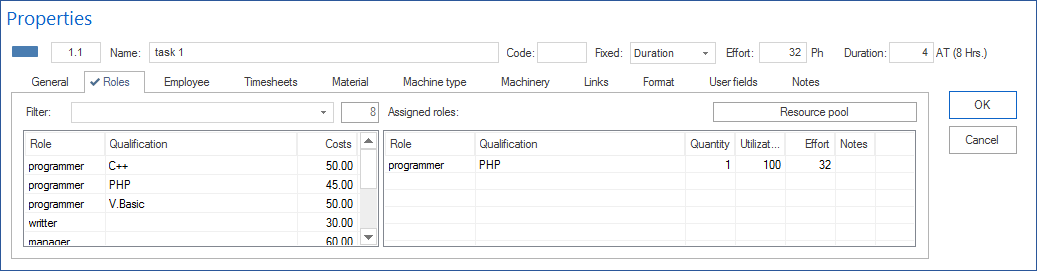
As soon as the task structure is stable, assign roles (professional qualifications). This is the first step of resource planning, before named employee assignment.
Roles tab in the task properties:
Click Add role.
Select the professional qualification from the resource pool.
Define Quantity (how many people) and Utilization (percent).
Confirm.
More: Plan Resource Demand by Qualifications
Typical Planning Mistakes
Tasks too large: A task covers several months or a whole subproject. It cannot be controlled and makes capacity balancing imprecise.
Too many small tasks: Jobs of a few hours create planning overhead without control value.
No clear end: The task is an activity without a measurable result.
Manually set dates for every task: The plan can no longer be calculated, and every change must be maintained manually everywhere.
Related Topics
task, activity, new activity, gantt chart, duration, fixed date, task properties, schedule, gantt, bar chart, timeline, critical path, dependency, project manager