Manage a Summary Project
A summary project is a Rillsoft Project mode in which several individual projects are edited operationally together. Unlike a project portfolio, which is primarily used for analysis, the summary project enables direct planning, resource assignment, dependencies, and corrections across project boundaries.
Note
The summary project requires Rillsoft Project with Rillsoft Integration Server or Rillsoft Cloud. In standalone operation, this function is not available.
How several project managers collaborate with summary projects in a team is described in Planning as a Team: Multi-User Work and Summary Projects.
When to Use a Summary Project
Use a summary project when:
several projects are edited by different teams at the same time
cross-project task dependencies must be maintained
shared resource utilization optimization across several projects is required
an existing project should be split into several separate projects
simulations with combined project contents should be performed
Important prerequisite: All projects in the summary project must use the same resource pool. Projects with deviating resources must be synchronized first.
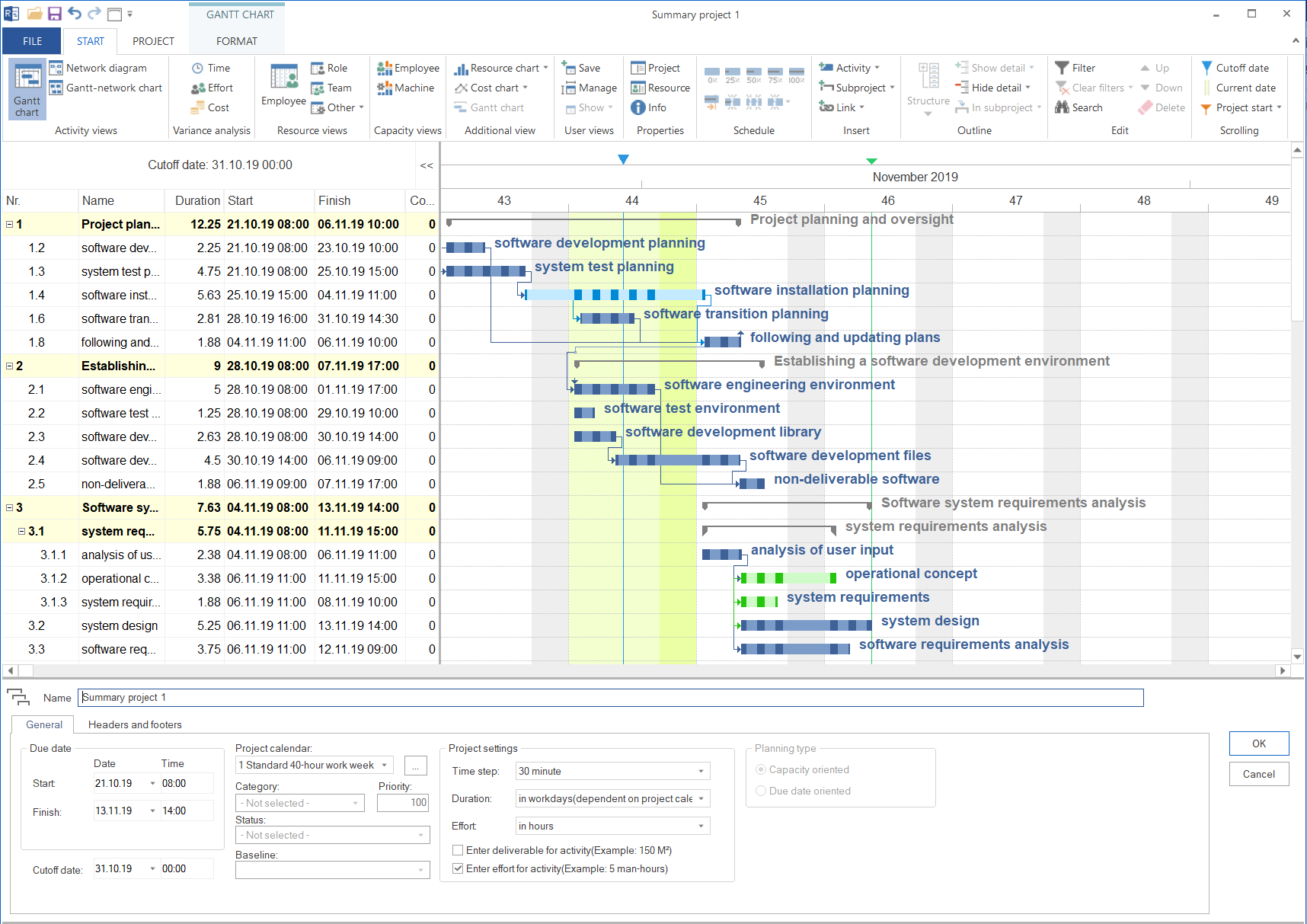
Create a Summary Project
Option 1: Create a new summary project
Choose File > Open new summary project.
The Rillsoft Integration Server summary project property dialog appears.
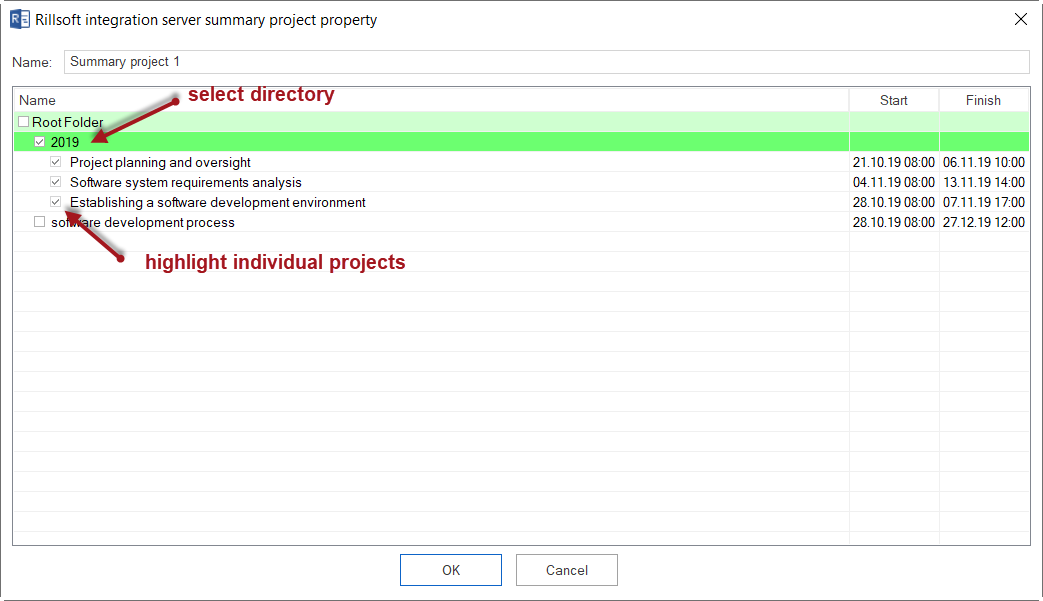
Enter a name for the summary project.
Use Filter to limit the project list.
Select the folder where the required projects are stored.
Select the projects to include in the summary project. You can also add projects from other folders.
Click OK.
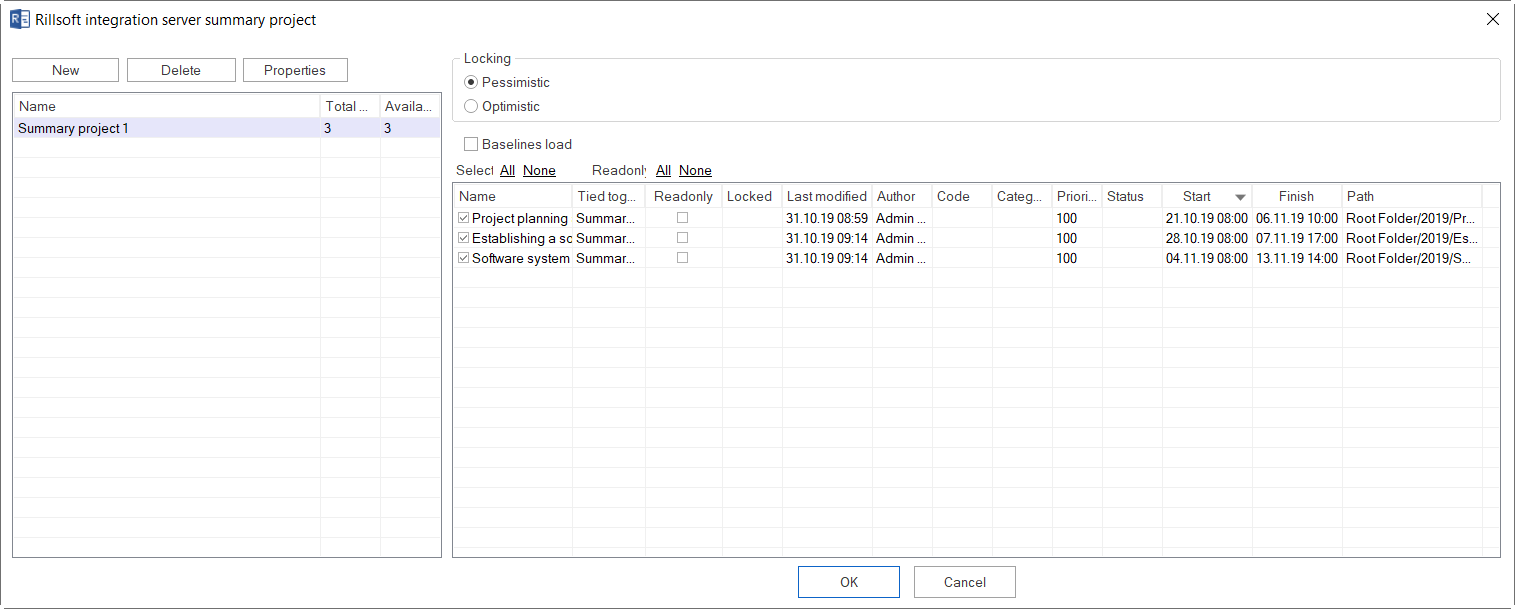
After creation, the Rillsoft Integration Server summary project dialog shows all summary projects on the left. The new summary project is selected. On the right, you see the included projects.
The Project count column shows the total number of projects in the summary project. Available shows how many projects you can read.
Option 2: Create a summary project from a split project
If an existing project consists of several subprojects and should be converted into a summary project, check these prerequisites first:
The project must contain at least one subproject.
There must be no separate tasks on the top project level. All tasks must be below a subproject.
There must be no added documents on the top project level.
If the prerequisites are met:
Open the project.
Choose Project > Rillsoft Integration Server > Split project.

The dialog shows in Name how many separate projects the project can be split into.
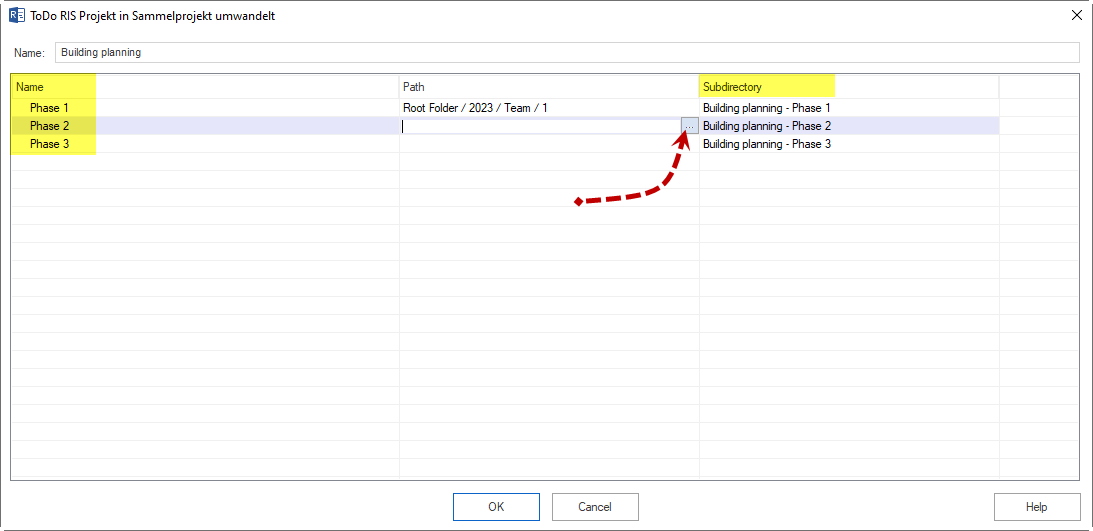
In Path, click the three dots and select a virtual folder for each subproject.
Click OK.
The original subprojects are saved as separate projects and automatically combined into a new summary project.
Open a Summary Project
Choose File > Open > Rillsoft Integration Server > Summary project.
The Rillsoft Integration Server summary project dialog appears.
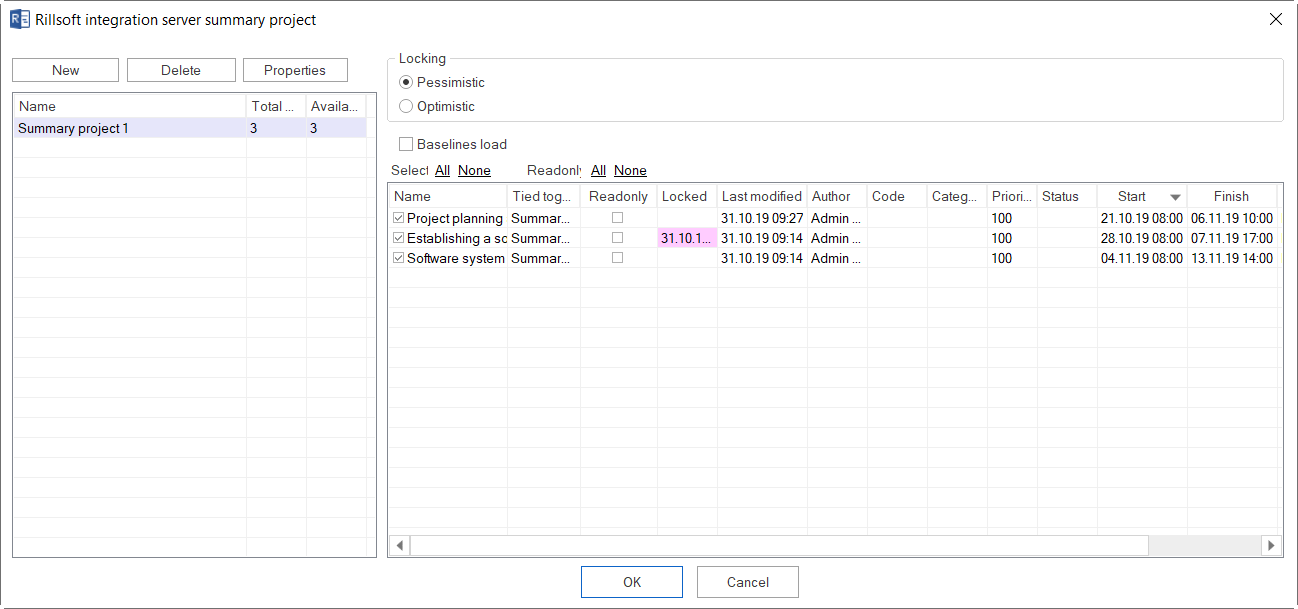
On the left, you see all summary projects with project count and availability information.
On the right, you see the projects in the selected summary project. You can clear individual projects for this opening process.
Projects with a red background are locked.
Optionally select Read only to open projects read-only.
Click OK.
Set project order
Click a column header in the dialog to sort projects by that characteristic. Available columns include project name, code, category, priority, status, start, finish, and file name. The selected order is used in the summary project.
Load baseline
If you do not need target/actual comparison in the summary project, clear Load baseline. This speeds up loading significantly.
Locking mode
Pessimistic: As soon as one user changes a project, others can open it only as a read-only copy.
Optimistic: Every user can edit the project at any time.
The locking mode can be selected only by users with the corresponding access rights. Notes on working with locks in a team: Work on Projects Simultaneously.
Work in a Summary Project
All views from Gantt chart to resource diagram are available in the summary project. You can create tasks, assign resources, correct workflows, and save results, as in a normal individual project.
Note: A new project cannot be created inside the summary project. New projects must be created separately and then added to the summary project.
Reload a Summary Project
When several people work in the summary project at the same time, reload it to see changes made by others.
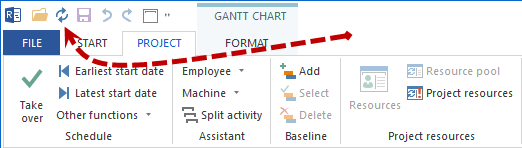
Click the Reload icon in the Quick Access Toolbar.
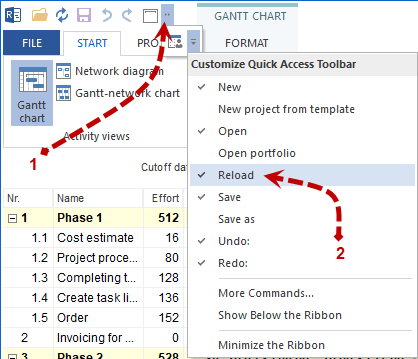
If the icon is not visible, use Customize Quick Access Toolbar and add the Reload command.
Cross-Project Dependencies
In a summary project, tasks from different projects can be linked directly. This function is available only with Rillsoft Integration Server.
Note
With cross-project dependencies, successors are not always moved automatically. Negative intervals may arise and must be checked manually.
Check and accept cross-project dependencies
Open Project > Rillsoft Integration Server > Cross-project links.
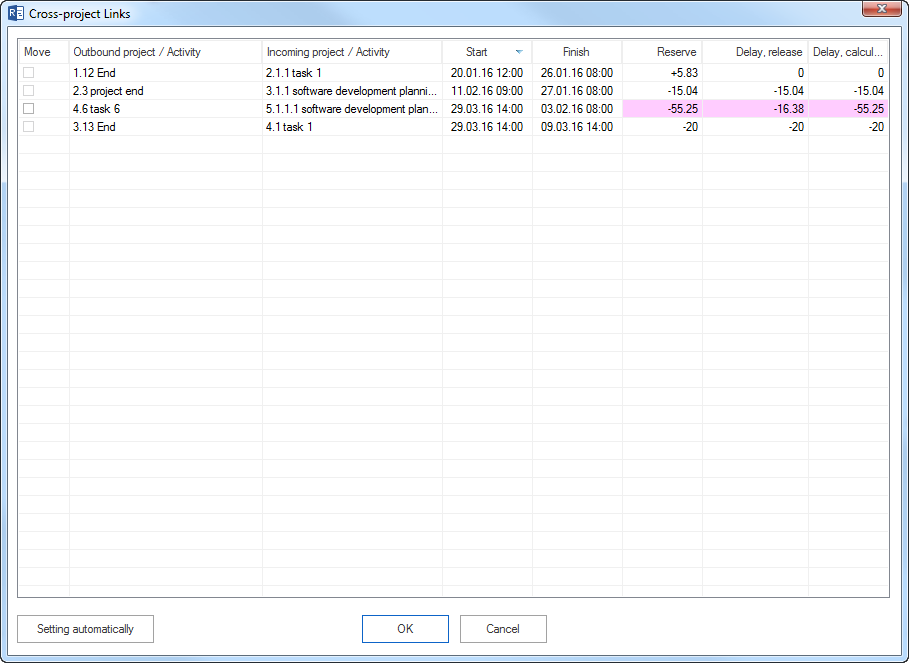
The table shows all links between projects with these values:
Column |
Meaning |
|---|---|
Move |
If selected, the calculated delay is aligned with the released delay. |
Outgoing project/task |
Predecessor of the dependency. |
Incoming project/task |
Successor of the dependency. |
Start |
Shows when the dependency starts. |
Finish |
Shows when the dependency ends. |
Reserve |
Time interval in absolute time between outgoing and incoming position. |
Delay, release |
Released interval value. |
Delay, calculated |
Calculated interval value. |
Red background indicates a difference between released and calculated delay.
Click Setting automatically to accept all calculated delays automatically.
Create a new cross-project dependency
Choose a dependency type with Start > Insert > Link.
In the Gantt chart, draw a connection from a task in one project to a task in another project.
Enter a delay if required, positive for waiting time or negative for overlap.
Click OK.
Intervals for cross-project dependencies can be entered only in absolute time, for example 10 hours or 2 days.
Merge a Summary Project
If the contents of several projects from a summary project should be saved as one single project:
Choose Project > Rillsoft Integration Server > Merge summary project.
In Rillsoft Integration Server save project, select a virtual folder on the left and projects on the right.
Click OK.
The individual projects are merged into one shared project.
Resolve Resource Differences Before Opening
If Rillsoft Project reports resource differences in individual projects when opening a summary project, open those projects individually first and synchronize them with Project > Project resources > To resource pool. Only then can they be reliably included in a summary project.
More about synchronization: