Dialogs
Dialogs bundle the properties and settings of projects, activities, resources, and server objects. This page describes all tabs of the most important property dialogs in Rillsoft Project.
Project Properties
Open: Start > Properties > Project
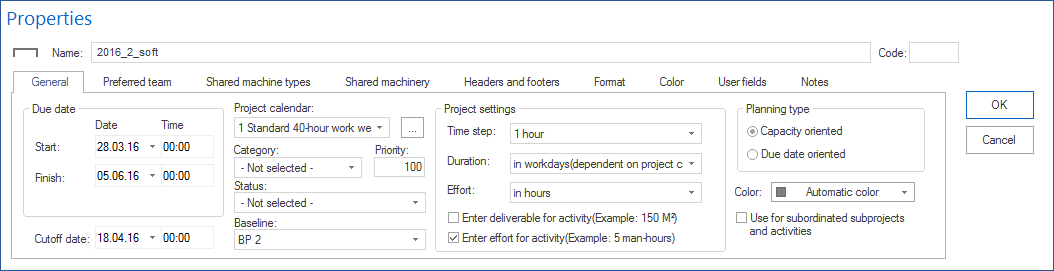
General Tab
Field / option |
Meaning |
|---|---|
Name |
Project name, freely selectable. |
Code |
Internal project code for synchronisation and filtering. |
Start / Finish |
Project period. The finish is not necessarily calculated from the activities — it can be set manually. |
Cutoff date |
Date of the last progress feedback. Only meaningful for running projects. For the initial plan, set it equal to the project start. |
Project calendar |
Calendar for scheduling the entire project. The button opens the calendar directly. |
Category |
Project category from the resource pool (Start > Properties > Resources > Project categories). |
Priority |
Value 1-1000. The higher the value, the more capacity the project receives during capacity balancing in the portfolio. Must not be 0. |
Status |
Project status from the resource pool (Start > Properties > Resources > Project status). |
Customer |
Project customer from the resource pool (Start > Properties > Resources > Project customers). |
Baseline |
Active baseline for the target/actual comparison. Requires a previously saved baseline. |
Time step |
Time interval for automatic rounding of dates and durations. The maximum value depends on the working times in the resource pool. |
Duration (unit of measure) |
Working days (project-calendar dependent) or working days (8-hour day). |
Effort (unit of measure) |
Person days (project-calendar dependent) or person days (8-hour day). |
Enter work result for activity |
Enables the Quantity and Unit fields in the activity properties (for example 150 m³). |
Record effort for activity |
Enables effort entry in person days in the activity properties. |
Capacity-oriented planning |
Resources are not overloaded. May extend activity durations when employees have non-working days. |
Due-date-oriented planning |
The finish date is kept. On non-working days negative effort arises instead of an extension. |
Colour |
Bar colour for activities and subprojects of this project. |
Use for subordinate subprojects and activities |
All related activities receive the same colour. |
Preferred Teams Tab
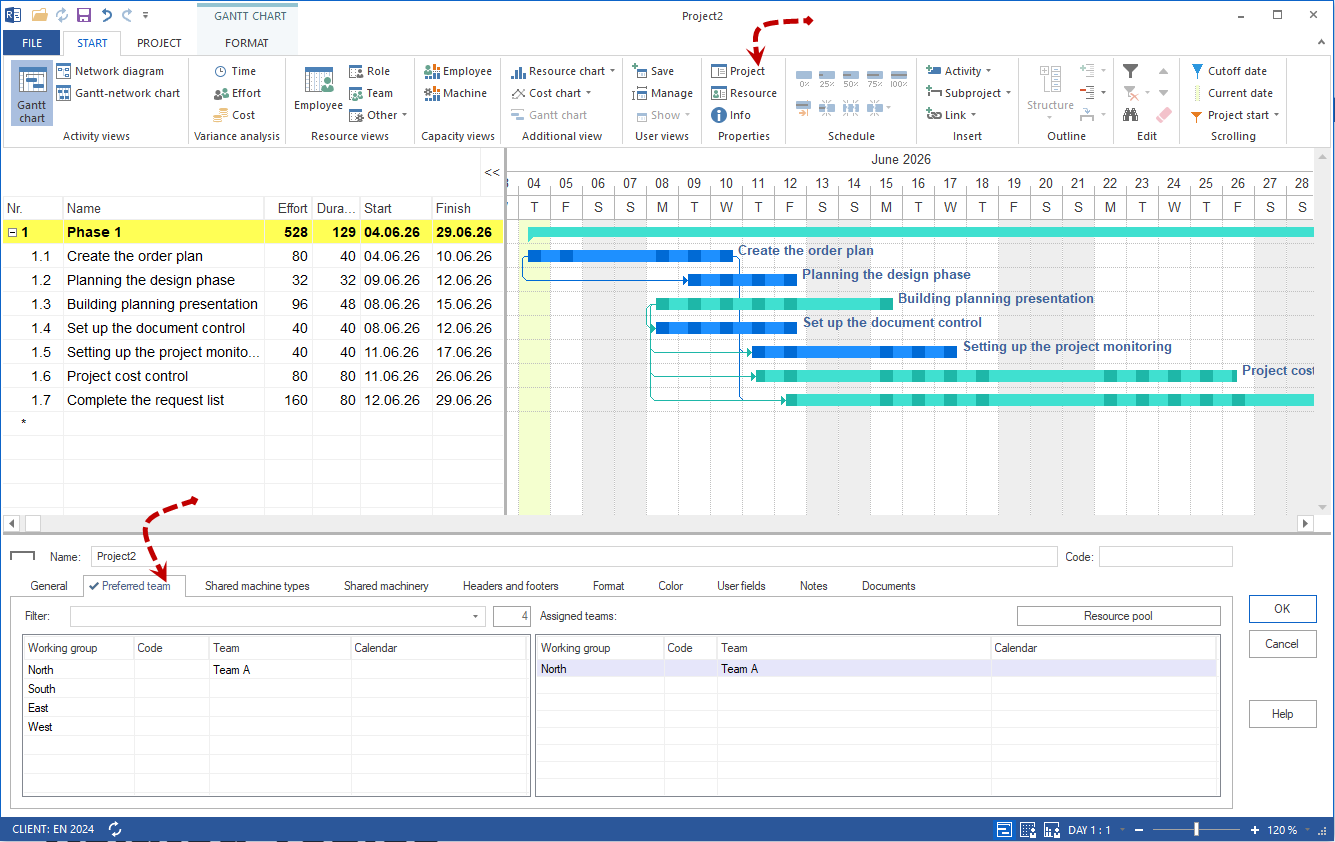
Restricts capacity planning to specific teams. Only employees of the preferred teams are calculated as available for this project.
Double-clicking a team in the left table adds it to the preferred list.
Shared Device Types Tab
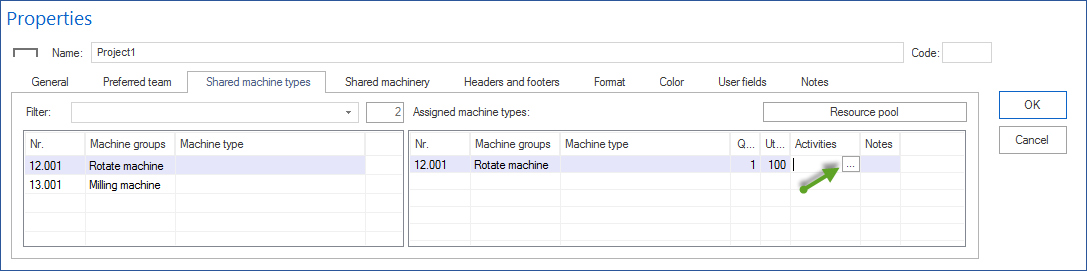
Device types that are used by several activities at the same time without summing the quantity. Costs are calculated over the total usage time, not split per activity.
Fields: Quantity, Utilisation, Activities (selection of the activities that share the device type).
Shared Machine Types Tab
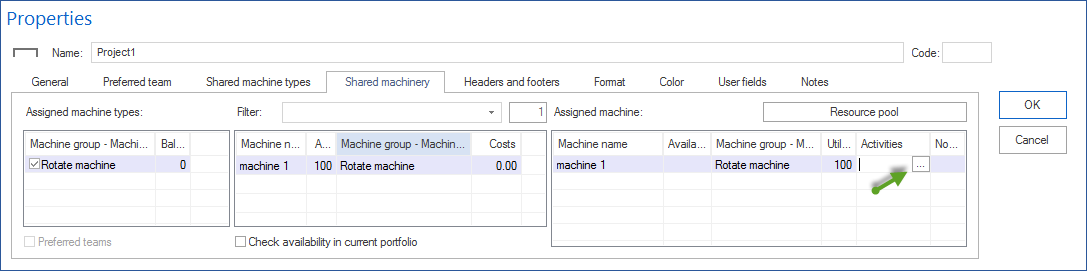
Analogous to device types. Machine types that, when several activities overlap in time, are not summed but shared.
Headers And Footers Tab
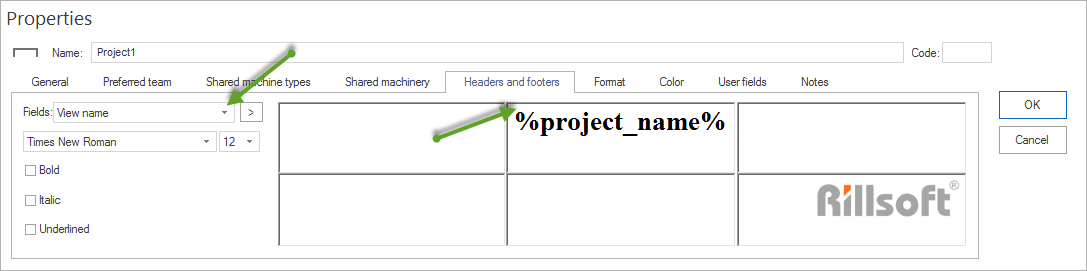
Defines the header and footer for the entire printout (not per page). Areas: Left-Top, Center-Top, Right-Top, Left-Bottom, Center-Bottom, Right-Bottom.
Available fields for header/footer (selection):
Field |
Content |
|---|---|
View Name |
Name of the current view |
Project Name / Code |
Name and code of the project |
Project Category / Project Status / Project Priority |
Administrative data of the project |
Project Start Date / Project Finish Date |
Date data |
Project Costs / Project Effort |
Total costs and total effort |
Project User-Defined Fields |
Free-defined fields from the User-Defined Fields tab |
Subproject Name / Subproject Start / Subproject Finish |
For the subproject level |
Cutoff Date / Cutoff Time |
Date and time of the cutoff date |
Last Save Date / Last Save Time |
Date and time of the last save |
Print Page / Page Number / Print Time |
Page numbering and print timestamp |
Format Tab
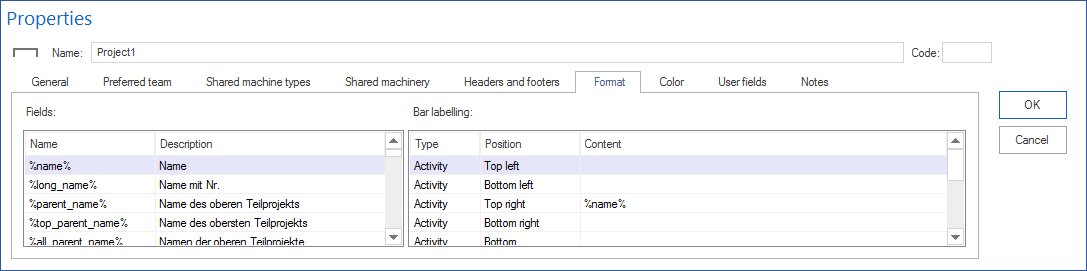
Bar labelling for activities and subprojects. The columns Type (activity or subproject), Position (left, right, top, inside), and Content (variables from the field list) define what is shown on the bars.
Double-clicking a field in the Fields area inserts the variable at the cursor position in the bar label.
Colour Tab
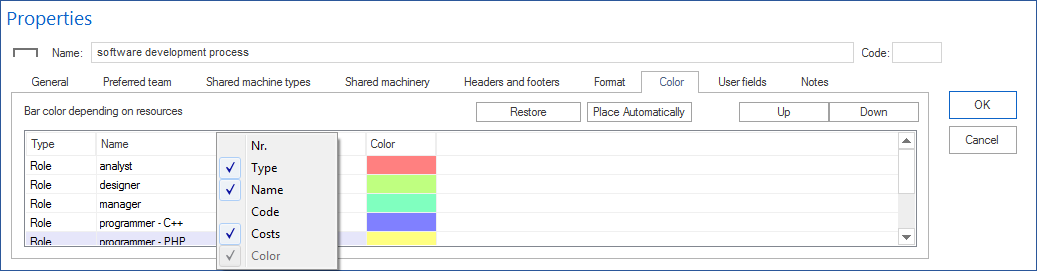
Resource-dependent bar colour. The table lists all resources scheduled in the project (roles, teams, employees, machines) with the assigned colour.
With several resources of different colours, the resource with the higher list position applies.
Move up / Move down — adjust the priority of a resource for colour assignment.
Place Automatically — distribute colours automatically.
Restore — reset all colour rules.
User-Defined Fields Tab
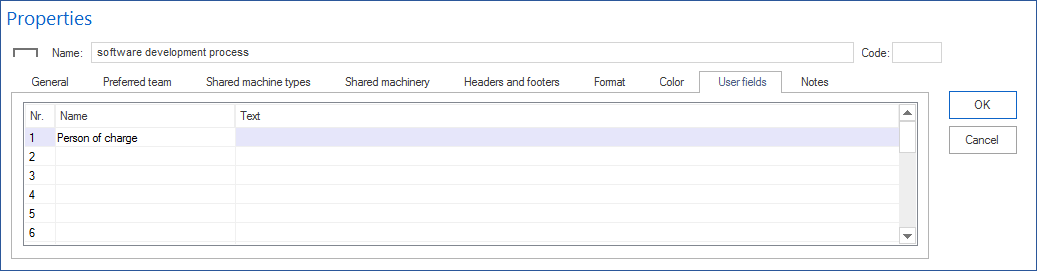
Free-definable fields that can be shown in table views and used in printouts.
Column Name — field label.
Column Text — free text or formula.
Formulas can contain project variables from the Format > Fields tab.
Available calculation operations: +, -, *, /.
Notes Tab
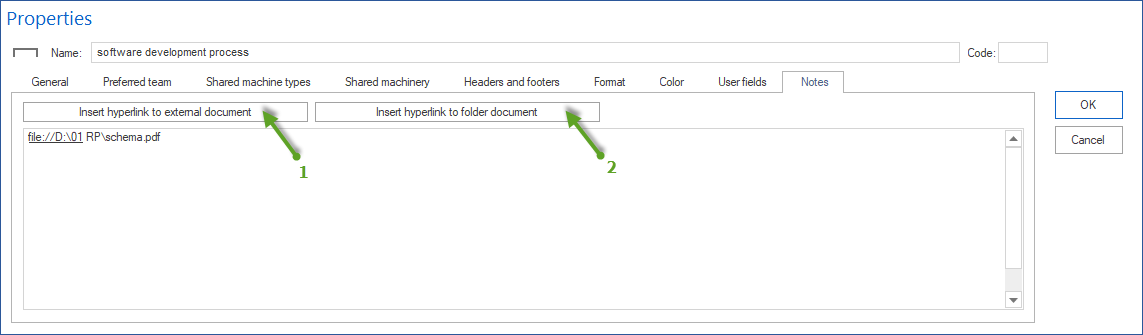
Free text, external links, and file references for the project.
Supported link prefixes: http://, https://, mailto:, ftp://,
news:, telnet:, file:.
Buttons: Insert hyperlink from external document, Insert hyperlink from external directory.
Documents (DMS) Tab
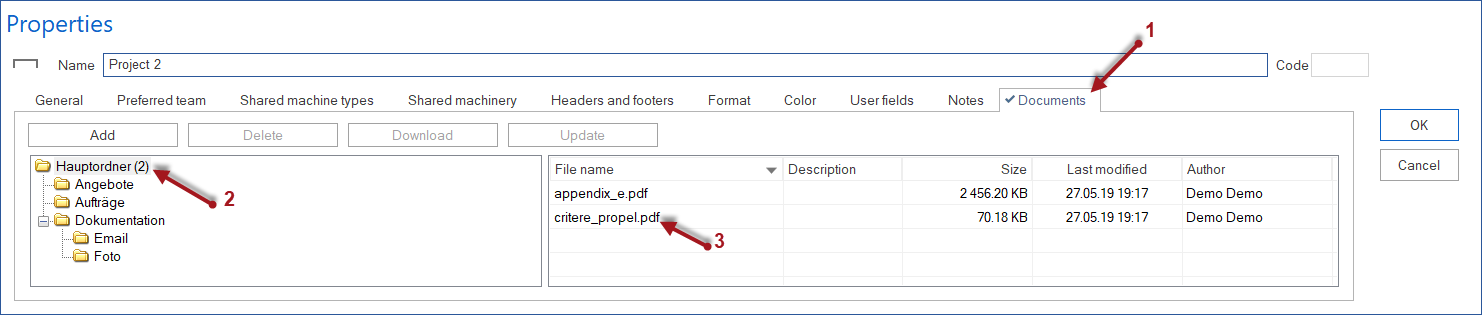
Only available with Rillsoft Integration Server. Shows the DMS directory structure on the left and the directory content on the right.
Actions: Insert, Delete, Download, Refresh. Documents can be dragged and dropped into the right-hand area.
Manage all project documents centrally: Project > Rillsoft Integration Server > Project documents.
Activity Properties
Open: double-click an activity, or select an activity (the properties appear at the bottom).
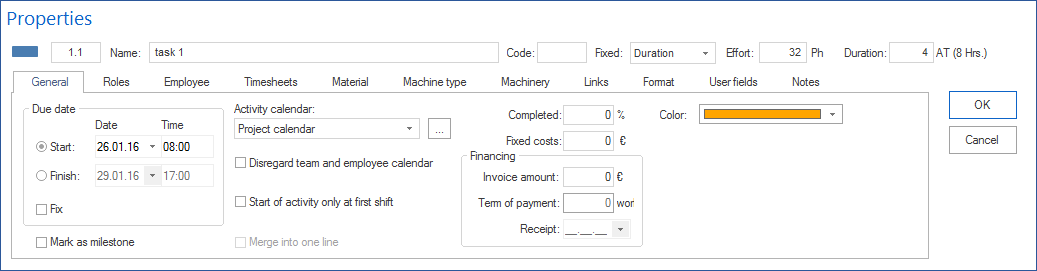
General Tab
Schedule area
Field / option |
Meaning |
|---|---|
Start (date + time) |
Fixed start date. The finish is calculated automatically. |
Finish (date + time) |
Fixed finish date. The start is calculated automatically. |
Fix |
The date is not changed during automatic scheduling (for example optimisation, moving). |
Mark as milestone |
The duration is set to zero. Milestones appear as a diamond in the Gantt chart. |
Activity calendar area
Field / option |
Meaning |
|---|---|
Activity calendar |
Calendar for this activity if it differs from the project calendar. |
Ignore team and employee calendars |
The calendars of the assigned resources are ignored for this activity. |
Start activity only at the start shift |
The activity may only start at the beginning of a shift. |
Display in one row |
Several activities one after another in one row, independent of the hierarchy. |
Effort type and calculation mode
These fields appear only if Record effort for activity is enabled in the project properties.
Option |
Calculation logic |
|---|---|
Fixed duration |
The duration stays constant. On resource changes the effort is recalculated. |
Fixed effort |
The effort stays constant. On resource changes the duration is recalculated. |
Fixed effort & duration |
Effort and duration stay constant. The quantity and utilisation of the resources are adjusted. |
Financing area
Field |
Meaning |
|---|---|
Completed (%) |
Progress of the activity in percent. |
Fixed costs |
Costs that are not represented through resources. |
Invoice amount |
Amount for the billing period. |
Payment term |
Due date in working days after the milestone is completed. |
Payment receipt |
Date of payment receipt (automatic at 100 % + payment term, correctable). |
Colour |
Individual bar colour for this activity. |
Roles Tab
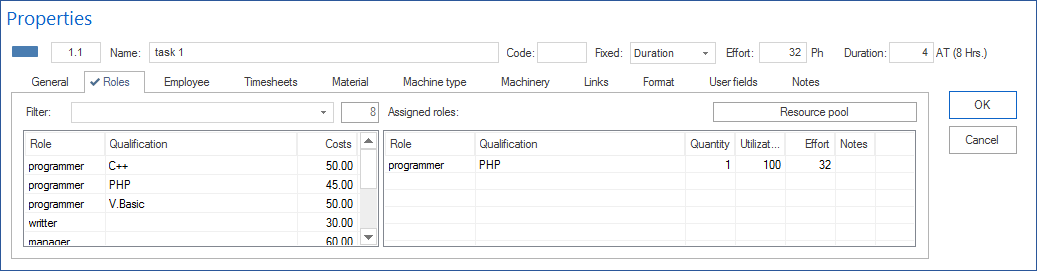
Assigns professional qualifications (roles) to the activity. Prerequisite for qualification-based capacity planning.
Left table — roles created in the resource pool
Filter field: search by role group and code. Entering .. shows only roles
already used in the project.
A double-click adds the role to the activity.
Right table — assigned roles
Column |
Meaning |
|---|---|
Quantity |
Required number of employees of this role for the activity. |
Utilisation (%) |
Degree of utilisation of the role in this activity. |
Effort |
Effort that this role is to provide in the activity. |
Notes |
Role-related remark on the activity. |
Employees Tab
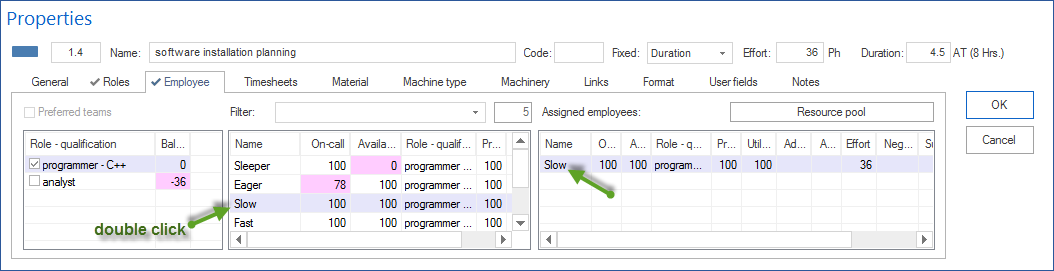
Assigns concrete employees to the activity. Can be filtered on the basis of the assigned roles.
Filter options
Activate the checkbox of a role — shows only employees with matching qualification.
Field Filter — search by name or code. Entering
..shows only project employees.Preferred teams — shows only employees from teams marked as preferred.
Middle table — available employees
Column |
Meaning |
|---|---|
On-call (%) |
Possible work performance in the activity period, adjusted for non-working days. Highlighted in red when restricted — mouseover shows the detailed days. |
Availability (%) |
Possible performance adjusted for activities already assigned in the project. |
A double-click assigns the employee.
Right table — assigned employees
Column |
Meaning |
|---|---|
Productivity (%) |
Work performance of the employee (pre-set from the resource pool, overwritable). |
Utilisation (%) |
Percentage of the employee’s participation in the activity. |
Additional utilization |
Increased utilisation on other days due to non-working days (visible only with due-date-oriented planning). |
Absence |
Opens a calendar for defining activity-specific absence days. |
Effort |
Effort of the employee in the activity. |
Negative effort |
Difference between role effort and employee effort (only with due-date-oriented planning; red = the next employee takes over the substitution). |
Substitution for |
Shows for whom the employee is scheduled as a substitute. |
Responsible |
Marking as the activity owner. |
Notes |
Employee-related remark on the activity. |
Distribute effort dynamically
Only with capacity-oriented planning and at least two employees of the same qualification. Distributes the effort across the available employees.
Timesheets Tab
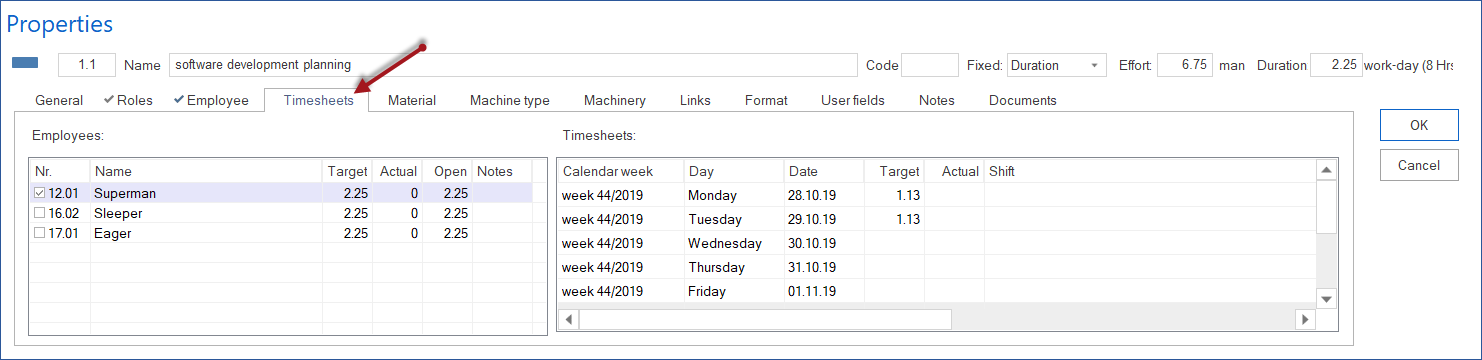
Read-only in Rillsoft Project. Feedback is entered through the Rillsoft Integration Server.
Employees table — all assigned employees with Target, Actual, and Open (effort).
Timesheets table — day-by-day display for the employee selected on the left, with calendar week, weekday, date, Target, Actual, and shift.
Material Tab
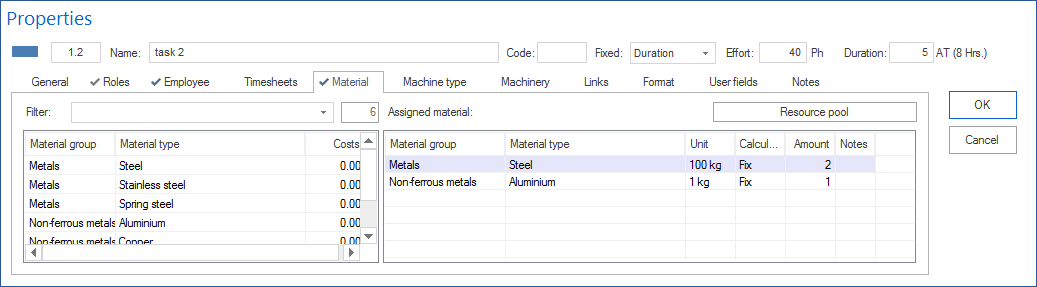
Assigns material (equipment) to the activity.
Left table — available material — filter search by material group,
material type, and code. .. shows only project material. A double-click
adds material.
Right table — assigned material
Column |
Meaning |
|---|---|
Calculation |
Fixed / per hour / per man-hour / per quantity — determines the calculation basis of the material demand. |
Quantity |
Material quantity for the activity. |
Notes |
Material-related remark. |
Devices Tab
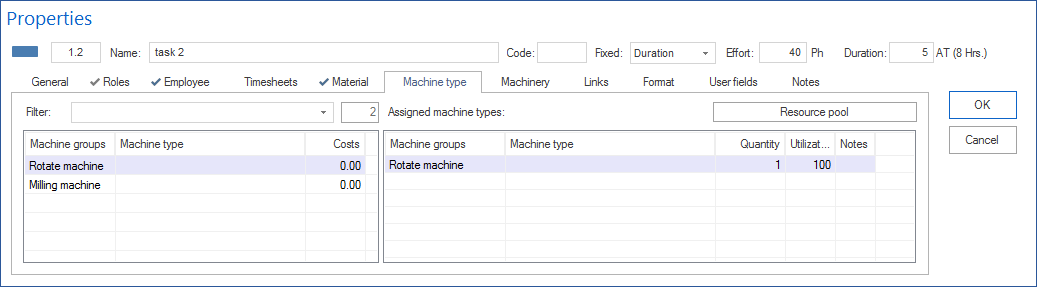
Assigns devices (device type + device name) to the activity. Structure analogous to the Material tab. Fields: device type, quantity, utilisation, effort, notes.
Machinery Tab
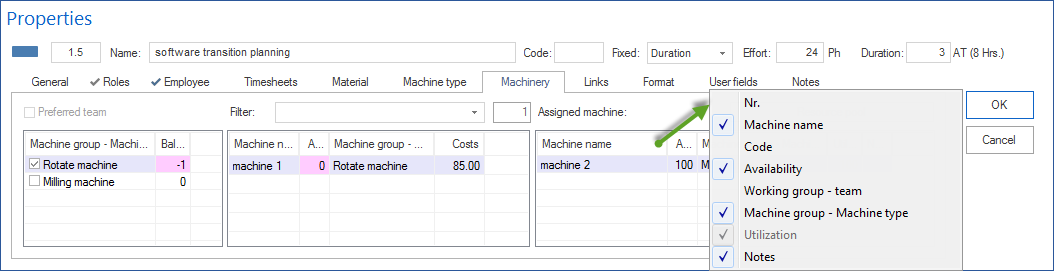
Assigns machinery to the activity. Structure analogous to Devices. Fields: machine type, machinery, quantity, utilisation, effort, notes.
Links Tab
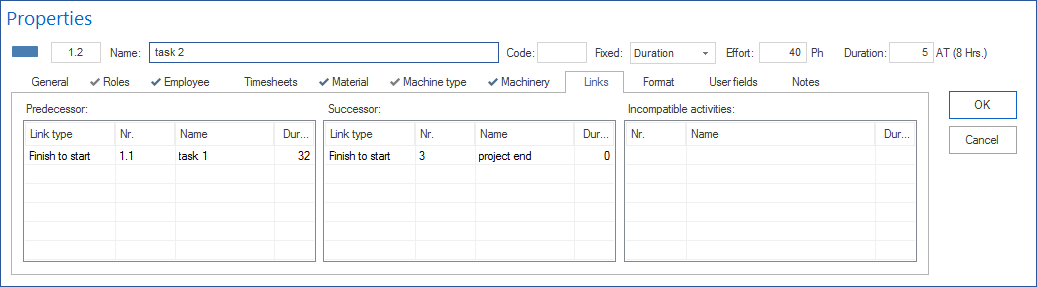
Overview of all links of this activity in three tables:
Predecessors — type, number, and name of all predecessors.
Successors — type, number, and name of all successors.
Incompatible activities — activities that may not be carried out at the same time.
Format Tab
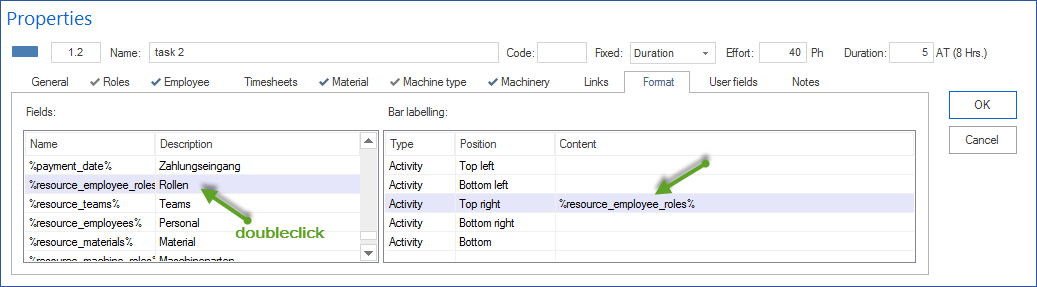
Activity-specific bar labelling (overrides the project format for this activity). Fields: type, position, content — analogous to the Format tab of the project properties.
User-Defined Fields Tab
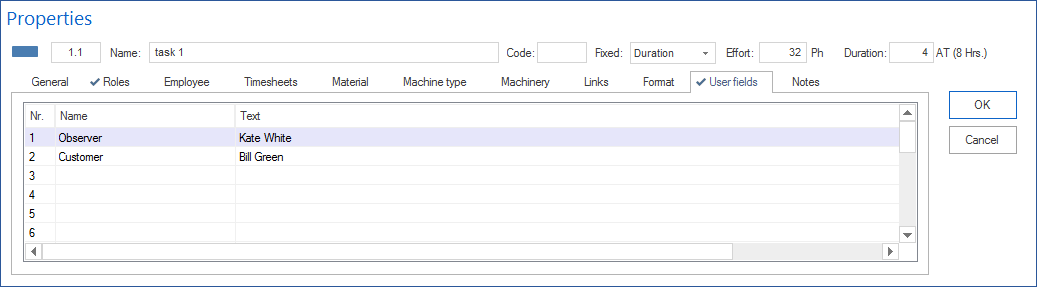
Activity-specific additional fields. Name and text value, as in the project properties.
Notes & Links Tab
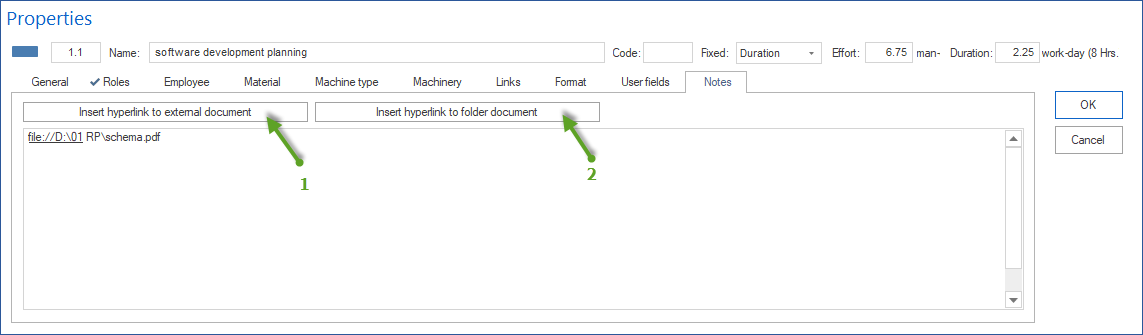
Free text, external links (http://, https://, file:, mailto:,
ftp://, news:, telnet:), and file references for the activity.
Buttons for external documents and directories; alternatively the context menu.
Documents (DMS) Tab
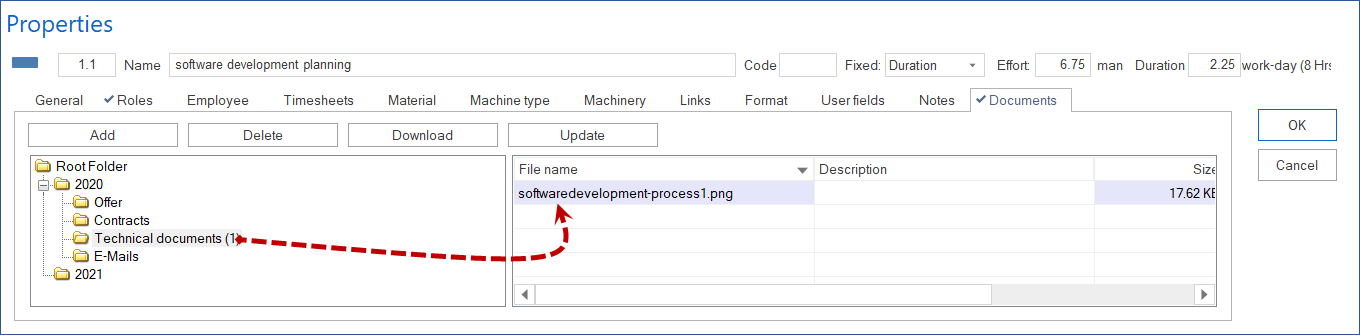
Only with Rillsoft Integration Server. Documents assigned to this activity. Actions: Insert, Delete, Download, Refresh.
Information Dialogs
Open: Start > Properties > Info

Shows check views for the current project state:
Tab |
Content |
|---|---|
Late activities |
Activities whose finish is after the cutoff date. |
Overallocated resources |
Resources with more than 100 % utilisation in a period. |
Failed resources |
Resources that are scheduled in the project but no longer exist in the resource pool. |
Unassigned resources |
Activities without a resource assignment. |
Partially assigned resources |
Activities with role demand that is not fully covered by employees. |
Portfolio dashboard |
Overview of all projects in the open portfolio with key figures. |
Consistency |
Logical check of the project plan for contradictions. |
Cross-project links |
Deviations between released and calculated delays (summary project / portfolio only). |
Server Dialogs (Rillsoft Integration Server)
When operating with the Rillsoft Integration Server, the following dialogs are added:
Summary project — list of all summary projects, project assignment, locks, baseline option.
Project documents — central management of all project documents with filter.
Cross-project links — control and release of cross-project dependencies.
Select / synchronise resource pool — comparison and reconciliation of project and pool resources.