Build a Project Portfolio
A project portfolio in Rillsoft Project combines several separate individual projects in one shared view. It enables cross-project capacity planning, resource optimization, and simulation.
All projects in the portfolio should use the same resource pool. This is the technical prerequisite for utilization, capacity balancing, and resource bottlenecks to be calculated correctly across several projects.
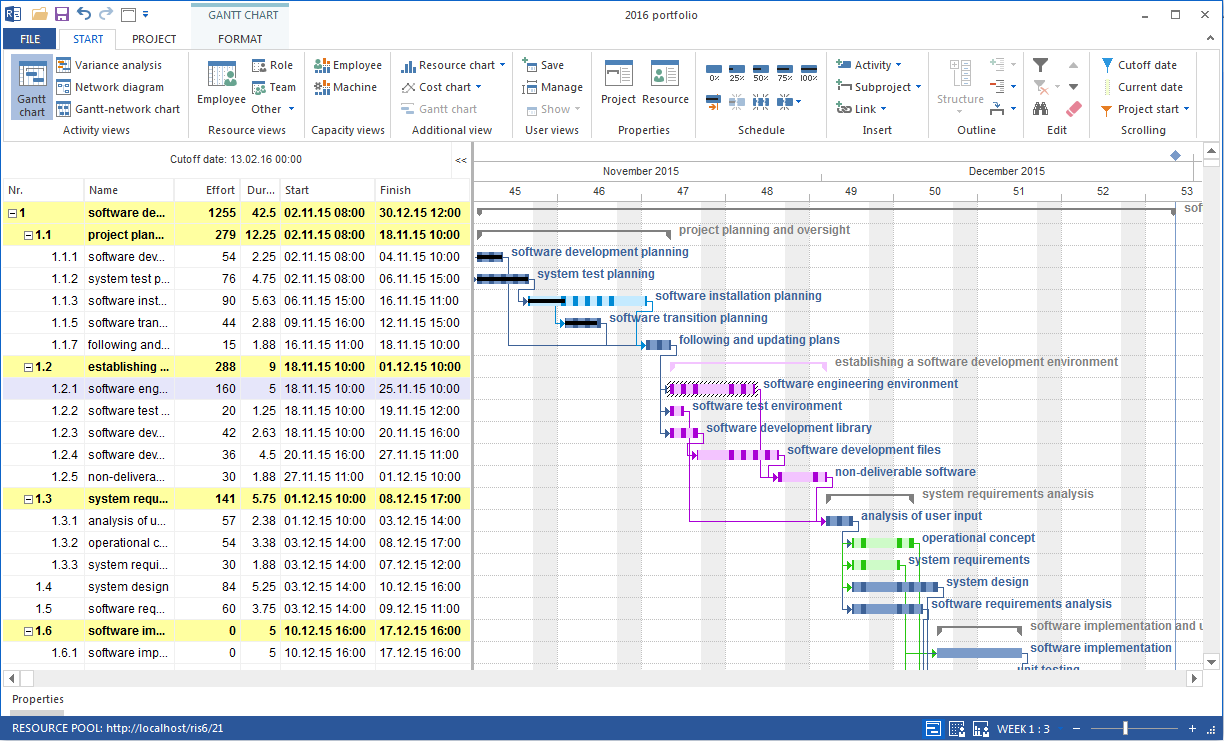
The portfolio provides the same basic views as an individual project, for example Gantt chart, resource views, capacity balancing, and target/actual comparison. Tasks can also be edited, resources assigned, and results saved directly from the portfolio.
Note
A new project is not created inside the portfolio. Create new projects as separate project files and then add them to the portfolio.
Create a New Project Portfolio
Goal: Several projects are combined in a portfolio, and cross-project resource utilization is visible.
Prerequisites:
At least two project files exist.
The projects use the same resource pool.
Ideally, the projects are stored in a common folder.
Workflow:
Click File > Open new project portfolio.
In Portfolio Project selection, click Add Folder.
Select the folder with the project files.
Check the To resource pool column.
Select the projects to include in the portfolio.
Set the project order if required.
Click OK.
Save the portfolio with File > Save.
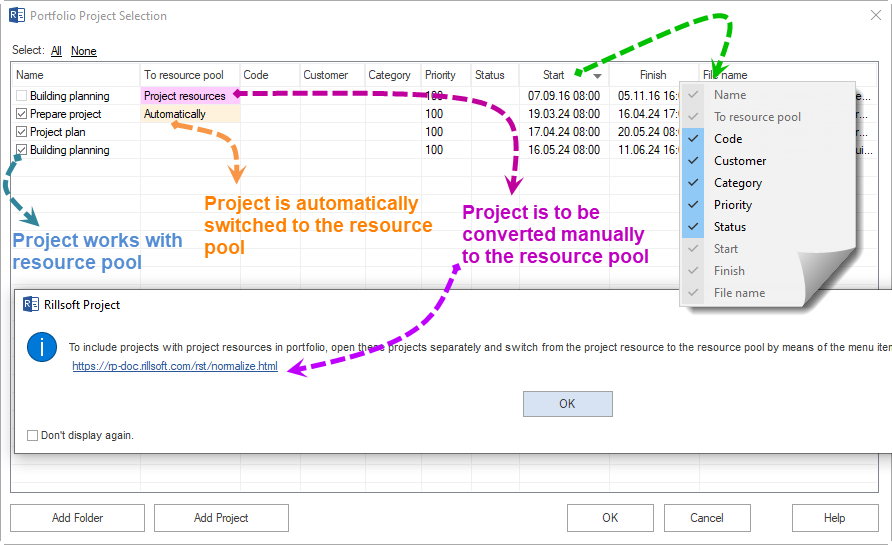
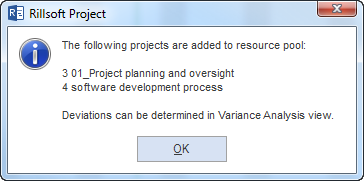
Result: The portfolio shows all selected projects together on the timeline. Cross-project resource utilization is visible in resource and capacity views.
Check Resource Pool Status
When opening or creating a portfolio, Rillsoft Project shows whether projects match the shared resource pool.
Display |
Meaning |
Recommendation |
|---|---|---|
No colored background |
The project matches the resource pool. |
Include the project without restrictions. |
Yellow background |
Minor resource differences exist, for example new non-working days or changed costs. |
Enable Replace deviating project resources by resource pool if Rillsoft Project should align the differences when opening. |
Red background |
Significant resource differences exist. |
Open the project separately and switch it manually to the shared resource pool with Project > Project resources > Switch to Resource pool. |


Maintain Project Category, Status, and Priority
For a reliable portfolio overview, project management data should be maintained consistently. These values are later available for sorting, filtering, and evaluation.
Maintain especially:
Category, for example customer project, internal project, or research and development
Status, for example planned, active, completed, or paused
Priority, as a numeric value for importance compared with other projects
Customer, as client or internal requester
Workflow:
Open the individual project or switch to the required project in the portfolio.
Click Start > Properties > Project.
Open the General tab.
Enter category, status, priority, and customer.
Click OK and save the project.
Master data for categories, status, and customers is maintained centrally in the resource pool. Create these values consistently before several project managers work with portfolios.
Assign Project Customers and Owners
Project customers and owners help classify projects faster in the portfolio.
Workflow:
Open project properties with Start > Properties > Project.
Select the responsible customer in Customer.
Create the customer in the resource pool if required.
Enter the responsible project manager if this field is available in your project.
Save the project.
Prepare Portfolio Views
These views are especially relevant for regular portfolio work:
- Gantt chart
Shows all projects together on the timeline. Use it for schedule position, overlaps, and rough resource peaks.
- Human Resource Capacity Balancing
Shows total employee utilization across all portfolio projects. Red periods indicate cross-project overload.
- Project-specific employee utilization
Shows which share of an employee’s working time belongs to which project.
- Project-specific role utilization
Shows demand for professional qualifications across several projects. This is useful when named employees are not yet fully assigned.
Integration Server and Cloud Note
If your organization uses Rillsoft Integration Server or Rillsoft Cloud, open portfolios through the corresponding Integration Server interface. Projects are then stored centrally in the database instead of as local project files.
Related Topics
project portfolio, portfolio project selection, add folder, add file, shared resource pool, replace deviating project resources, multiproject planning, multiple projects, portfolio, master project, pmo, executive management