Plan Related Projects of Several Project Managers Together
Large undertakings are often implemented jointly by several project managers. With the summary project, each project manager keeps their own project, and the entire undertaking can still be opened, linked, and planned like one project.
This page shows the workflow using one continuous example. The individual dialogs are described in Manage a Summary Project.
Note
The summary project requires Rillsoft Project with Rillsoft Integration Server or Rillsoft Cloud. All projects in the summary project must use the same resource pool.
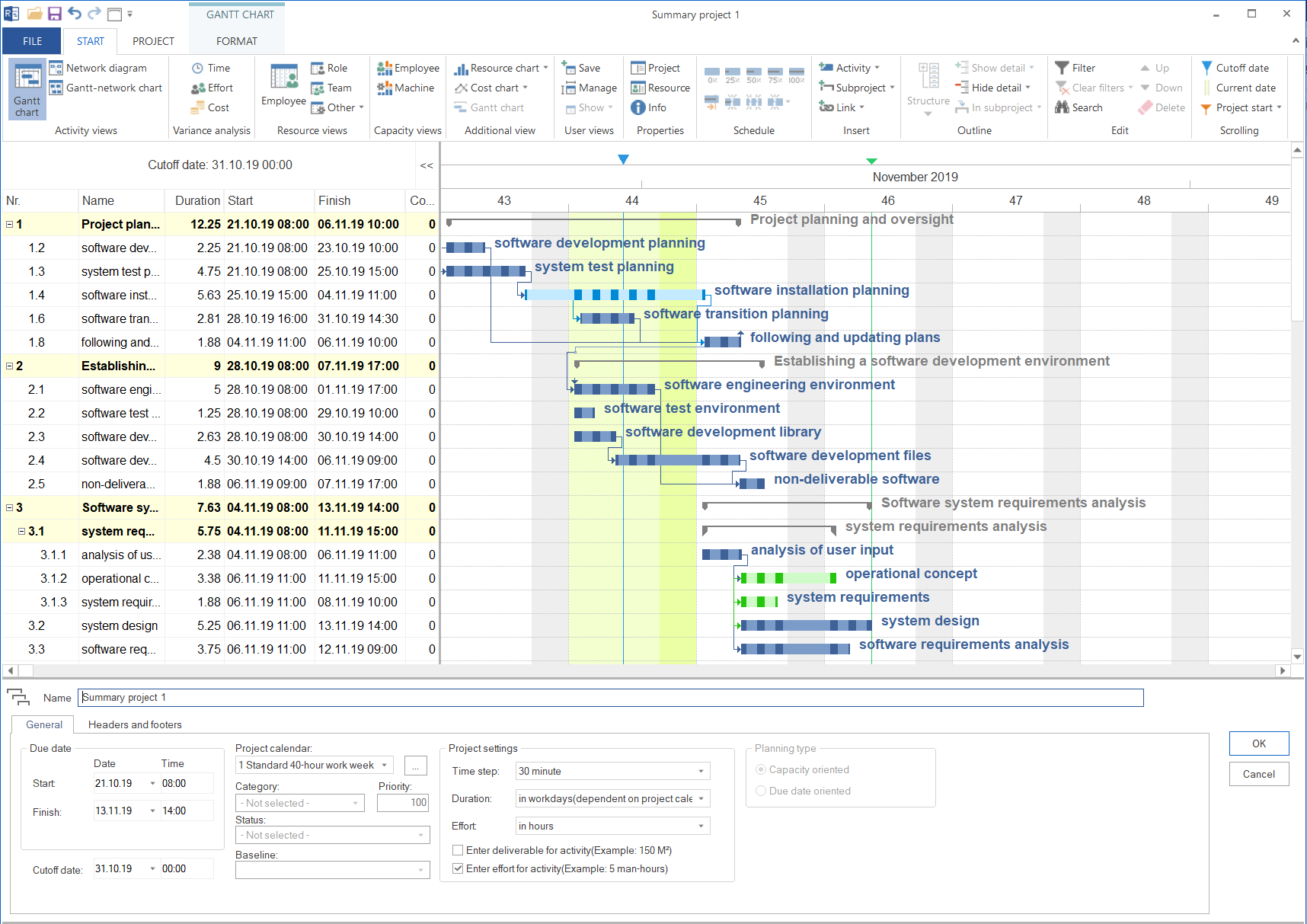
Example
A mechanical engineering company builds a plant. Design, manufacturing, and assembly are the responsibility of three project managers:
Project |
Responsible |
Dependency |
|---|---|---|
Plant – Design |
Design project manager |
— |
Plant – Manufacturing |
Manufacturing project manager |
Starts after the design drawings are released |
Plant – Assembly |
Assembly project manager |
Starts after the assemblies are completed |
The overall project management wants to see the overall schedule, maintain dependencies between the three projects, and check the utilization of the shared employees.
Step 1: Create the Projects
There are two ways:
- Option A — Separate projects from the start
Each project manager creates their project and saves it to central storage with File > Save as > Rillsoft Integration Server > Project, ideally in a shared folder for the undertaking.
- Option B — Split one project with subprojects
The undertaking was first planned as one project with the subprojects Design, Manufacturing, and Assembly. With Project > Rillsoft Integration Server > Split project, each subproject is saved as a separate project. Rillsoft Project automatically combines the new projects into a summary project.
For each new project, you select the target folder:
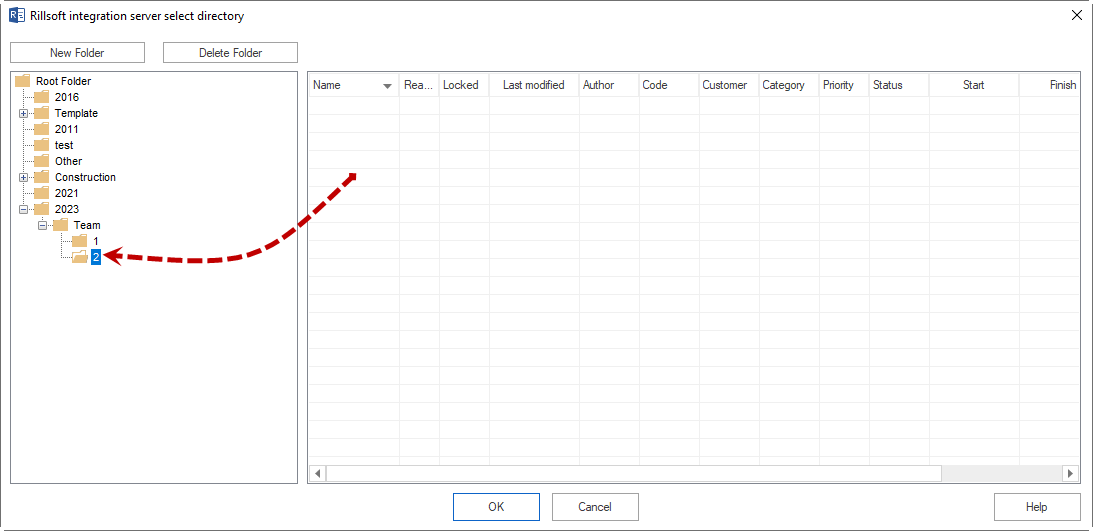
Prerequisites and individual steps: Manage a Summary Project (section “Option 2: Create a summary project from a split project”).
Step 2: Create the Summary Project
With option A, the overall project management creates the summary project:
Choose File > Open new summary project.
Enter a name, for example “Plant – Overall”.
Select the three projects, also from different folders.
Click OK.
With option B, the summary project already exists.
Further projects can be added later: Select the summary project in the Rillsoft Integration Server summary project dialog and click Properties.
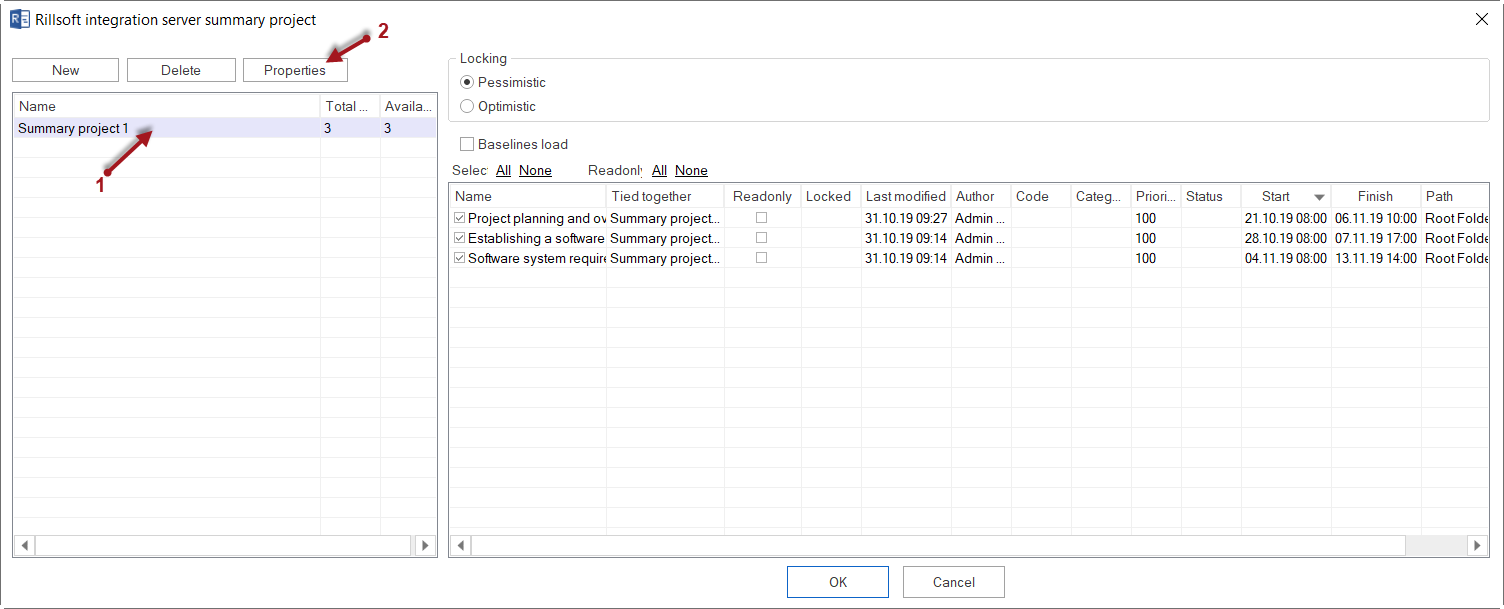
A new project cannot be created inside the summary project itself. Create it separately and then add it.
Step 3: Each Project Manager Plans Their Project
The project managers open and edit only their own project with File > Open > Rillsoft Integration Server > Project. They plan tasks, dates, and resources as usual.
Because everyone uses the same resource pool, each project manager also sees the utilization caused by other projects during capacity balancing.
Notes on locks and reloading: Work on Projects Simultaneously.
Step 4: Overall Project Management Opens the Summary Project
Choose File > Open > Rillsoft Integration Server > Summary project.
Select the summary project on the left. The included projects appear on the right.
Specify which projects are opened and which are only loaded read-only.
Click OK.
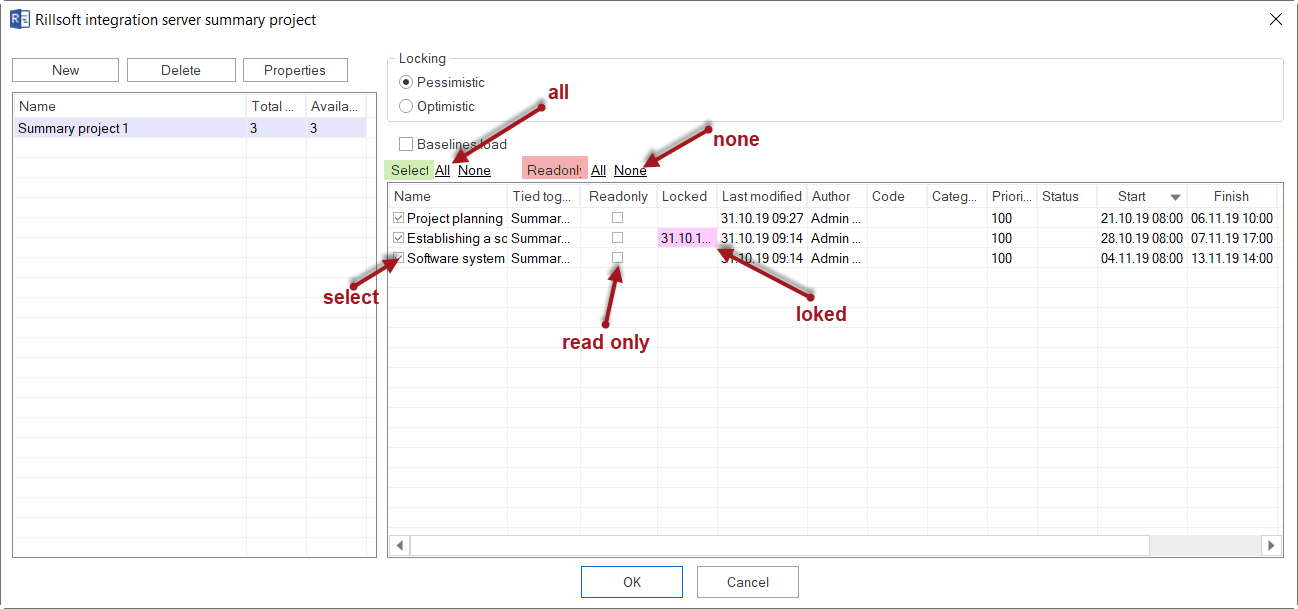
Projects with a red background are currently locked by another user. With All and None, you select or clear all projects at once, or set all of them to read-only.
Recommendation: As overall project management, open the projects that the project managers are currently working on read-only. The projects then remain available to the people responsible for them, and you still see the overall schedule.
All views from Gantt chart to resource diagram are available in the summary project — as if the undertaking were one single project.
Step 5: Maintain Dependencies Between the Projects
In the summary project, you connect tasks from different projects with cross-project dependencies, in the example “Release of design drawings” → “Start of manufacturing”.
Choose a dependency type with Start > Insert > Link.
In the Gantt chart, drag from the task of one project to the task of the other project.
If required, enter a delay in absolute time, for example 2 days.
Check the dependencies regularly with Project > Rillsoft Integration Server > Cross-project links.
Warning
With cross-project dependencies, successors are not moved automatically. If the design is delayed, a negative interval may arise in manufacturing. Rows marked red in the dialog show such deviations.
Details: Manage a Summary Project (section “Cross-Project Dependencies”).
Step 6: Check Utilization Across All Projects
In the summary project, open the Human Resource Capacity Balancing view. It shows the total utilization of each employee across all projects of the undertaking. Coordinate bottlenecks with the responsible project managers. See Control Multiproject Planning.
Step 7: Keep the State Current
The project managers continue working in parallel. Reload the summary project before every coordination meeting: Reload icon in the Quick Access Toolbar.
If you do not need target/actual comparison, clear Load baseline when opening. The summary project then loads much faster.
Optional: Merge the Summary Project Into One Project
If the undertaking should finally be saved as one single project again, use Project > Rillsoft Integration Server > Merge summary project. See Manage a Summary Project (section “Merge a Summary Project”).
Related Topics
summary project, split project, overall project management, overall schedule, cross-project dependency, cross-project link, lots, trades, multiproject planning, multiple projects, portfolio, project portfolio, master project, project manager, pmo