Prepare a Target/Actual Comparison in 10 Minutes
Goal: A baseline is saved and the project is ready for target/actual comparison when execution starts.
What is a baseline? A baseline is a frozen copy of the current schedule at the time of release. It is the reference for comparing planned progress with actual progress later.
Prerequisites: The project is scheduled, resources are assigned, and the plan has been released.
Step 1: Save a Baseline
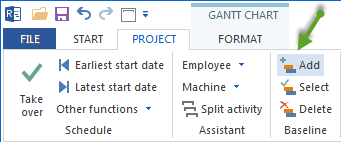
Select Project > Baseline > Add. The Add baseline dialog opens.
Enter a meaningful name, for example “Baseline project start 2026-05-19”, or accept the proposed name.
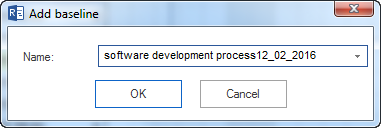
Click OK.
Note
You can save several baselines, for example after an approved plan change. This documents the project development over several phases.
Step 2: Enter Actual Data
When tasks have started or are completed:
Double-click a started or completed task.
Go to the General tab.
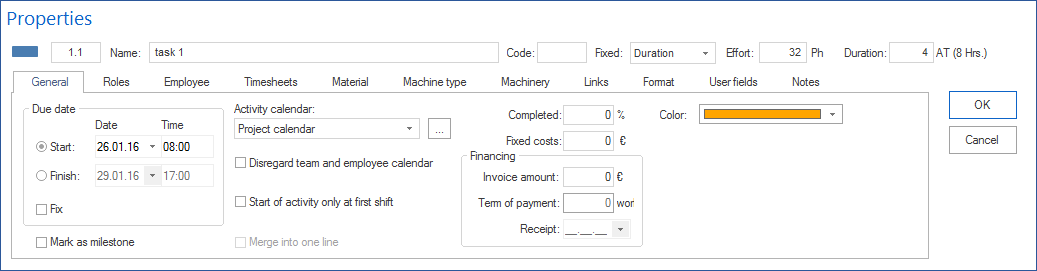
Enter the completion percentage, for example 50 percent for a half-finished task or 100 percent for a completed task.
Enter the actual start date if it differs from the plan.
Click OK.
Step 3: Open the Target/Actual View
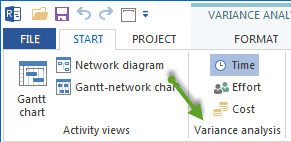
Switch to the Variance analysis or target/actual comparison view from Start.
In the table, compare planned and actual values for each task.
Highlighted values show deviations from the baseline.
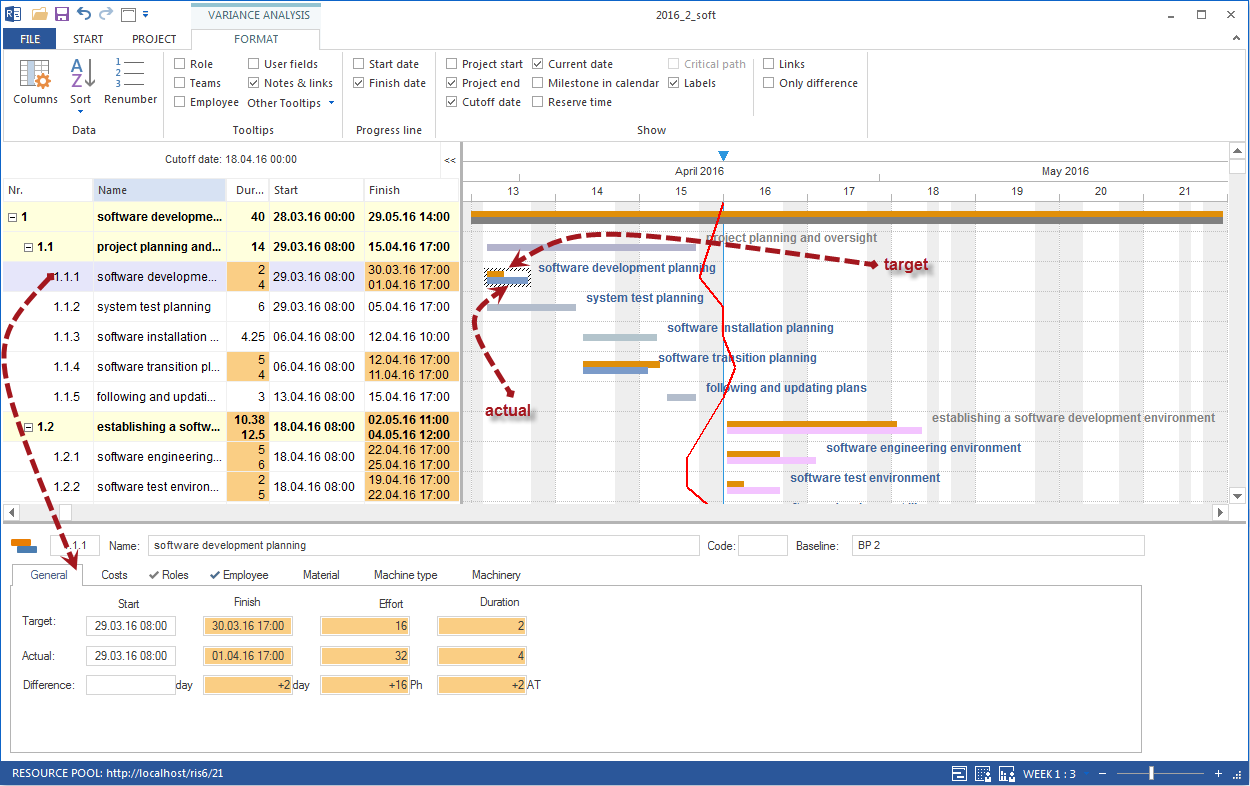
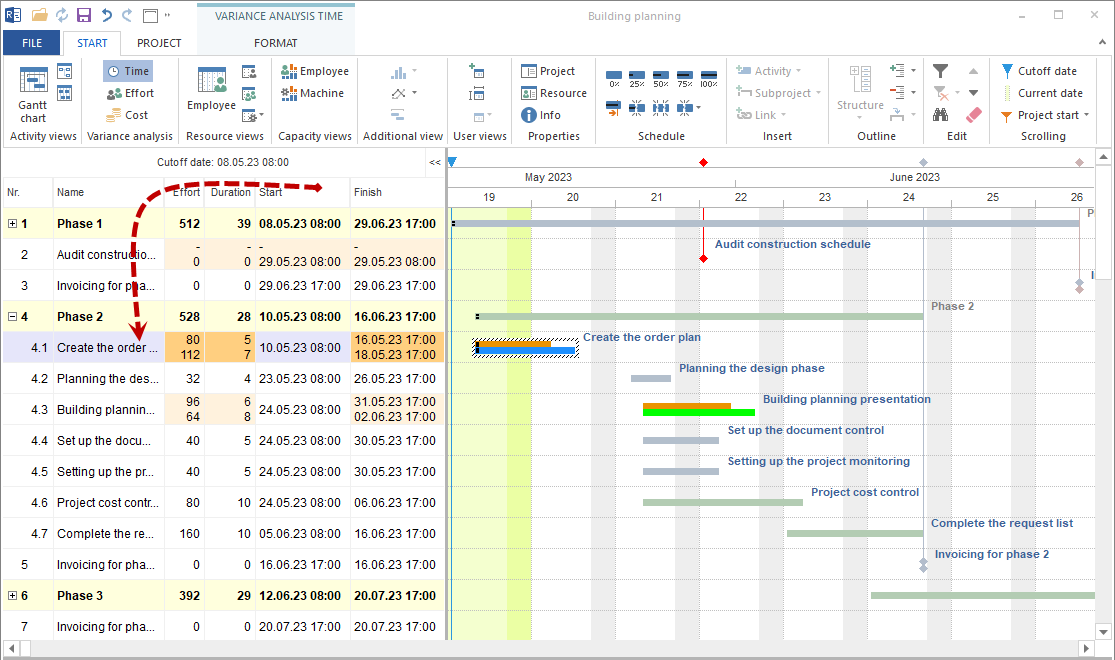
Step 4: Set the Cutoff Date
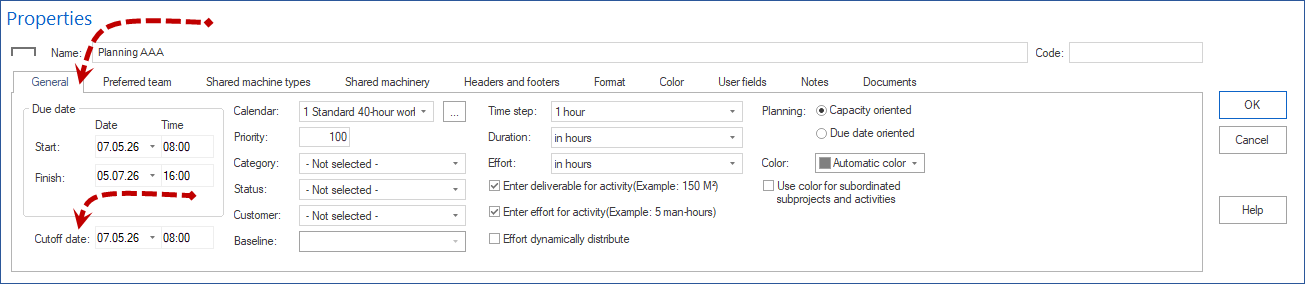
Open Start > Properties > Project.
On the General tab, enter the date in the Cutoff date field.
Alternatively, set the cutoff date marker (the small triangle) in the upper part of the time scale.
Result
The baseline is saved, actual data can be entered, and deviations become visible in the target/actual comparison.
Related Topics
target actual comparison, baseline, add baseline, variance analysis, actual progress, progress, reporting date, deviation, project manager