Identify Resource Overloads in 10 Minutes
Goal: You know which employees are overloaded, where role demand is not covered, and which tasks cause the problem.
Prerequisites: A project with tasks and assigned resources is open.
Step 1: Check Project Information
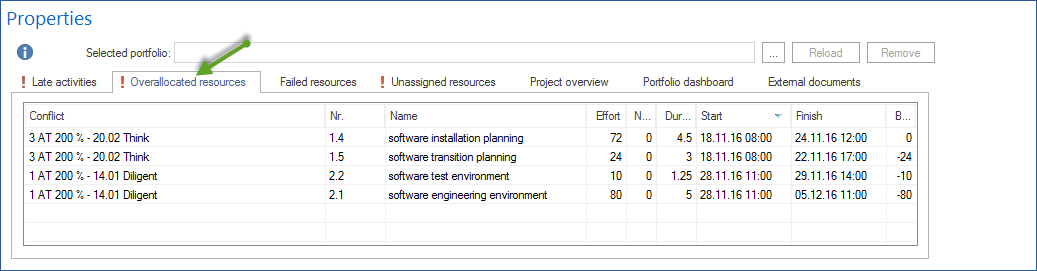
Select Start > Properties > Info and open the Overallocated resources tab. The list shows affected resources. For employees, this is an overload. For roles, check uncovered demand in capacity balancing.

Select a resource to see the affected time periods.
Step 2: Analyze Overload in a Resource View
Switch to the Employees view.
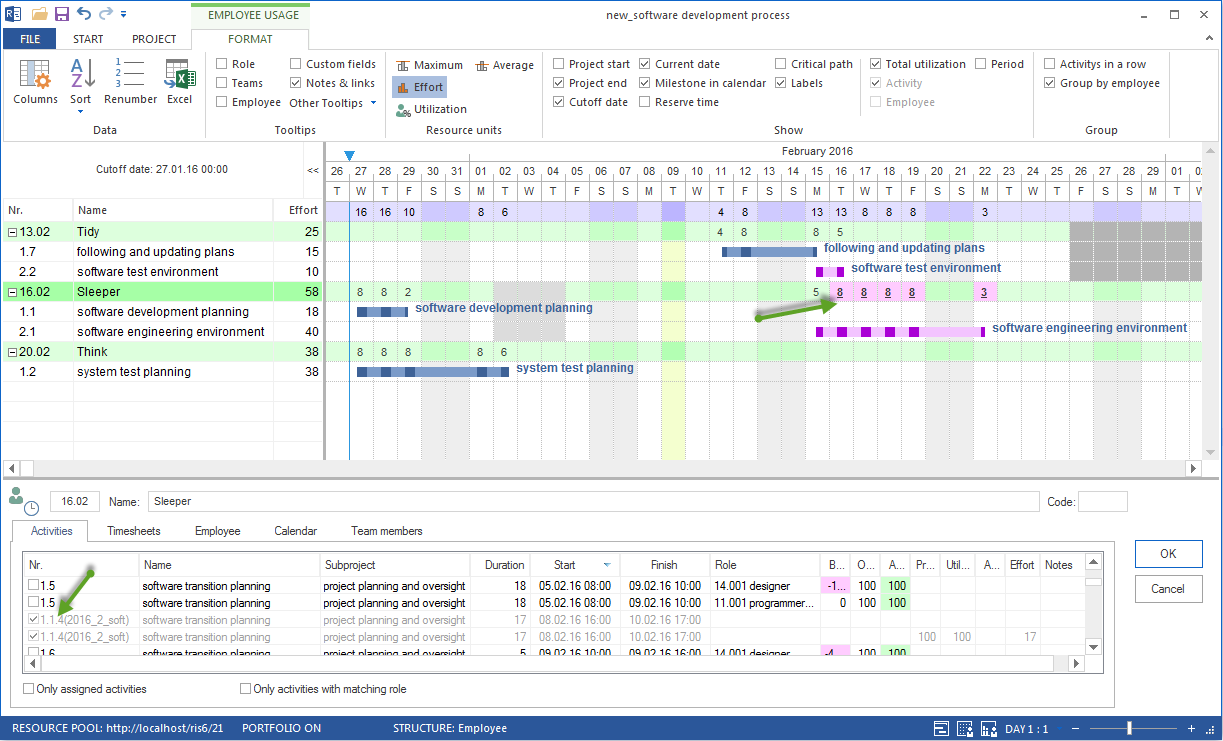
Look for red periods in the utilization display. Red means the planned load exceeds the available capacity.
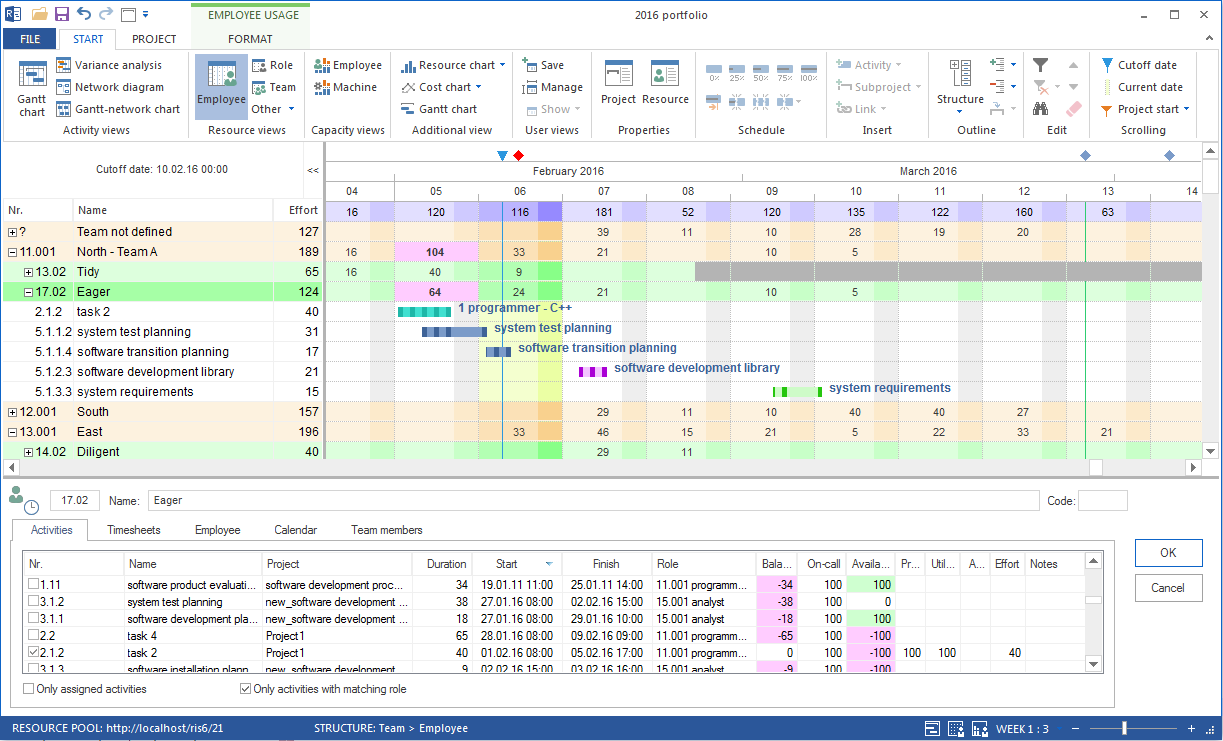
Select the overloaded resource to see the related tasks.
Step 3: Use Capacity Balancing
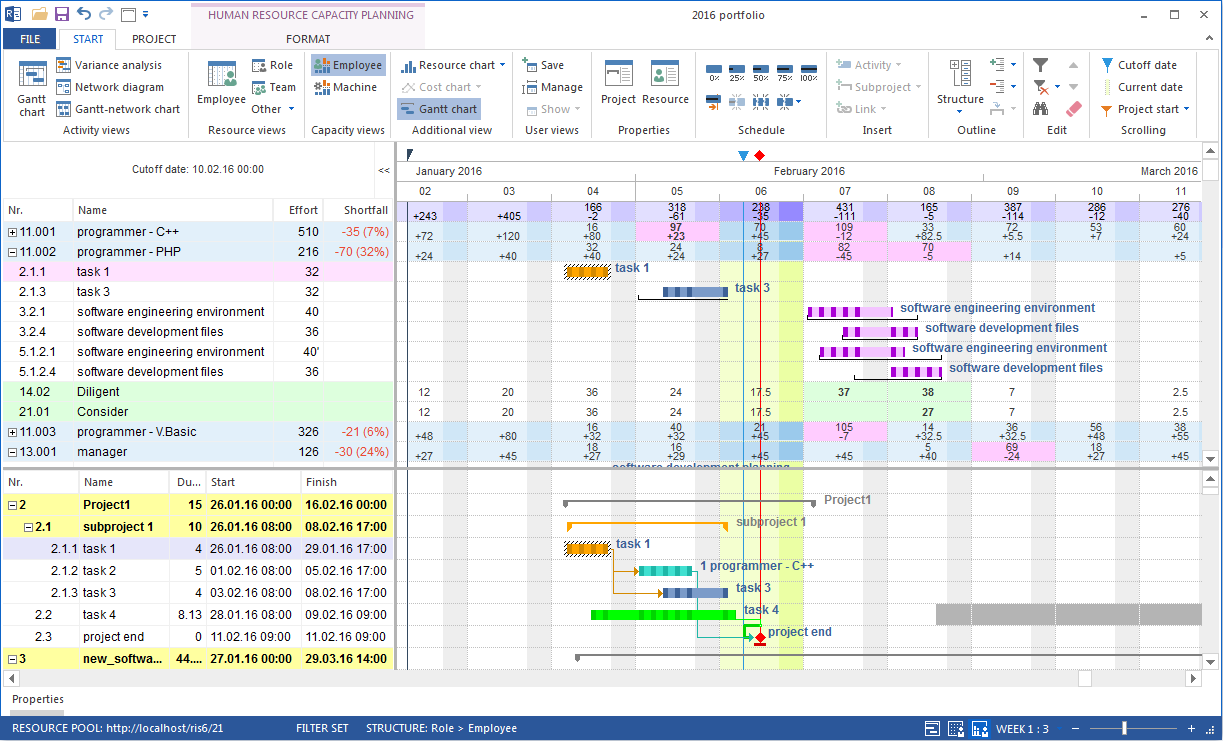
Select Start > Capacity views > Employee.
The capacity balancing view compares demand, available capacity, uncovered demand, and free capacity.
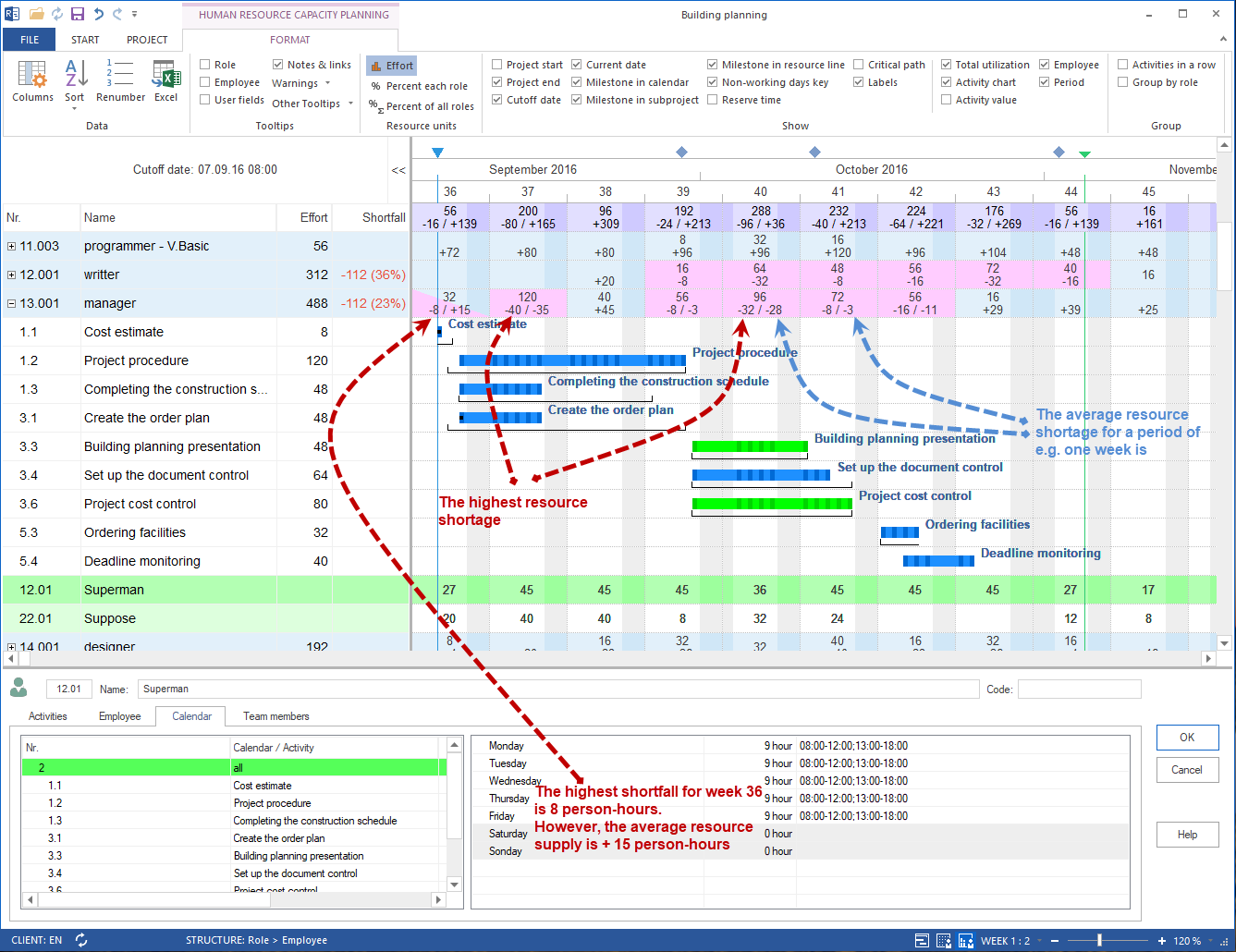
Identify critical periods and the tasks causing the demand.
Decide what to change: move tasks, change resources, distribute effort, or review working time.
Tip
If you use Capacity balancing employees with Gantt chart, you see demand and schedule at the same time.
Result
You know the overloads or uncovered demand, their time periods, and the causing tasks.
Related Topics
overload, overloaded employees, resource utilization, uncovered demand, capacity bottleneck, capacity planning, capacity balancing, utilization, bottleneck, project manager, resource manager