Analyze the Critical Path
The critical path is the longest chain of activities that determines the project finish date. Each activity on the critical path has no free float: if one of these activities is delayed, the project finish date moves directly.
Show the Critical Path
In the Gantt chart:
Open the Gantt chart.
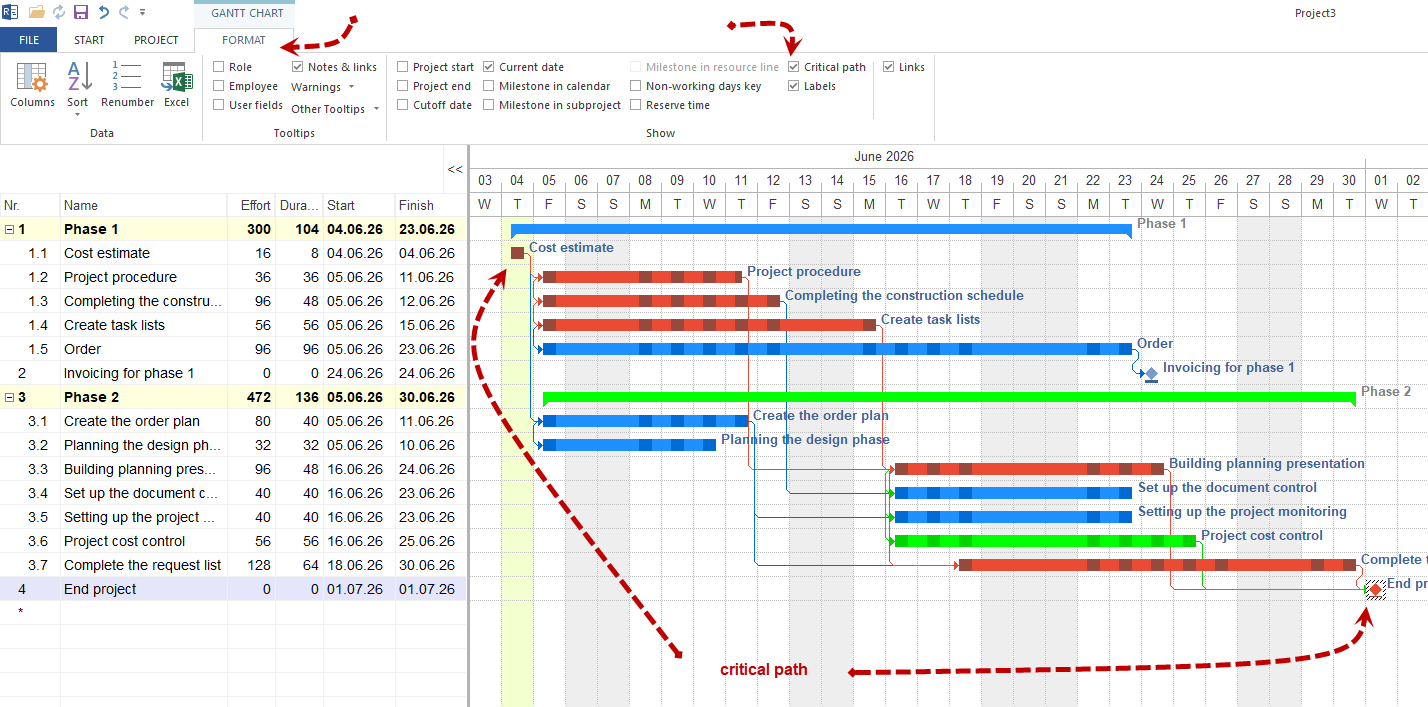
In the view-specific Gantt Chart Format tab, activate Critical path.
Activities on the critical path are highlighted, usually in red.
The critical links between these activities are highlighted as well.
In the network diagram:
Use the network diagram when you need to understand the logical sequence of the critical chain. In the view-specific Network Diagram Format tab, activate Critical path. The critical path is shown as a highlighted chain of nodes.
Note
The critical path can only be calculated correctly when the schedule is linked completely. Unlinked activities are never shown as critical, even if they are critical from a business point of view.
Free Float
Rillsoft Project calculates two reserve values for each activity:
Field |
Meaning |
When it matters |
|---|---|---|
Start reserve |
How far can the activity move earlier before it violates the next fixed frame? |
Evaluating how much earlier an activity could start |
Finish reserve |
How far can the activity move later before it violates the next fixed frame? |
Basis for decisions about date shifts |
The calculation runs against the next fixed frame in the schedule (a fixed subproject or the main project) and no earlier than the cutoff date — not against the next successor. An activity can move earlier by the start reserve or later by the finish reserve, not by the sum of both.
Activities on the critical path have start reserve = 0 and finish reserve = 0.
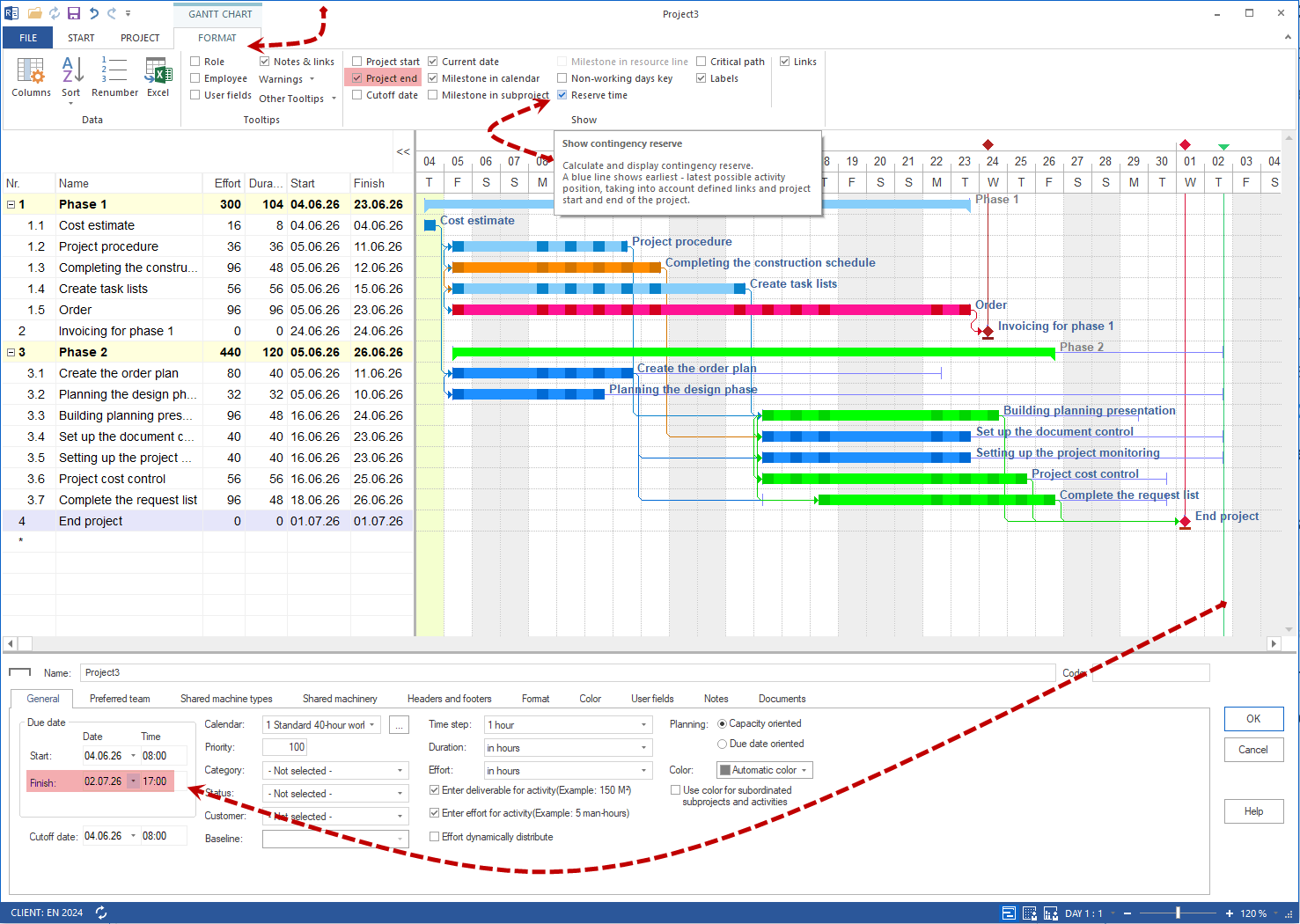
The reserve values can be shown as columns in the activity table (right-click a column header and configure the visible columns) or as a line in the Gantt chart via Start > Gantt Chart Format > Free Float. On subproject rows, the line shows the envelope of the contained activities, not a buffer of its own.
Near-Critical Activities
Activities with very little reserve (for example one to three days) are not yet critical, but can become critical quickly. Monitor them when:
a small resource delay could consume the remaining reserve
a reserve of two days is small compared with a 30-day activity duration
a changed dependency could reduce the reserve to zero
Define a practical threshold for monitoring near-critical activities, for example start or finish reserve below five working days.
Use The Critical Path For Decisions
Use the critical path for concrete planning decisions.
Evaluate schedule risk
Which critical activity has the most uncertain duration estimate?
Where do external suppliers, approvals, or dependencies create risk?
Are bottleneck resources assigned to critical activities?
Prioritise resources
Bottleneck resources should be assigned first to critical activities.
If a critical activity is delayed, check whether additional capacity can reduce its duration.
Prepare optimisation
If the calculated finish date is too late, first check activities on the critical path for reducible duration or possible parallel alternatives.
Non-critical activities may be moved to free resources for critical work.
Evaluate progress
Check regularly whether the critical path has changed.
If the critical path changes frequently, the schedule logic may be unstable. Check dependencies and buffer values.
Typical Causes Of An Unclear Critical Path
Symptom |
Likely cause |
|---|---|
The critical path changes unexpectedly after small edits. |
Many activities have almost the same buffer; the schedule logic is too tight. |
The critical path does not end at project completion. |
Not all activities are linked to the final milestone or finish chain. |
No activity is critical. |
Dependencies are missing or too many finish dates were set manually. |
Almost all activities are critical. |
Too many finish-finish links or too little planned buffer. |
Related Articles
critical path, buffer, free float, slack, reserve time, finish date, schedule risk, schedule, gantt, bar chart, timeline, dependency, project manager, pmo