Check Employee Assignments
Goal
Check whether employee assignment is professionally, schedule-wise, and capacity-wise plausible.
Why the Check Matters
An assignment is not automatically correct just because it is technically possible. Rillsoft Project can show availability, utilization, calendars, and tasks. The professional decision remains with the project manager or resource manager.
Use the Employee View
In the employee view, you can check the assignment of an employee.
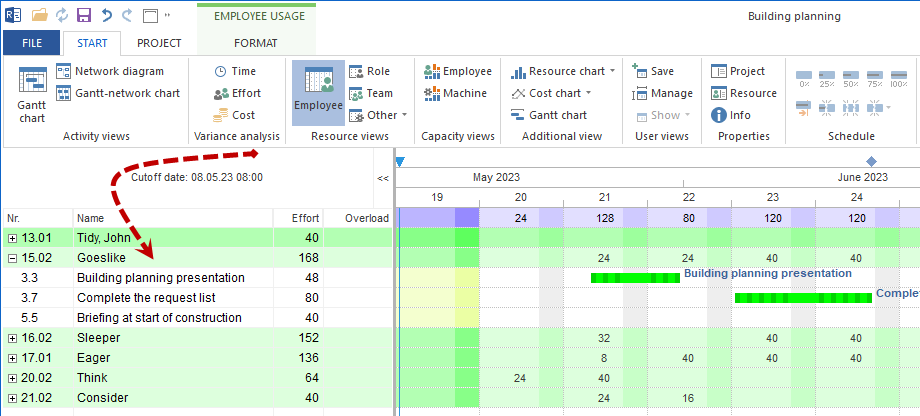
When you click a row in an employee view, detailed information about the employee resource is shown in the properties window. The information is on these tabs:
Activities: shows assigned or matching tasks. In the No. column, tasks can be assigned by selecting them.
Employee: shows the employee properties stored in the resource pool, including professional qualifications.
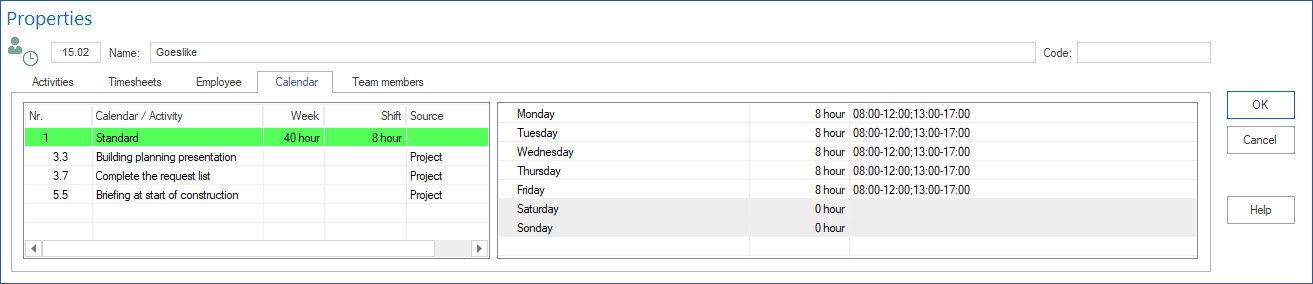
Calendar: shows which calendars are used in assigned tasks and how working times are defined.
Team members: lists other team members with their properties from the resource pool.
Check Tasks
Check on the Activities tab:
Which tasks are assigned?
Do the tasks match the employee’s professional qualification?
Is Activities with matching role only useful?
Are effort and workload correct?
Is there multiple booking?
Is there absence or substitution?
Are notes or special cases documented?
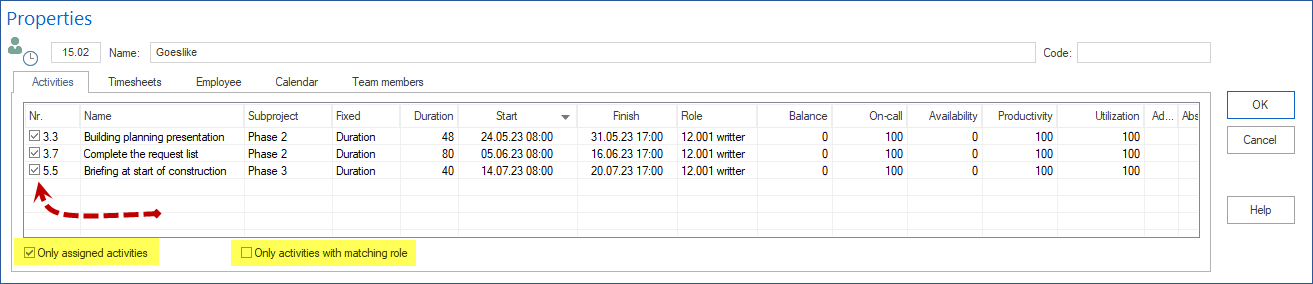
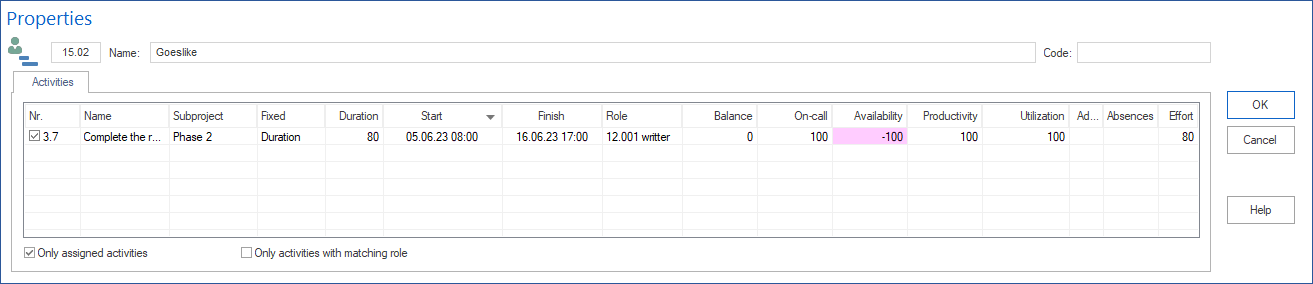
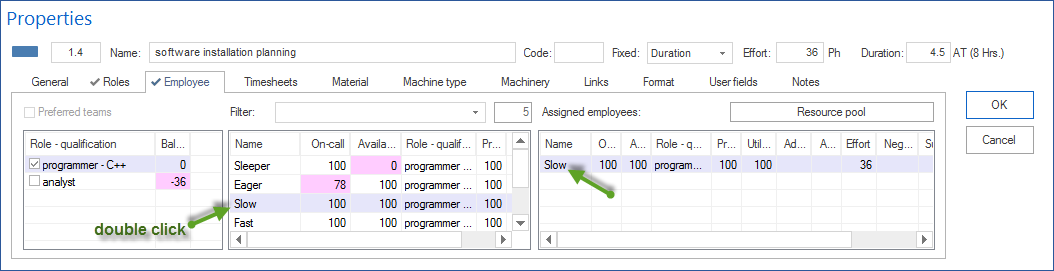
Per task, you can check on-call, availability, additional utilization, negative effort, and substitution. You can also define productivity, workload, absence, effort, and notes directly.
Check Calendar and Availability
Check on the Calendar tab:
Which calendars apply to assigned tasks?
Are working times correct?
Are non-working days considered?
Are there shift calendars or exceptions?
Is the employee actually working in the planned period?
Check Tasks for a Specific Date
You can filter tasks that are due in a specific period. Left-click a cell at the intersection of an employee row and date column to show only tasks relevant for the selected period.
This is helpful when overload arises only in a specific time window. Check:
Which tasks are in the critical period?
Which of them cause overload?
Are there parallel tasks in other projects?
Is absence maintained correctly for the period?
Check Project Information
Use Start > Properties > Info for a quick diagnosis of conflicts and bottlenecks.

Overallocated Resources
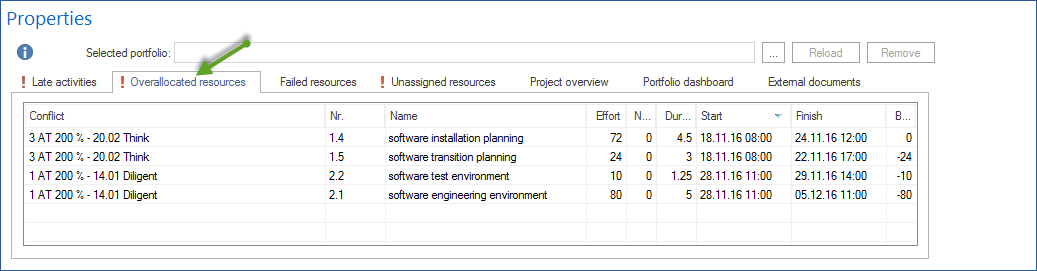
Click Start > Properties > Info and select Overallocated resources.
Important: Only one conflict per task is listed. Detailed information about overallocated resources is available in the Employee resource view or on the Employees tab of task properties.
Relevant columns include conflict, task number, name, effort, negative effort, duration, start, finish, employee balance, and machine balance.
Late Activities
Use the project information tab for late activities when assignment or missing capacity has shifted work.
Important: Only one conflict per task is listed. Detailed information is available in the employee resource view or on the Employees tab of task properties.

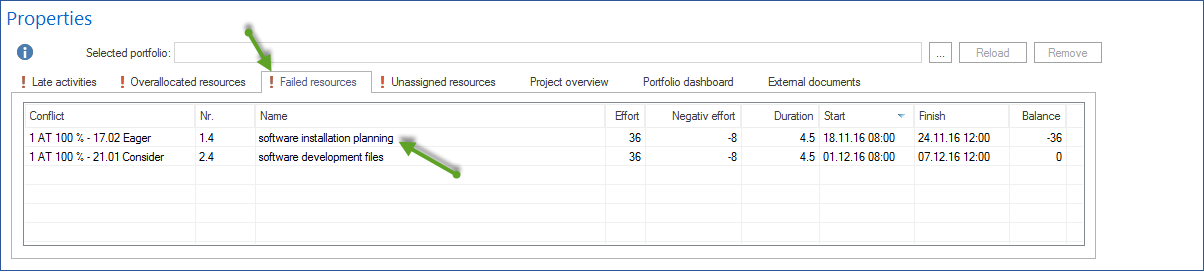
Failed Resources
Failed resources are visible only with due-date-oriented planning. If several conflicts arise because of resource absence, only one conflict is listed. Detailed information appears in task properties on the Employees tab in the Negative effort column.
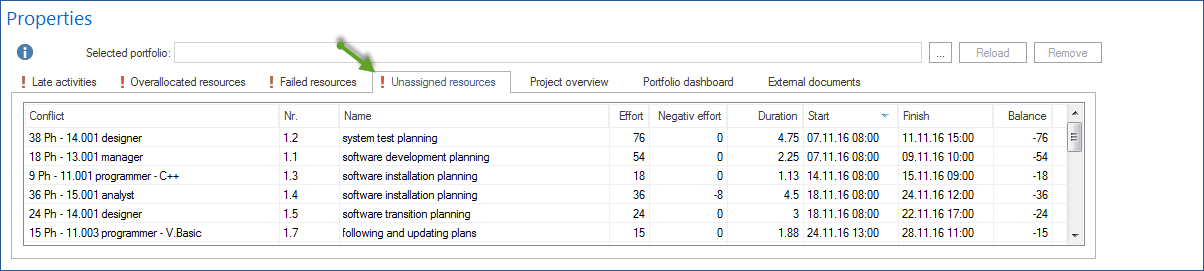
Unassigned Resources
Use Unassigned resources to identify role effort that is not yet covered by employees.
Detect Overloads
For detailed root-cause analysis, use grouped resource views with Start > Outline > Grouping. These groupings are especially useful:
Employee > Project: shows which projects load an employee
Role > Employee: shows which employees are assigned to a role
Project > Role > Employee: shows role-based employee assignment by project
This helps determine whether overload comes from one task or several projects. When overload occurs, check:
Is the assignment professionally necessary?
Can another employee with the same professional qualification take over?
Can the task be moved?
Can workload be reduced?
Are there portfolio conflicts with other projects?
Checklist After Assignment
An assignment is checked when these questions are answered:
Is the correct employee assigned?
Does the professional qualification match?
Are working time and calendar plausible?
Are non-working days considered?
Are effort and workload correct?
Is there no unresolved multiple booking?
Are portfolio conflicts checked?
Is the assignment understandable for project manager and resource manager?
Next Steps
When the assignment is stable, the project plan can be controlled and later evaluated in target/actual comparison.
check assignments, matching role only, assigned activities only, missing employees, partial assignment, overload, assignment properties, resource planning, resource assignment, resource demand, resource supply, project manager, resource manager