Why Does a Project Not Appear in the Portfolio?
A project is missing from the portfolio if it is stored in a folder that is not searched, uses a different resource pool, is locked by another user, or was disabled in the portfolio dashboard. Add the folder in the Portfolio Project Selection dialog with Add Folder and align the resource pool via Project > Project resources > To resource pool if needed.
Symptom
A project is not shown when opening the portfolio. Or it appears in the list but cannot be selected.
Cause 1: Wrong Folder
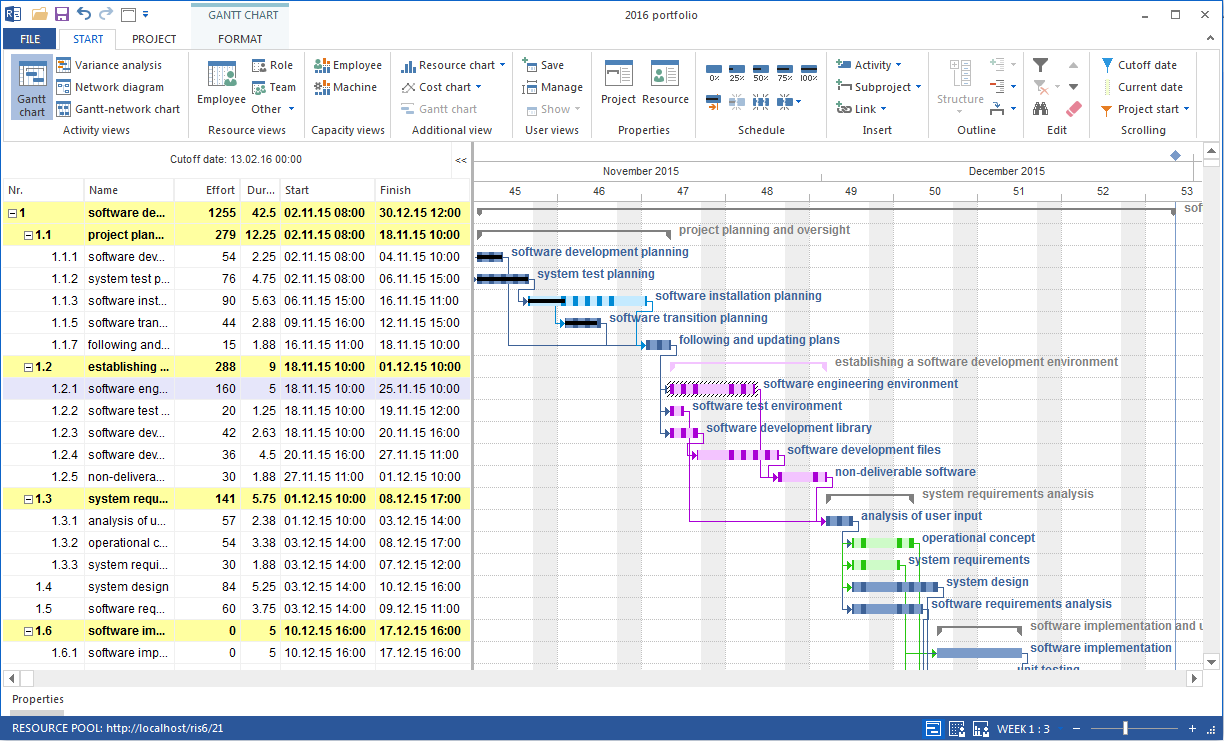
The portfolio only searches folders that were specified when opening it.
Solution:
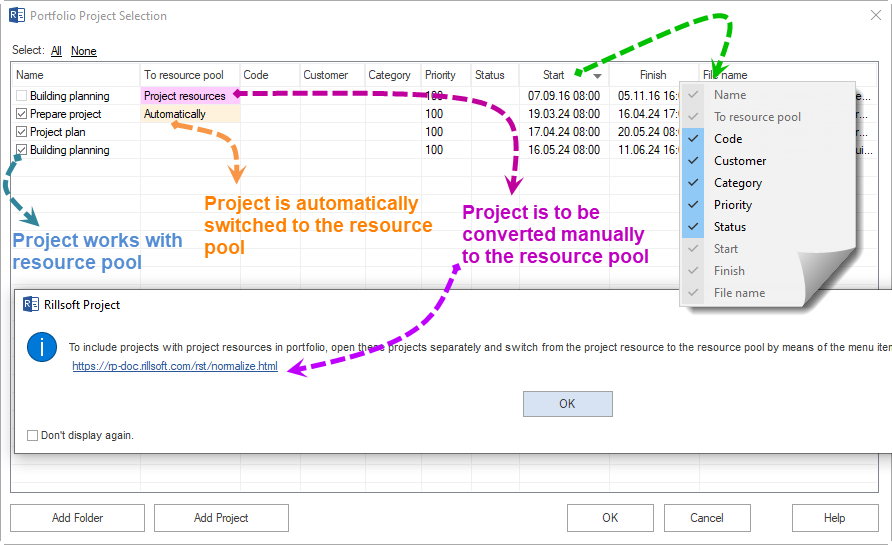
In the Portfolio Project Selection dialog, click Add Folder and select the folder in which the project is stored. Alternatively, add the project file directly with Add Project.
Cause 2: Different Resource Pool
Projects with significant resource differences from the portfolio resource pool receive a red background in the To resource pool column and cannot be included directly.
Solution:
Open the project as an individual project. Change project resources to the shared resource pool with Project > Project resources > To resource pool. Save the project and open the portfolio again.
Cause 3: Minor Resource Difference
A yellow background indicates minor differences, for example new non-working days or changed cost rates.
Solution:
Enable Replace deviating project resources by resource pool in the dialog so that Rillsoft Project aligns these differences when opening.
Cause 4: Project Is Locked
When working with Rillsoft Integration Server, a project may be locked by another user.
Solution:
Check whether another user has opened the project and coordinate access.
Cause 5: Project Is Disabled in the Portfolio Dashboard
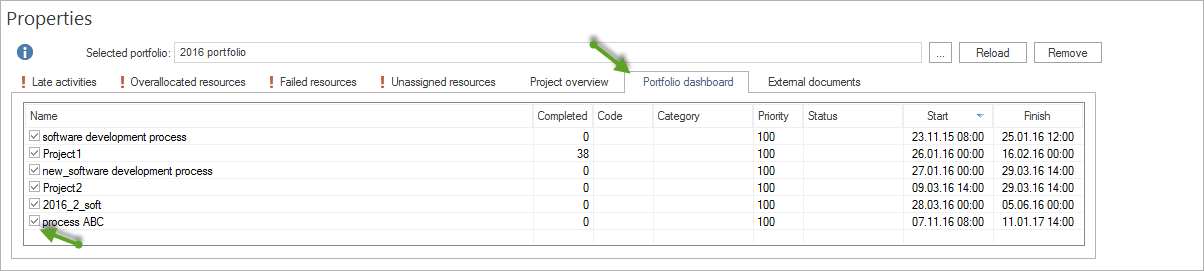
In the portfolio dashboard, each project can be enabled or disabled for capacity calculation. A disabled project appears in the portfolio but is not considered for resource availability.
Solution:
Open Start > Properties > Info > Portfolio dashboard and enable the checkbox for the affected project.