Prepare Project Closure
Project closure in Rillsoft Project means more than setting the status to “Completed”. This article describes which system steps are useful for closing a project cleanly, preserving experience, and releasing resources.
When to Close
Close the project in Rillsoft Project when:
all defined deliverables have been handed over
acceptance has taken place
no further tasks are open, or open tasks have deliberately been moved to a follow-up project
the closure milestone has been reached
Do not close the project too early while active tasks are still running or the baseline is still needed for deviation reports.
Closure Checklist
Before formal closure, check these points:
Task status
[ ] All tasks set to 100% complete?
[ ] No tasks with open actual effort or missing progress?
[ ] All milestones reached or formally rescheduled?
Baseline and target/actual
[ ] Final target/actual comparison performed and documented?
[ ] Deviations explained and commented?
[ ] Baseline saved for archiving?
Resources
[ ] All employee assignments correctly completed?
[ ] Actual effort fully entered through time entry?
[ ] No open vacation request or unapproved effort in running tasks?
Documents
[ ] All relevant documents stored in DMS or as external links?
[ ] Acceptance protocol, status reports, and decision logs archived?
Project status
[ ] Project status set to Completed in project properties?
[ ] Project removed from the active portfolio or marked inactive?
Archive a Baseline
Before closing the project, save a final baseline, even if an initial baseline already exists.
Open Project > Baseline > Add.
Save a new baseline.
Give it a clear name, for example
Closure 2026-05-25.Confirm.
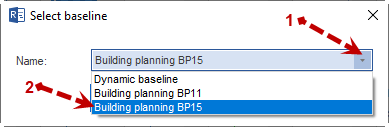
The final baseline serves as reference for later lessons learned and as evidence for customers or authorities.
More: Baseline and Progress
Set Project Status
Open Project properties by double-clicking the project name or using Start > Properties > Project.
Open General.
Set Status to Completed or to the closure status category defined in your resource pool.
Confirm with OK.
The project then appears in the portfolio with the correct status and can be handled as completed in portfolio evaluations.
Release Resources
After project closure, resources become available for other projects. In Rillsoft Project, no explicit release is required; capacity is automatically available once no active assignments remain.
Check:
Are all employee assignments in completed tasks marked with actual effort or 100% complete?
Are there still future tasks accidentally assigned to this project?
After closure, capacity balancing should no longer show open demand for this project.
Document Lessons Learned
Rillsoft Project offers several ways to preserve experience:
Notes in task properties: comments on critical tasks or unexpected problems
Notes in project properties: overall evaluation and recommendations for follow-up projects
External documents: lessons-learned protocol as DMS document or external link
A structured lessons-learned template does not belong in the project plan itself. It belongs in DMS or a separate document. The project plan documents what was planned and implemented; the lessons-learned document explains why and what should be done differently next time.
Remove the Project From the Active Portfolio
To prevent completed projects from loading active portfolio views:
Open the portfolio.
Select the completed project.
Clear it from consideration or set it inactive in the portfolio settings.
Alternatively, maintain a separate archive portfolio for completed projects.