Advanced Import and Export
Import and export are more than file operations. They transport or change project structure, dates, resources, calendars, costs, and interface information. Advanced users therefore check the planning effect before and after every data exchange.
Typical Scenarios
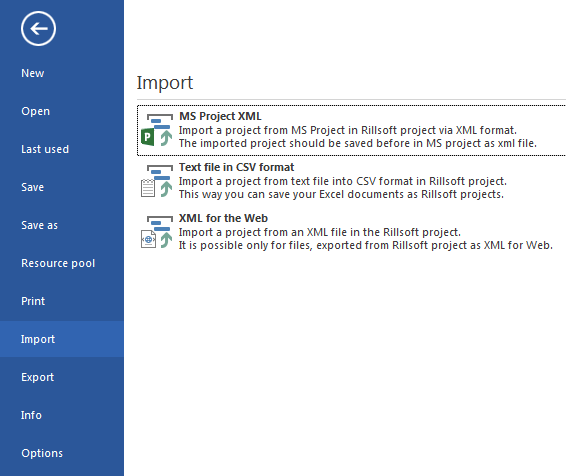
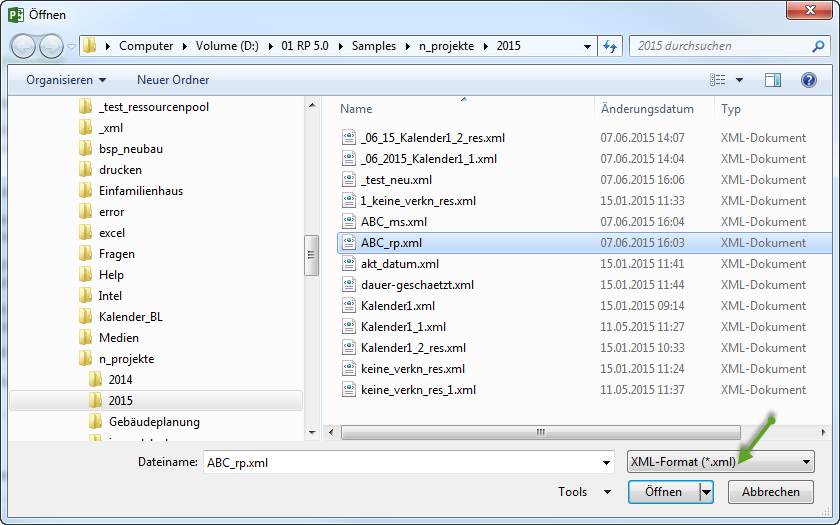
import a project from Microsoft Project
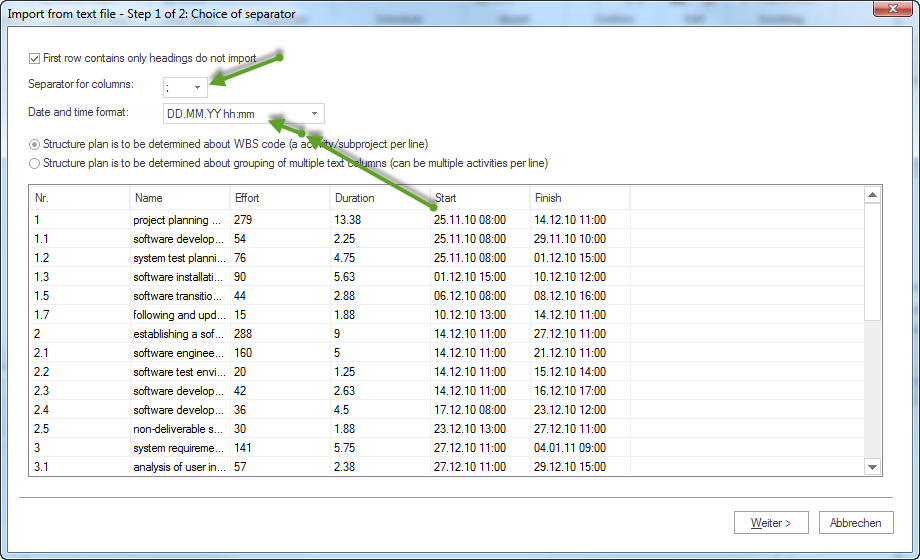
import simple planning data from CSV
import tender data from GAEB
import external ERP or project structures through Integration Server
export a project to Microsoft Project XML
export view data to Excel
provide calendar data through iCalendar
exchange project or resource information with external systems
publish selected project data as XML for web use
Prepare Import
Clarify before importing:
Which data source is used?
Should the import create a new project or extend an existing plan?
Which calendar logic does the source use?
How should resources be interpreted: roles, teams, employees, machine types, or machinery?
Do project structure, links, costs, or user-defined fields need cleanup after import?
Does the import affect the central resource pool?
Prepare Export
Clarify before exporting:
Who is the recipient?
Which format is required?
Which data may be shared?
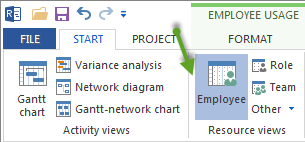
Does the recipient work with roles, named employees, or resources?
Is a current baseline or cutoff date relevant?
Must the result be opened and checked in Excel, Microsoft Project, or another target system?
Quality Assurance
After import or export, verify:
The project opens.
The activity and subproject structure is complete.
Dates, durations, and links are plausible.
Resource types were interpreted correctly.
Calendars and non-working days are correct.
Capacity balancing does not show unexpected effects.
Costs and user-defined fields are present if required.
The exported file was opened in the target system.
Server And Permission Aspects
When using Rillsoft Integration Server or Rillsoft Cloud, also check:
user rights for import, export, and project directories
project locks and parallel editing
central storage location
DMS storage when documents are involved
iCalendar access and API keys
whether imported projects use the correct client and resource pool
Typical Mistakes
Import is accepted without resource classification.
CSV data contains wrong date formats or incomplete structure.
Export is not tested in the target system.
Excel output is misunderstood as backup.
Server permissions are checked only after the export fails.
Local files and server projects are mixed during migration.