Assign Resources in 10 Minutes
Goal: Tasks are linked to roles or employees. Rillsoft Project can calculate utilization and capacity.
Prerequisites: A project with tasks is open. A resource pool with at least one role or employee exists, or you create it now.
Step 1: Check or Create the Resource Pool
Select Start > Properties > Resources. The Resource pool dialog opens.

On the Employees tab, check whether employees already exist.
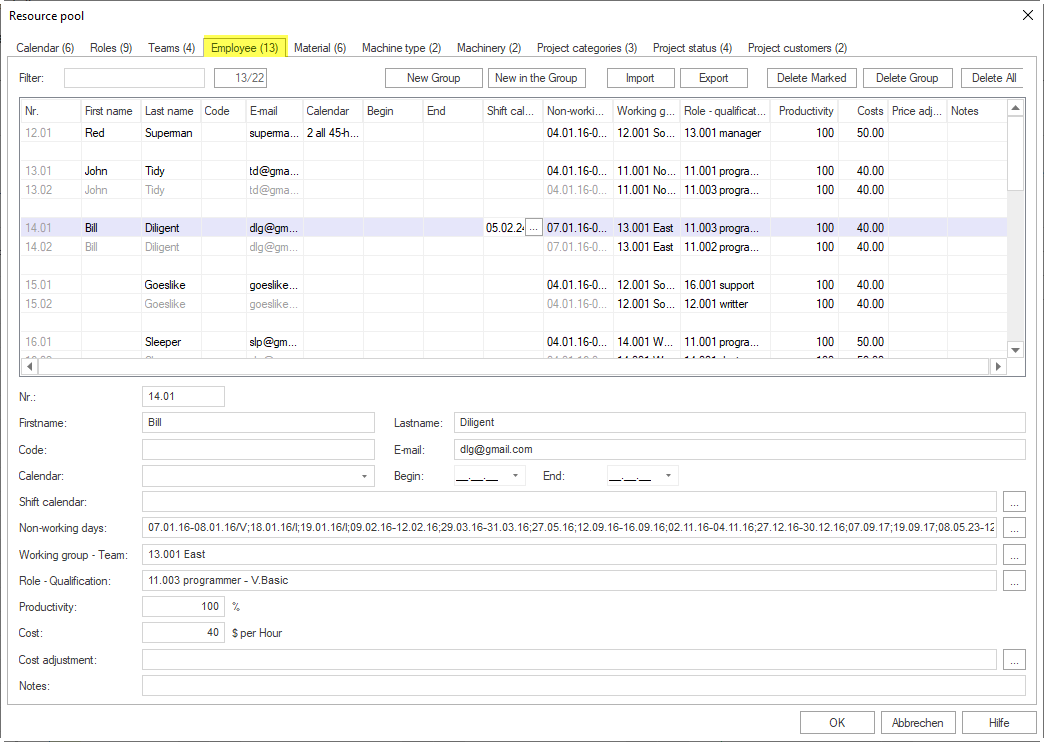
If no employee exists, enter name and working time in the row marked with an asterisk.
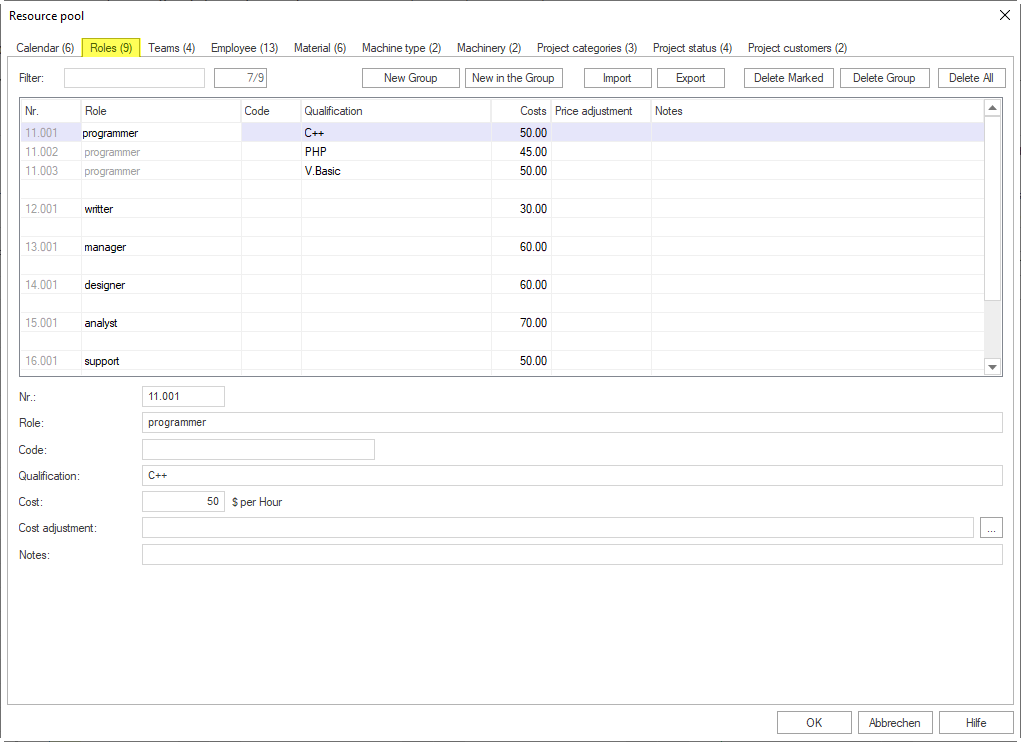
If needed, create roles on the Roles tab, for example “Engineer”.
Step 2: Assign Resources to Tasks
Variant A: Assign an Employee Directly
Double-click a task.
Go to the Employees tab in Activity properties.
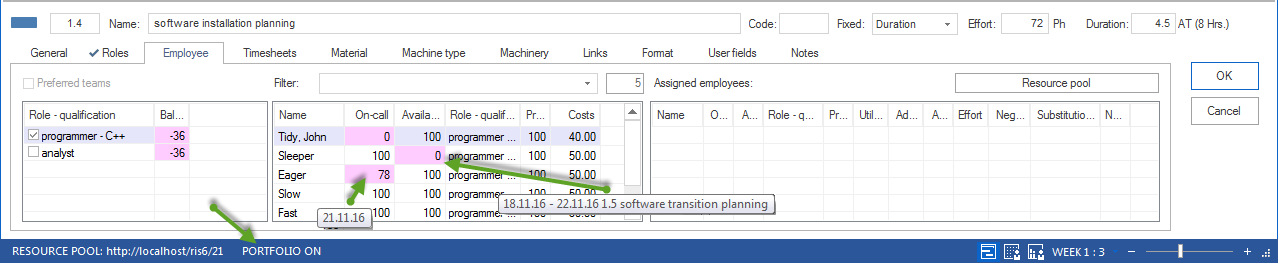
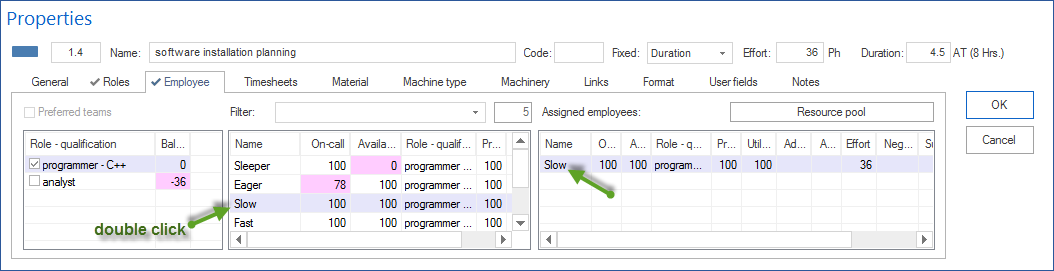
Double-click an entry in the middle table to assign the employee.
Adjust Utilization and Effort, for example 16 hours or 2 person-days.
Click OK.
Variant B: Assign a Role
Use this variant when you want to plan by required qualification before assigning named employees.
Double-click a task.
Go to the Roles tab.
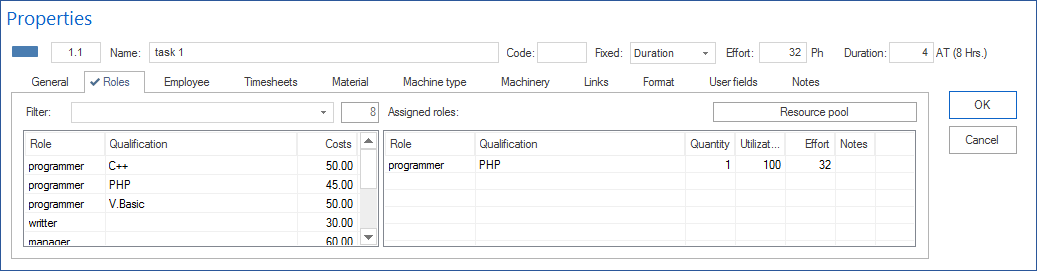
Double-click an entry in the left table to assign the role.
Adjust Quantity, Utilization, and Effort.
Click OK.
Step 3: Check the Assignment
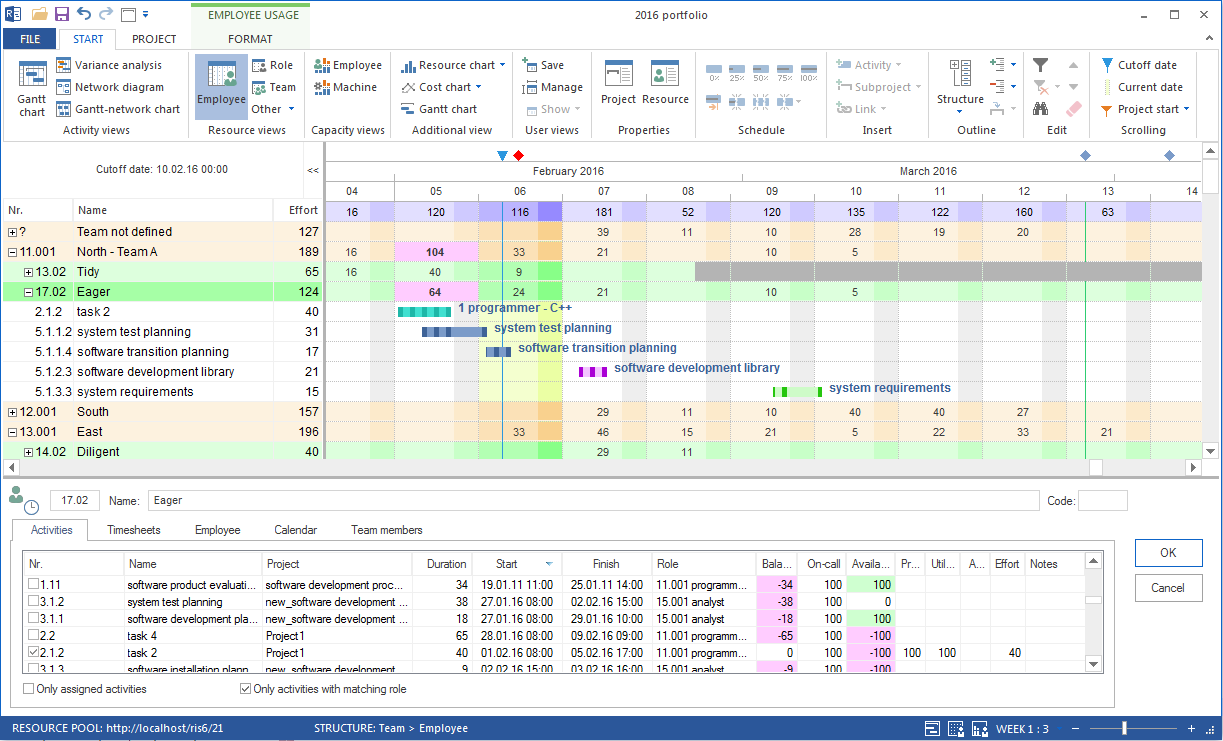
Switch to the Employees view.
Check the utilization columns. Red periods indicate overload.
Save the project.
Result
Resources are assigned to tasks. Rillsoft Project calculates utilization and capacity.
Related Topics
assign resources, assign employees, assign roles, activity properties, resource pool, resource planning, resource assignment, resource demand, resource supply, project manager, resource manager