Save Baseline and Enter Progress
A target/actual comparison is meaningful only when you have a clear reference state. This reference state is the baseline. It records which dates, effort, resources, and costs were planned at a specific point in time.
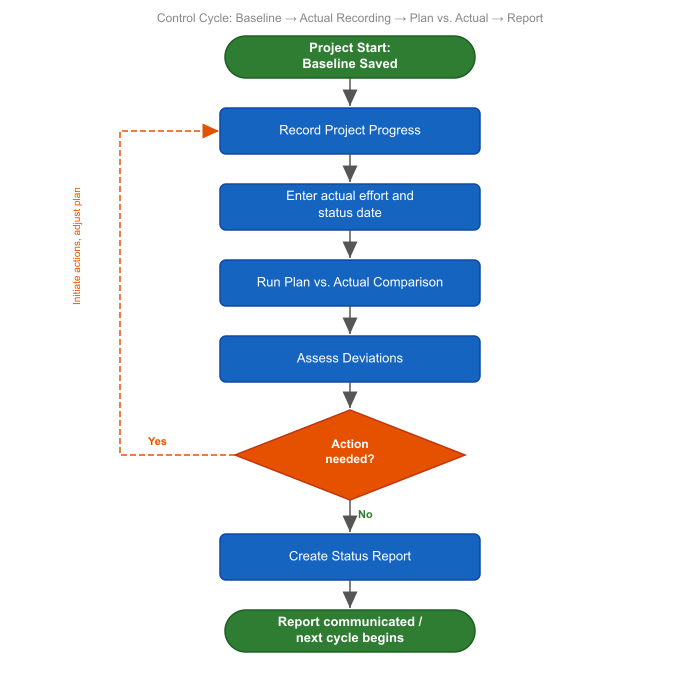
Save a baseline when the project plan has been professionally approved or when you want to document an important plan state. This may be useful before project start, after a major replanning, or before a status meeting.
Save a Baseline
Goal: The approved plan state is available as a comparison basis.
Workflow:
Check whether dates, tasks, resource demand, employee assignments, and costs are plausible.
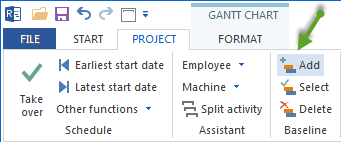
Open Project > Baseline > Add.
Enter a clear name, for example
Planning approval 2026-05.Confirm the dialog.
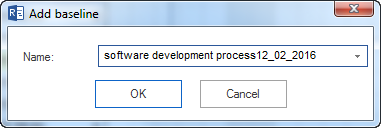
Result: Rillsoft Project stores the current project state as a baseline. You can maintain several baselines in the project and document different plan states.
Select a Baseline
Goal: The correct reference plan is used for comparison.
Workflow:
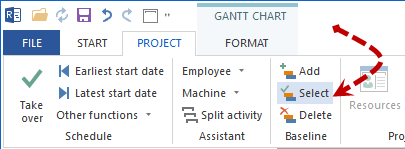
Open Project > Baseline > Select.
Select the required baseline from the list.
Confirm the selection.
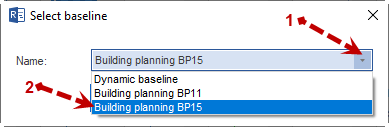
For status reports, use the same baseline as long as the original plan remains valid. Change the baseline only deliberately, for example after approved replanning.
Delete a Baseline
Baselines document earlier plan states. Deleting a baseline is permanent, so delete one only when it is no longer professionally needed.
Delete when:
test baselines were saved accidentally
old baselines make evaluations unclear
older plan states are no longer relevant after a project restart
Do not delete when:
the baseline is still needed for current or future target/actual comparisons
the baseline is a contractual basis or evidence for customers
status reports or evaluations still refer to it
Workflow:
Open Project > Baseline > Delete.
Select the baseline to delete.
Click Delete.
Confirm the prompt.

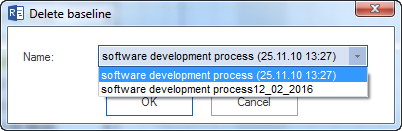
Deleting a baseline cannot be undone. If you are unsure, keep the baseline or export the project state before deleting it.
Use a Dynamic Baseline
A dynamic baseline is useful when several baselines exist and tasks were updated at different times.
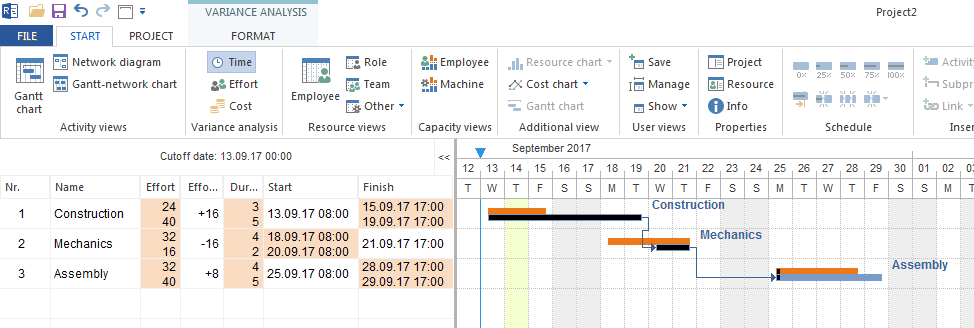
Rillsoft Project can then automatically use a suitable reference state per task:
For tasks that have not started, the latest saved baseline is used.
For started tasks, the baseline saved before the last progress entry is used.
Prerequisites:
Several baselines are saved.
Progress or actual effort is maintained regularly.
Note
The more baselines are saved in a project, the larger the project file becomes. Save baselines deliberately at professionally important points, not after every small change.
Enter Progress
Goal: The current implementation state is stored on the tasks.
Progress can be entered in several ways:
on the General tab of task properties
from a task context menu
directly in the Gantt table when the relevant columns are visible
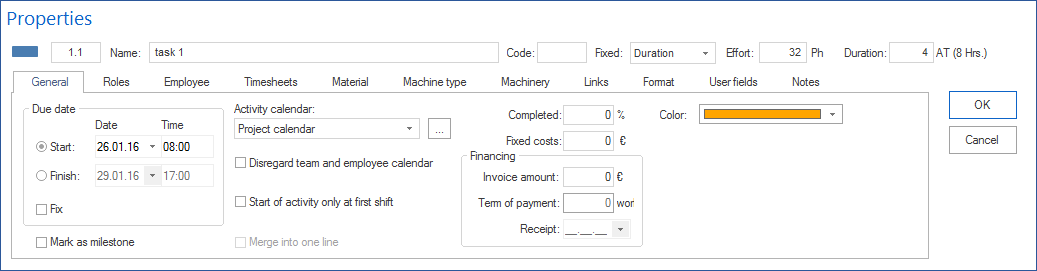
Enter at least completion percentage per task. Completion percentage is entered directly in Rillsoft Project.
Important
Actual effort and time entries can be entered by you or assigned employees only in the Rillsoft Integration Server interface. In Rillsoft Project, time entry data can only be read after it has been entered in Integration Server.
Set the Cutoff Date
The cutoff date is the date up to which progress is evaluated. It makes visible which tasks should have started or finished by then.
Set the cutoff date before target/actual comparison. Then check:
Which tasks are late on the cutoff date?
Which tasks have progress although they should not have started according to the plan?
Which tasks have started but are not updated sufficiently?
Which resource problems explain the deviation?
Typical Mistakes
The baseline is saved only after the project has already changed.
The wrong baseline is selected for comparison.
Progress values are maintained irregularly or only for selected tasks.
The cutoff date is moved without updating progress data.
A new baseline replaces deviation analysis although the cause has not been clarified.
Related Topics
baseline, base plan, progress, actual values, reporting date, target actual comparison, deviation, project manager