Assign Resources Automatically
Rillsoft Project provides assistants that assign employees and machines semi-automatically to tasks. These assistants are useful when many tasks should be staffed with matching employees or machines without opening each task individually.
When to Use the Assistant
Use the assignment assistant when:
many tasks should be staffed with employees at once
roles have already been assigned to tasks
availability of several employees should be compared before assignment
machines should be assigned by machine type and machinery pool
Prerequisite: Tasks must already have professional qualifications (roles) or machine types assigned before the assistant is started.
Assign Employees Automatically
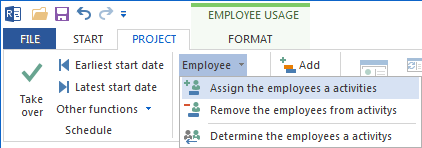
Choose Project > Assistant > Employee > Assign employees to activities.
Step 1 of 3: Choice of employees
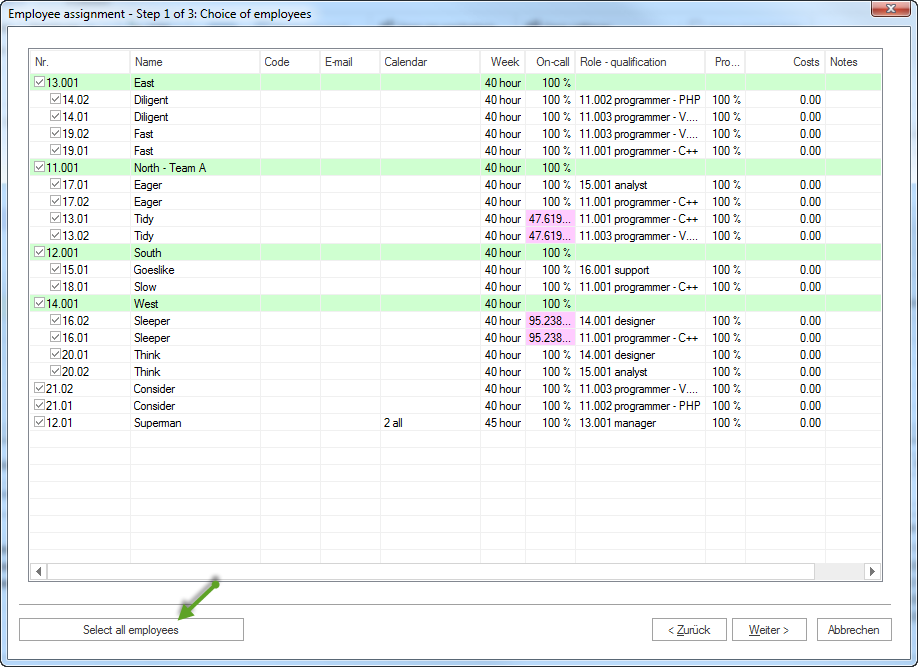
The list shows all employees that can be assigned. Employees are grouped by team. Employees without team membership appear at the end of the list.
Columns:
Calendar: predefined calendar of the employee
Week: average working hours per week
On-call: percentage of possible working capacity within project duration, adjusted for non-working days
Select the employees to assign. You can also use Select all. Click Continue.
Step 2 of 3: Choice of activities
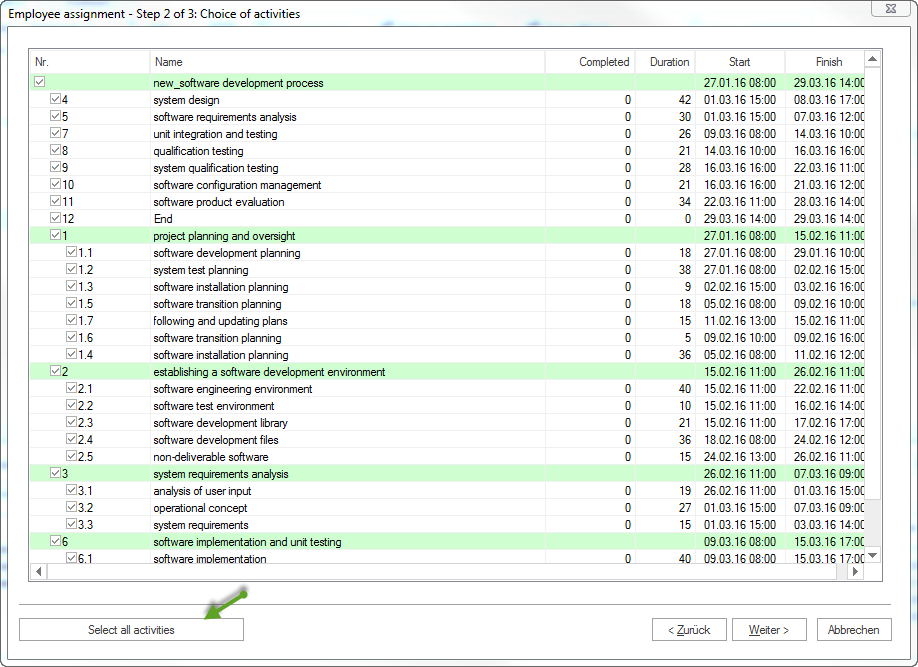
The list shows all tasks that can be staffed. The display reflects the project structure.
Select the tasks to which employees should be assigned. You can also use Select all. Click Continue.
Step 3 of 3: Assigning activities to employees
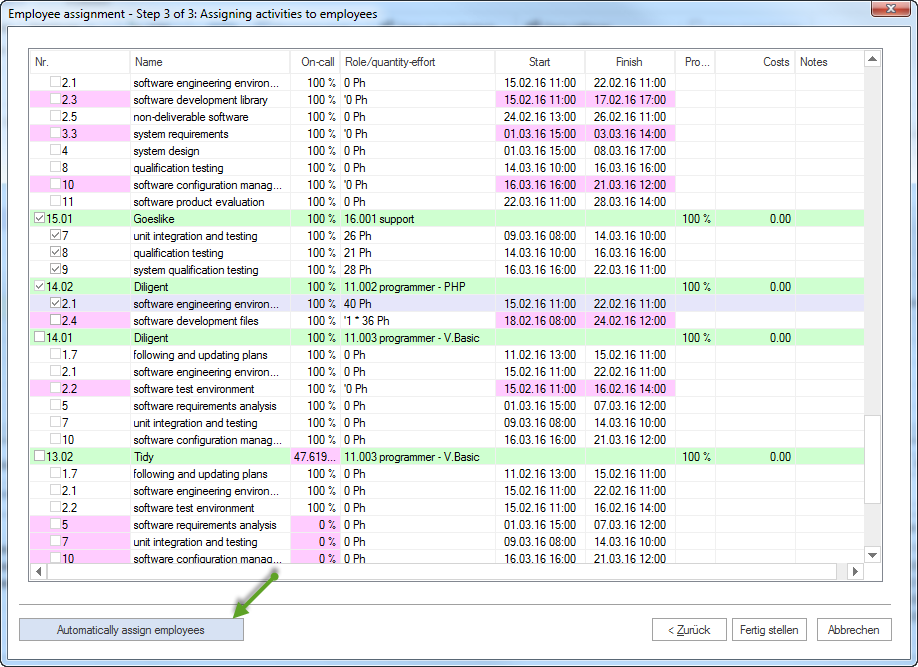
All selected employees are compared with the selected tasks. An employee can be assigned to a task only if the employee’s role and qualification meet the task requirements.
Color coding shows assignment status:
White: assignment possible
Gray: assignment not possible because the task is already fully covered by another employee
Red: assignment possible, but time conflicts occur
Columns:
On-call: percentage of possible working capacity within the task period
Role: employee role
Effort: required employee count and effort for the task
Start / Finish: planned task dates
Recommended strategy: Assign first those employees who can cover a task with 100% On-call and 100% productivity. This helps avoid overload from the beginning.
Select the checkbox for the desired employee-task combination. Assignment options are updated dynamically.
You can also click Assign employees automatically.
Click Finish.
Important
Conflicts and possible overloads are shown in red. In this case, automatic assignment is not performed. Adjust the selection manually.
Remove Employees From Tasks
The same assistant concept can remove employees from tasks in bulk.
Choose Project > Assistant > Employee > Remove employees from activities.
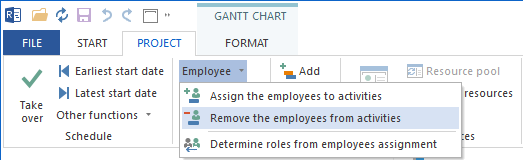
Step 1 of 2: Choice of employees
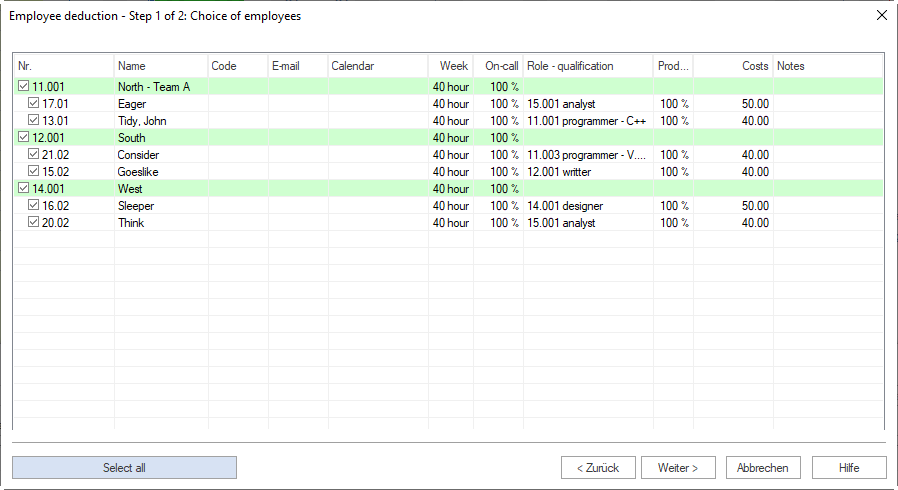
Select the employees to remove from tasks. You can also click Select all employees. Click Continue.
Step 2 of 2: Choice of activities
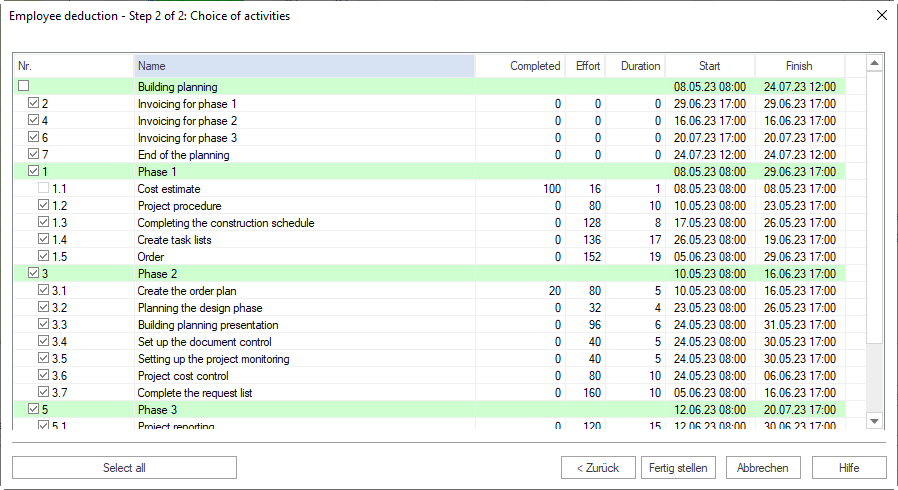
Select the tasks from which the employees should be removed. You can also click Select all activities. Click Finish.
Assign Machines Automatically
The machine assistant works like the employee assistant. It uses machine types instead of roles.
Prerequisite: Tasks must have machine types assigned.
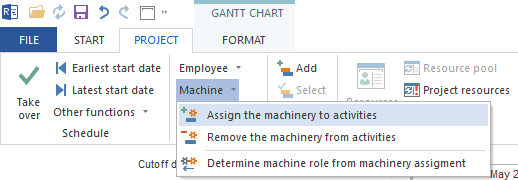
Choose Project > Assistant > Machinery > Assign machinery to activities.
Step 1 of 3: Choice of machines
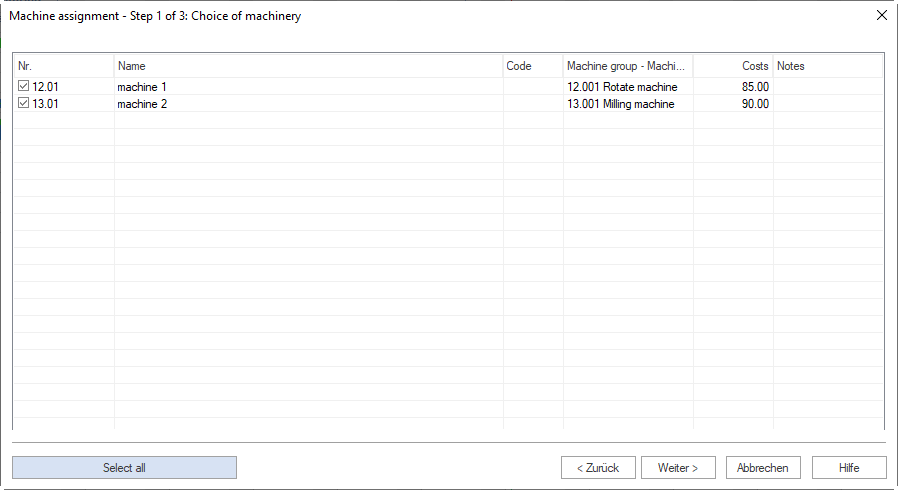
The list shows available machines grouped by machine groups. Columns include machine group, machine type, and hourly costs.
Select the machines and click Continue.
Step 2 of 3: Choice of activities
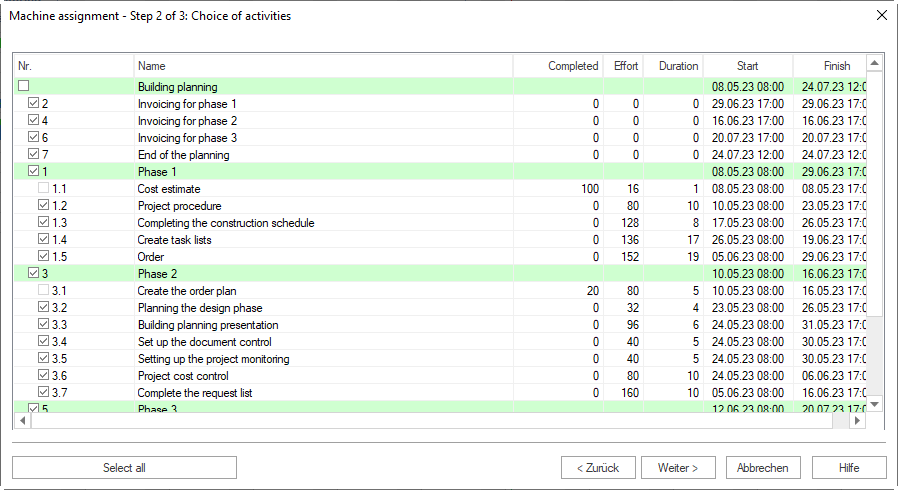
Select the tasks to which machines should be assigned. Click Continue.
Step 3 of 3: Assigning machines to activities
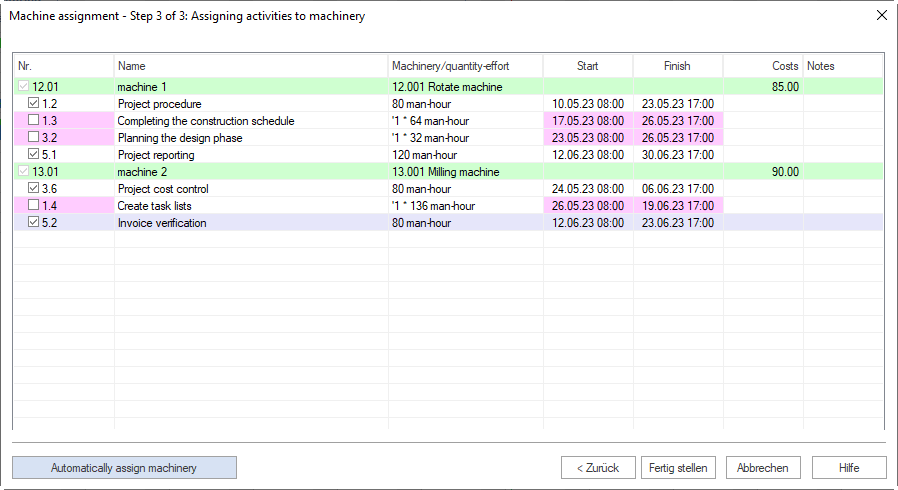
A machine can be assigned only when its machine group and machine type match the task requirements. The color coding is the same as for employee assignment: white, gray, and red.
Columns:
Machinery: machine type of the machine
Number-effort: required machine count and effort
Start / Finish: planned task dates
Click Assign machines automatically or assign manually. Then click Finish.
Check Machine Utilization After Assignment
After automatic machine assignment, check Machinery Capacity Balancing. With Start > Outline > Grouping, group machine utilization by:
Machine type > Machinery
Machine type > Project > Machinery
Project > Machine type > Machinery
The context menu in the view offers:
Show maximum per time unit: required number of machine resources per role or qualification per day, week, and so on
Show effort per time unit: planned effort in machine-hours per day, week, and so on
Derive Roles From Existing Employee Assignment
If employees were assigned directly without prior role assignment, you can later derive the required roles from employee assignment.
Choose Project > Assistant > Employee > Determine roles from employee assignment.
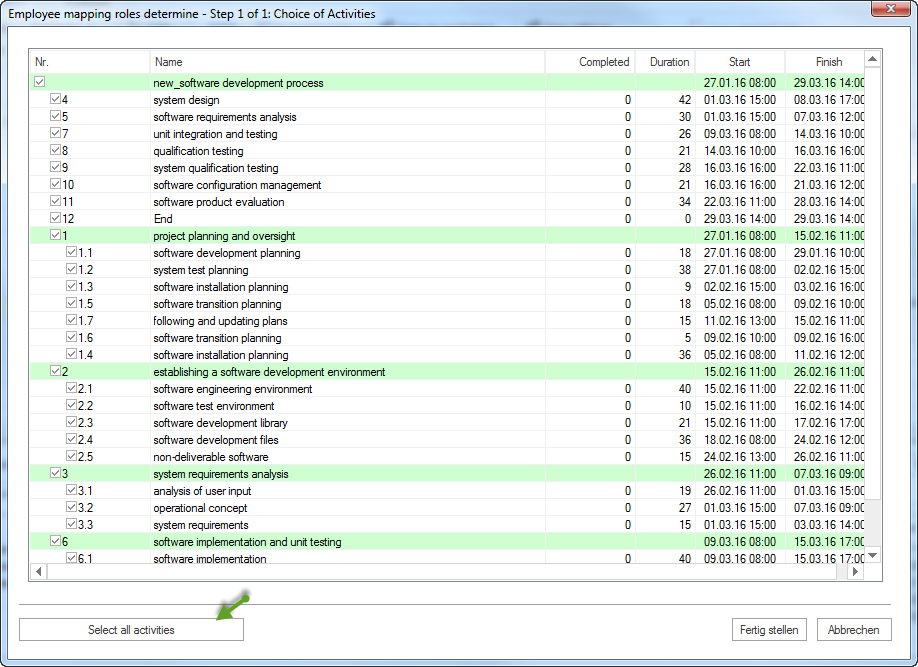
The dialog shows all tasks in the project.
Select the tasks for which roles should be derived. Use Select all for a complete derivation.
Click Finish.
Rillsoft Project automatically enters the roles of assigned employees in the corresponding tasks.
Identify Machine Types From Machine Assignment
If concrete machines were assigned to tasks without prior machine type assignment, you can later identify the required machine types from the machine assignment.
Choose Project > Assistant > Machine > Identify machine types from machine allocation.
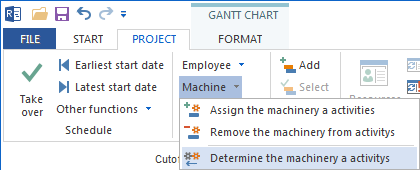
The dialog Identify machine types from machine allocation shows all tasks in the project.
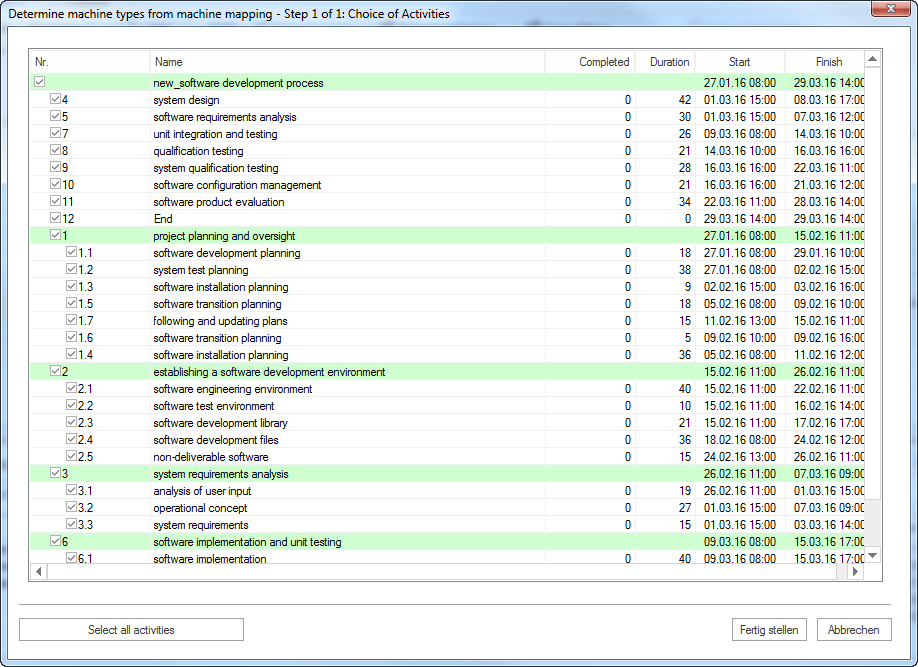
Select in the Number column the tasks for which machine types should be identified. Use Select all activities for a complete derivation.
Click Finish.
Rillsoft Project automatically enters the machine types of assigned machines in the corresponding tasks.