Why Is a Task Not Movable?
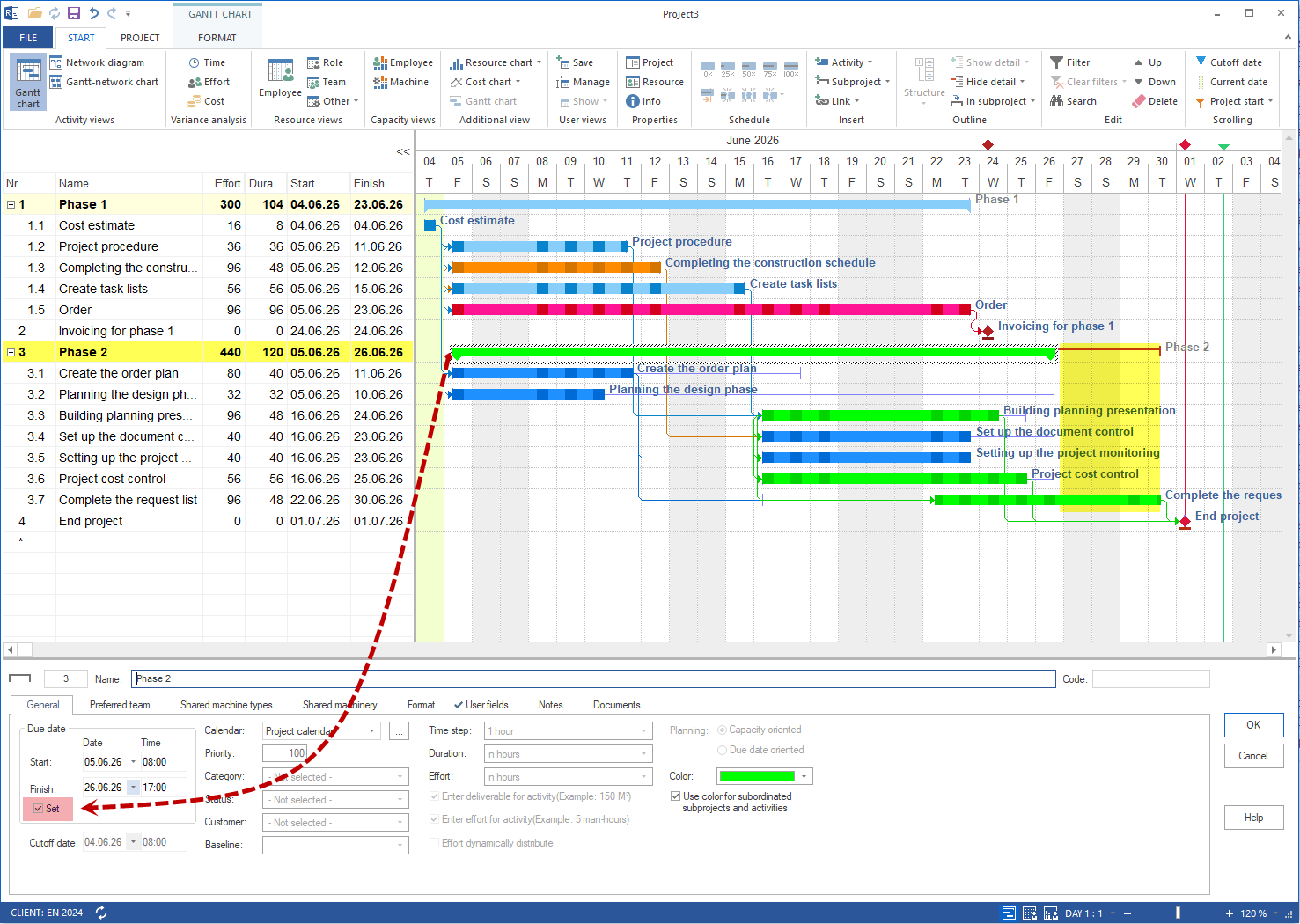
A task cannot be moved if it is fixed, if a backward schedule shift must first be confirmed, if a dependency prevents the earlier position, or if the parent subproject has fixed dates. First check the General tab of the task properties to see whether the task is fixed.
Symptom
A task cannot be moved with the mouse, jumps back to its original position after moving, or requires a separate confirmation before it can be moved.
Cause 1: The Task Is Fixed
Fixed tasks are not moved automatically during schedule shifts. They remain on their set date even if predecessors move.
Check:
Open the task properties.
Switch to General.
Check whether Fix date is enabled.
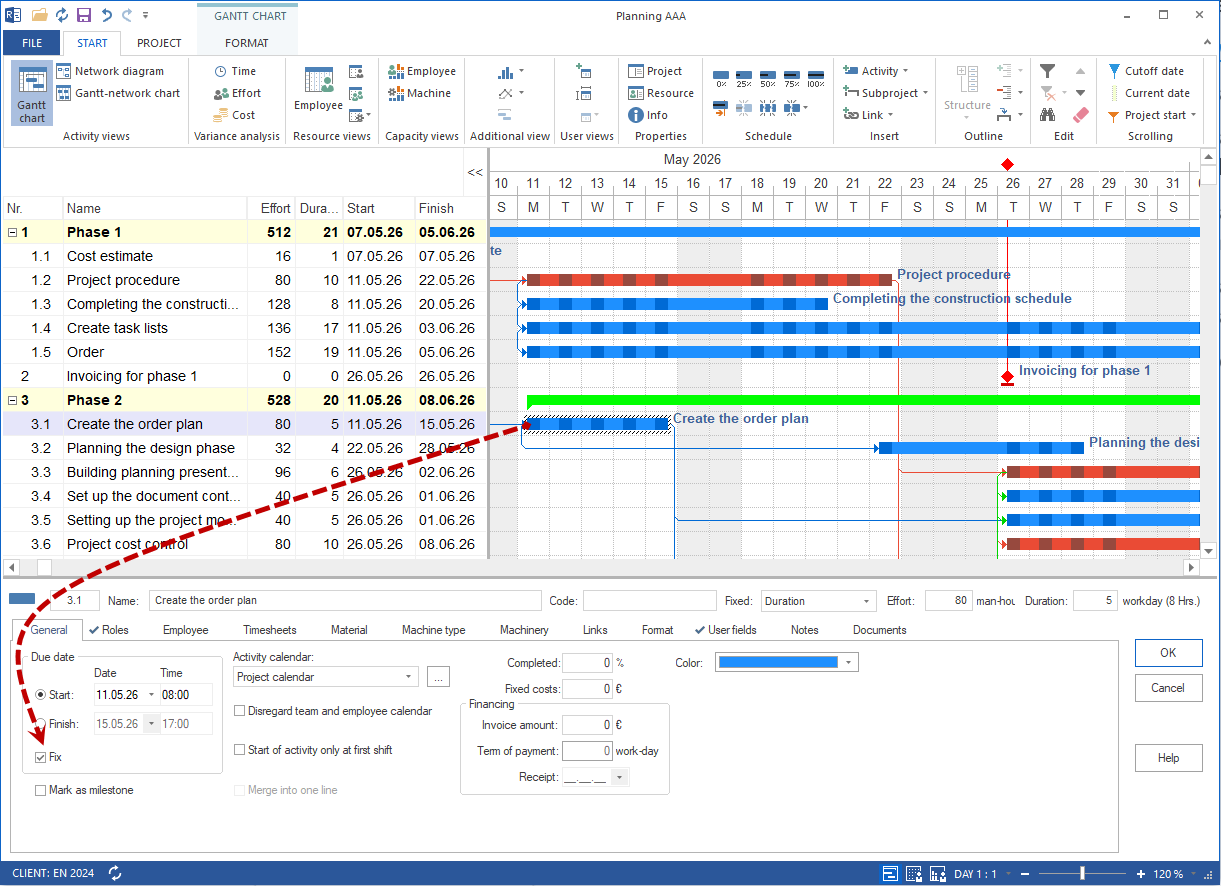
Solution:
Disable the fixed date if the task should remain movable. If the fixed date is technically required, adjust the date deliberately and document the reason.
Cause 2: Backward Schedule Shift
When a task is moved earlier, Rillsoft Project requires explicit confirmation. Without this confirmation, the task can jump back.
Solution:
Confirm the backward schedule shift using the displayed context menu item or dialog.
Cause 3: Dependency Prevents the Earlier Position
A successor cannot be moved freely before its predecessor if the dependency prevents that sequence.
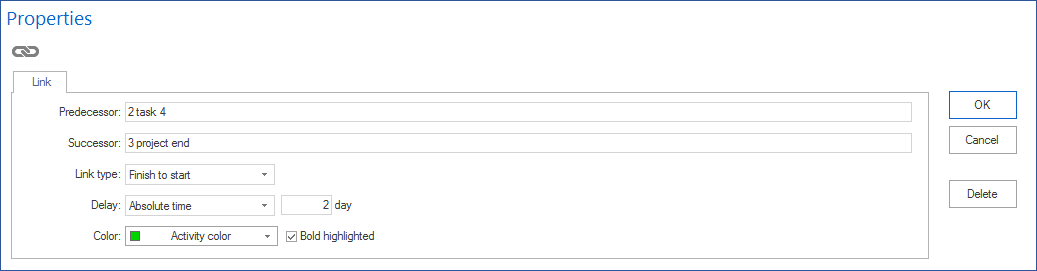
Check:
Open the network diagram view.
Check predecessor, successor, and dependency type.
Check whether a lag is entered.
Solution:
Move the predecessor first, change the dependency type, or enter a technically justified negative lag.
Cause 4: Subproject with Fixed Dates
If the parent subproject has fixed start or finish dates, contained tasks can only be moved within that frame.
Check:
Open the subproject properties and check the fixed dates.